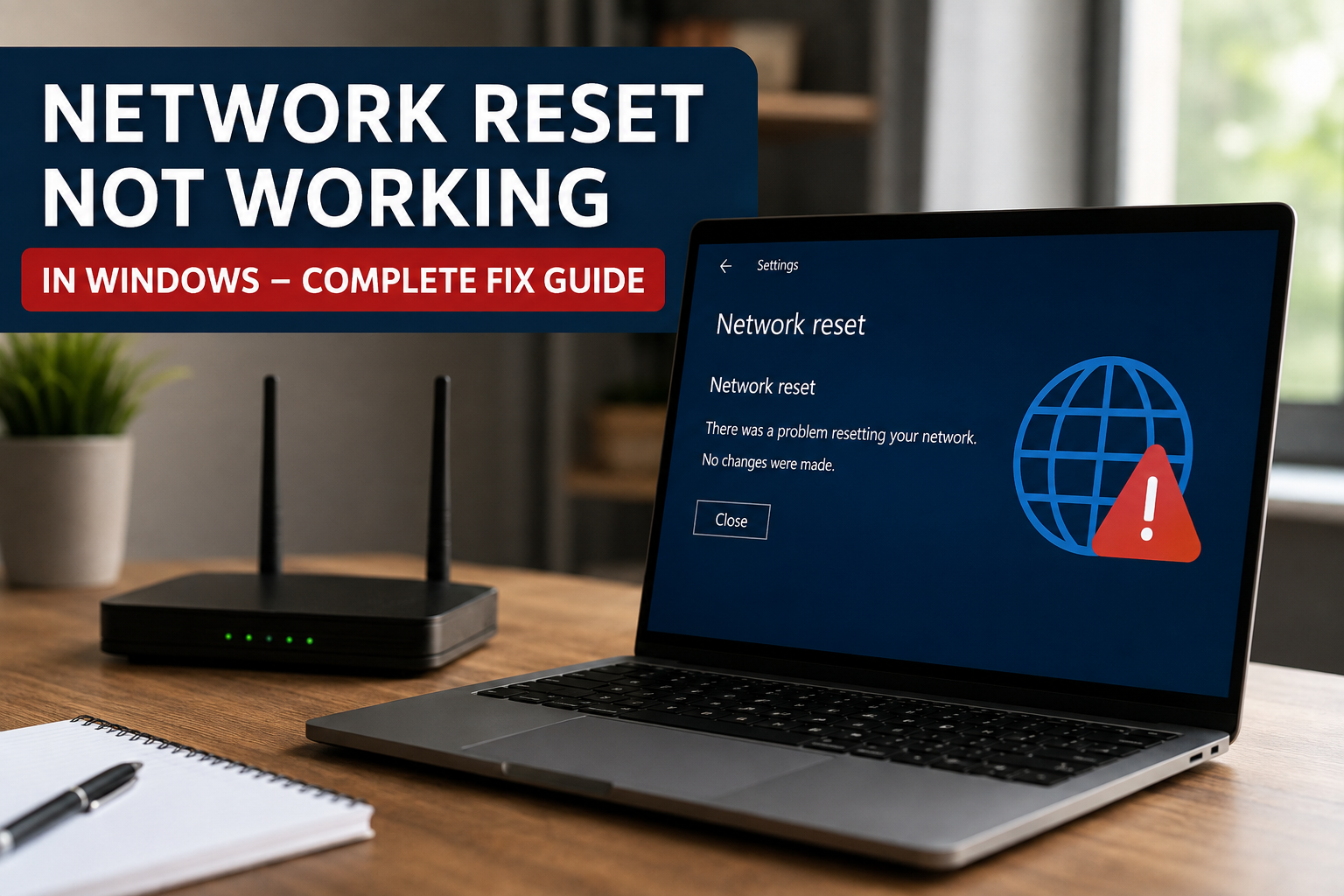
When the internet stops working properly on a Windows computer, the Network Reset option can look like the easiest solution. It is designed to remove and reinstall network adapters and return network settings to their default configuration. However, sometimes you click Network Reset, restart your computer, and nothing changes. In some cases, Windows may even show a message saying that there was a problem resetting the network.
I have faced situations where the normal Network Reset option did not solve the problem. In my experience, this usually means that the issue is deeper than a simple network configuration problem. It could be related to network drivers, Windows services, TCP IP settings, corrupted system files, or a problem with the network adapter itself.
In this guide, I will explain why Network Reset is not working in Windows and share practical solutions that you can try step by step.
What Is Network Reset in Windows?
Network Reset is a Windows feature that removes network adapters and restores certain network settings to their default state.
It can be useful when WiFi is not connecting, Ethernet is not working, Windows cannot find available networks, or network settings have become confused after installing software or changing configurations.
After using Network Reset, Windows may remove saved network information and reinstall network adapters when the computer restarts. This means you may need to reconnect to your WiFi network afterward.
However, Network Reset is not a universal solution. If the underlying problem is caused by a damaged driver, Windows system files, hardware, or a router issue, resetting the network may not fix anything.
Why Is Network Reset Not Working?
There are several reasons why Network Reset may fail.
A corrupted network driver is one common cause. Windows may attempt to remove or reinstall the adapter, but a damaged or incompatible driver can prevent the process from completing correctly.
Another possibility is that Windows system files are corrupted. Network components depend on several Windows services and system files, so problems with those components can interfere with Network Reset.
Third party VPN software, firewall applications, antivirus programs, and network management tools can also interfere with network configuration.
Sometimes the problem is not actually on the computer. If your router or internet service is having problems, resetting Windows network settings will not restore the connection.
Restart Your Computer First
Before trying advanced solutions, restart your computer.
I know this sounds very simple, but restarting Windows can reload network services and drivers that may have become stuck.
After restarting, check whether WiFi or Ethernet works normally.
If the problem remains, continue with the methods below instead of repeatedly trying Network Reset.
Restart Your Router
If you are using WiFi, restart your router as well.
Turn the router off and wait around thirty seconds. Turn it back on and wait until the internet connection becomes active.
Then connect your Windows computer again.
I recommend testing another device on the same network. If your phone or another computer also cannot access the internet, the problem may be with your router or internet service rather than Windows.
Run the Network Troubleshooter
Windows includes built in troubleshooting tools that can identify certain network problems.
Open Settings, select System, and then choose Troubleshoot. Open the available troubleshooting options and look for network related troubleshooters.
The exact options can vary between Windows versions.
Let Windows scan the system and follow any recommended fixes.
Although the troubleshooter cannot repair every network problem, it can sometimes identify a disabled adapter, incorrect configuration, or service problem.
Reset Network Settings Manually Using Command Prompt
If Network Reset is not working through Windows Settings, I usually recommend trying the manual commands.
Open the Start menu and search for Command Prompt. Right click it and select Run as administrator.
Run these commands one at a time:
netsh winsock reset
Then:
netsh int ip reset
Next:
ipconfig /release
Then:
ipconfig /renew
Finally:
ipconfig /flushdns
After running all the commands, restart your computer.
These commands reset important network components and refresh your IP and DNS configuration.
Restart Important Network Services
Windows relies on several background services to maintain network connectivity.
Press Windows + R, type:
services.msc
and press Enter.
Look for services such as DHCP Client, DNS Client, Network Connections, and Network List Service.
Make sure the important services are running.
If a service appears stopped, right click it and select Start when the option is available.
You can also restart a service that appears to be running if you suspect it has become stuck.
Be careful when changing Windows services. Do not disable services unless you understand what they do.
Reinstall the Network Adapter Driver
If Network Reset continues to fail, the network driver should be one of the first things you check.
Right click the Start button and open Device Manager.
Expand Network adapters.
Find your WiFi or Ethernet adapter. Right click it and choose Uninstall device.
If Windows provides an option to remove the driver package, use caution. You should ideally have a compatible driver available before completely removing a driver package.
After uninstalling the adapter, restart Windows.
Windows may automatically detect and reinstall the network adapter.
If it does not, install the correct driver from your computer manufacturer’s official support page. For a custom desktop computer, you may need to obtain the driver from the motherboard or network adapter manufacturer.
Update the Network Driver
An outdated driver can also cause network problems.
Open Device Manager and expand Network adapters.
Right click your network adapter and select Update driver.
Allow Windows to search for an available driver.
If Windows does not find a suitable update, visit the official support website for your laptop or desktop manufacturer and search for your exact model.
I recommend avoiding random driver websites because incorrect drivers can create additional problems.
Check Airplane Mode and WiFi Settings
Sometimes the solution is much simpler than expected.
Make sure Airplane mode is turned off.
If you are using WiFi, confirm that WiFi is enabled.
Also check whether your laptop has a physical wireless switch or keyboard shortcut that controls the wireless adapter.
On some laptops, pressing a function key can accidentally disable WiFi.
If the WiFi adapter is missing completely from Windows Settings and Device Manager, the issue may involve the driver or hardware rather than normal network configuration.
Disable VPN and Third Party Security Software
VPN applications can modify network adapters and routing settings.
If you recently installed or updated a VPN and your network problem started afterward, temporarily disconnect or uninstall the VPN and test the connection.
Third party antivirus and firewall programs can also interfere with network traffic.
Temporarily disabling them can help identify whether they are responsible. If the connection works afterward, review the application’s network settings rather than leaving security software disabled permanently.
Repair Corrupted Windows System Files
If Network Reset is failing because Windows components are damaged, repairing system files can help.
Open Command Prompt as administrator and run:
sfc /scannow
Wait until the scan finishes.
If Windows reports problems that it could not repair, run:
DISM /Online /Cleanup-Image /RestoreHealth
After the DISM process completes, run the System File Checker command again.
Then restart your computer and test the network.
These tools can repair damaged Windows components that may be affecting network functionality.
Try System Restore
If your network was working correctly a few days ago and the problem appeared after installing software, drivers, or updates, System Restore may be useful.
Search Windows for System Restore and check whether restore points are available.
Choose a restore point from before the network problem started.
System Restore does not normally remove personal documents, but it can reverse certain system changes, drivers, and installed software.
Check for Windows Updates
Windows updates can include network driver improvements and system fixes.
Open Settings and go to Windows Update.
Check for available updates and install them if appropriate.
After updating Windows, restart your computer and test your connection again.
If the problem started immediately after a particular update, you may need to investigate that update specifically instead of repeatedly resetting the network.
Test With an Ethernet Cable
If you are currently using WiFi, connect your computer directly to the router using an Ethernet cable if possible.
This is a useful diagnostic step.
If Ethernet works but WiFi does not, your internet connection itself may be fine. The problem could be related to the WiFi adapter, driver, wireless settings, or router WiFi configuration.
If neither WiFi nor Ethernet works, the problem may involve Windows network components, the router, or your internet service.
When Network Reset Should Not Be Your First Choice
I personally do not recommend using Network Reset repeatedly.
If you have already tried it and nothing changed, running it again usually will not solve a deeper problem.
Instead, identify where the failure is happening.
Check whether the network adapter appears in Device Manager. Test another device on the same router. Try Ethernet if you normally use WiFi. Run the network commands and check the network services.
This approach gives you more information and makes troubleshooting much easier.
Final Thoughts
When Network Reset is not working in Windows, there is usually another issue that needs attention. The cause could be a corrupted network driver, damaged Windows files, incorrect TCP IP settings, disabled services, VPN software, or even a router problem.
I recommend starting with simple steps such as restarting the computer and router. Then move to the Command Prompt network reset commands, driver troubleshooting, Windows system repair, and service checks.
The most important thing is to troubleshoot the problem logically instead of changing every setting at once. If WiFi works on another device but not your Windows computer, focus on Windows. If every device has the same problem, check your router or internet service.
With the right troubleshooting steps, most network problems can be identified and fixed without reinstalling Windows or replacing your computer.