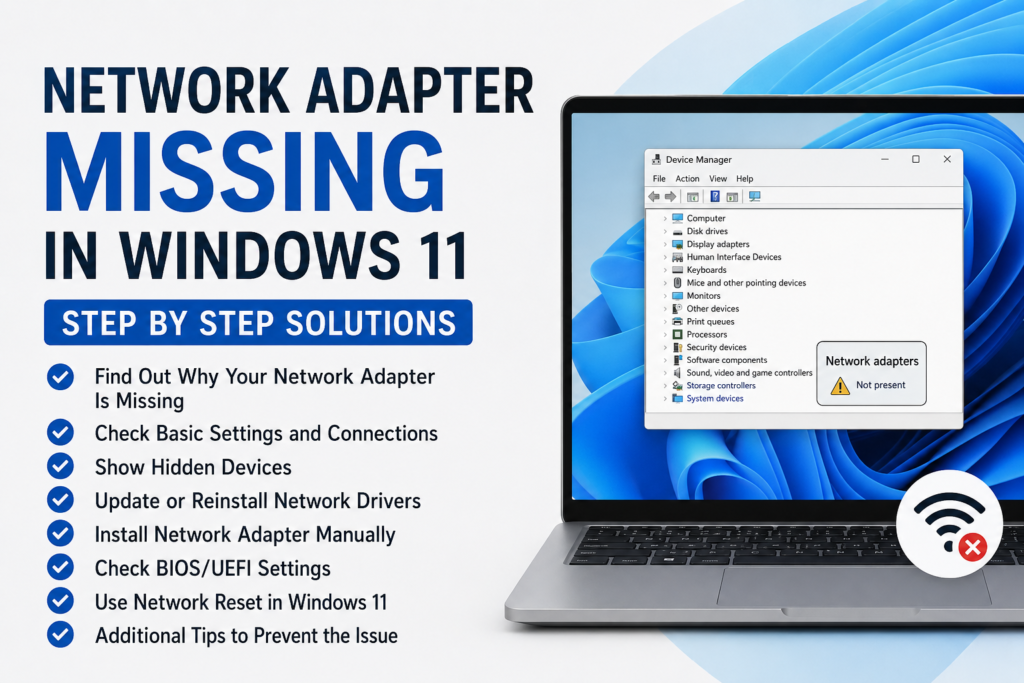
If your WiFi suddenly stops working in Windows 11 and you cannot find the network adapter in Device Manager, you may be dealing with a missing network adapter problem. I have seen this issue happen after Windows updates, driver changes, system resets, and sometimes after a simple restart. The good thing is that in many cases, the network adapter is not permanently damaged. Windows may simply be unable to detect the hardware or load its driver correctly.
When the network adapter is missing, your computer may not show available WiFi networks, the WiFi option may disappear completely, or the Ethernet connection may stop working. In this guide, I will explain the common reasons behind the Network Adapter Missing in Windows 11 problem and show you practical step by step solutions.
What Does Network Adapter Missing Mean?
A network adapter is the hardware component that allows your computer to connect to a network. A laptop normally has a wireless adapter for WiFi, while desktop computers may use an Ethernet adapter for a wired connection. Many computers also have both.
Windows needs the correct driver to communicate with the network adapter. If the driver is missing, corrupted, disabled, or incompatible, Windows may not display the adapter normally.
Sometimes the adapter appears under Device Manager with a warning symbol. In other cases, it may completely disappear from the Network adapters section.
This can make the problem look more serious than it actually is.
Why Is My Network Adapter Missing in Windows 11?
There are several possible causes. A Windows update can sometimes replace or affect an existing network driver. A driver may become corrupted after a system problem. The adapter can also be disabled through Windows settings or BIOS settings.
Other possible causes include outdated drivers, incorrect network configuration, hardware problems, or changes made by security software.
Before assuming that your WiFi hardware has failed, I recommend trying the simpler solutions first.
1. Restart Your Windows 11 Computer
The first solution is also one of the easiest.
Restart your computer and wait for Windows 11 to load completely. Sometimes network services or hardware drivers do not initialize correctly during startup.
A restart forces Windows to reload these components.
After restarting, check whether the WiFi icon has returned. You can also open Device Manager and look under Network adapters.
If the adapter appears again, the problem was probably temporary.
2. Check Device Manager
Device Manager is one of the most useful places to investigate a missing network adapter.
Press Windows + X and select Device Manager.
Expand the Network adapters section.
Look for an adapter with names such as Intel, Realtek, Qualcomm, MediaTek, Broadcom, or another manufacturer.
If you see your network adapter with a yellow warning icon, Windows has detected the hardware but there may be a driver problem.
If you do not see the Network adapters section properly, continue with the next steps.
3. Show Hidden Devices
Sometimes Windows hides devices that are currently not active.
Open Device Manager and select View from the top menu. Then choose Show hidden devices.
Now check the Network adapters section again.
If the missing adapter appears in a faded form, Windows knows about the device but is not currently loading it normally.
Right click the adapter and check whether you have options to enable or update it.
This simple step has helped me identify network adapters that were hidden rather than completely missing.
4. Enable the Network Adapter
A network adapter can sometimes be disabled.
In Device Manager, right click your network adapter and look for Enable device.
If this option appears, select it.
After enabling the adapter, wait a few seconds and check the Windows 11 network settings again.
If you see Disable device instead, that normally means the adapter is already enabled.
You can also check Windows settings to make sure WiFi has not been turned off.
5. Run Windows Network Troubleshooter
Windows 11 includes troubleshooting tools that can automatically identify certain network problems.
Open Settings and go to System. Select Troubleshoot, then choose Other troubleshooters.
Look for the network related troubleshooter and run it.
Windows may detect a problem with your network configuration, adapter, or related services.
The troubleshooter does not fix every Network Adapter Missing problem, but it is worth trying before making more advanced changes.
6. Update the Network Adapter Driver
A missing or damaged driver is one of the most common reasons why Windows 11 cannot properly detect a network adapter.
If your adapter appears in Device Manager, right click it and choose Update driver.
Select the option that allows Windows to search for an updated driver.
If Windows finds a suitable driver, allow the installation to complete and restart your computer.
I recommend downloading drivers from the official computer manufacturer’s website when Windows cannot find a suitable driver.
For example, if you have a Dell, HP, Lenovo, ASUS, Acer, MSI, or another branded computer, visit the manufacturer’s official support page and search for your exact model.
7. Reinstall the Network Driver
Updating the driver may not be enough if the existing installation is corrupted.
Open Device Manager and locate the network adapter.
Right click it and select Uninstall device.
If Windows gives you an option to remove the driver software, be careful before selecting it. Make sure you have a way to reinstall the correct driver, especially if your computer does not have another internet connection.
After uninstalling the adapter, restart Windows 11.
Windows may automatically detect the hardware and reinstall a compatible driver.
If it does not, manually install the driver downloaded from your computer manufacturer’s official website.
8. Install the Network Driver Manually
If the network adapter is completely missing, Windows may not have the driver needed to recognize it properly.
This situation can be difficult if the affected computer has no internet connection.
One practical solution is to use another computer or phone to download the correct network driver from the manufacturer’s official website.
Copy the driver to a USB flash drive and transfer it to the affected Windows 11 computer.
Install the driver and restart the computer.
After Windows loads again, check Device Manager.
If the correct driver was the problem, your WiFi or Ethernet adapter should normally appear.
9. Check for Unknown Devices
If the network adapter does not appear under Network adapters, check Device Manager for Other devices or Unknown device.
A network adapter without the correct driver may appear there with a yellow warning icon.
Right click the unknown device and open its properties.
Under the Details section, you may be able to find hardware identification information. This can help you determine which driver is required.
For beginners, however, I recommend starting with the exact driver provided by your computer manufacturer rather than downloading random drivers from third party websites.
10. Check BIOS or UEFI Settings
If Windows cannot detect the network adapter at all, it is worth checking BIOS or UEFI settings.
Some computers allow wireless or onboard network hardware to be enabled or disabled from BIOS settings.
Restart your computer and enter BIOS or UEFI using the key shown during startup. Depending on the manufacturer, this may be a function key or another designated key.
Look for settings related to wireless LAN, onboard LAN, network devices, or internal connectivity.
Make sure the relevant network hardware is enabled.
Do not change unrelated BIOS settings if you are not familiar with them. Incorrect BIOS changes can create additional problems.
11. Reset Network Settings in Windows 11
If the adapter is visible but the network still does not work correctly, Windows 11 provides a network reset feature.
Open Settings, then go to Network and Internet.
Open Advanced network settings and look for Network reset.
Network reset removes and reinstalls network adapters and returns certain network settings to their default configuration.
Keep in mind that you may need to reconnect to your WiFi network afterward.
I recommend using this option when normal troubleshooting has failed and the adapter is still behaving incorrectly.
12. Check Windows Update
Windows updates can sometimes include hardware drivers and fixes for compatibility problems.
Open Windows Settings and go to Windows Update.
Check for available updates and install important updates.
After installation, restart your computer.
If the Network Adapter Missing problem started immediately after a Windows update, you may also want to check whether a driver update or rollback option is available through Device Manager.
13. Check Whether the Adapter Is a Hardware Problem
If you have tried all software solutions and the network adapter still does not appear anywhere in Windows 11, there is a possibility of a hardware problem.
For a laptop, the internal WiFi adapter may have developed a fault.
For a desktop computer, an Ethernet port or separate network card could be damaged.
You can test this by connecting a compatible external USB WiFi adapter or USB Ethernet adapter.
If the external adapter works normally, the original network hardware may need further inspection.
For laptops that are still under warranty, I recommend contacting the manufacturer’s support service instead of opening the computer yourself.
How to Prevent Network Adapter Problems
Keeping Windows 11 and your device drivers updated can reduce the chances of future network problems.
I also recommend downloading drivers from official manufacturer websites and avoiding unknown driver update applications.
Before performing major Windows changes, create a restore point when possible.
If your WiFi works perfectly, there is usually no reason to repeatedly change network drivers or advanced network settings.
It is also a good idea to keep a copy of your computer’s network driver on a USB drive. This can be extremely useful if Windows loses the driver and the computer no longer has internet access.
Final Thoughts
The Network Adapter Missing in Windows 11 problem can be frustrating, especially when the WiFi option disappears completely. However, it does not always mean that your network hardware has failed.
Start with the simple solutions. Restart Windows, check Device Manager, show hidden devices, and make sure the adapter is enabled. If the adapter is still missing, focus on the driver. Updating, reinstalling, or manually installing the correct network driver can often bring the adapter back.
If Windows still cannot detect the hardware, check BIOS or UEFI settings and consider whether the issue could be related to the physical adapter.
In my experience, taking the troubleshooting process one step at a time is much better than changing several settings at once. It helps you identify the actual cause and prevents unnecessary changes to your Windows 11 configuration.
With the solutions above, you should be able to troubleshoot most common cases of a missing network adapter and restore WiFi or Ethernet connectivity on your Windows 11 computer.