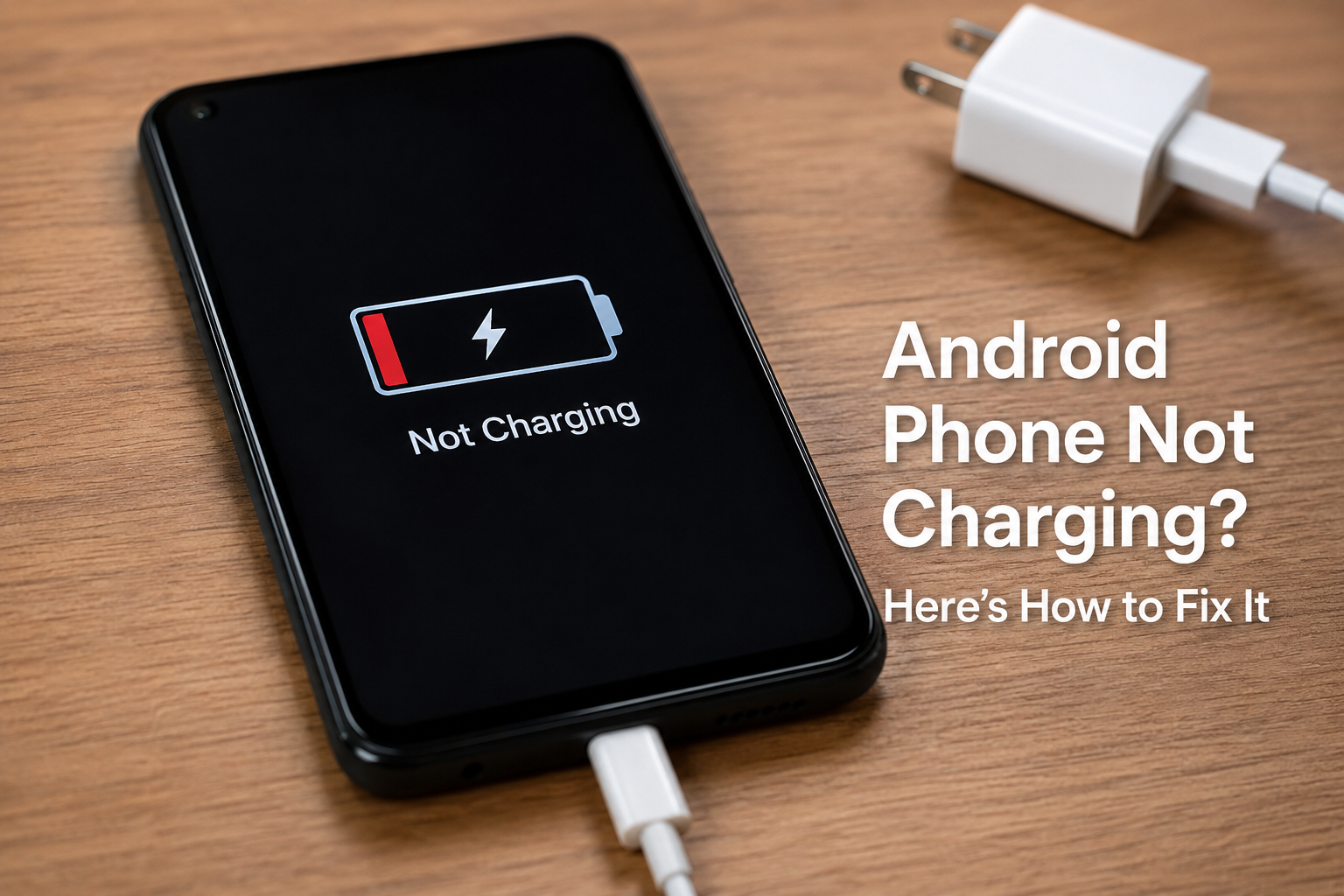
There are few things more frustrating than plugging in your Android phone and realizing that the battery percentage is not increasing. Sometimes the phone shows that it is connected to a charger but still does not charge. In other cases, there is no charging symbol at all. I have faced this problem myself, and from my experience, the issue is not always related to the phone battery. A damaged cable, dirty charging port, weak adapter, software problem, overheating, or even a faulty power outlet can cause an Android phone not to charge.
The good news is that many Android charging problems can be fixed at home without spending money on repairs. In this complete guide, I will explain the most common reasons why an Android phone is not charging and the practical steps I would take to fix the problem.
Why Is My Android Phone Not Charging?
Before trying complicated solutions, it is important to understand what could be causing the problem. The most common reasons include a damaged charging cable, faulty charger, dirty charging port, software glitches, overheating, moisture inside the port, battery problems, or physical damage.
Sometimes the problem is surprisingly simple. For example, your charger may look perfectly normal but have an internal wire break. The phone may also be connected to a power source that is not providing enough power.
I recommend checking the simple things first before assuming that your phone needs professional repair.
Check the Charging Cable First
The charging cable is one of the first things I would check when an Android phone is not charging. Charging cables can become damaged after months of regular use, especially near the connectors.
Look closely at both ends of the cable. Check for cuts, bent connectors, loose sections, or visible damage. If the cable only works when you bend it or hold it at a certain angle, it is probably damaged.
The easiest test is to use another compatible charging cable. If your phone starts charging normally with the second cable, you have found the problem.
I personally recommend keeping a good quality spare cable available because it can save a lot of time when charging problems occur.
Try a Different Charger Adapter
If changing the cable does not solve the problem, the charging adapter could be responsible. A faulty adapter may not provide enough power to charge your Android phone properly.
Plug another compatible charger into the wall and connect your phone. If the phone begins charging, the original adapter may be faulty.
You should also avoid relying on very cheap or poor quality charging accessories. A reliable charger that matches your phone’s charging requirements is generally a better choice.
Check the Power Outlet
Sometimes the Android phone and charger are completely fine, but the wall socket is the problem.
Try connecting the charger to another power outlet. You can also test the outlet with another device if one is available.
If your phone charges from a different outlet, there is no need to replace the phone charger or battery. The original power source was simply the issue.
This is one of the simplest troubleshooting steps, but it is also one that people often overlook.
Clean the Android Charging Port
A dirty charging port is another very common reason for an Android phone not charging. Dust, lint, and other small particles can collect inside the port over time. When this happens, the charging connector may not make proper contact with the phone.
Turn off your phone and inspect the charging port under good lighting. If you can see dust or debris, carefully clean around the port.
Avoid pushing sharp metal objects deep into the charging port because they can damage the internal components. You should also avoid using excessive force.
If the port is badly clogged or damaged, professional cleaning may be safer than trying to remove everything yourself.
Restart Your Android Phone
A temporary software glitch can sometimes prevent the charging system from working correctly. Restarting the phone is one of the easiest solutions I recommend trying.
Disconnect the charger, restart your Android phone, and then connect the charger again after the phone boots.
A restart can clear temporary system errors and background processes that may interfere with charging.
If your phone is frozen and does not respond normally, you may need to use the device’s forced restart method. The exact button combination can vary between Android manufacturers and models.
Check for Overheating
Modern smartphones have safety systems that can reduce or temporarily stop charging when the device becomes too hot.
If your Android phone feels unusually warm, disconnect it from the charger and allow it to cool naturally. Do not place a hot phone in a refrigerator or freezer because sudden temperature changes can cause additional problems.
Remove the phone case if it is trapping heat and keep the phone away from direct sunlight.
Once the phone returns to a normal temperature, connect the charger again and check whether charging has resumed.
Check for Moisture
Some Android phones can detect moisture in the charging port and prevent charging to protect the device.
If your phone has recently been exposed to rain, water, humidity, or another liquid, do not immediately connect a charging cable. Allow the port to dry naturally.
Do not use excessive heat from a hair dryer because high temperatures can damage the phone.
If the phone continues showing a moisture warning after sufficient drying time, professional inspection may be appropriate.
Remove the Phone Case
This may sound unusual, but a thick or poorly designed case can sometimes prevent the charging connector from being inserted completely into the charging port.
Remove the case and connect the charger directly to the phone. Make sure the connector fits securely.
If the phone starts charging without the case, the case may be interfering with the connection.
Check Whether the Phone Is Actually Charging Slowly
Sometimes an Android phone appears to be not charging when it is actually charging very slowly.
For example, if you are using the phone heavily while it is connected to a weak charger, the battery may increase very slowly or remain at almost the same percentage.
Try turning off the screen and leaving the phone connected for 15 to 30 minutes. If the battery percentage increases, the charging system is working but may not be receiving enough power.
Using a compatible fast charger can also make a noticeable difference when your phone supports fast charging.
Try Charging the Phone While It Is Turned Off
If the phone is experiencing a software problem, charging it while powered off can sometimes help identify the cause.
Turn the phone off completely and connect it to the charger. Wait for several minutes and check whether the charging indicator appears.
If the phone charges normally while powered off but not while it is running, a software issue or demanding background process may be involved.
Check Android Software Updates
Software problems can occasionally affect battery management and charging behavior. If your phone can still turn on, check whether a system update is available.
Open your phone’s Settings and look for the Software Update or System Update section. The exact location depends on the Android manufacturer and software version.
Keeping Android updated can help resolve known bugs and improve overall device stability.
Before installing a major update, I recommend making sure your important data is backed up.
Check Battery Health and Battery Age
If your Android phone is several years old and the battery drains unusually quickly, the battery itself may be reaching the end of its useful life.
A worn battery can show symptoms such as rapid battery drain, unexpected shutdowns, overheating, or difficulty holding a charge.
Some Android phones provide battery health information in the settings, while others may require manufacturer specific diagnostic tools.
If your battery is swollen, physically damaged, or producing unusual heat, stop using the phone and seek professional assistance. Do not attempt to open or repair a damaged battery yourself.
Try Safe Mode
If your phone charges normally in Safe Mode but stops charging correctly during normal operation, a third party application could potentially be causing the problem.
Safe Mode temporarily disables most third party apps, allowing you to determine whether an installed application is affecting the system.
The method for entering Safe Mode varies between Android devices. If you recently installed a battery manager, cleaning application, security tool, or another system related app, consider whether the charging problem started afterward.
Removing a problematic application may solve the issue.
What If the Android Phone Shows Charging but Battery Percentage Does Not Increase?
This situation can be confusing. Your phone may display the charging symbol, but the battery percentage remains stuck.
First, try another cable and adapter. Then check whether the phone is overheating. Close demanding applications and leave the screen off for a while.
If the battery percentage still does not increase, the charging port, battery, charging circuit, or software may require further inspection.
A phone that repeatedly stays at the same percentage despite different chargers should not be ignored.
When Should You Get Professional Repair?
If you have tried different cables, chargers, power outlets, restarting, cleaning the port carefully, and allowing the phone to cool, but it still will not charge, there may be a hardware problem.
Possible hardware causes include a damaged charging port, defective battery, internal charging component failure, or damage caused by liquid or impact.
If the phone was recently dropped or exposed to water, professional inspection becomes even more important.
I would avoid repeatedly forcing a cable into a damaged port because this can make the problem worse.
Final Thoughts
An Android phone not charging does not automatically mean that the battery is dead or that you need an expensive repair. In many cases, the solution is as simple as replacing a damaged cable, changing the charger, cleaning the charging port, restarting the phone, or allowing an overheated device to cool down.
When I troubleshoot charging problems, I prefer to start with the simplest possibilities and work toward the more serious ones. This approach can save both time and money.
If none of the basic solutions work, however, it is better to stop experimenting and have the phone inspected by a qualified technician. A damaged battery or charging circuit should not be treated as a simple software problem.
By following these steps, you can identify many common Android charging problems and hopefully get your phone charging normally again without unnecessary expense.