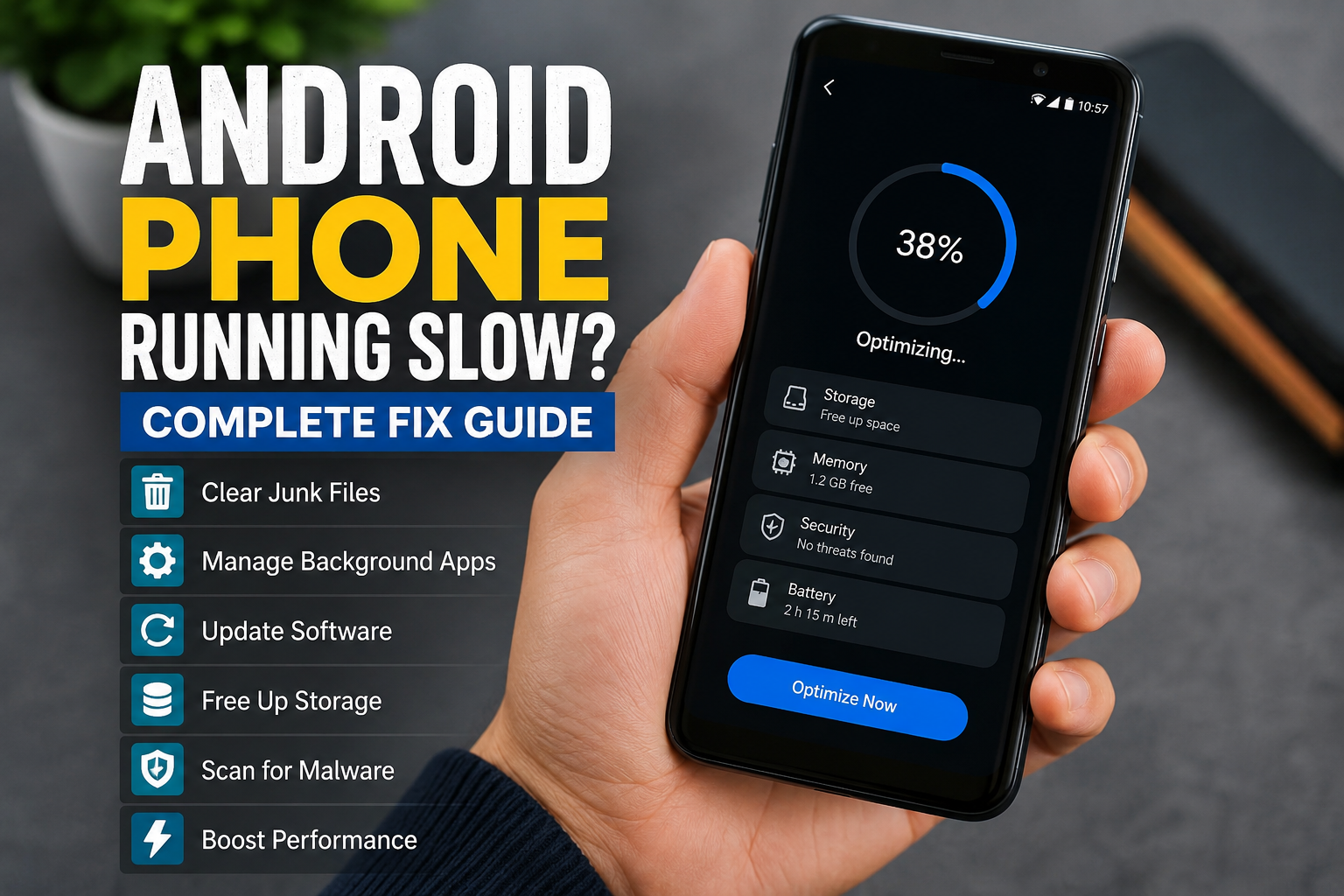
If your Android phone is running slow, opening apps takes too long, or the screen freezes while you are trying to do something simple, you are not alone. I have noticed that Android phones can become slower over time, especially when storage gets full, too many apps keep running in the background, or the software is not updated regularly.
The good thing is that a slow Android phone does not always mean that you need a new phone. In many cases, a few simple changes can improve Android phone performance and make the device feel much faster.
In this complete guide, I will share the methods I personally consider useful when an Android phone becomes slow. These tips are simple, safe, and suitable for most Android devices.
Why Is My Android Phone Running Slow?
Before fixing the problem, it helps to understand why your Android phone is slow. There can be several reasons behind poor performance.
One of the most common reasons is low storage space. When your phone is almost full, Android may have less room to perform normal tasks. Photos, videos, downloaded files, applications, and temporary files can slowly consume your available storage.
Another common reason is having too many applications installed. Some apps continue working in the background even when you are not actively using them. This can consume memory, battery, and processing power.
An old Android version can also affect performance. Software updates often include performance improvements, security fixes, and bug fixes.
Sometimes the problem is simply that the phone has been running for a long time without restarting. A simple restart can clear temporary processes and give the system a fresh start.
1. Restart Your Android Phone
This is probably the easiest Android phone speed fix, and I recommend trying it first.
Restarting your phone closes temporary processes and refreshes the operating system. If your phone suddenly starts feeling slow, a restart may solve the problem without changing any settings.
Press and hold the power button and select the restart option. After the phone turns back on, give it a few minutes and check whether the performance has improved.
I personally think restarting a phone regularly is an underrated habit. You do not necessarily need to do it every day, but restarting occasionally can help when the device begins behaving strangely.
2. Free Up Storage Space
If your Android phone storage is nearly full, freeing up space should be one of your first priorities.
Go to Settings and look for Storage. The exact name can vary depending on your phone manufacturer and Android version.
Check which categories are using the most space. Videos and photos are often responsible for a large portion of storage usage. You may also find large applications, downloaded files, and unnecessary documents.
Delete files you no longer need. You can also move important photos and videos to cloud storage or another secure location.
Try to keep a reasonable amount of free storage available instead of filling the phone completely. This can help the system work more comfortably.
3. Remove Apps You Do Not Use
Over time, most of us install applications that we use once and then forget about.
Unused apps take up storage and some may continue performing background activities. Removing applications that you no longer need can help reduce unnecessary workload.
Open your app list and think about which applications you have not used recently. If you do not need an app, uninstall it.
Be careful with system applications. Do not remove or disable important Android services unless you know exactly what they do.
4. Clear App Cache
Another useful method for fixing a slow Android phone is clearing the cache of problematic applications.
Apps store temporary files in their cache to load information faster. However, cache data can sometimes become unusually large or cause problems.
You can usually go to Settings, Apps, select the application, open Storage, and choose Clear Cache.
I would recommend clearing the cache rather than immediately choosing Clear Data. Clearing data can remove saved information from an app and may require you to sign in again.
If one particular application is extremely slow while other apps work normally, clearing its cache is worth trying.
5. Update Android and Your Apps
Keeping your phone software updated is another important part of Android phone maintenance.
Check Settings for a system software update. If an official update is available, read the information and install it when convenient.
You should also update applications through the official app store. Developers regularly release updates to fix bugs, improve compatibility, and sometimes improve performance.
If your phone is slow because of an application bug, updating that application may solve the issue.
I prefer keeping both Android and frequently used applications updated rather than allowing updates to pile up for months.
6. Stop Unnecessary Background Apps
Some applications use resources in the background even when you are not actively using them.
If you have many apps running at the same time, your phone may have to manage more processes than necessary.
Check your phone’s battery or app settings to see which applications are consuming significant resources. If an app you rarely use is constantly active, consider restricting its background activity or uninstalling it.
However, do not aggressively stop every background process. Android is designed to manage applications automatically, and repeatedly forcing apps to close can sometimes be less useful than simply allowing the system to manage them.
7. Check Your Battery Health
A phone with an aging battery can sometimes experience performance problems. Older batteries may not perform as efficiently as they did when the phone was new.
Check your phone’s battery settings for available battery information. If your device becomes unusually hot, shuts down unexpectedly, or loses battery very quickly, the battery may deserve attention.
Avoid using your phone under extreme temperatures. Excessive heat can affect both battery health and overall performance.
8. Remove Suspicious Applications
If your Android phone became slow shortly after installing an unfamiliar application, investigate that application.
Only download apps from trusted sources whenever possible. Suspicious applications can consume resources, display unwanted advertisements, or create other performance problems.
Review recently installed apps and remove anything you do not recognize or trust.
You can also use the security features provided by your Android device to check for potential threats.
Avoid installing random phone cleaner applications simply because they promise to make your device extremely fast. Some cleaning apps provide little benefit and may consume additional resources themselves.
9. Reduce Unnecessary Widgets and Animations
Widgets can be useful, but having too many active widgets on your home screen may increase resource usage.
If your phone is older or has limited memory, consider removing widgets you rarely use.
You can also reduce animations through Android settings or developer options on supported devices. However, I recommend changing these settings carefully. If you are unfamiliar with developer options, it is better to leave advanced settings alone.
A simpler home screen can also make the phone feel cleaner and easier to use.
10. Keep Your Phone Cool
Heat can have a noticeable effect on smartphone performance.
If your Android phone becomes very hot while gaming, charging, recording videos, or using demanding applications, performance may temporarily decrease.
Try moving the phone away from direct sunlight and avoid using demanding applications while the device is extremely hot.
If your phone repeatedly becomes hot without an obvious reason, check which applications are consuming battery and processing resources.
11. Reset App Preferences
Sometimes an application setting can create unexpected problems. Android provides an option to reset app preferences on many devices.
This does not normally delete your personal files, but it can reset certain application permissions, default apps, and disabled apps.
Because menus differ between manufacturers, look for Reset App Preferences inside your phone’s app settings if you believe an application configuration is causing problems.
This should not be your first step, but it can be useful when normal troubleshooting does not work.
12. Factory Reset as a Last Option
If your Android phone is still extremely slow after trying everything else, a factory reset may help.
A factory reset removes personal data, installed applications, and many settings from the phone. This means you should back up important photos, contacts, documents, messages, and other files before proceeding.
I would only recommend a factory reset after trying simpler solutions first.
After resetting the phone, avoid reinstalling every application immediately. Install the apps you actually use and observe the phone’s performance.
If the device is still very slow after a clean factory reset, the problem may be related to aging hardware, battery condition, or another technical issue.
When Should You Consider a New Phone?
Sometimes no software trick can make an old phone perform like a modern device.
If your Android phone has limited RAM, an old processor, very little storage, poor battery health, and no longer receives important software updates, replacing it may eventually make more sense.
Before buying a new phone, however, I would first try cleaning storage, removing unused apps, updating the software, restarting the device, and checking battery and application activity.
These simple steps can sometimes give an older phone a surprising performance improvement.
Final Thoughts
An Android phone running slow can be frustrating, but you do not always need expensive repairs or a new device to fix the problem. In my experience, storage management, app cleanup, software updates, regular restarts, and keeping the phone cool are some of the most practical ways to improve Android phone performance.
Start with the simple solutions first. Free up storage, uninstall apps you no longer use, clear cache from problematic applications, update Android, and restart your phone.
If the phone remains slow, investigate battery health and suspicious applications. A factory reset should be considered only after you have backed up your important information and tried the easier solutions.
Most importantly, avoid installing questionable cleaner apps or changing advanced settings without understanding what they do. Good Android phone maintenance is usually about keeping things simple and avoiding unnecessary software.
With a little regular maintenance, your Android phone can remain responsive and useful for much longer.