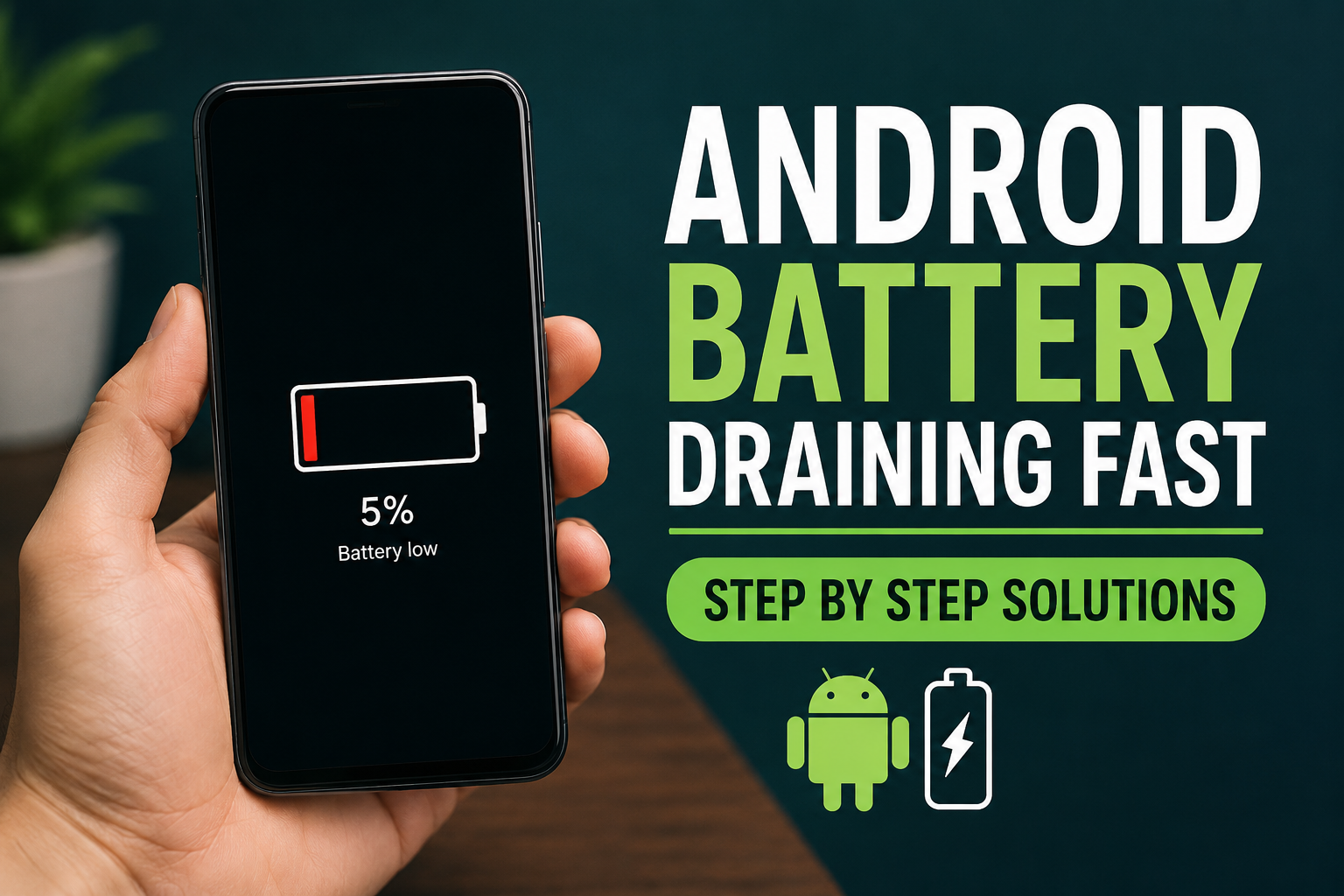
If your Android battery is draining fast, you are probably wondering what changed. Maybe your phone used to last the whole day, but now the battery drops quickly even when you are not using it much. I have faced this problem myself, and in my experience, the cause is often something simple such as an app running in the background, high screen brightness, weak network signal, location services, or an aging battery.
The good thing is that you do not always need a new phone or an expensive repair. There are several Android battery saving methods that you can try at home. In this guide, I will explain the most useful solutions step by step so you can find the actual reason behind fast battery drain and improve your phone battery life.
Why Is My Android Battery Draining So Fast?
Before changing settings, it is better to understand why your Android battery is draining fast. Modern smartphones have powerful processors, bright displays, cameras, GPS, Bluetooth, mobile data, and many background services. All of these features can consume battery.
Some of the most common reasons include apps using too much power, high screen brightness, constant background activity, poor mobile network coverage, outdated software, excessive location tracking, and an old battery.
Sometimes the problem can also start after installing a new application or updating the Android system. That is why checking your battery usage should always be the first step.
Step 1: Check Battery Usage
The first thing I recommend is checking which apps are consuming your battery.
Open Settings, then look for Battery or Battery and device care. The exact name can be different depending on your Android phone. Find the battery usage section and check which apps appear at the top.
If an application is using a surprisingly large amount of battery, ask yourself whether you actually need it running all day.
For example, social media, video streaming, navigation, gaming, and shopping applications can consume significant battery power. If an app is using battery when you rarely open it, consider restricting its background activity or uninstalling it.
This simple check can sometimes solve the problem immediately.
Step 2: Reduce Screen Brightness
The display is one of the biggest battery consumers on a smartphone. A very bright screen can reduce battery life considerably, especially if you use your phone for several hours every day.
I normally recommend keeping brightness at a comfortable level instead of maximum brightness. You can also enable adaptive brightness if your phone supports it.
Another useful setting is screen timeout. If your display stays on for several minutes after you stop using the phone, it is wasting power.
Go to Settings > Display and choose a shorter screen timeout, such as 30 seconds or 1 minute.
If your phone has an always on display feature, you can also turn it off or reduce how often it appears if battery life is your priority.
Step 3: Turn On Battery Saver
Android includes a built in Battery Saver mode that can help when your battery is running low.
You can usually find it under Settings > Battery. When enabled, Battery Saver can reduce background activity, limit certain features, and help your phone last longer.
I find this particularly useful when I know I will be away from a charger for several hours. You do not necessarily need to keep it enabled all the time, but it is worth using when you need extra battery life.
Some Android phones also offer an extreme battery saving mode. This can provide even longer battery life by limiting the phone to essential functions.
Step 4: Find Apps Running in the Background
An app does not always need to be open on your screen to use battery power. Some applications continue working in the background to sync information, check notifications, use location, or refresh content.
Go to your battery settings and check background usage.
If you find an application that is consuming too much power, look for options such as Background usage limits, Restricted, or Battery optimization.
Be careful when restricting important applications. Messaging, alarm, security, and other essential apps may need background access to work correctly.
The goal is not to stop every application. The goal is to prevent unnecessary apps from constantly using power.
Step 5: Turn Off Location When You Do Not Need It
GPS and location services can consume additional battery, especially when applications frequently request your location.
If you are not using navigation, location based services, or another feature that requires GPS, consider turning location off temporarily.
You can also review which applications have permission to access your location.
Go to Settings > Location > App permissions and check the list. If an application does not need your location, choose a more limited permission where available.
This can improve both privacy and battery efficiency.
Step 6: Check Mobile Network and WiFi
A weak mobile signal can be a hidden reason for fast battery drain. When your phone struggles to maintain a network connection, it may use additional power searching for a stronger signal.
This can happen frequently in areas with poor coverage, inside large buildings, or while traveling.
When you have reliable WiFi available, connecting to it can sometimes help reduce mobile data usage and power consumption.
If you are in an area with extremely poor reception and do not need to receive calls or messages temporarily, Airplane Mode can save significant battery. Just remember that it disables your normal mobile connections.
Step 7: Reduce Unnecessary Notifications
Every notification can wake your screen, activate background processes, or cause vibration and sound. One notification may not make a big difference, but dozens or hundreds every day can contribute to unnecessary battery usage.
Open your notification settings and disable notifications from apps that you do not consider important.
I personally think this is one of the easiest ways to make a phone feel less busy while also reducing unnecessary background activity.
Keep notifications enabled for important communication apps, banking services, security alerts, and other services you genuinely need.
Step 8: Update Android and Your Apps
Software updates can sometimes fix battery problems caused by bugs or compatibility issues.
Check Settings > System > Software update and install available updates from your phone manufacturer.
You should also update your applications through the official app store.
However, if your battery started draining immediately after a specific update, do not assume that the battery itself is damaged. Give the phone some time to complete background optimization and check battery usage again.
If the problem continues, look for a problematic application or manufacturer specific software issue.
Step 9: Restart Your Android Phone
It sounds simple, but restarting your phone can help with temporary software problems.
If a background process has become stuck or an application is behaving incorrectly, a restart may stop it.
I recommend restarting your phone occasionally, especially if you notice unusual heating, slow performance, battery drain, or applications behaving strangely.
It is not a permanent solution for a damaged battery, but it is a quick troubleshooting step that costs nothing.
Step 10: Avoid Excessive Heat
Heat is not good for smartphone batteries. Using your phone heavily while charging, leaving it in direct sunlight, or playing demanding games for long periods can make the device hot.
When the phone becomes too warm, battery performance can suffer.
Try to keep your phone away from direct sunlight and avoid covering it with thick materials while charging. If the device becomes unusually hot, stop demanding activities and allow it to cool naturally.
Do not put a hot phone into a refrigerator or freezer because sudden temperature changes can cause additional problems.
Step 11: Check Battery Health
If your Android phone is several years old and the battery drains quickly even after changing settings, the battery itself may have degraded.
Lithium ion batteries naturally lose capacity over time. This means a phone that once lasted all day may eventually need charging much more often.
Some Android manufacturers provide battery health information in the settings. Others may offer battery diagnostics through their support applications.
If your phone becomes unusually hot, shuts down unexpectedly, or loses a large percentage of battery within a short period, professional inspection may be worthwhile.
Step 12: Remove Apps You Do Not Use
Unused applications can still receive updates, send notifications, synchronize information, and perform background tasks.
Take a few minutes to review your installed apps. If you have applications that you have not used for months, uninstall them.
This can free storage space and reduce unnecessary background activity.
I prefer keeping my phone relatively clean because it makes it easier to identify problems when something starts consuming too much battery.
Step 13: Be Careful With Battery Saving Apps
You may find many battery saver applications online that promise dramatic improvements. I would not install random battery optimization apps without a good reason.
Android already includes several battery management features. Installing another application that constantly monitors other apps can sometimes create additional background activity.
Instead of relying on third party battery saver apps, start with the tools already included in your Android phone.
What If the Battery Still Drains Fast?
If you have followed all these steps and your Android battery is still draining extremely fast, the problem may be hardware related.
An older battery may simply have lost a significant amount of its original capacity. A damaged charging port, faulty battery, overheating component, or internal hardware issue can also affect battery performance.
At this point, backing up your important data and contacting the phone manufacturer or a reputable repair center is a better option than repeatedly changing settings.
Avoid opening the phone yourself if you do not have the proper experience. Smartphone batteries can be dangerous if punctured or damaged.
Final Thoughts
When an Android battery is draining fast, I do not recommend immediately replacing the phone. Start by checking battery usage and identifying the biggest power consuming applications. Then reduce screen brightness, control background activity, review location permissions, limit unnecessary notifications, and use Battery Saver when needed.
It is also important to keep Android updated, avoid excessive heat, and remove applications that you no longer use.
In my experience, battery problems are often caused by several small things working together rather than one single setting. A bright display, constant mobile data, location services, background apps, and an aging battery can combine to make battery life feel much worse.
If your phone is relatively new, these software and settings based solutions may make a noticeable difference. If the phone is several years old and the battery continues to drop rapidly after troubleshooting, battery degradation may be the real cause.
The best approach is to work through the steps one at a time. This helps you discover what is actually consuming power instead of changing everything at once.
Frequently Asked Questions
Why is my Android battery draining so fast overnight?
Background applications, weak network signals, location services, notifications, and synchronization can cause overnight battery drain. Check your battery usage after waking up to identify which apps consumed the most power.
Does dark mode save Android battery?
Dark mode can help reduce power consumption on phones with OLED or AMOLED displays, especially when much of the screen is black or very dark. The difference may be smaller on LCD displays.
Should I keep Battery Saver on all the time?
You can, but you may notice some limitations in background activity and performance. For most users, it is useful when battery life needs to be extended rather than something that must remain enabled constantly.
How do I know if my Android battery needs replacing?
Rapid battery loss, unexpected shutdowns, excessive heat, and significantly reduced battery capacity can indicate battery degradation. Use your phone’s built in diagnostics if available or ask a reputable service center to inspect it.
Can a software update cause battery drain?
Yes, temporary battery drain can happen after a major software update while the phone performs background tasks and optimization. If unusual drain continues for an extended period, check battery usage and installed applications for the cause.