Windows Firewall is one of the most important security features included with Windows. It helps control network traffic and can prevent unwanted connections from reaching your computer. When Windows Firewall stops working, shows an error, or refuses to turn on, it can be frustrating because you may not know whether your computer is still protected.
I have seen many Windows problems where the firewall issue was caused by something simple, such as a stopped service, incorrect settings, another security program, or damaged system files. The good thing is that most Windows Firewall problems can be fixed without reinstalling Windows.
In this guide, I will explain how to fix Windows Firewall not working step by step. I will start with the easiest solutions and then move toward more advanced methods.
Why Is Windows Firewall Not Working?
There can be several reasons why Windows Firewall is not working properly. Sometimes the Windows Firewall service has stopped running. In other situations, a third party antivirus program may interfere with the built in firewall.
Corrupted Windows system files can also cause firewall errors. Incorrect firewall rules, damaged network settings, recent Windows changes, or restricted permissions may create similar problems.
Before making major changes, I recommend starting with the basic checks. In many cases, a simple restart or service reset can solve the problem.
1. Restart Your Computer
The first solution may sound too simple, but I always recommend restarting Windows before trying complicated troubleshooting.
A temporary Windows service problem can prevent the firewall from starting correctly. Restarting the computer gives Windows a chance to reload its security services and network components.
Click the Start button, select the Power option, and choose Restart.
After Windows starts again, open Windows Security and check the firewall status.
If the firewall is working normally, you may not need to do anything else.
2. Check Windows Firewall Status
Before changing settings, check whether Windows Firewall is actually disabled or whether Windows is simply showing an error.
Open Settings and go to Privacy and security. Select Windows Security and then choose Firewall and network protection.
You should see your available network profiles and their firewall status.
If one profile shows that the firewall is turned off, select it and try turning Microsoft Defender Firewall on.
If Windows refuses to enable it, continue with the next solutions.
3. Restart the Windows Firewall Service
A stopped Windows Firewall service is one of the common reasons behind this problem.
Press Windows key and R together to open the Run dialog. Type:
services.msc
Press Enter.
Find Windows Defender Firewall in the list.
Right click it and select Restart. If Restart is unavailable, select Start.
You can also open Properties and check the Startup type. In normal situations, the service should not be disabled.
After restarting the service, return to Windows Security and check the firewall again.
4. Check Related Windows Services
Windows Firewall depends on other Windows components. If one of the required services is disabled, the firewall may not work correctly.
In the Services window, check services such as Remote Procedure Call and Windows Management Instrumentation.
These services are important to Windows and should normally be running.
I recommend avoiding random changes to Windows services. If you do not know what a service does, leave its settings alone. Changing important system services without understanding them can create additional problems.
5. Disable Conflicting Security Software Temporarily
Another possible reason for Windows Firewall not working is third party security software.
Some antivirus and internet security programs include their own firewall. When another firewall is installed and active, Windows may change how Microsoft Defender Firewall operates.
If you recently installed antivirus or security software, check its settings.
Do not leave your computer without firewall protection for a long period. If you temporarily disable another security product for troubleshooting, turn protection back on after testing.
If the third party program is responsible for the problem, check its documentation or consider using one security solution that works properly with Windows.
6. Reset Windows Firewall to Default Settings
If the firewall settings have become complicated or damaged, resetting them can help.
Open Windows Security and go to Firewall and network protection.
Look for the option to restore firewalls to their default settings.
Keep in mind that resetting the firewall can remove custom rules and permissions that you previously created.
For example, a program that was manually allowed through the firewall may need permission again after the reset.
I recommend using this solution when you suspect that incorrect firewall rules are causing the problem.
7. Use Control Panel to Restore Firewall Defaults
You can also access firewall settings through Control Panel.
Open Control Panel and select System and Security. Choose Windows Defender Firewall.
Look for the option to restore defaults.
Select Restore defaults and confirm the action when Windows asks.
After the reset, restart your computer and check whether Windows Firewall is working again.
This method is especially useful if the normal Windows Security interface is not behaving correctly.
8. Run the System File Checker
Damaged Windows system files can cause security features to malfunction.
Windows includes a built in tool called System File Checker that can scan protected system files and repair certain problems.
Open Command Prompt as an administrator.
Type:
sfc /scannow
Press Enter and allow the scan to complete.
The process may take some time, so do not close the Command Prompt while the scan is running.
When the scan finishes, Windows will report whether it found and repaired corrupted files.
Restart your computer and check Windows Firewall again.
9. Use DISM to Repair Windows Components
If System File Checker does not solve the problem, you can also use the Deployment Image Servicing and Management tool.
Open Command Prompt as an administrator and run:
DISM /Online /Cleanup Image /RestoreHealth
Allow the process to finish.
This tool can repair problems with the Windows component store that may affect system features.
After the command completes, restart Windows. You can also run the System File Checker command again afterward to check the system files once more.
10. Check Windows Update
An outdated or partially updated Windows installation can sometimes cause unusual system problems.
Open Settings and select Windows Update.
Check for available updates and install the appropriate updates for your computer.
After the installation finishes, restart the system.
I recommend keeping Windows updated because security updates can improve protection and fix known system problems.
If the firewall stopped working immediately after an update, however, you should also consider whether another recent change caused the problem.
11. Reset Network Settings
If your firewall problem is connected with network access, resetting network settings may help.
Open Settings and go to Network and internet. Look for Advanced network settings and then select Network reset.
This process can remove and reinstall network adapters and reset network configuration.
Keep in mind that you may need to reconnect to WiFi networks afterward.
I would use this option only when the firewall problem is combined with other network issues, such as unstable connections or network detection problems.
12. Check Firewall Rules
Sometimes the firewall itself is working, but a specific application or connection is being blocked.
Open Windows Defender Firewall through Control Panel and select Advanced settings.
You will find inbound and outbound rules.
Do not delete random rules just because they look unfamiliar. Windows and installed applications can create rules that are necessary for normal operation.
If a particular program cannot access the internet, check whether there is a rule blocking it.
When creating a new rule, make sure you understand what application or port it affects.
13. Create a Restore Point Before Advanced Changes
If you are about to make advanced system changes, I recommend creating a restore point first.
A restore point gives you an option to return Windows to an earlier system state if something goes wrong.
Search for Create a restore point from the Windows search box.
Open System Properties and create a restore point if System Protection is enabled.
This is a simple precaution that can save time when troubleshooting complicated Windows problems.
14. Run a Malware Scan
Malware can sometimes interfere with security features, including firewall settings.
If your firewall suddenly stopped working and you also notice strange popups, browser redirects, unknown applications, or unusual computer behavior, perform a security scan.
Open Windows Security and select Virus and threat protection.
Run a scan and follow the recommendations provided by Windows Security.
Do not install random security tools from suspicious websites simply because they claim to repair your firewall. Some fake security programs can create more problems.
15. Consider a Recent System Change
Think about what changed before the firewall stopped working.
Did you install a new antivirus program?
Did you install a new application?
Did Windows recently update?
Did you change network settings?
Did you use a privacy or system optimization tool?
Finding the change that happened before the problem can make troubleshooting much easier.
If the problem started immediately after installing a particular program, uninstalling that program temporarily may help confirm whether it caused the conflict.
Final Thoughts
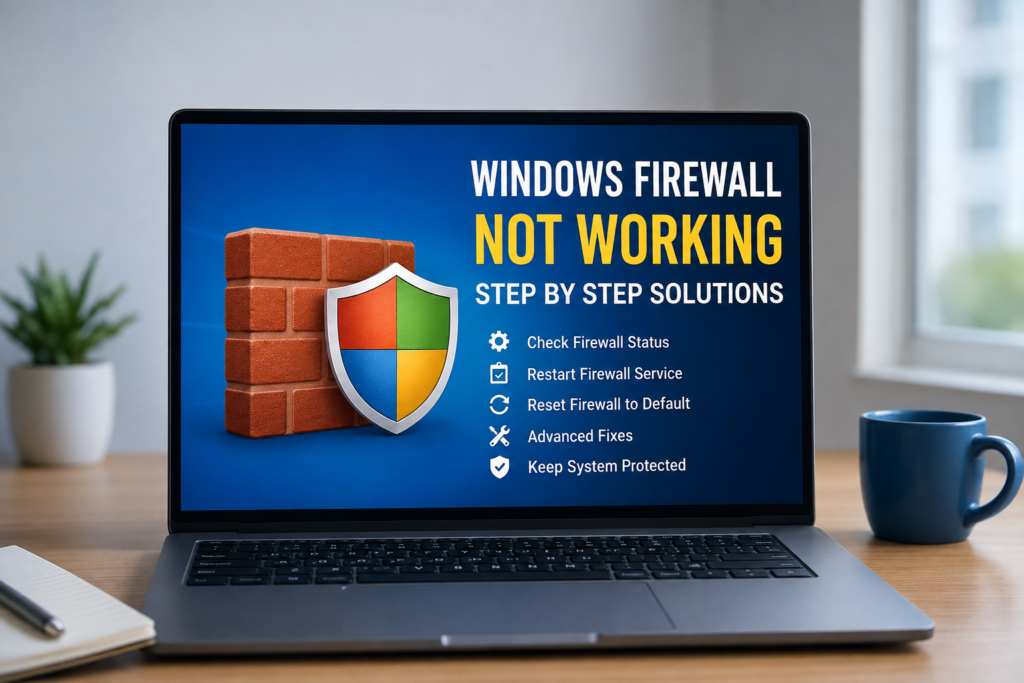
When Windows Firewall is not working, I recommend staying calm and troubleshooting the problem one step at a time. Start with a simple restart, check the Windows Defender Firewall service, and confirm the firewall status in Windows Security.
If those steps do not work, try restoring firewall defaults, checking security software, running System File Checker, and using DISM to repair Windows components.
It is also important not to disable your firewall permanently just because it is causing a problem. A working firewall provides an important layer of protection against unwanted network connections.
In my experience, the best approach is to identify the cause instead of repeatedly changing random settings. Check recent system changes, security software, Windows services, and damaged system files before moving toward more advanced troubleshooting.
If you follow these Windows Firewall troubleshooting steps carefully, you should be able to resolve many common firewall problems without reinstalling Windows.
The most important thing is to make changes carefully, keep Windows updated, use trusted security software, and avoid downloading unknown tools that promise instant firewall repairs.
With a little patience, most Windows Firewall not working problems can be fixed and your computer can return to normal protection.