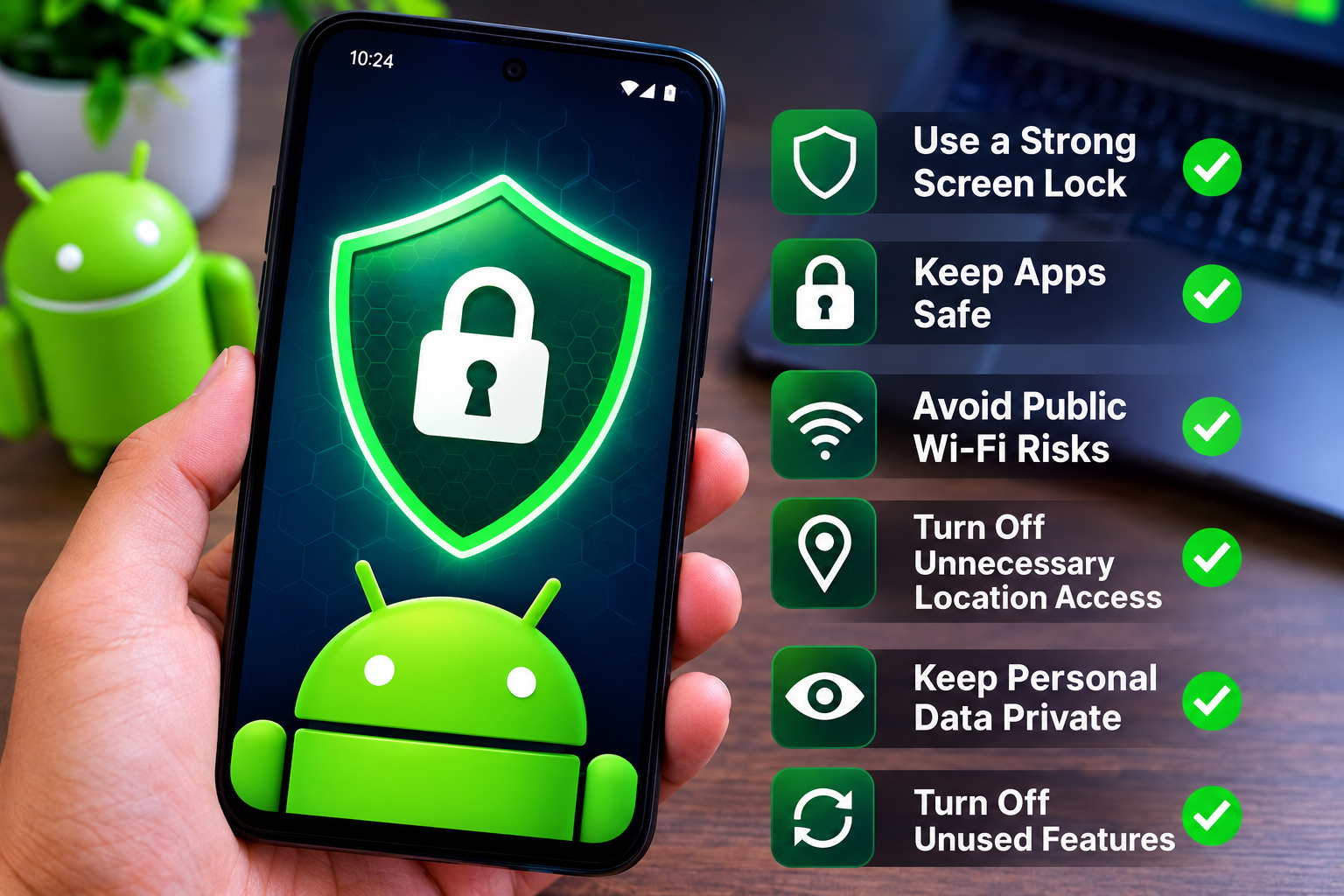
Our Android phones have become an important part of everyday life. We use them for banking, shopping, messaging, social media, photos, email, work, and many other personal activities. Because of this, our phones contain a huge amount of personal information. If we do not protect that information properly, it can become easier for unwanted apps, websites, or other people to access it.
In my opinion, protecting personal information on Android does not require complicated technical knowledge. A few simple security habits can make a big difference. Android already provides many useful privacy and security features, but we need to use them correctly.
In this guide, I will share practical ways to protect personal information on Android and explain the settings I believe every Android user should check.
Why Personal Information Protection Matters
Personal information includes much more than your name and phone number. Your Android phone may contain photos, contacts, emails, saved passwords, location information, documents, payment details, private conversations, and browsing activity.
If someone gets unauthorized access to your phone or an unsafe application gets too much access, your private information could be exposed.
This is why I believe Android security should be treated as a regular habit rather than something you think about only after a problem happens.
The good news is that you can improve your privacy without changing the way you use your phone completely.
Use a Strong Screen Lock
The first step I recommend is setting up a strong screen lock.
Your screen lock protects your information if someone gets physical access to your phone. Android devices usually offer options such as a PIN, password, pattern, fingerprint, or face unlock.
I personally recommend using a strong PIN or password along with biometric security when your device supports it.
Avoid simple PINs such as 1234, 0000, or numbers that are easy to guess. Also avoid using information such as your birthday or phone number.
A strong screen lock creates an important first layer of protection for your personal information.
Keep Android Updated
Software updates are another important part of protecting personal information on Android.
Android updates can include security improvements, privacy changes, bug fixes, and protection against newly discovered threats. Your phone manufacturer may also provide additional security updates.
I recommend checking your phone regularly for available system updates.
Open Settings and look for System Update, Software Update, or a similar option. The exact location can vary depending on your Android device.
You should also keep important applications updated through the official app store. Older versions of applications can sometimes contain security problems that have already been fixed in newer versions.
Review Android App Permissions
One of the most important privacy settings on Android is app permissions.
Applications can request access to features such as your camera, microphone, location, contacts, photos, and files. Some apps genuinely need these permissions, while others may not.
I recommend reviewing permissions instead of automatically accepting every request.
Go to Settings, then Privacy or Apps, depending on your device. Look for Permission Manager or the permissions section of individual applications.
Pay particular attention to location, camera, microphone, contacts, SMS, and file access.
If an app does not need a permission for the feature you use, consider selecting Do not allow.
For some permissions, Android may offer more limited choices. When available, I prefer giving an app access only while I am actively using the feature.
Be Careful With Location Access
Location information can reveal a lot about your daily activities. It can show places you visit, where you work, where you spend your free time, and other patterns.
Not every application needs continuous access to your location.
For example, a navigation app may need your location while you are using directions. A weather application may also need location information to provide local weather.
However, an application that does not depend on location may not need access at all.
Review your location permissions regularly and choose a limited option when it is appropriate.
Protect Your Photos and Videos
Photos and videos can contain a lot of personal information. They may show your family, home, workplace, documents, travel details, or other private moments.
Be careful about which applications can access your photos and videos.
Modern Android versions may provide options that allow you to share selected photos instead of giving an application access to your entire media library.
I think this is a useful privacy feature because an application may only need one photo for a particular task. There is little reason to give it access to everything if a smaller level of access is enough.
Use a Trusted Password Manager
Many people reuse the same password for multiple accounts because remembering many passwords can be difficult.
I strongly recommend avoiding this habit.
If one account becomes compromised and you use the same password elsewhere, multiple accounts could be at risk.
A reputable password manager can help you create and store unique passwords. You can then use stronger passwords without having to remember every one manually.
Your password manager itself should be protected with a strong master password and additional security features when available.
Turn On Two Step Verification
Two step verification adds another layer of protection to important accounts.
With two step verification enabled, knowing your password alone may not be enough to access your account. Depending on the service, you may need an authentication app, security key, or another verification method.
I recommend enabling two step verification for important accounts such as your primary email, Google account, banking services, and other accounts containing sensitive information.
Your email account deserves special attention because it may be used to reset passwords for many other services.
Be Careful With Public WiFi
Public WiFi can be convenient when you are traveling, shopping, or working from a cafe. However, I avoid using unknown networks for sensitive activities whenever possible.
Do not assume that every WiFi network with a familiar name is legitimate.
When using public WiFi, avoid entering sensitive information on suspicious websites and be especially careful with banking or other high value accounts.
If you need a secure connection while traveling, using your mobile data connection can sometimes be a better choice than connecting to an unknown public network.
Download Apps From Trusted Sources
I recommend downloading Android applications from trusted sources and checking the developer information before installing an unfamiliar app.
Avoid installing applications from random websites unless you have a specific reason and understand the risks involved.
Before installing an app, look at its name, developer, reviews, download information, and requested permissions.
If a simple application requests access to many sensitive features without a clear reason, I would think twice before installing it.
Remove Apps You No Longer Use
Unused applications are easy to forget, but they can still remain installed on your phone.
I recommend checking your installed applications every few months.
If you have not used an application for a long time and do not need it anymore, uninstalling it can reduce unnecessary access to your phone.
Removing unused apps also gives you more storage space and makes it easier to identify applications that you actually use.
Avoid Suspicious Links and Messages
A large number of security problems begin with a simple message or link.
You may receive a message claiming that your account has been locked, your package is waiting, or you have won a prize. The message may ask you to click a link and enter personal information.
I recommend slowing down whenever a message creates a sense of urgency.
Check the sender and website carefully. If you are unsure, open the official application or website yourself rather than following a link in the message.
Never provide passwords, verification codes, or financial information to someone simply because a message asks for it.
Check Your Google Account Security
Your Google account can be closely connected to your Android phone. It may contain contacts, email, photos, backups, application information, and other personal data.
For this reason, your Google account should have strong security.
Review your account security settings regularly and check which devices are signed in.
If you notice a device or activity that you do not recognize, investigate it immediately and change your password if necessary.
Two step verification can provide another useful layer of protection.
Be Careful With Bluetooth and Nearby Connections
Bluetooth is useful for headphones, speakers, cars, smart watches, and other devices. However, I recommend turning off Bluetooth when you do not need it, especially in unfamiliar environments.
Also pay attention when your phone asks whether you want to connect to a new device.
Do not accept unexpected connection requests simply because they appear on your screen.
The same general rule applies to file sharing and nearby connection features. Only accept transfers from people and devices you recognize.
Back Up Important Personal Information
Privacy and backup protection go together.
If your phone is lost, damaged, or reset, you should still have access to important photos, documents, and other data.
Use a trusted backup service for information that you cannot afford to lose.
At the same time, remember that cloud accounts also need strong security. Protect your backup account with a strong password and two step verification.
Review Privacy Settings Regularly
Android privacy settings can change as your device receives updates. New controls may become available, and applications may also change how they request permissions.
Because of this, I recommend reviewing your privacy settings occasionally instead of configuring them once and forgetting about them.
Check app permissions, location access, microphone access, camera access, notification access, and other privacy controls available on your device.
A quick review every few weeks or months can help you notice unnecessary access before it becomes a problem.
Final Thoughts
Learning how to protect personal information on Android is not difficult. The most important thing is to develop good security habits and remain aware of what your phone and applications can access.
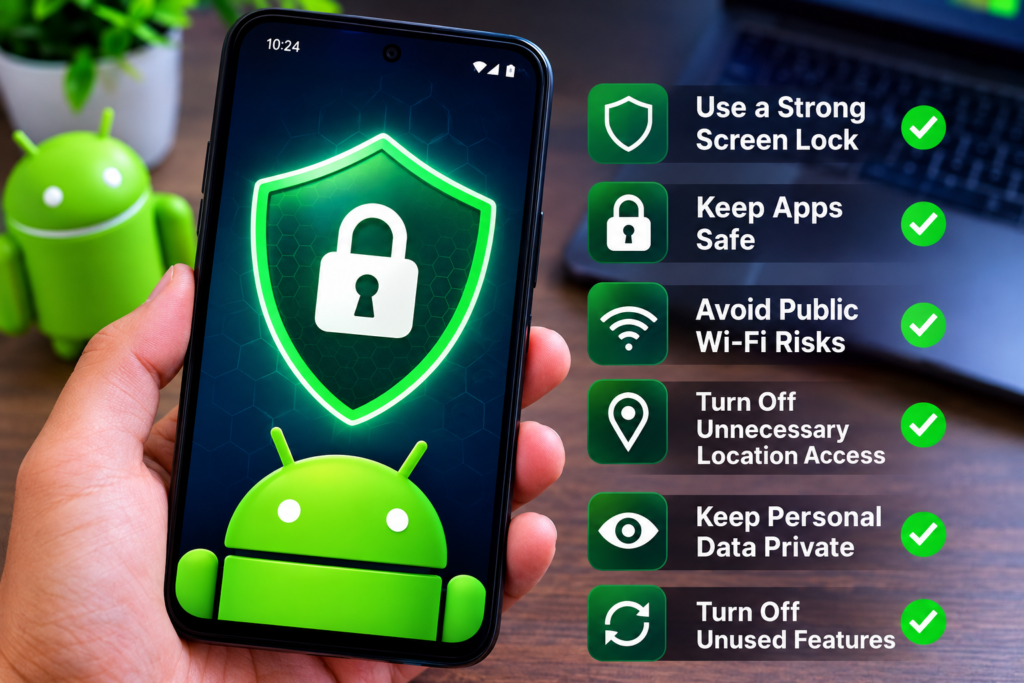
Start with a strong screen lock and keep Android updated. Review app permissions and remove access that applications do not need. Protect your Google account with a strong password and two step verification. Download applications carefully, avoid suspicious links, and remove apps that you no longer use.
I believe the best Android security approach is simple and consistent. You do not need to become a cybersecurity expert. You just need to pay attention to the information you share and use the privacy controls Android already provides.
Your phone contains a large part of your digital life, so protecting personal information on Android should be a regular part of using your device. A few minutes spent checking your settings today can help keep your private information safer in the future.