High memory usage is one of the most common reasons a Windows 11 PC starts feeling slow. You may notice applications taking longer to open, websites becoming unresponsive, games losing performance, or the entire computer becoming sluggish. In some cases, Task Manager may show memory usage above 80 or 90 percent even when you are not doing anything particularly demanding.
I have faced this kind of issue myself, and one thing I have learned is that high memory usage does not always mean that your RAM is faulty or that you immediately need to buy more memory. Windows 11 uses RAM for many different tasks, and some memory usage is completely normal.
The real problem starts when memory remains unusually high for a long time, applications keep freezing, or Windows becomes noticeably slower.
In this guide, I will explain the most practical ways to fix Windows 11 high memory usage and reduce unnecessary RAM consumption step by step.
What Is Memory Usage in Windows 11?
Memory usage refers to how much of your computer’s RAM is currently being used by Windows, applications, background services, and other processes.
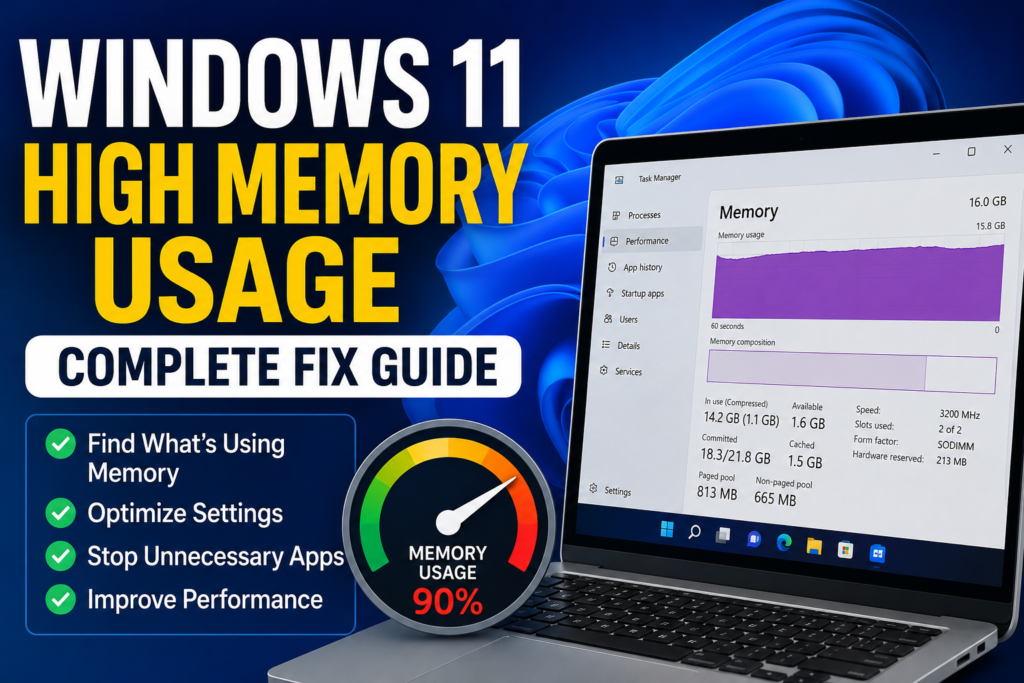
You can quickly check memory usage by opening Task Manager. Right click the Start button and select Task Manager. Then select the Processes tab and look at the Memory column.
If your computer has 8 GB of RAM, seeing a significant amount of memory in use is not automatically a problem. Windows uses available memory to keep frequently needed information ready so applications can work efficiently.
However, if memory usage constantly stays extremely high and the computer becomes slow, it is worth investigating.
Why Is Windows 11 Using So Much RAM?
There are several possible causes of high memory usage.
Too many applications may be running at the same time. Your browser may have dozens of tabs open. Background applications may continue running even when their windows are closed. Startup programs can also consume memory from the moment Windows starts.
Another possible cause is a memory leak. A program with a memory leak continues using more RAM over time instead of releasing memory properly.
Windows services, outdated drivers, antivirus software, widgets, cloud synchronization applications, and third party utilities can also contribute to higher memory usage.
The good news is that you can identify many of these problems directly through Windows.
1. Restart Your Computer
Before trying advanced solutions, restart Windows 11.
It may sound too simple, but restarting clears temporary processes and releases memory that applications may have been holding.
If your PC has been running for several days, a restart can sometimes make a noticeable difference.
After restarting, wait a few minutes before opening multiple applications. Then open Task Manager and check your memory usage again.
If memory usage is normal after a restart but gradually increases over several hours, a background application or memory leak may be responsible.
2. Check Task Manager
Task Manager is one of the most useful tools for diagnosing Windows 11 high memory usage.
Press Ctrl, Shift, and Esc to open Task Manager.
Click the Memory column to sort processes according to how much RAM they are using.
Look at the applications near the top of the list.
If a browser, game, editing program, or another application is using a large amount of memory, determine whether you actually need it running.
Do not end Windows processes simply because they use memory. Some system processes are essential for Windows to operate correctly.
Focus on applications that you recognize and that you are not currently using.
3. Close Unnecessary Applications
One of the easiest ways to reduce RAM usage is to close programs you are not using.
For example, if you have a browser with many tabs, a music application, a messaging program, a photo editor, and several other applications open simultaneously, they can consume a considerable amount of memory.
Close applications that are no longer needed and check Task Manager again.
I recommend developing the habit of checking Task Manager whenever the computer suddenly becomes slow. It can quickly show whether memory, CPU, disk, or another resource is causing the problem.
4. Reduce Browser Tabs and Extensions
Modern web browsers can use a lot of RAM, especially when many tabs are open.
If your browser is responsible for a large percentage of memory usage, start by closing tabs you no longer need.
Browser extensions can also consume memory. Open your browser’s extension settings and review the extensions you have installed.
Remove extensions that you no longer use and disable unnecessary ones.
If memory usage drops significantly afterward, the browser or one of its extensions may have been contributing to the problem.
5. Disable Unnecessary Startup Applications
Many applications automatically start when Windows 11 boots.
Some of them are useful, but others do not need to run all the time.
Open Task Manager and select Startup apps.
Review the applications listed there and check their startup impact.
You can disable unnecessary applications from starting automatically. This does not uninstall the application. It simply prevents it from launching every time Windows starts.
This can reduce background memory usage and can also make Windows boot faster.
6. Check Background Applications
Some programs continue running in the background even after you close their main window.
Cloud storage tools, communication applications, game launchers, update utilities, and manufacturer applications are common examples.
Check Task Manager and identify programs that remain active.
If a particular application repeatedly consumes a large amount of memory even when you are not using it, check its settings for an option that controls background activity.
7. Update Windows 11
Keeping Windows 11 updated can help resolve system bugs and compatibility problems.
Open Settings, select Windows Update, and check for available updates.
Install appropriate updates and restart your PC.
If the high memory usage began immediately after a specific update, pay attention to when the problem started. A newly introduced compatibility issue can sometimes cause unusual behavior.
In that situation, checking for a newer update may help if Microsoft has already released a correction.
8. Update Your Device Drivers
Outdated or problematic drivers can sometimes contribute to unusual memory usage.
Graphics, network, chipset, storage, and other hardware drivers interact closely with Windows.
Open Device Manager and review your hardware devices.
For important drivers, I recommend checking the official website of your computer or hardware manufacturer.
Avoid using unknown driver download websites. Installing an incorrect driver can create additional problems rather than solving the original issue.
9. Check for Memory Leaks
A memory leak occurs when a program continues consuming RAM without properly releasing it.
One way to identify this problem is to observe memory usage over time.
Open Task Manager after restarting your PC and note the memory usage. Continue using the computer normally and check it again after an hour or two.
If memory usage keeps increasing even though your workload remains similar, look for the application whose memory consumption is increasing.
Restarting that application may temporarily solve the problem, but if the same application repeatedly causes the issue, check for updates or consider reinstalling it.
10. Scan Your PC for Malware
Malware can sometimes consume system resources in the background.
Windows 11 includes Windows Security, which can scan your system for potential threats.
Open Windows Security and perform a security scan.
If you regularly download software from unfamiliar websites, be particularly careful. Untrusted applications can run background processes that consume memory and other system resources.
Keep Windows Security updated and avoid installing suspicious programs simply because they promise to optimize or speed up your computer.
11. Disable Unnecessary Visual Effects
Windows 11 includes animations, transparency effects, and other visual features that can use system resources.
For most modern computers, these effects are not a major problem. However, on a system with limited RAM, reducing unnecessary visual effects may improve responsiveness.
Open Windows settings and search for performance related options.
You can adjust visual effects to prioritize performance instead of appearance.
This will not magically solve a serious memory leak, but it can help older computers feel more responsive.
12. Check Virtual Memory Settings
Windows uses virtual memory when physical RAM becomes limited.
The system manages the paging file automatically in most cases, and I recommend leaving this setting under Windows management unless you have a specific reason to change it.
If the paging file has been manually configured incorrectly, Windows may experience performance problems when physical RAM becomes heavily occupied.
For most users, allowing Windows to automatically manage virtual memory is the safest choice.
13. Uninstall Programs You Do Not Need
Unused applications can sometimes install background services that continue running after installation.
Open Settings, go to Apps, and review your installed applications.
If you find programs that you no longer use, uninstall them.
Be careful with drivers, system utilities, security applications, and manufacturer tools. Do not remove something simply because its name looks unfamiliar.
If you are unsure about an application, research its purpose before uninstalling it.
14. Check How Much RAM Your PC Has
Sometimes the simplest explanation is that your computer does not have enough RAM for your normal workload.
For example, modern browsers, creative applications, games, and multitasking can place significant demands on memory.
If your computer has 4 GB of RAM, you may notice limitations much sooner than someone using 16 GB or more.
If you regularly run multiple demanding applications, upgrading RAM may provide a more meaningful improvement than repeatedly changing Windows settings.
Before purchasing memory, check your motherboard or laptop specifications to confirm the supported RAM type and maximum capacity.
15. Reset Windows Only as a Last Resort
If Windows 11 continues showing unusually high memory usage after extensive troubleshooting, the operating system itself may have become corrupted or heavily misconfigured.
Before considering a reset, back up your important personal files.
Windows provides recovery options that can reinstall or reset parts of the operating system.
I would not recommend jumping directly to this solution. It takes more time and can affect applications and settings.
Try the simpler solutions first and use a Windows reset only when there is a strong reason to believe that the operating system is the source of the problem.
Final Thoughts
Windows 11 high memory usage can make a computer feel slow, but high RAM usage by itself is not necessarily a problem. The important thing is understanding what is using the memory and whether the usage remains unusually high.
I recommend starting with Task Manager because it gives you a clear picture of which applications are consuming RAM. From there, close unnecessary programs, reduce browser tabs, disable unnecessary startup applications, update Windows and drivers, and scan for malware.
If one application continuously increases its memory usage, investigate that application specifically. It could be experiencing a memory leak or compatibility problem.
And if your computer regularly reaches very high memory usage because of your normal workload, upgrading the RAM may ultimately be the best solution.
The key is to identify the cause before making major changes. With the steps above, you can troubleshoot Windows 11 high memory usage systematically and improve your computer’s overall performance without relying on questionable optimization software.