In today’s digital world, our Google Account is connected to many parts of our daily life. We use it for Gmail, YouTube, Google Drive, Google Photos, Google Play, Chrome, and many other services. Because one account can be used across several devices, it is important to know which phones, computers, tablets, and other devices have access to it.
I personally believe that checking connected devices should be part of a regular security routine. It only takes a few minutes, but it can help you notice an old device, a shared computer, or an unfamiliar sign in before it becomes a bigger problem. Google provides a simple way to review devices and sessions connected to your account.
Why You Should Check Devices Connected to Your Google Account
Every time you sign in to your Google Account from a phone, computer, tablet, browser, or another supported device, Google may show that device or session in your account security settings. This makes it easier to understand where your account has recently been used.
The main reason I recommend checking this information is security. You may have signed in to an old laptop several months ago and forgotten about it. You may also have used a friend’s computer, a school computer, an office computer, or a public computer and forgotten to sign out.
Google says the device page can show devices where you are currently signed in or devices that have been used with your account in the last few weeks. You can select individual devices or sessions to see more information.
Regularly reviewing this information can help you identify devices you no longer use and unfamiliar access.
How to Check Devices Connected to Your Google Account
Checking your Google Account devices is straightforward. You can do it from a computer or mobile browser.
Step 1: Open Your Google Account
Start by opening your Google Account in your browser. Sign in if you are not already signed in.
You can also open your Google Account settings from many Google services by selecting your profile picture and choosing the option to manage your Google Account.
On Android devices, you can also open Settings, select Google, and then choose Manage your Google Account. Google provides access to the Your devices section through the account settings.
Step 2: Open the Security Section
After opening your Google Account, look for the Security section.
Google regularly updates its account interface, so the exact position of options may look slightly different depending on the device or browser you are using. The important section to find is Security and sign in.
This area contains important settings related to your account protection, including your devices and recent security activity.
Step 3: Find Your Devices
Scroll down until you find the Your devices section.
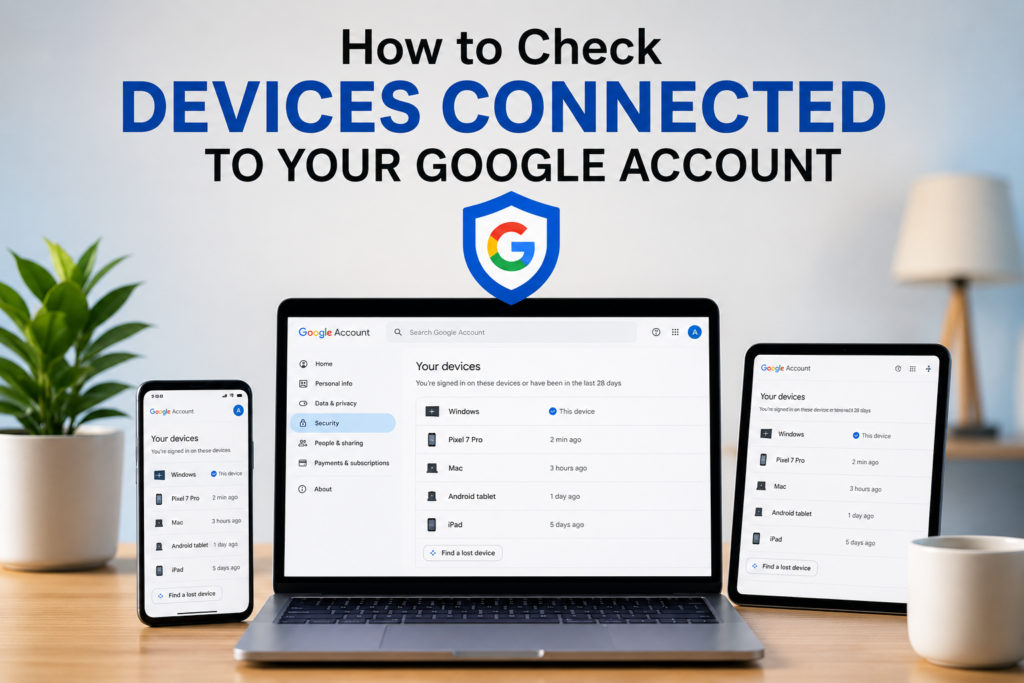
Select Manage all devices. Google will then show devices and sessions where your Google Account is currently signed in or was recently used.
This is the main place I recommend checking whenever you want to know how many devices are connected to your Google Account.
Step 4: Review Each Device
Take a moment to look through the devices shown on the page.
You may see an Android phone, Windows computer, Mac, Chromebook, tablet, or another type of device. You may also see multiple sessions connected with the same device.
Do not immediately assume that multiple entries mean someone has hacked your account. Google explains that multiple sessions can appear for the same device. A separate session can be created when you sign in through another browser, application, service, or private browsing window.
The best approach is to review the information calmly and identify whether each session makes sense.
What Information Can You See?
When you select a device or session, Google can provide additional information that helps you understand the account access.
Depending on the device and session, you may see information such as the device type, recent activity, browser or application information, and approximate location.
The time displayed is also useful, but it should not always be interpreted as the exact moment when you personally used the device. Google explains that the displayed time can represent communication between the device or session and Google’s systems. Automatic background synchronization can make the time more recent than the last time you actively used the device.
This is something I think many people misunderstand. Seeing a recent time does not automatically mean somebody is actively using your account at that exact moment.
How to Recognize a Device You Do Not Know
Sometimes a device may look unfamiliar even though it belongs to you.
For example, you might see a different browser because you recently used another browser. You might see a nearby location instead of the exact location where you were. You could also see an old device because you recently performed a factory reset.
Google specifically notes that locations shown for devices may not always be exact. You may see a nearby place, especially if you were traveling or briefly stopped somewhere.
Before assuming something is wrong, think about your recent activity.
Ask yourself whether you recently bought a new phone, used another computer, signed into a friend’s device, traveled, changed browsers, or reset a device.
If you still cannot explain a device or session, it is better to take action rather than ignore it.
How to Sign Out of an Unknown Device
If you find a device that you do not recognize or no longer use, Google allows you to sign out of it.
Open the device from the Your devices section and select the option to sign out. This removes the device’s access to your Google Account.
I recommend doing this for devices that you have sold, given away, lost, or no longer control.
For example, if you sold an old Android phone but forgot to remove your Google Account, checking your connected devices can help you discover the old access and sign out.
If several sessions appear under the same device name and you are unsure about them, Google recommends reviewing the sessions and signing out when necessary.
What to Do If You Find a Suspicious Device
Finding an unfamiliar device does not automatically prove that your Google Account has been hacked. However, it is something you should take seriously.
First, sign out of the unfamiliar device.
Next, review your recent security activity and look for changes you do not recognize. Pay attention to changes involving your recovery phone number, recovery email address, password, two step verification methods, or applications with account access. Google recommends changing your password immediately if you believe someone else has access to your account.
I also recommend using a strong and unique password. If you have used the same password for other websites, consider changing those passwords as well.
Turn On Two Step Verification
Checking connected devices is useful, but account security should not stop there.
Two step verification adds another layer of protection to your Google Account. Even if someone somehow discovers your password, an additional verification step can make unauthorized access more difficult.
For important accounts such as Gmail, I personally consider two step verification one of the most useful security features available.
You should also make sure your recovery information is current. A working recovery phone number and recovery email can be extremely useful if you lose access to your account.
Check Your Account After Using Another Person’s Device
One common mistake is signing into Google on another person’s computer and forgetting to sign out.
This can happen at a library, internet cafe, workplace, school, hotel, or a friend’s house.
Google recommends using a private browsing window when signing into an account temporarily on a device that does not belong to you. When you finish, close the private browsing windows or sign out of the account.
If you already used a shared computer and are worried that you stayed signed in, checking Your devices is a good first step.
What If Your Phone or Computer Is Lost?
A lost device deserves immediate attention because it may provide direct access to your Google Account.
Google allows you to review lost devices through your account security settings and sign out from a lost phone, tablet, or Chromebook. Google also provides options for finding or securing supported lost devices.
If you cannot recover the device, changing your Google Account password is another important step. If passwords were saved on the lost device or through your Google Account, review those saved passwords and change important ones as needed.
How Often Should You Check Your Google Account Devices?
There is no strict schedule that everyone needs to follow, but I recommend checking your connected devices every few weeks or at least once a month.
You should also check immediately after selling or giving away a phone, losing a device, using a public computer, changing your password, or noticing unusual account activity.
This small habit can make it much easier to keep track of your Google Account security.
Final Thoughts
Learning how to check devices connected to your Google Account is one of the simplest ways to improve your online security. Google gives you a dedicated Your devices section where you can review recent devices and sessions, examine unfamiliar activity, and sign out of devices that should no longer have access.
In my opinion, the most important thing is not to panic when you see an unfamiliar device name or location. Review the details first because multiple sessions, background synchronization, travel, browser changes, and old devices can sometimes explain what you see.
However, if you cannot explain a device or activity, take it seriously. Sign out of the unfamiliar session, change your password if necessary, review your security settings, and make sure two step verification is enabled.
A few minutes spent checking your Google Account devices regularly can give you better control over your personal information and help protect the services connected to your account.