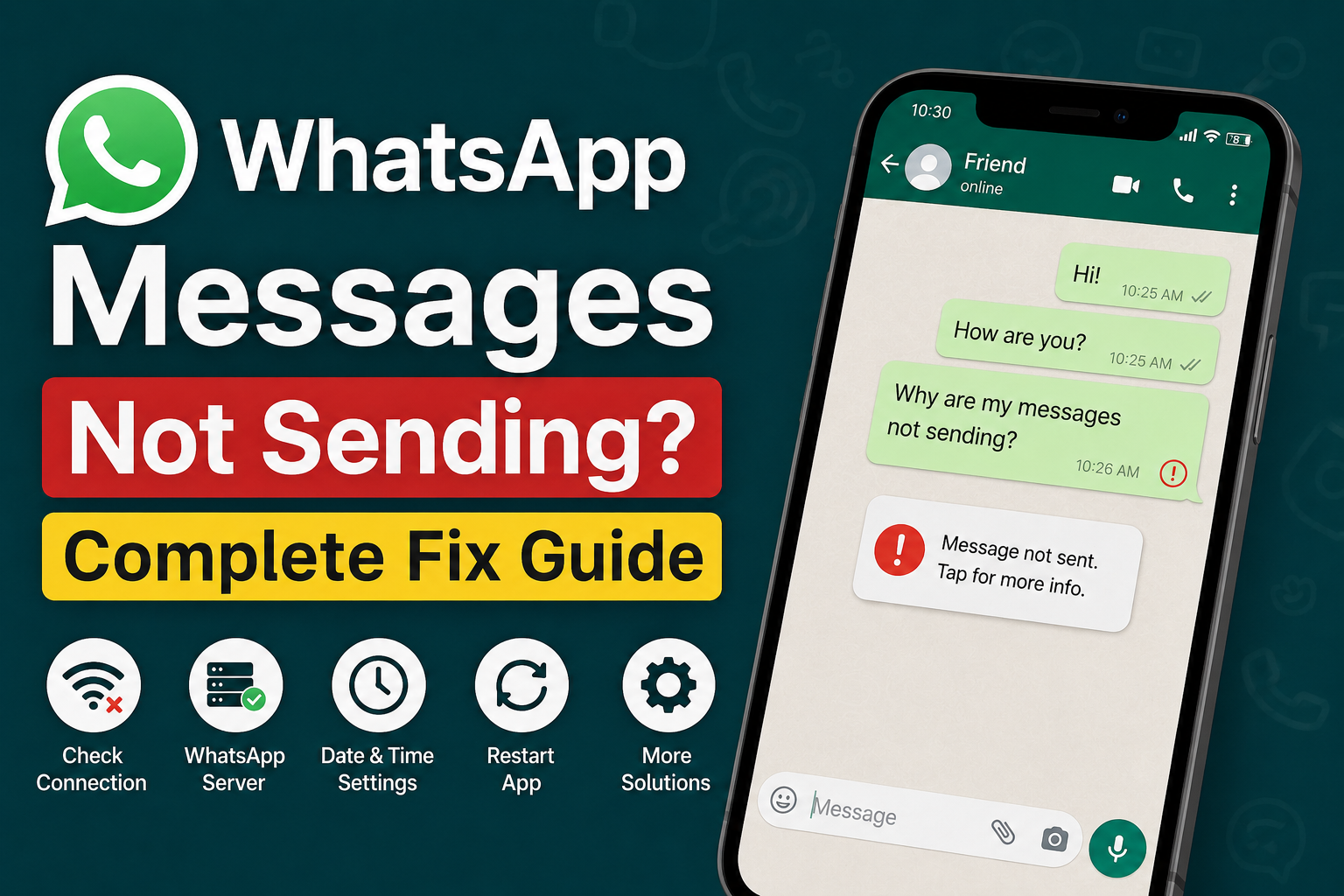
WhatsApp has become one of the easiest ways to stay connected with friends, family, customers, and coworkers. That is why it can be frustrating when WhatsApp messages are not sending even though everything else on the phone seems to be working normally.
Sometimes you may see a small clock icon beside the message. In other cases, the message may show a red exclamation mark or remain stuck without being delivered. I have noticed that this problem can happen for several different reasons, and the good thing is that most causes are fairly easy to troubleshoot.
In this guide, I will explain the most useful solutions for WhatsApp messages not sending. I recommend following the steps in order because the first few methods can solve the problem without changing important settings on your phone.
Check Your Internet Connection First
The first thing I check when WhatsApp messages are not sending is the internet connection.
WhatsApp needs an active internet connection to send and receive messages. Even if your phone shows that WiFi or mobile data is connected, the connection may not actually be working properly.
Open your browser and try visiting a few websites. You can also open another application that requires internet access.
If websites are not loading, the problem is probably your internet connection rather than WhatsApp.
Try switching from WiFi to mobile data or from mobile data to WiFi. If the message sends after changing the connection, you have likely found the cause.
Turn Airplane Mode On and Off
A simple network refresh can sometimes solve WhatsApp connection problems.
Turn on Airplane Mode and wait for around ten seconds. Then turn it off again.
This forces your phone to reconnect to the available mobile network and WiFi connection.
After reconnecting, open WhatsApp and try sending the message again.
This solution is particularly useful when your phone shows network bars but the connection is behaving strangely.
Restart Your Phone
Restarting your phone is another simple solution that I would not skip.
Applications can sometimes become stuck because of temporary system problems. Background network processes can also stop working correctly.
Restart your Android phone or iPhone and wait for it to completely boot up. Then open WhatsApp and send a test message.
If the problem was caused by a temporary system issue, the restart may fix it immediately.
Check If WhatsApp Is Down
Sometimes the problem has nothing to do with your phone.
WhatsApp services can experience temporary outages or technical problems. When this happens, messages may stop sending for many users at the same time.
If your internet connection is working normally and WhatsApp suddenly stops sending messages, check whether other users are reporting the same problem.
You can also check WhatsApp related announcements through official channels and reputable outage monitoring websites.
If there is a widespread service problem, changing settings on your phone will not solve it. In that situation, waiting for the service to recover is usually the best option.
Check WhatsApp Permissions
WhatsApp requires certain permissions to work correctly on your phone.
On Android, open your phone settings and find WhatsApp under the Apps section. Review its permissions and make sure necessary access has not been blocked.
The exact settings can vary depending on your phone manufacturer and Android version.
On iPhone, open Settings and find WhatsApp. Review the available permissions and make sure important features have not been disabled accidentally.
Permissions do not usually cause every message problem, but checking them can help when WhatsApp behaves differently after a system update or settings change.
Disable Data Saver Temporarily
Data saving features can sometimes restrict how applications use mobile data or work in the background.
If WhatsApp messages remain stuck when you are using mobile data, check whether Data Saver or a similar network restriction is enabled.
You can temporarily disable the feature and test WhatsApp again.
If messages start sending normally, review your data saving settings and allow WhatsApp the access it needs.
This can be especially useful if WhatsApp works on WiFi but not on mobile data.
Check Background Data Usage
WhatsApp may need permission to use data in the background.
If background data is restricted, WhatsApp may not receive or send messages normally until you open the application.
On Android, look for WhatsApp in your mobile data or app settings and check whether background data usage is allowed.
On iPhone, check the relevant cellular data settings for WhatsApp.
The exact menu names can be different depending on your operating system version, so look for settings related to mobile data and background activity.
Make Sure Date and Time Are Correct
Incorrect date and time settings can cause unexpected problems with internet based applications.
I recommend setting your phone to use automatic date and time.
On Android, look under system settings for Date and time. On iPhone, open General settings and look for Date and Time.
Enable the automatic option if it is available.
After correcting the time, close WhatsApp and open it again. Then try sending the message.
Update WhatsApp
An outdated version of WhatsApp can sometimes create compatibility or performance problems.
Open the Google Play Store on Android or the App Store on iPhone and search for WhatsApp.
If an update is available, install it and then restart the application.
App updates can include bug fixes, performance improvements, and compatibility changes. Keeping WhatsApp updated is therefore useful even when you are not currently experiencing a problem.
Clear WhatsApp Cache on Android
If you are using Android, clearing the WhatsApp cache can help when temporary application files become corrupted.
Open your phone settings, go to Apps, select WhatsApp, and look for Storage or Storage and cache.
Choose the option to clear the cache.
Be careful not to select an option that deletes application data unless you understand exactly what it does. Clearing the cache is the safer first step because it removes temporary files without normally deleting your WhatsApp conversations.
After clearing the cache, open WhatsApp and test your messages.
Check Your Phone Storage
Low storage space can cause applications to behave unexpectedly.
If your phone is almost completely full, WhatsApp may have difficulty saving new media, downloading files, or handling temporary data.
Check your available storage and remove unnecessary files if space is very low.
You can review old videos, duplicate photos, downloaded files, and applications that you no longer use.
After freeing some storage, restart WhatsApp and try sending a message again.
Check Whether the Problem Affects One Contact
It is useful to determine whether WhatsApp messages are not sending to everyone or only to one particular contact.
Send a simple message to another trusted contact.
If the message sends successfully to other people but not to one specific contact, the issue may be related to that particular conversation or contact rather than your entire WhatsApp connection.
Avoid immediately assuming that you have been blocked because there can be several reasons why communication with one contact may behave differently.
Try Sending a Text Without Media
If you are trying to send a photo, video, document, or voice message, test a simple text message.
Large media files can take longer to upload, especially on a slow internet connection.
If text messages send but photos or videos remain stuck, the problem may be related to your connection, file size, storage, or media permissions.
Try sending a smaller image or reconnect to a faster network and test again.
Disable VPN Temporarily
A VPN can occasionally interfere with connections to online services.
If you are using a VPN and WhatsApp messages suddenly stop sending, disconnect the VPN temporarily and test WhatsApp.
If messages start working, the VPN connection or selected server may be responsible.
You can try another VPN server or review the VPN settings. You do not necessarily need to stop using a VPN permanently.
Reinstall WhatsApp as a Last Resort
If you have tried everything and WhatsApp messages are still not sending, reinstalling the application may help.
Before removing WhatsApp, make sure your important chats are backed up using the backup option available in WhatsApp.
Once you are confident that your important information is backed up, uninstall WhatsApp and install the latest version again from the official app store.
Sign in using your phone number and restore your backup when prompted.
I recommend using this method only after trying the simpler solutions because reinstalling an application takes more time and requires additional setup.
What If WhatsApp Messages Still Do Not Send?
If WhatsApp messages are still not sending after all these steps, try to identify exactly what is happening.
Check whether WhatsApp calls work. Test both WiFi and mobile data. Try sending messages to different contacts and check whether other applications can access the internet.
These tests can help narrow down the cause.
If everything else on your phone works but WhatsApp continues to fail, there may be an application specific problem. In that situation, checking WhatsApp support resources or waiting for a service issue to be resolved may be necessary.
Final Thoughts
When WhatsApp messages are not sending, I recommend starting with the simplest solutions instead of immediately reinstalling the application.
Check your internet connection, switch between WiFi and mobile data, restart your phone, and see whether WhatsApp is experiencing a wider service problem. After that, check permissions, background data, date and time settings, available storage, and WhatsApp updates.
If you use Android, clearing the WhatsApp cache can also be helpful. VPN and data saving features are worth checking when messages work on one type of connection but not another.
The most important thing is to identify whether the problem is with your internet connection, WhatsApp itself, your phone settings, or a particular conversation.
In my experience, most WhatsApp message problems are temporary and can be fixed with a few basic checks. Taking the troubleshooting process one step at a time makes it much easier to find the actual cause without changing settings unnecessarily.