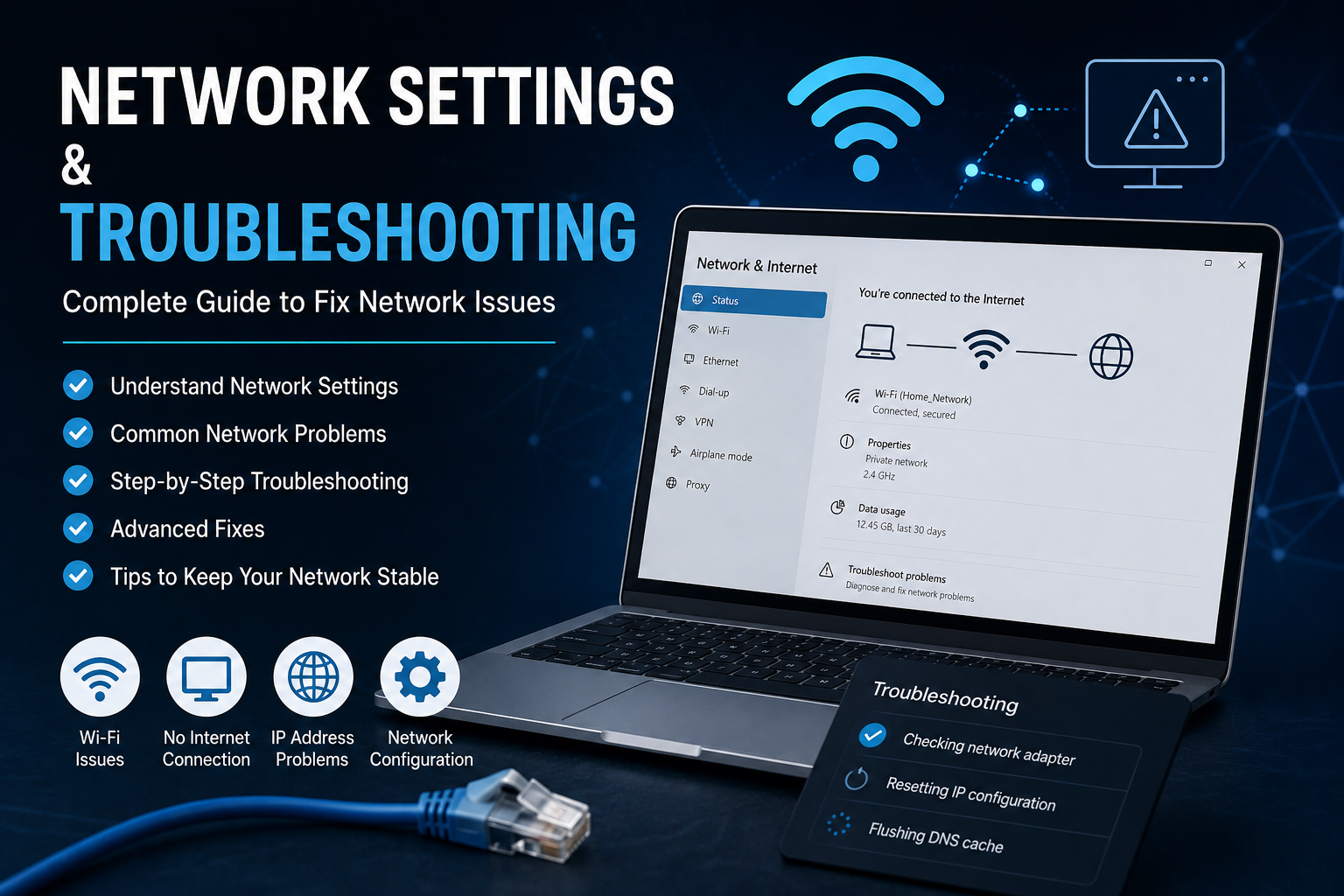
Network problems are among the most frustrating issues I deal with on a computer because they can stop everything from working properly. When the internet suddenly becomes slow, WiFi disappears, websites refuse to load, or Windows says there is no internet connection, it can be difficult to know where to start.
From my experience, many network problems are not as serious as they first appear. A wrong network setting, temporary router problem, outdated network driver, DNS issue, or incorrect IP configuration can easily cause connection problems.
The good news is that Windows provides several tools and settings that can help diagnose and fix these issues. In this guide, I will explain practical network settings and troubleshooting methods that can help restore a stable internet connection.
What Are Network Settings?
Network settings control how your computer communicates with your router, local network, and the internet.
These settings include WiFi connections, Ethernet connections, IP addresses, DNS servers, proxy settings, VPN configurations, firewall rules, and network adapters.
When these settings are configured correctly, your computer can communicate with your router and access online services normally.
However, even a small configuration problem can prevent your computer from connecting to the internet.
That is why checking network settings is one of the first things I recommend when troubleshooting internet problems.
Check Your Internet Connection First
Before changing Windows network settings, check whether the problem affects only your computer.
Try connecting another phone, tablet, or computer to the same WiFi network.
If every device has no internet access, the problem may be with the router or internet service provider rather than your Windows computer.
If other devices work normally and only your PC has a problem, then Windows network settings are more likely to be responsible.
This simple test can save a lot of unnecessary troubleshooting.
Restart Your Router and Computer
Restarting network equipment is one of the easiest troubleshooting methods.
Turn off your router and wait for a short period before turning it back on. Allow the router to fully restart and establish an internet connection.
Then restart your Windows computer.
Temporary connection errors can sometimes disappear after restarting both devices.
I usually recommend doing this before changing advanced settings because it is quick, safe, and often surprisingly effective.
Check WiFi Settings
If you are using WiFi, open Windows Settings and go to Network & internet.
Select WiFi and make sure WiFi is enabled.
Check the available networks and confirm that your computer is connected to the correct network.
If your WiFi network does not appear, check whether other devices can see it. If the network is visible on your phone but not on the computer, the problem could be related to the computer’s WiFi adapter or driver.
Also make sure Airplane mode is turned off.
Check Ethernet Connection
For wired connections, make sure the Ethernet cable is securely connected to both the computer and router.
If possible, try another Ethernet cable or another router port.
Windows may show an Ethernet connection even when the cable or network port has a problem, so checking the physical connection is important.
If another computer works with the same cable and router port, the issue may be related to your PC’s Ethernet adapter or network configuration.
Run Windows Network Troubleshooter
Windows includes built in troubleshooting tools that can identify some common network problems.
Open Settings and go to System. Select Troubleshoot and then Other troubleshooters.
Depending on your Windows version and configuration, network troubleshooting options may be available.
Follow the instructions provided by Windows.
The troubleshooter can check several network components and may automatically correct simple configuration problems.
It is not a solution for every issue, but it is a useful first step.
Check Your Network Adapter
The network adapter allows your computer to communicate with WiFi or Ethernet networks.
To inspect it, right click the Start button and open Device Manager.
Expand Network adapters.
You should see your wireless and wired network hardware listed there.
If an adapter is disabled, right click it and select Enable device.
If there is a warning symbol, open its properties to learn more about the problem.
An outdated or corrupted network driver can also cause connection problems. Updating or reinstalling the driver may restore normal connectivity.
Reset Your Network Settings
If basic troubleshooting does not work, Windows provides a network reset option.
Open Settings and go to Network & internet. Select Advanced network settings and then Network reset.
Network reset removes and reinstalls network adapters and returns network related settings to their default configuration.
After the reset, Windows will restart your computer.
You may need to reconnect to WiFi and enter your password again.
You may also need to configure VPN or other network software afterward.
I consider network reset a useful solution when the network configuration has become complicated or corrupted.
Check the IP Address
Every device connected to a network normally receives an IP address.
If your computer has an incorrect IP configuration, it may not be able to communicate with the router properly.
You can use Command Prompt to inspect your network configuration.
Open Command Prompt and type:
ipconfig
Press Enter.
You will see information about your network adapters, including IP address, subnet mask, and default gateway.
The default gateway is usually the address of your router.
If the computer does not receive a proper IP address, restarting the router or renewing the IP configuration may help.
Renew Your IP Configuration
Windows includes commands that can release and renew the current IP configuration.
Open Command Prompt as administrator and run:
ipconfig /release
ipconfig /renew
The first command releases the current IP configuration, while the second requests a new configuration from the network.
This can help when the computer has received an incorrect or temporary IP configuration.
Flush the DNS Cache
DNS converts website names into IP addresses.
For example, when you enter a website address into your browser, DNS helps your computer find the corresponding server.
Sometimes the local DNS cache can contain outdated information.
To clear it, open Command Prompt and run:
ipconfig /flushdns
Windows should confirm that the DNS resolver cache has been successfully cleared.
After that, try opening the website again.
Change DNS Settings
If your internet connection works but certain websites are slow or fail to load, DNS could be part of the problem.
Windows allows you to configure DNS servers manually.
Open Network & internet settings and select your current network connection. Find the DNS settings and choose the option to edit them.
You can use the DNS servers provided by your internet service provider or choose a reputable public DNS service.
However, I would not change DNS settings without a reason. If everything is working normally, there is usually no need to modify them.
Check Proxy Settings
Incorrect proxy settings can prevent websites and online applications from connecting properly.
Open Windows Settings and go to Network & internet. Look for Proxy settings.
If you do not intentionally use a proxy, check whether one has been configured unnecessarily.
Some work, school, VPN, and security applications may use proxy settings, so do not disable a proxy if you know it is required for your network.
Check VPN Software
VPN applications can change how your computer connects to the internet.
If your internet connection stopped working after installing or updating a VPN, temporarily disconnect the VPN and test the connection.
If the internet works normally without the VPN, the VPN configuration may need to be checked.
Some VPN applications also install virtual network adapters, so problems with those adapters can sometimes affect connectivity.
Update Network Drivers
Network drivers are important because Windows relies on them to communicate with WiFi and Ethernet hardware.
If your network suddenly stops working after a Windows update or driver change, check Device Manager for the network adapter.
You can try updating the driver or reinstalling it.
For the best results, download drivers from the official website of your laptop, motherboard, or network adapter manufacturer.
Avoid downloading drivers from unknown websites because incorrect drivers can create additional problems.
Reset Network Components
For more advanced network problems, several Windows commands can reset important networking components.
Open Command Prompt as administrator and run these commands one at a time:
netsh winsock reset
netsh int ip reset
ipconfig /flushdns
Restart your computer afterward.
These commands can help repair problems involving Windows network components and TCP IP configuration.
They are especially useful when the computer connects to WiFi but internet access does not work correctly.
Check Windows Firewall
The Windows Firewall helps protect your computer from unwanted network traffic.
However, incorrect firewall rules or third party security software can sometimes interfere with specific applications.
If only one application cannot access the internet while browsers and other programs work normally, the application may be blocked by firewall or security settings.
Avoid permanently disabling your firewall just to test a connection. Instead, check whether the application is allowed through the firewall and review any security software that may be controlling network traffic.
Keep Windows Updated
Microsoft regularly releases Windows updates that include security improvements, bug fixes, and hardware compatibility improvements.
Open Windows Update and check for available updates.
Keeping Windows updated can prevent certain network compatibility problems.
However, if a network problem started immediately after a specific update, investigate the update history rather than assuming another update will solve everything.
When to Contact Your Internet Provider
Sometimes the problem has nothing to do with your computer.
If multiple devices cannot connect to the internet, check your router’s status lights and contact your internet service provider if necessary.
Your provider may be experiencing an outage, maintenance issue, authentication problem, or line problem.
In this situation, changing Windows settings will not fix the underlying issue.
How to Prevent Network Problems
There are several simple habits that can help keep your network stable.
Keep Windows and network drivers updated. Use a reliable router and keep its firmware current when appropriate.
Place your router somewhere with good ventilation and reasonable coverage.
Avoid installing unnecessary network management software.
If you use a VPN or proxy, make sure you understand its settings.
It is also useful to keep your WiFi password secure and regularly review devices connected to your home network.
Final Thoughts
Network settings and troubleshooting can seem complicated, but most common problems can be approached logically.
I recommend starting with the basics. Check whether other devices have internet access, restart the router and computer, inspect WiFi or Ethernet settings, and run Windows troubleshooting tools.
If the problem continues, check your network adapter, update the driver, inspect IP and DNS settings, and consider performing a network reset.
Advanced commands such as IP configuration resets and DNS cache clearing can also help when Windows networking components are not behaving correctly.
The most important thing is to change one setting at a time and test the connection after each change. This makes it easier to identify the real cause instead of changing several settings and creating more confusion.
With a systematic approach, many Windows network problems can be solved without professional assistance. Whether you are dealing with WiFi problems, Ethernet connection issues, DNS errors, IP configuration problems, or general internet connectivity, understanding your network settings gives you a much better chance of getting your connection working again.