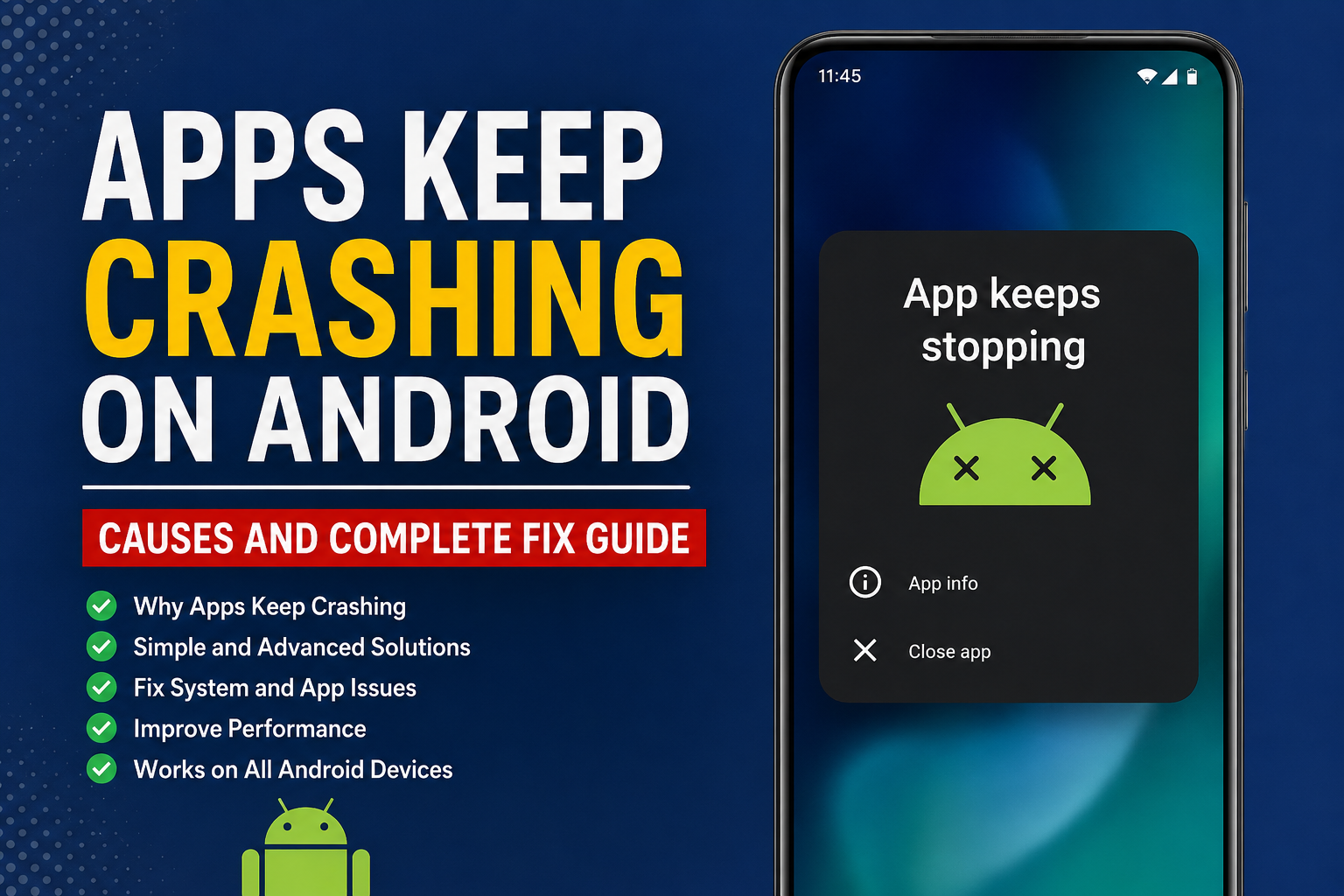
When apps keep crashing on Android, it can become extremely frustrating. You may open an app and see it close immediately, freeze after a few seconds, or show a message saying that the app keeps stopping. Sometimes only one application has a problem, while other times several apps start crashing at the same time.
I have found that Android app crashes are usually caused by common issues such as low storage, outdated applications, corrupted cache files, outdated Android software, memory pressure, or problems with Google Play services. The good news is that you usually do not need to replace your phone or perform a factory reset.
In this guide, I will explain the practical solutions I would try when apps keep crashing on Android. Start with the simple methods first, then move toward the advanced solutions if the problem continues.
Why Do Apps Keep Crashing on Android?
There can be several reasons why Android apps suddenly stop working.
Some of the most common causes include:
- Outdated apps
- Outdated Android software
- Corrupted app cache
- Corrupted app data
- Low storage space
- Too many background processes
- Memory limitations
- Problems with Google Play services
- Incorrect app permissions
- A faulty application update
- Battery optimization restrictions
- Temporary Android system problems
If only one app keeps crashing, the problem is often related to that particular application. If many different apps are crashing, I would look at the Android system, storage, memory, updates, and Google services.
Restart Your Android Phone
The first thing I recommend when an app keeps crashing is restarting the phone.
It sounds simple, but restarting Android clears temporary processes and gives the operating system a fresh start. A background service may have become stuck, or the app may have encountered a temporary memory problem.
Press and hold the power button and choose the restart option.
After the phone starts again, open the affected application and check whether it still crashes.
If the problem was temporary, this may be all you need to do.
Update the App
An outdated application can become unstable, especially after an Android system update.
Open the Google Play Store and search for the application that keeps crashing. If an update is available, install it.
Developers regularly release updates to fix bugs, improve compatibility, and address performance problems.
If several apps are crashing, check the Play Store for updates for all of your installed applications.
I personally recommend keeping frequently used apps updated because compatibility problems can appear when an application becomes outdated.
Update Android
The Android operating system itself can also be responsible for application crashes.
Open your phone’s Settings and look for System update or Software update. The exact name can vary depending on the phone manufacturer.
If a new Android update is available, install it after making sure your battery has enough charge and you have a stable internet connection.
System updates can contain important bug fixes and improvements that help applications work correctly.
Clear the App Cache
One of the most useful fixes for apps crashing on Android is clearing the app cache.
Temporary files can sometimes become corrupted. When an application tries to use a damaged cache file, it may freeze or close unexpectedly.
Go to:
Settings > Apps > See all apps > Select the affected app > Storage
Then choose Clear cache.
The exact menu names may be different depending on your Android phone.
Clearing the cache normally does not remove your personal account or important app data. It simply removes temporary files that Android can recreate when necessary.
After clearing the cache, open the app again.
Clear App Data
If clearing the cache does not solve the problem, clearing the application’s data may help.
This option is more significant because it can reset the application. You may be logged out and some locally stored settings may be removed.
Before using this option, make sure you know your login information and understand what data the application stores locally.
Go to the application’s storage settings and select Clear storage or Clear data, depending on your phone.
Then open the app and sign in again if necessary.
I would use this method after trying the cache solution because it has a greater impact on the application.
Check Available Storage
Low storage space is another common reason for Android performance problems.
When your phone is almost completely full, applications may become slower or unstable. Android also needs free space for temporary files, updates, and normal system operations.
Open Settings > Storage and check how much space is available.
If your storage is nearly full, remove unnecessary videos, duplicate photos, downloaded files, unused applications, and other items you no longer need.
You can also move important photos and videos to cloud storage or another safe location.
Try to keep a reasonable amount of free storage available rather than filling the phone completely.
Close Unnecessary Background Apps
Modern Android phones are designed to manage background applications automatically, but having many demanding apps running can still affect performance on some devices.
If your phone has limited memory, applications may reload frequently or become unstable.
Close applications that you are not using, especially games, video editing applications, browsers with many open tabs, and other demanding programs.
Then open the application that was crashing and test it again.
However, I would not recommend constantly force closing every application. Android is generally capable of managing background apps on its own.
Force Stop the Problematic App
If an application is frozen or repeatedly crashing, force stopping it can reset its current process.
Open:
Settings > Apps > Select the affected app
Choose Force stop and confirm.
Wait a few seconds and open the app again.
This can be useful when the application has become stuck in the background.
If it immediately starts crashing again, continue with the cache and update solutions.
Check App Permissions
Some applications require specific permissions to work correctly.
For example, a camera application may need camera access, while a messaging application may require access to contacts or notifications for certain features.
Open the app’s settings from:
Settings > Apps > Permissions
Review the permissions and make sure the application has the access it legitimately needs.
Do not enable unnecessary permissions simply to stop crashes. Only allow permissions that make sense for the application’s functions.
Check Google Play Services
Google Play services supports many Android applications and system functions. If it becomes outdated or encounters a temporary problem, some applications may behave incorrectly.
Open the Play Store and check whether Google Play services or related Google components require updates.
You can also check for Android system updates because Google services and system components often depend on the broader Android software environment.
Avoid randomly uninstalling or disabling Google system components because doing so can create additional problems.
Reinstall the App
If the application continues crashing after clearing its cache and data, reinstalling it can be helpful.
First, uninstall the affected app.
Restart your phone.
Then download the application again from the official Google Play Store.
This gives you a fresh installation and replaces potentially damaged application files.
Before uninstalling, make sure important information inside the app is synchronized with your account or backed up.
This is especially important for applications that store information locally.
Check Battery Optimization
Some Android phones use aggressive battery management to restrict background applications.
This can sometimes affect applications that need to run background processes.
Open the affected application’s battery settings and review the available battery usage options.
If the application is being heavily restricted, you can test whether changing its battery setting improves stability.
The exact options depend on the phone manufacturer and Android version.
I recommend changing these settings only for applications that genuinely need background access because unrestricted background activity can increase battery usage.
Try Safe Mode
If several apps are crashing and you suspect another application is causing the problem, Android Safe Mode can help identify the issue.
Safe Mode starts the phone with many third party applications temporarily disabled.
The method for entering Safe Mode differs between Android manufacturers, so check the instructions for your specific phone model.
If the problem disappears in Safe Mode, a recently installed third party application may be interfering with your phone.
Think about applications you installed shortly before the crashes started. Removing suspicious or unnecessary applications can help.
Check Date and Time Settings
Incorrect date and time settings can occasionally create problems with applications that depend on secure internet connections.
Open your phone’s date and time settings and enable automatic date and time if the option is available.
Also make sure the correct time zone is selected.
This is a small setting, but it can prevent unexpected problems with some online applications and services.
Factory Reset Should Be the Last Option
If apps keep crashing even after trying everything above, you may eventually consider a factory reset.
However, I would never recommend starting with this solution.
A factory reset removes personal information, applications, settings, and other data from the phone. Before using it, create a complete backup of important photos, videos, contacts, documents, messages, and other data.
A factory reset can solve serious software problems, but it should be considered a last resort.
If the problem continues even after a clean factory reset, the issue could potentially involve hardware or deeper firmware problems.
What If Every App Keeps Crashing?
When nearly every application crashes, do not focus on individual apps first.
Check your available storage, restart the phone, install Android updates, and check whether Google services are working correctly.
You should also think about whether the problem started after a system update, application installation, or major configuration change.
If the phone is extremely slow, overheating, restarting unexpectedly, or showing other serious symptoms along with app crashes, professional technical support may be appropriate.
Final Thoughts
When apps keep crashing on Android, there is usually a straightforward explanation. In many cases, the problem can be fixed by restarting the phone, updating the application, clearing its cache, freeing storage, or reinstalling the affected app.
If multiple apps are crashing, I would pay more attention to Android updates, available storage, memory usage, Google services, and recently installed applications.
My preferred approach is to start with the safest solutions and move gradually toward more advanced troubleshooting. There is usually no reason to immediately clear everything or perform a factory reset.
With a little patience, most Android app crashing problems can be resolved without losing personal data. If a single application continues crashing after a fresh installation while every other app works normally, the issue may be related to that application’s current version or compatibility with your Android device. In that situation, waiting for an official app update or contacting the developer may be the best solution.