In today’s digital world, a Google Account is connected to many important things. I personally use my Google Account for email, files, photos, YouTube, contacts, and several other services. Because so much personal information can be connected to one account, keeping it secure should always be a priority.
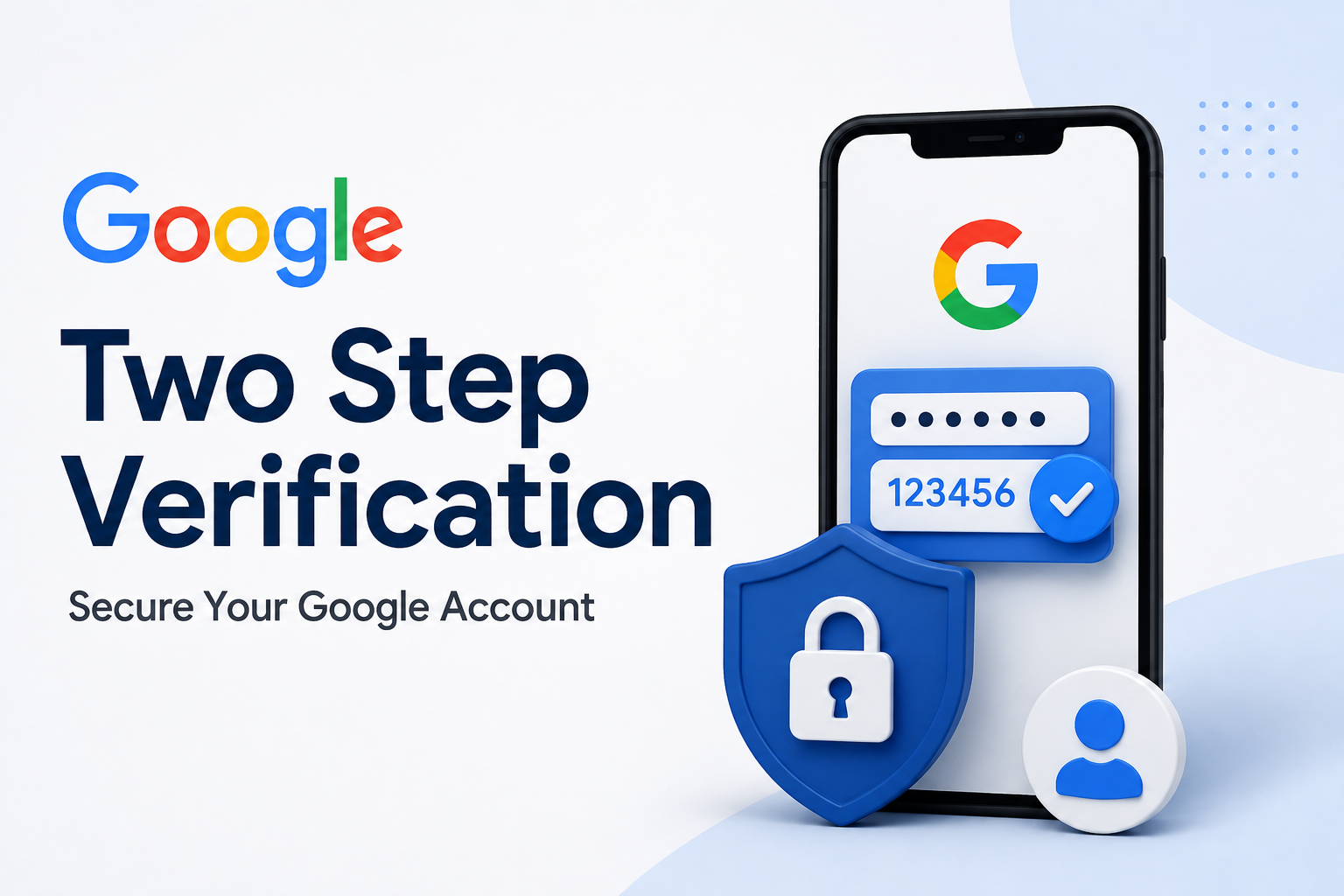
One of the easiest and most effective ways to improve Google Account security is to turn on Two Step Verification. This feature adds another layer of protection when you sign in. Even if someone gets your password, they may still be unable to access your account because Google can ask for another verification step.
In this guide, I will explain how to turn on Two Step Verification for Google Account in simple steps. I will also explain what Two Step Verification means, which verification methods you can use, and what you should do after enabling it.
What Is Two Step Verification?
Two Step Verification is a Google security feature that adds an additional verification step to your account. It is also commonly called two factor authentication or 2FA.
Normally, you sign in with your email address and password. With Two Step Verification enabled, Google can ask you to complete another step after entering your password.
Depending on your account and settings, this second step can involve a Google prompt on your phone, an authenticator app, a security key, a verification code, or another supported method.
I recommend enabling this feature because a password alone is not always enough to protect an online account. Passwords can be exposed through phishing, reused across websites, or compromised after a data breach. Two Step Verification gives your Google Account an additional security layer.
Why Should You Turn On Two Step Verification?
There are several reasons I consider Two Step Verification an important Google Account security setting.
Better Account Protection
The biggest benefit is additional protection against unauthorized sign ins. If someone knows your password, they may still need the second verification step.
Protection for Personal Information
Your Google Account may contain emails, photos, documents, contacts, and other private information. Securing the account helps reduce the chance of someone accessing these services without your permission.
Protection Against Stolen Passwords
If your password is exposed somewhere online, Two Step Verification can make unauthorized access more difficult.
More Control Over Sign Ins
Google provides security options that allow you to review account activity and manage how you verify your identity. This gives you more control over your account security.
How to Turn On Two Step Verification for Google Account
The process is straightforward. Before starting, make sure you know your Google Account password and have access to a trusted phone or another verification method.
Step 1: Open Your Google Account
First, open a web browser on your computer or phone.
Go to your Google Account settings and sign in if you are not already signed in.
You can access your account settings through the Google Account website.
Step 2: Open the Security Section
After opening your Google Account, look for the Security section.
This section contains different options related to account protection, sign in activity, passwords, and verification methods.
Scroll through the security settings until you find the option related to Two Step Verification.
Step 3: Select Two Step Verification
Click or tap 2 Step Verification.
Google may ask you to enter your password again. This is a normal security check because you are changing an important account setting.
Enter your password and continue.
Step 4: Start the Setup
After verification, Google will show information about Two Step Verification and how it works.
Select the option to begin the setup.
At this point, Google may recommend using your phone as the second step. The available options can vary depending on your account, device, and security settings.
Step 5: Choose Your Verification Method
Google can provide different ways to confirm your identity.
One common option is a Google prompt. With this method, Google sends a notification to your phone asking whether you are trying to sign in.
You may also be able to use an authenticator app, security key, verification code, or another supported method.
I recommend choosing a method that you can access reliably. Your second verification method should be something you control and can use when you need to sign in.
Step 6: Confirm Your Phone or Security Method
If Google asks you to verify your phone, follow the instructions shown on the screen.
For example, you may receive a notification or code. Complete the verification process as instructed.
Make sure you are using your own trusted device. Never share verification codes with another person.
Step 7: Turn On Two Step Verification
After completing the required verification steps, Google will show the option to turn on Two Step Verification.
Select the button to enable it.
Your account should now have an additional sign in security layer.
I recommend checking the settings once more after activation so you understand which verification methods are connected to your account.
How Google Prompt Works
Google Prompt is one of the convenient ways to verify a sign in.
When someone tries to access your Google Account, Google can send a notification to your trusted phone. You can review the prompt and confirm whether it was you.
This can be easier than manually typing a verification code every time.
However, you should never approve a Google prompt that you did not initiate. If you receive an unexpected sign in request, review it carefully and reject it.
An unexpected prompt can be a warning that someone knows your password and is attempting to access your account.
Using an Authenticator App
Another useful option is an authenticator app.
An authenticator app can generate temporary verification codes that you can use when signing in. These codes change regularly, which makes them more difficult for someone else to reuse.
If you decide to use an authenticator app, keep your device secure and make sure you understand how account recovery works before relying on it as your only backup.
Keep Backup Options Available
One thing I strongly recommend after enabling Two Step Verification is setting up backup options.
This is important because phones can be lost, damaged, replaced, or unavailable when you need to sign in.
Google provides account recovery and additional verification options that can help you regain access if your normal method is unavailable.
Review the recovery information associated with your account and make sure it is current.
If Google provides backup codes for your account, keep them somewhere secure. Do not post them online or send them to other people.
What If You Lose Your Phone?
Losing your phone does not necessarily mean you permanently lose access to your Google Account.
This is exactly why it is important to prepare recovery options before something goes wrong.
If you have another trusted verification method, backup codes, or updated recovery information, you may be able to verify your identity and regain access.
I suggest reviewing these options immediately after turning on Two Step Verification instead of waiting until you have an emergency.
Common Problems When Enabling Two Step Verification
Sometimes users experience problems during setup.
One common issue is not receiving a verification notification. In this situation, check your internet connection and make sure the correct Google Account is signed in on your device.
Another issue can occur when a user no longer has access to an old phone number or device. In that case, review the available recovery options in your Google Account.
You should also avoid repeatedly entering incorrect verification information because Google may temporarily restrict certain sign in attempts for security reasons.
Tips for Keeping Your Google Account Secure
Turning on Two Step Verification is an excellent start, but account security should not stop there.
I recommend using a strong and unique password for your Google Account. Avoid using the same password on multiple websites.
Be careful with suspicious emails and websites that ask you to enter your Google password. Phishing attacks often try to make a fake website look like a legitimate sign in page.
You should also review your Google Account security activity from time to time. If you notice an unfamiliar device, location, or sign in attempt, investigate it immediately.
Never share your password, verification codes, backup codes, or security prompts with anyone.
Frequently Asked Questions
Is Two Step Verification free?
Yes. Google provides Two Step Verification as a security feature for Google Accounts.
Does Two Step Verification replace my password?
No. Your password remains an important part of signing in. Two Step Verification adds another security step.
Can I use my phone for Two Step Verification?
Yes. Depending on your account and available settings, your phone can be used for Google prompts or other verification methods.
What happens if I lose my phone?
You can use other available recovery or verification methods if you have configured them. This is why keeping backup options updated is important.
Should I enable Two Step Verification?
In my opinion, yes. If your Google Account contains important emails, documents, photos, contacts, or other personal information, adding another security layer is well worth it.
Final Thoughts
Learning how to turn on Two Step Verification for Google Account is one of the simplest things you can do to improve your online security. The setup only takes a few minutes, but the additional protection can be extremely valuable.
I personally recommend enabling Two Step Verification and then checking your recovery information and backup methods. Do not rely only on your password. A strong password combined with Two Step Verification gives your Google Account a much stronger security foundation.
Once you enable the feature, remember that security is an ongoing process. Keep your recovery information updated, avoid suspicious links, protect your phone, and never share verification codes with anyone. These simple habits can help keep your Google Account and personal information safer.