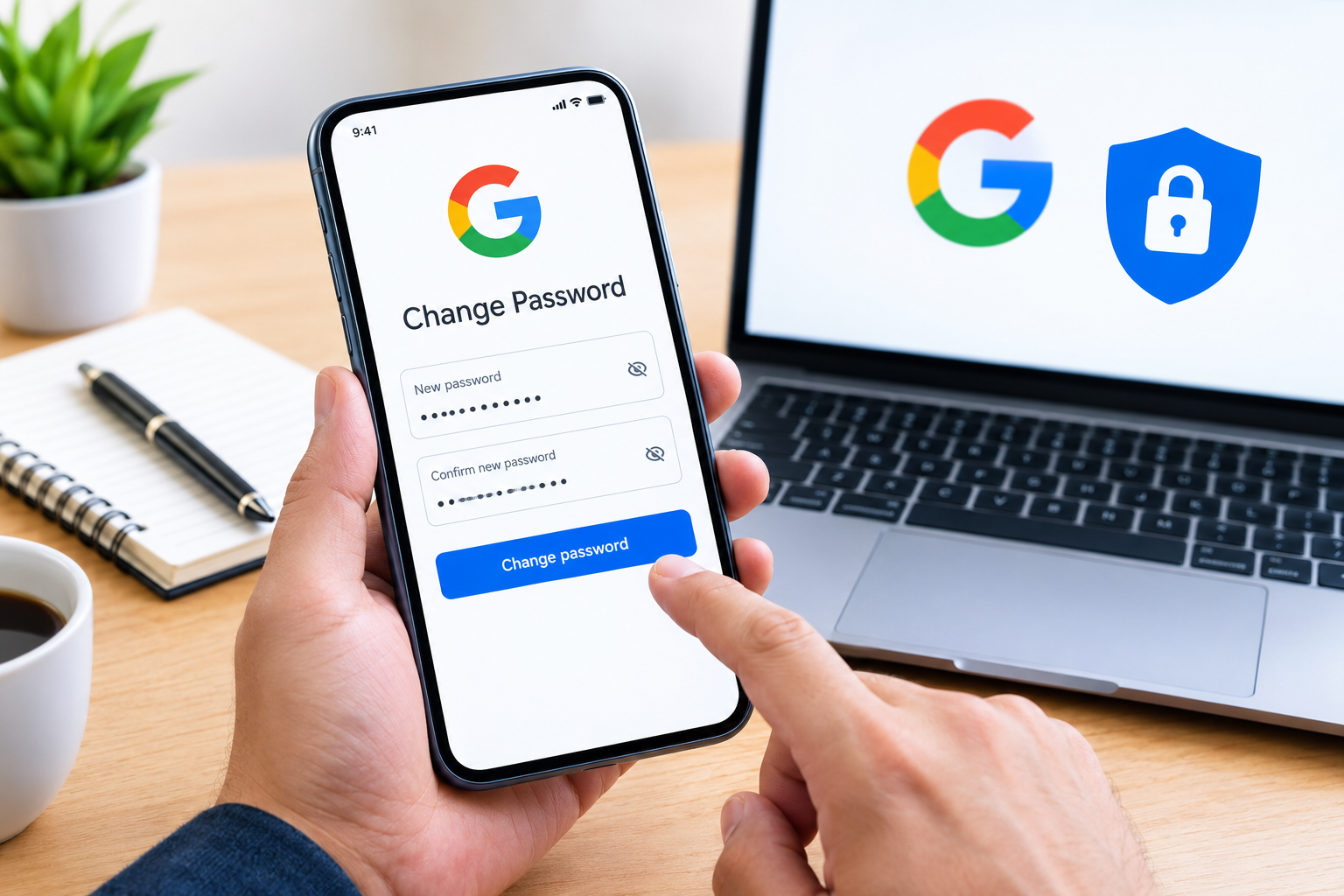
Your Google Account is connected to many important services that I use every day, including Gmail, Google Drive, Google Photos, YouTube, Google Play, and other Google services. Because so much personal information can be connected to one account, keeping the password secure is extremely important.
If you think someone may know your password, you have reused the same password on another website, or you simply want to improve your account security, changing your Google Account password is a smart step.
In this guide, I will explain how to change Google Account password on a computer, Android phone, and iPhone. I will also cover what happens after changing the password, how to create a strong password, and what to do if you forgot your current password.
Why Should You Change Your Google Account Password?
I recommend changing your Google password whenever there is a reasonable security concern. You do not necessarily need to change it every few weeks, especially if you already use a strong unique password and two step verification.
However, changing your password can be useful if you notice suspicious activity, receive an unexpected security alert, accidentally share your password, or discover that the same password was used on another website.
A strong and unique Google password makes it much harder for someone else to access your account.
How to Change Google Account Password on a Computer
Changing your Google password from a computer is quite simple. These are the steps I normally follow.
Step 1: Open Your Google Account
Open your preferred web browser and sign in to your Google Account.
You can access your account settings by opening the Google Account page and selecting Security from the menu.
Step 2: Go to the Password Section
Inside the Security section, look for the area related to how you sign in to Google.
Select Password.
Google may ask you to enter your current password or verify your identity before allowing you to continue. This is an important security step because changing the password is a sensitive account action.
Step 3: Enter Your New Password
After verification, Google will display the password change page.
Enter your new password in the first field. Then enter the same password again to confirm it.
I recommend using a password that is completely different from your previous password.
Step 4: Save the New Password
Once you have entered the new password, select the option to change or update your password.
Google will confirm that your password has been changed.
Your new password should now be used whenever you sign in to your Google Account.
How to Change Google Password on Android
If you mainly use your Google Account on an Android phone, you can change the password directly from your device.
Open the Settings app on your Android phone.
Find Google and select it.
Tap Manage your Google Account.
Now select the Security tab.
Look for the section related to signing in to Google and tap Password.
Google may ask you to verify your identity using your existing password, screen lock, or another available security method.
After verification, enter your new password twice.
Finally, confirm the password change.
The exact names of menus can vary slightly depending on your Android version and phone manufacturer, but the general process remains similar.
How to Change Google Account Password on iPhone
You can also change your Google Account password using an iPhone or iPad.
Open the Google app, Gmail app, or another Google application where you are signed in.
Tap your profile picture and select Manage your Google Account.
Go to the Security section.
Under the sign in options, select Password.
Verify your identity if Google asks you to do so.
Enter your new password and confirm it.
Then complete the password change.
Another simple option is to open your browser and access your Google Account settings directly.
What Makes a Good Google Password?
When I create a new password, I avoid using information that other people could easily guess. This includes names, birthdays, phone numbers, simple words, and common password combinations.
A good password should be long and unique. It should not be something you have already used for Facebook, Instagram, online shopping, banking, or another service.
For better security, consider using a password manager to create and store a strong password.
A memorable passphrase made from several unrelated words can also be easier to remember while remaining difficult to guess.
Most importantly, never share your Google password with another person.
What Happens After Changing Your Google Password?
One question people often ask is what happens to their devices after they change their Google Account password.
Changing your password can affect your existing Google sessions. Google may require you to sign in again on some devices or services.
For example, you may notice that Gmail, Google Drive, YouTube, or another Google service asks you to verify your account again.
This is normal and should not automatically be considered a problem.
If you use your Google Account on multiple phones, tablets, computers, or smart devices, be prepared to sign in again where necessary.
How to Change Google Password If You Forgot It
If you forgot your current Google password, you usually cannot simply change it through the normal password settings because Google needs to confirm that you are the account owner.
Instead, use the Google Account recovery process.
Start by entering your Google email address or phone number associated with the account.
Google may ask you to confirm information connected to your account. Depending on your security settings, you might receive a verification code, account recovery prompt, or another verification option.
Follow the instructions carefully and provide the requested information.
Once Google confirms your identity, you can create a new password.
I recommend completing the recovery process from a device and location that you commonly use for your Google Account. This can sometimes make the verification process easier.
What If Someone Else Knows My Google Password?
If you believe another person knows your Google password, I would not wait.
Change the password as soon as possible.
After changing it, review your account security settings and check your recent activity. Look for unfamiliar devices, locations, or security events.
If you see something suspicious, remove devices or sessions that you do not recognize and secure your account.
You should also make sure your recovery phone number and recovery email address are correct.
These recovery options are extremely important because they can help you regain access if you ever lose your password.
Turn On Two Step Verification
Changing your password is only one part of good account security.
I strongly recommend enabling two step verification on your Google Account.
With two step verification enabled, a password alone is not enough to access your account in many situations. Google can ask for another verification method, such as a phone prompt, security key, or verification code.
This provides an additional layer of protection if your password is ever exposed.
You can find two step verification inside the Security section of your Google Account.
Check Your Google Account Security Activity
After changing your password, it is a good idea to review your account activity.
Look for devices that you do not recognize.
Also check recent security events and make sure there were no unexpected changes to your account.
If you find an unfamiliar device or activity, investigate it immediately.
Do not ignore security alerts simply because your account still works normally. Suspicious activity can sometimes happen without immediately preventing you from accessing Gmail or other Google services.
Avoid Common Password Mistakes
There are several password mistakes that I see people make repeatedly.
The first is using the same password everywhere. If another website suffers a data breach, attackers may try the exposed password on your Google Account.
The second mistake is using simple passwords. Passwords such as your name, date of birth, phone number, or common phrases are easier to guess.
Another mistake is saving passwords in untrusted places. Avoid keeping your Google password in plain text inside random notes, messages, or documents.
I also recommend avoiding suspicious links in emails or messages. If you receive a message asking you to change your Google password, open your Google Account directly instead of clicking an unfamiliar link.
Frequently Asked Questions
How often should I change my Google password?
There is no need to change a strong, unique password on a fixed schedule if your account is secure. However, change it immediately if you suspect that someone knows it or if the password has been exposed elsewhere.
Can I change my Google password from my phone?
Yes. You can change your Google Account password from Android or iPhone through your Google Account security settings.
Will changing my Google password delete my Gmail?
No. Changing your password does not delete Gmail messages, Google Photos, Google Drive files, contacts, or other account data.
Will I need to sign in again after changing my password?
You may need to sign in again on some devices or services. This is a normal security measure.
What should I do if I cannot remember my old password?
Use Google’s account recovery process instead of repeatedly guessing passwords.
Final Thoughts
Learning how to change Google Account password is one of the simplest ways to improve your online security. The process is straightforward whether you are using a computer, Android phone, or iPhone.
From my point of view, the most important thing is not simply changing the password. It is choosing a strong and unique password, enabling two step verification, keeping recovery information updated, and regularly checking account security activity.
If you believe your password has been compromised, do not delay. Change it, review your account activity, remove anything unfamiliar, and strengthen your security settings.
A Google Account can contain years of emails, photos, documents, contacts, and other personal information. Taking a few minutes to protect it can save you from much bigger problems later.