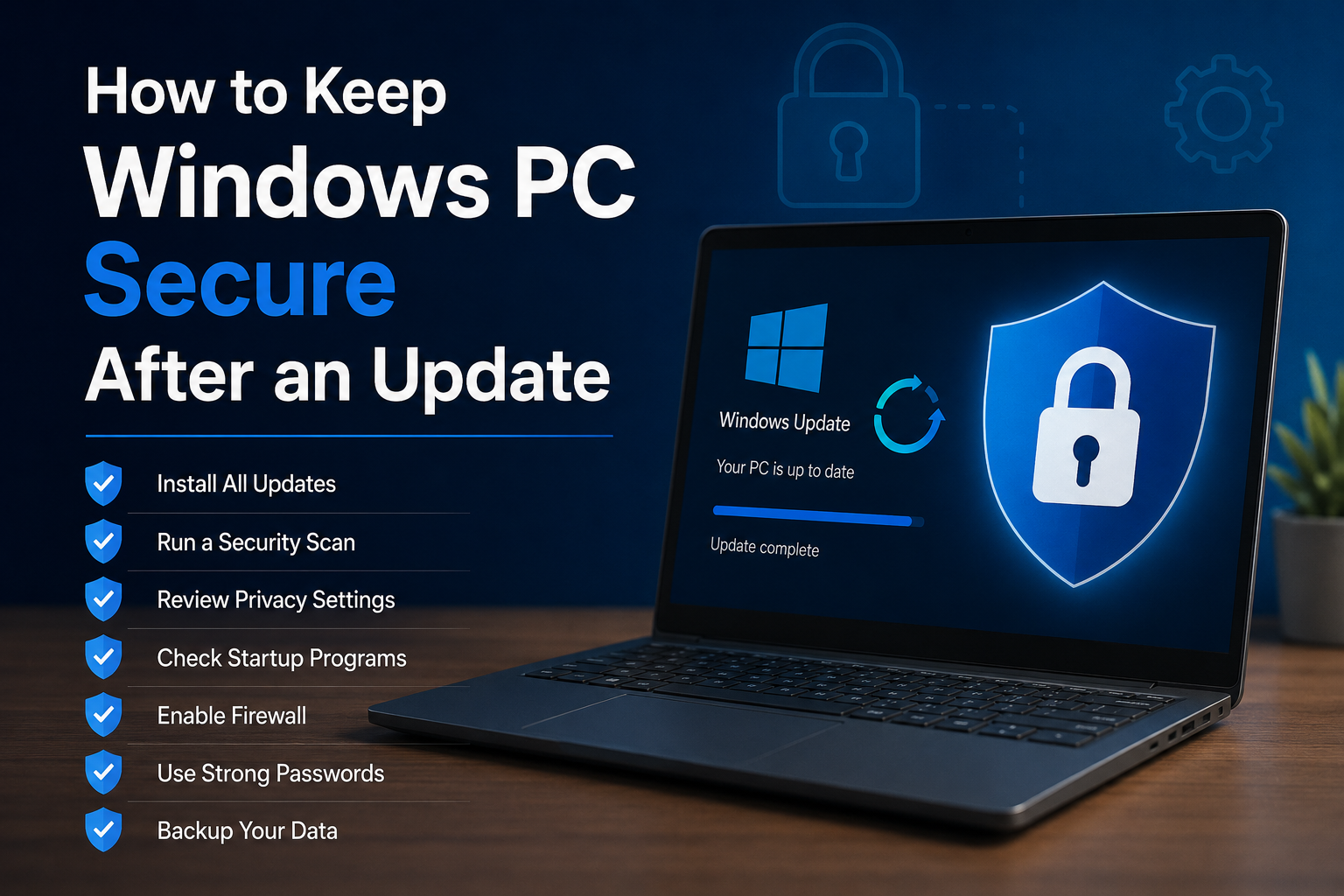
Keeping Windows updated is one of the easiest ways to improve the security of a computer. Updates can fix security problems, improve system stability, add new features, and solve bugs. However, I do not think security work should stop when the update finishes. After a Windows update, I like to take a few extra minutes to check the important security settings and make sure everything is working properly.
An update can sometimes change system settings, restart services, update drivers, or modify privacy options. In most cases, these changes are normal, but it is still a good idea to review your PC after a major update.
In this guide, I will share practical steps on how to keep a Windows PC secure after an update. These are simple things that most users can do without advanced technical knowledge.
Why Security Checks Matter After a Windows Update
Windows updates are designed to make your computer safer, but your overall security depends on more than the operating system itself.
Your computer may contain personal photos, documents, passwords, work files, financial information, browser data, and other private information. If your security settings are not configured properly, updating Windows alone cannot protect everything.
I believe a Windows update should be treated as a good opportunity to perform a quick security check.
You do not need to change everything. Just checking Windows Security, installed applications, privacy settings, passwords, backups, and important account settings can give you better protection.
Restart Your PC After the Update
The first thing I recommend is restarting your Windows PC after an update if Windows asks you to do so.
Some updates cannot complete their installation until the computer restarts. Even when Windows appears to have finished updating, a restart can help complete pending changes.
After restarting, give the computer a few minutes to finish background tasks. Do not immediately assume something is wrong if the system feels slightly slower for a short time.
Windows may be completing maintenance tasks in the background.
Check Windows Update Again
After restarting, I recommend checking Windows Update one more time.
Open Settings, then select Windows Update. Depending on your version of Windows, you may see whether your system is up to date or whether additional updates are available.
Sometimes several updates are installed in stages. There may also be updates for security intelligence, drivers, or other Microsoft components.
Installing available security updates is important because attackers can take advantage of known vulnerabilities in older software.
I personally prefer keeping automatic updates enabled unless there is a specific reason to pause them.
Check Windows Security
Windows includes built in security features that can help protect your computer from malware and other threats.
Open Windows Security and review the main security areas.
You may see sections for virus and threat protection, firewall and network protection, account protection, device security, and other security controls.
If Windows Security shows a warning, do not ignore it. Open the warning and understand what Windows is recommending.
A green or normal security status is generally a good sign, but it is still worth checking the details after a major update.
Run a Security Scan
After an important Windows update, running a security scan can provide extra peace of mind.
Open Windows Security, select Virus and threat protection, and look at the available scanning options.
A quick scan can check common areas where threats may appear. If you have a reason to believe that your PC may be infected, you can consider a more comprehensive scan.
I do not recommend installing several different antivirus programs just because you want more protection. Multiple security applications can sometimes interfere with each other and affect system performance.
For many users, keeping Microsoft’s built in security tools active and updated is a sensible starting point.
Make Sure the Firewall Is Active
The Windows firewall is another important security layer.
A firewall helps control network connections between your computer and other devices or services.
Open Windows Security and check Firewall and network protection.
Make sure the firewall is enabled for the network profiles you use.
If an application asks for network access, think about whether you recognize the application and whether it actually needs that access.
I would not recommend turning off the firewall simply because an application or website tells you to do so. If you have a connection problem, it is better to identify the actual cause instead of disabling an important security feature.
Review Your Privacy Settings
Windows collects and processes certain information to provide features and services. After a major update, I recommend checking your privacy settings.
Open Settings and look through the Privacy and security section.
Review permissions related to your location, camera, microphone, notifications, account information, and other device features.
You do not necessarily need to disable everything. Some Windows features depend on specific permissions.
Instead, I recommend checking which applications have access and removing access that you do not consider necessary.
This is particularly useful if you want to reduce the amount of personal information that applications can access.
Check Installed Applications
Windows updates do not replace the need to manage third party applications.
Open your installed applications and look for programs that you no longer use.
Old software can become a security concern if it is no longer maintained or updated. If you do not need a program anymore, uninstalling it can reduce unnecessary software on your PC.
Be especially careful with applications you do not remember installing.
If you find an unfamiliar program, research it before removing it if you are unsure whether it is an important Windows component.
Update Your Browsers and Important Apps
Your web browser is one of the most frequently used applications on a Windows PC, so keeping it updated is important.
Check that your preferred browser is running its latest available version.
You should also update applications that handle sensitive information, such as password managers, communication software, document tools, and financial applications.
Security is not limited to Windows itself. A vulnerable application can create problems even when the operating system is completely updated.
Review Startup Programs
After an update, it is also useful to look at programs that start automatically when Windows starts.
Open Task Manager and check the Startup apps section.
You may find programs that you do not need running every time you turn on the computer.
Disabling unnecessary startup programs can improve performance, but more importantly, it gives you a chance to notice unfamiliar software.
Do not disable Windows components simply because you do not recognize their names. If you are unsure about a startup item, research it before making changes.
Protect Your Windows Account
Your Windows account is another important part of PC security.
Use a strong password or PIN that other people cannot easily guess. If your computer supports Windows Hello, you can also use compatible biometric authentication or other supported sign in methods.
Avoid sharing your Windows password with other people.
If several people use the same computer, separate user accounts can provide better privacy and organization.
I also recommend locking your computer whenever you leave it unattended, especially in an office, school, or shared environment.
Change Important Passwords When Necessary
A Windows update does not automatically mean that your passwords have been compromised. However, it can be a good reminder to review your important accounts.
Make sure your email, Microsoft account, banking accounts, social media accounts, and other important services use strong and unique passwords.
If you have reused the same password across several websites, changing those passwords is a good idea.
Two step verification should also be enabled on important accounts whenever it is available.
Your email account deserves particular attention because it can often be used to reset passwords for other services.
Check Your Backups
Security is not only about preventing attacks. It is also about recovering your information if something goes wrong.
Make sure your important files are backed up after a major Windows update.
You can use an external storage device, a trusted cloud backup service, or another reliable backup method.
Important documents, family photos, work files, and other irreplaceable information should not exist in only one location.
A backup can be extremely valuable if your computer experiences hardware failure, malware, accidental deletion, or another unexpected problem.
Be Careful With Update Related Scams
One thing I always keep in mind is that scammers can use Windows updates as a reason to trick users.
You may see a website claiming that your computer needs an urgent update or that you must install a special security program.
Do not download software simply because a pop up tells you that Windows is infected.
Use the Windows Settings application to check for legitimate system updates.
If you receive an unexpected email about a Windows update, avoid clicking suspicious links. Instead, open the relevant Microsoft settings directly.
Check Your Browser Extensions
Browser extensions can be useful, but they can also access information from websites you visit.
After a major system update, take a moment to review the extensions installed in your browser.
Remove extensions that you no longer use or do not recognize.
I prefer keeping the number of browser extensions relatively small because every additional extension adds another piece of software to manage.
Only install extensions from trusted sources and check their permissions before using them.
Create a Simple Security Routine
You do not need to spend hours securing your Windows PC every time an update arrives.
I recommend creating a simple routine.
After an important update, restart the computer, check Windows Update again, open Windows Security, confirm the firewall is active, run a security scan, review privacy settings, and make sure your important applications are updated.
Then check your backups and remove anything suspicious or unnecessary.
This routine can usually be completed fairly quickly and can help you maintain better security over time.
Final Thoughts
Knowing how to keep a Windows PC secure after an update is important because installing the latest Windows update is only one part of computer security.
In my opinion, the best approach is to combine updated software with strong passwords, active security tools, careful privacy settings, reliable backups, and sensible browsing habits.
After an update, check Windows Security and make sure your firewall is active. Review installed applications and startup programs. Keep your browser and other important software updated. Check privacy permissions and protect your accounts with strong passwords and two step verification.
Most importantly, do not ignore unusual warnings or unfamiliar applications. If something looks suspicious, investigate it before clicking or installing anything.
A few minutes of checking after a Windows update can help keep your PC, personal information, and important files safer. Good computer security is not about making your PC complicated. It is about building simple habits and following them consistently.