I have faced situations where I was already connected to a WiFi network on my Windows 11 computer but could not remember the password. It can be frustrating when another phone, laptop, or smart device needs the same WiFi connection. The good thing is that Windows 11 provides several simple ways to find a saved WiFi password.
If your Windows 11 PC has connected to the wireless network before, you can usually view the saved WiFi password through Windows settings, network properties, or Command Prompt. In this guide, I will explain each method step by step so you can find your WiFi password without changing the router settings.
Why You May Need to Find a WiFi Password on Windows 11
There are many reasons why someone may want to find a saved WiFi password. You might have forgotten the password after connecting your computer months ago. You may want to connect your phone to the same network, or perhaps a family member has asked you for the password.
Sometimes the password is written on the router, but that is not always convenient. Many people also change their router password and then forget the new one. If your Windows 11 computer is already connected to that network, checking the saved password can be much easier.
The important thing to remember is that Windows can only show a password that has been saved on the computer. If your PC has never connected to the network, these methods will not magically reveal the password.
Method 1: Find WiFi Password Through Windows 11 Settings
The easiest method for many users is through the Windows 11 Settings application.
First, click the Start button and open Settings. You can also press Windows and I together on your keyboard to open Settings quickly.
Now select Network and Internet from the left side of the window. Click WiFi and then open the properties of the network you are currently connected to.
Depending on your Windows 11 version, the exact layout may look slightly different. Look for the option related to viewing the WiFi security key or password.
If Windows asks you to confirm your identity, follow the instructions on the screen. Once available, you should be able to view the saved WiFi password.
This method is convenient because you do not need to type commands or use third party software.
Method 2: Use Network and Sharing Center
Another useful way to find a WiFi password on Windows 11 is through the traditional Network and Sharing Center.
Although Windows 11 focuses heavily on the newer Settings application, some classic networking tools are still available.
Open the Control Panel from the Start menu search. Select Network and Internet and then choose Network and Sharing Center.
You should see the WiFi network your computer is currently using. Click the name of the WiFi connection.
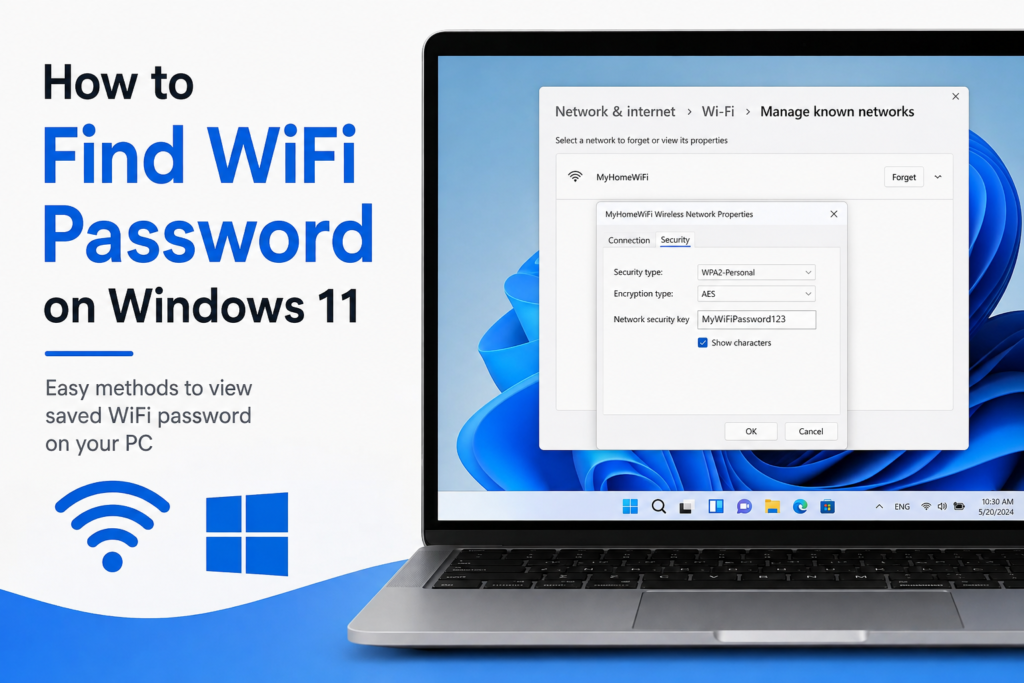
A new window will appear showing information about your wireless connection. Click Wireless Properties.
Now select the Security tab.
You should see a field called Network security key. The password will normally appear as hidden characters.
To reveal it, select the Show characters option.
Your saved WiFi password should now become visible.
I personally find this method useful because the steps are straightforward and the password appears directly inside the wireless network properties.
Method 3: Find a Saved WiFi Password Using Command Prompt
If you prefer using commands, Windows 11 also provides a powerful method through Command Prompt. This method is especially useful if you want to find the password for a WiFi network that you connected to in the past.
First, open the Start menu and search for Command Prompt.
Open Command Prompt.
Now type the following command:
netsh wlan show profiles
Press Enter.
Windows will display a list of WiFi networks that have been saved on your computer.
Find the name of the WiFi network for which you want to find the password.
Next, type the following command, replacing WiFiName with the exact network name:
netsh wlan show profile name="WiFiName" key=clear
Press Enter.
Windows will display detailed information about that wireless network. Look for the section called Security settings.
Under that section, find Key Content.
The value next to Key Content is the saved WiFi password.
For example, if your network name is MyHomeWiFi, you would use:
netsh wlan show profile name="MyHomeWiFi" key=clear
This method is particularly helpful when the network is no longer connected but was previously saved on your computer.
Method 4: Use Windows Terminal
Windows 11 also includes Windows Terminal, which can be used for the same network commands.
Open the Start menu and search for Windows Terminal. Open the application and make sure you are using a Command Prompt or compatible shell.
Enter:
netsh wlan show profiles
After pressing Enter, you will see the saved wireless networks.
Then use:
netsh wlan show profile name="WiFiName" key=clear
Replace WiFiName with the actual name of the network.
Look for Key Content in the results.
This method works well for users who are comfortable with command line tools and want a quick way to retrieve saved network information.
How to Find the Password of an Old WiFi Network
One of the best things about the Command Prompt method is that you do not necessarily need to be connected to the WiFi network at the moment.
If Windows 11 previously connected to the network and saved its profile, you can use the list of saved profiles to locate it.
Start by entering:
netsh wlan show profiles
Find the old network name from the list.
Then enter:
netsh wlan show profile name="NetworkName" key=clear
Check the Key Content value.
This can be very useful if you have recently changed networks but need the password for an older connection.
What If the WiFi Password Is Not Showing?
Sometimes users follow the steps but cannot find the password. There are several possible reasons.
First, make sure the WiFi network has actually been saved on your computer. If the computer has never connected to that network, Windows will not have a saved password to display.
Second, check that you have entered the network name correctly when using Command Prompt. Network names are sometimes easy to mistype, especially if they contain spaces or special characters.
Third, make sure you are checking the correct WiFi profile. If your computer has connected to several networks with similar names, it is possible to select the wrong profile.
You can use the following command again to see all saved profiles:
netsh wlan show profiles
Then copy the exact network name and use it in the profile command.
Can You Find the WiFi Password Without Being Connected?
Yes, in many cases you can find the password of a previously connected WiFi network without currently being connected to it.
The important requirement is that Windows 11 must have a saved wireless profile for that network.
The Command Prompt method is particularly useful here because it allows you to view information about saved wireless profiles.
However, if you have never connected your computer to that network, you will need to obtain the password from the router owner or another authorized source.
What If You Forgot the WiFi Password and Windows Did Not Save It?
If your Windows 11 computer has never connected to the WiFi network, you cannot use Windows settings or Command Prompt to retrieve a password that does not exist in the saved profiles.
In that situation, you can check the label on the router if the default password is still being used. You can also log in to your router administration page if you have the necessary access.
Another option is to ask the network owner for the current password.
If you own the router and have completely forgotten the password, resetting the router may be possible, but this should be considered a last option because it can remove your existing network configuration.
Is It Safe to View a Saved WiFi Password?
Viewing a saved WiFi password on your own Windows 11 computer is generally useful for managing your own network connections. However, a WiFi password should be treated like any other account credential.
Do not share your password with people you do not trust. Avoid posting it publicly or saving it in an unsecured location.
If you believe that someone has access to your WiFi without permission, changing the WiFi password through your router is a better solution than simply trying to hide the existing password.
How to Change Your WiFi Password
Finding a WiFi password and changing a WiFi password are two different things.
Windows 11 can help you view a password that has already been saved, but the actual network password is controlled by the router.
If you want to change the password, you normally need to access your router’s administration page. The exact steps depend on the router manufacturer and model.
After changing the password, you may need to reconnect your Windows 11 computer using the new password.
Final Thoughts
Finding a WiFi password on Windows 11 is much easier than many people think. If your computer is already connected to the network, you can often find the password through Windows network settings or the classic Network and Sharing Center.
For users who want more control, Command Prompt provides another reliable method. The command netsh wlan show profiles can display saved WiFi networks, while the profile command with key=clear can show the saved security key for an authorized network.
I recommend starting with the Windows settings method because it is simple and does not require commands. If you need to find the password for an older saved network, Command Prompt can be especially useful.
The main thing to remember is that these methods work with WiFi information already saved on your Windows 11 computer. If the network has never been connected to your PC, you will need to get the password from the network owner or router instead.
With these methods, you should be able to find a saved WiFi password on Windows 11 quickly without installing unnecessary third party applications.