Have you ever connected your Android phone to a WiFi network and then forgotten the password later? It happens to me quite often, especially when I connect to a network once and do not need to type the password again for months. The good thing is that modern Android phones make it much easier to find or share a saved WiFi password.
If you are searching for how to find saved WiFi password on Android, you usually do not need any third party application. Android has built in WiFi sharing features that can show the network details or generate a QR code that another device can scan.
In this guide, I will explain the easiest methods to find a saved WiFi password on Android. The exact steps can be slightly different depending on your Android version and phone manufacturer, but the basic process is quite similar.
Can You See a Saved WiFi Password on Android?
Yes, many modern Android phones allow you to access information about a saved WiFi network through the WiFi settings.
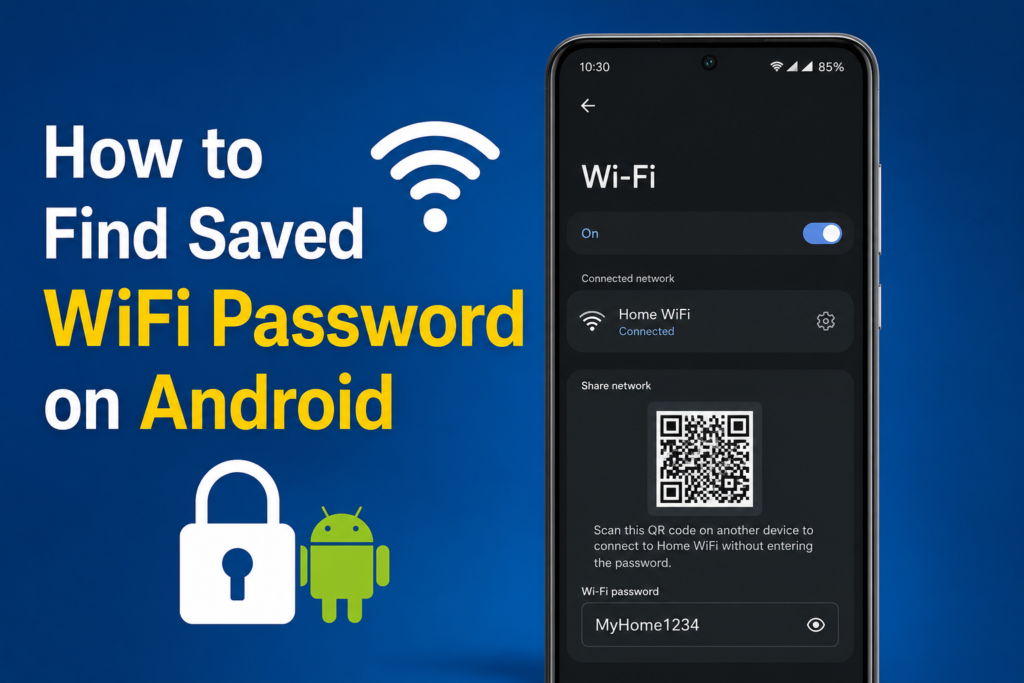
On newer Android versions, you can often open the connected network and select the option to share it. After verifying your identity with your phone’s PIN, password, fingerprint, or face unlock, Android can display a QR code for the network.
Some Android phones also show the actual WiFi password below the QR code.
This feature is particularly useful when you want to connect another phone, laptop, tablet, or smart device to the same WiFi network but cannot remember the password.
How to Find Saved WiFi Password on Android
The easiest method is through the WiFi settings on your Android phone.
Follow these steps:
- Open the Settings app on your Android phone.
- Tap Network and internet or Connections.
- Select WiFi.
- Find the WiFi network your phone is currently connected to.
- Tap the gear icon or the network name.
- Look for Share, QR Code, or Share network.
- Confirm your identity using your screen lock.
- A QR code should appear.
Depending on your phone model and Android version, you may also see the WiFi password displayed underneath the QR code.
If you see the password, you can simply read it and enter it on another device.
If you only see a QR code, another phone can scan the code to connect to the same WiFi network without manually typing the password.
Find WiFi Password Using a QR Code
The QR code method is one of the most convenient features available on modern Android phones.
Instead of displaying the WiFi password directly, some devices provide a QR code containing the network information.
To use this feature, open Settings and go to WiFi. Select your connected network and look for the Share option.
After confirming your identity, Android will generate a QR code.
Now open the camera or QR scanner on another compatible phone and scan the code.
The second phone should recognize the WiFi network and provide an option to connect.
This method is especially useful when you are helping a family member or friend connect to your home WiFi. You do not have to type a long password containing numbers, letters, and special characters.
How to See WiFi Password on Samsung Galaxy
Samsung Galaxy phones have their own version of the Android settings interface, so the steps can look slightly different.
Open Settings and tap Connections. Then select WiFi.
Find the network your Samsung phone is currently connected to and tap the gear icon beside it.
Look for the QR code or Share option.
After selecting it, Samsung may ask you to verify your identity. Once verification is complete, the phone can display a QR code that allows another device to connect to the same network.
Depending on the Galaxy model and software version, the actual password may also be visible.
If you do not see the password directly, you can use the QR code to connect another device.
How to Find WiFi Password on Google Pixel
Google Pixel phones generally use a straightforward Android interface.
Open Settings and select Network and internet. Tap Internet and then select the WiFi network you are connected to.
Look for the Share option.
Your Pixel phone may ask you to verify your identity before displaying the WiFi sharing screen.
Once verified, a QR code will appear. Another compatible device can scan this code and connect to the same WiFi network.
The exact appearance of the screen can change with Android updates, so the wording may not be identical on every Pixel device.
What If Your Phone Does Not Show the WiFi Password?
Not every Android phone shows the password as plain text.
Some manufacturers only provide a QR code. This does not necessarily mean the password is unavailable. The QR code contains the network information needed for another device to connect.
If you need the actual password, you can try scanning the QR code with another device or a QR scanner that can display WiFi network information.
Another option is to check the router itself. Many routers have a label containing the default WiFi network name and password.
If the password was changed from the original router password, you may need to access the router’s administration page or contact the person who manages the network.
Can You Find an Old Saved WiFi Password?
This depends on your Android version and device manufacturer.
If the network is saved on your phone but you are not currently connected to it, some Android phones allow you to access saved networks through the WiFi settings.
You can open Settings, go to Network and internet, and check the saved or previously connected networks.
However, the exact options vary between Android devices.
If your phone does not provide a way to share an old network, you may not be able to directly view its password through the normal settings.
In that situation, checking the router or asking the network owner may be the simplest solution.
Use Google Password Manager Carefully
Some people assume that WiFi passwords are stored in the same place as website passwords. Usually, this is not how Android presents WiFi credentials.
Google Password Manager is mainly designed for passwords used with websites and applications. WiFi network credentials are generally managed through the device’s network settings.
For this reason, if you want to find a saved WiFi password, I recommend checking the WiFi settings first instead of installing a random password recovery application.
Avoid Random WiFi Password Recovery Apps
When searching for how to find saved WiFi password on Android, you may come across many applications claiming that they can reveal every saved WiFi password.
I would be careful with these apps.
Many of them require unnecessary permissions, root access, or access to sensitive information. Some may not work on modern Android versions at all.
If your phone already provides a built in WiFi sharing feature, there is usually no reason to install another application.
Using the official settings on your Android phone is safer and easier.
How to Share WiFi Without Revealing the Password
One of the biggest advantages of the Android WiFi QR code feature is that you do not always have to tell someone the actual password.
For example, imagine a guest wants to connect to your home network.
Instead of saying the password out loud, you can open your WiFi settings, select the connected network, tap Share, and display the QR code.
The guest can scan the code and connect.
This is also useful if your WiFi password is long or difficult to type.
Why Android Requires Screen Lock Verification
You may notice that Android asks for your PIN, password, fingerprint, or another security method before showing WiFi sharing information.
This is an important security feature.
Someone who picks up your unlocked phone should not automatically be able to access sensitive network information.
The verification step helps ensure that the person trying to share the network is authorized to do so.
If your phone asks you to unlock the device before showing the WiFi QR code, that is normal behavior.
What to Do If WiFi Sharing Is Missing
If you cannot find the Share option, first check whether your Android phone is actually connected to the network.
Then make sure you are looking at the network details page rather than the general WiFi list.
You can also check for Android system updates and manufacturer software updates.
The location of the option can vary between brands such as Samsung, Google Pixel, Xiaomi, OnePlus, Oppo, Vivo, and other Android manufacturers.
If your phone is using an older Android version, the built in QR sharing feature may not be available.
In that case, checking the router or contacting the network administrator may be easier than trying untrusted applications.
Can You Find WiFi Password Without Root?
On many modern Android phones, you can access WiFi sharing information without root access.
This is another reason I recommend using the built in Android settings whenever possible.
Older Android versions sometimes had fewer options for viewing saved WiFi credentials, which led users to search for root based methods.
Today, most users do not need to root their phones just to share a saved WiFi connection.
Rooting a phone can introduce additional security and stability risks, so it should not be necessary for a simple WiFi password recovery task.
Final Thoughts
Learning how to find saved WiFi password on Android is much easier than it used to be. On many modern Android phones, you can open the WiFi settings, select the connected network, tap Share, and verify your identity to generate a QR code.
Depending on your device, the actual password may also be displayed on the same screen.
If your phone only provides a QR code, you can still use it to connect another device without manually entering the password. This is one of the most convenient ways to share WiFi with family members, friends, and other devices.
If the feature is not available on your phone, do not immediately install a WiFi password recovery application. Check your router label, contact the network owner, or look through your device’s available network settings instead.
Android versions and manufacturer interfaces can change over time, so the names of menus may be slightly different on your phone. However, the general process remains simple.
In my opinion, the built in WiFi sharing feature is the safest and easiest option. It saves time, avoids unnecessary apps, and lets you connect another device without having to remember a complicated WiFi password.
Frequently Asked Questions
How can I find my saved WiFi password on Android?
Open Settings, go to WiFi or Network and internet, select your connected network, and look for Share or QR Code. After verifying your identity, your phone may display the password or generate a QR code.
Can Android show the WiFi password directly?
Some Android phones display the password below the QR code, while others only show the QR code. The feature depends on the Android version and phone manufacturer.
How do I find WiFi password on Samsung?
Open Settings, select Connections, tap WiFi, choose the connected network, and look for the QR code or Share option. You may need to unlock your phone before the information appears.
Can I find an old WiFi password on Android?
Some phones allow you to access and share previously saved networks, but this depends on the Android version and manufacturer. If the option is unavailable, check the router or ask the network administrator.
Do I need an app to find a saved WiFi password?
Usually, no. Modern Android phones often have built in WiFi sharing features, so a third party application is generally unnecessary.
Is it safe to share a WiFi QR code?
Only share your WiFi QR code with people you trust. Anyone who can use the code may be able to connect to your network, so treat it like other network access information.