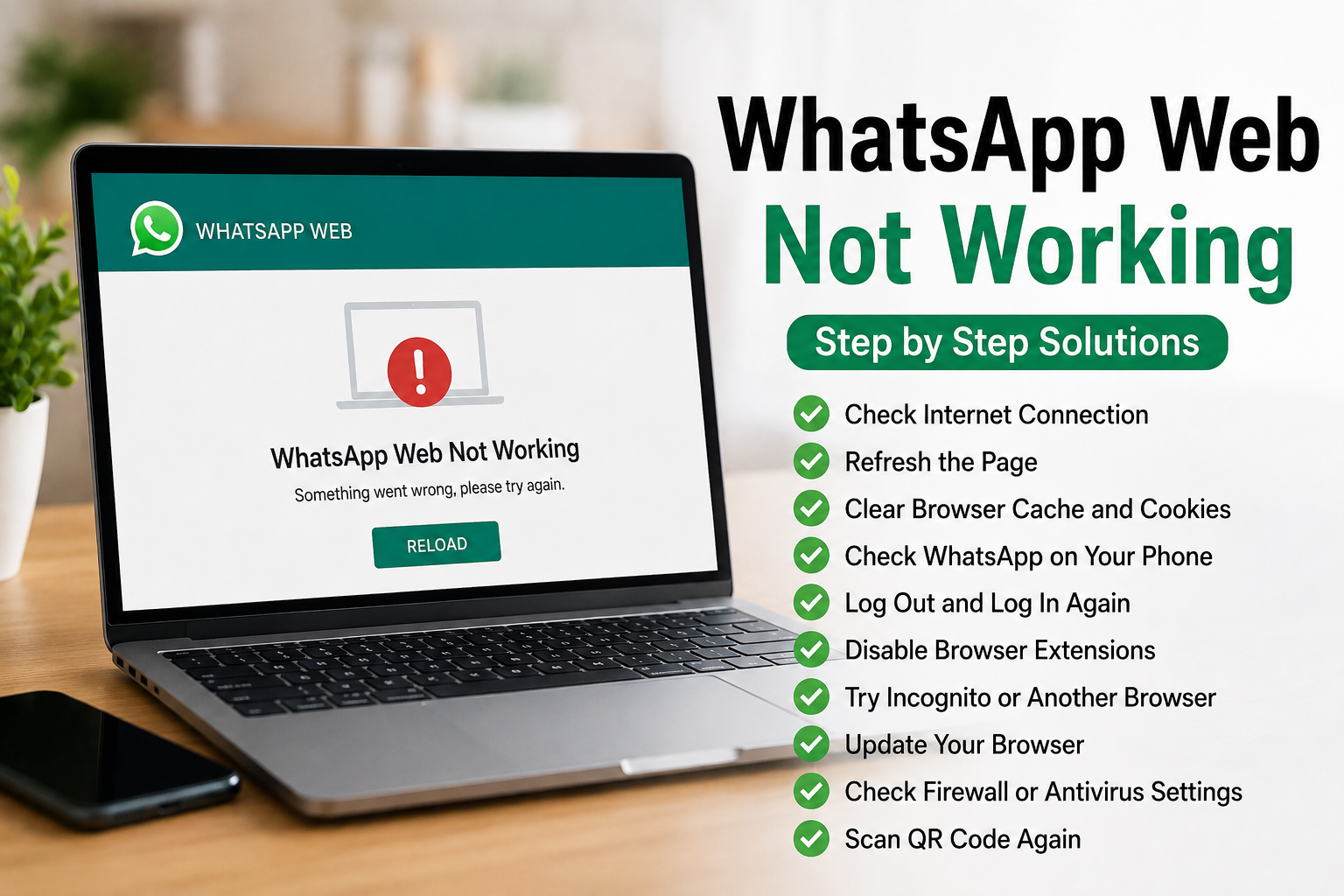
WhatsApp Web is one of the easiest ways to use WhatsApp on a computer. I personally find it much more convenient when I am working on a laptop because I can read messages, send files, and reply to conversations without constantly picking up my phone. However, sometimes WhatsApp Web stops working. The page may not load, the QR code may not appear, messages may not sync, or WhatsApp Web may suddenly disconnect.
If you are facing the WhatsApp Web not working problem, there is usually no need to panic. In most cases, the issue is related to the internet connection, browser cache, WhatsApp settings, an outdated browser, or a temporary connection problem between your phone and computer.
In this guide, I will explain the solutions I normally recommend when WhatsApp Web is not working properly. Start with the simple methods first, then move toward the advanced solutions if the problem continues.
Check Your Internet Connection
The first thing I always check is the internet connection on the computer.
WhatsApp Web needs a stable internet connection to communicate with WhatsApp servers. Open another website in your browser and see if it loads normally.
If other websites are also not loading, the problem is probably with your internet connection rather than WhatsApp Web.
Try disconnecting and reconnecting to WiFi. You can also restart your router and wait a few minutes before trying WhatsApp Web again.
If you are using mobile data on your phone, make sure your phone also has a working internet connection.
Refresh WhatsApp Web
Sometimes WhatsApp Web may stop responding because of a temporary browser or connection problem.
The easiest solution is to refresh the page.
Open WhatsApp Web and press the refresh button in your browser. You can also close the browser tab and open WhatsApp Web again.
If the page shows an error message, wait a few seconds and reload it.
I recommend trying this simple solution before changing any browser settings because temporary connection problems are quite common.
Check WhatsApp on Your Phone
WhatsApp Web is connected to your WhatsApp account, so your phone can sometimes provide a useful clue.
Open WhatsApp on your phone and check whether messages are arriving normally.
If WhatsApp itself is not connecting on your phone, fix the phone connection first.
Make sure mobile data or WiFi is working and that WhatsApp is allowed to use the internet.
If WhatsApp works perfectly on your phone but WhatsApp Web does not work on your computer, the problem is more likely related to your browser or computer.
Check Linked Devices
If WhatsApp Web suddenly stops working, check the linked devices section in WhatsApp.
Open WhatsApp on your phone and go to Settings. Find the Linked Devices option and review the computers or browsers connected to your account.
If your computer is listed, you can try logging out from that device and connecting it again.
If you see an old device that you no longer use, remove it for security reasons.
After logging out, open WhatsApp Web on your computer and scan the QR code again using your phone.
Scan the QR Code Again
A connection between WhatsApp Web and your phone can sometimes expire or become unstable.
When this happens, scanning the QR code again can solve the problem.
Open WhatsApp Web in your browser. On your phone, open WhatsApp and go to Linked Devices. Choose the option to link a new device and scan the QR code shown on your computer.
Make sure the QR code is clearly visible on your monitor and that your phone camera can focus on it.
If the QR code does not appear, refresh the WhatsApp Web page and try again.
Clear Browser Cache and Cookies
Browser cache and cookies can sometimes interfere with websites.
If WhatsApp Web worked previously but suddenly stopped working, clearing the relevant browser data can help.
Open your browser settings and find the privacy or browsing data section. Clear cached files and cookies, then restart the browser.
Keep in mind that clearing cookies can sign you out of websites you normally use.
After clearing the data, open WhatsApp Web again and scan the QR code.
This is one of the solutions I would try when the WhatsApp Web page loads incorrectly or keeps showing an error.
Try Incognito Mode
Another simple test is to open WhatsApp Web in a private or incognito browser window.
Open an incognito window and visit WhatsApp Web. Try linking your phone again.
If WhatsApp Web works normally in private browsing, a browser extension, cached data, or another browser setting may be causing the problem.
This test is useful because it helps identify whether your normal browser profile is responsible.
Disable Browser Extensions
Browser extensions can sometimes interfere with websites.
Ad blockers, privacy extensions, security tools, VPN extensions, and script blocking extensions may affect how WhatsApp Web loads.
If WhatsApp Web works in incognito mode but not in your normal browser, temporarily disable your extensions.
You do not necessarily need to remove them permanently. Disable them one at a time and test WhatsApp Web after each change.
Once you find the extension causing the problem, you can decide whether to keep it disabled or add WhatsApp Web to its allowed websites.
Try Another Browser
If WhatsApp Web is not working in your usual browser, try another browser.
For example, if you normally use Chrome, test WhatsApp Web using Edge or Firefox.
If it works in another browser, your original browser may have a cache problem, extension conflict, outdated software, or corrupted settings.
This is one of my favorite troubleshooting methods because it quickly tells you whether the problem is specific to the browser.
Update Your Browser
An outdated browser can cause compatibility problems with modern websites.
Open your browser settings and check whether an update is available.
Install the latest available version and restart the browser.
After updating, open WhatsApp Web again and scan the QR code.
Keeping your browser updated is also important for security, performance, and compatibility with other websites.
Restart Your Computer
If WhatsApp Web still does not work, restart your computer.
Background browser processes or network services can occasionally become stuck. Restarting Windows or another operating system can refresh these processes.
After the computer restarts, open your browser and visit WhatsApp Web again.
I recommend this before making complicated changes because it is quick and does not affect your personal files.
Check VPN and Proxy Settings
If you use a VPN or proxy, temporarily disconnect it and test WhatsApp Web again.
A VPN changes how your internet traffic reaches online services. In some situations, a VPN server or network configuration can interfere with a website connection.
If WhatsApp Web starts working after disconnecting the VPN, try another VPN server or check the VPN settings.
You should also check whether your computer is configured to use a proxy. If you do not normally use one, an unexpected proxy configuration could interfere with your connection.
Check Firewall and Security Software
Security software can sometimes block applications or websites.
If WhatsApp Web suddenly stopped working after installing security software or changing firewall settings, check whether your browser has internet access.
Do not permanently disable your firewall just to test WhatsApp Web. Instead, review the firewall or security software settings and make sure your browser is allowed to communicate with the internet.
If you are using a work or school computer, network restrictions may also prevent certain websites from functioning normally.
Check Your Computer Date and Time
Incorrect date and time settings can occasionally cause problems with secure websites.
Open your computer’s date and time settings and make sure automatic time synchronization is enabled.
The correct time zone should also be selected.
After correcting the date and time, restart your browser and try WhatsApp Web again.
This is not usually the main cause, but it is easy to check and can eliminate another possible problem.
Check If WhatsApp Is Experiencing an Outage
Sometimes everything on your side is working correctly and the problem is with WhatsApp itself.
If WhatsApp Web is not working on multiple browsers and other people are experiencing the same issue, there may be a temporary service problem.
You can check whether WhatsApp is working normally on your phone and look for reports of a wider outage.
If there is a service problem, changing browser settings will not solve it. In that situation, the best option is to wait until the service is restored.
Log Out and Link WhatsApp Again
If WhatsApp Web was working previously but keeps disconnecting, remove the existing linked session and create a fresh connection.
Open WhatsApp on your phone and go to Linked Devices. Select the computer session and log out.
Then open WhatsApp Web on your computer and scan the QR code again.
This creates a fresh linked session and can resolve problems caused by an old or corrupted connection.
Reinstall or Update WhatsApp on Your Phone
If WhatsApp Web continues to fail even though your browser and internet connection are working, check WhatsApp on your phone.
Open your app store and see whether an update is available.
Installing the latest version can resolve bugs and compatibility problems.
If you eventually decide to reinstall WhatsApp, make sure your chats are backed up first. I would not uninstall the application before confirming that your important conversations and media are safely backed up.
Final Thoughts
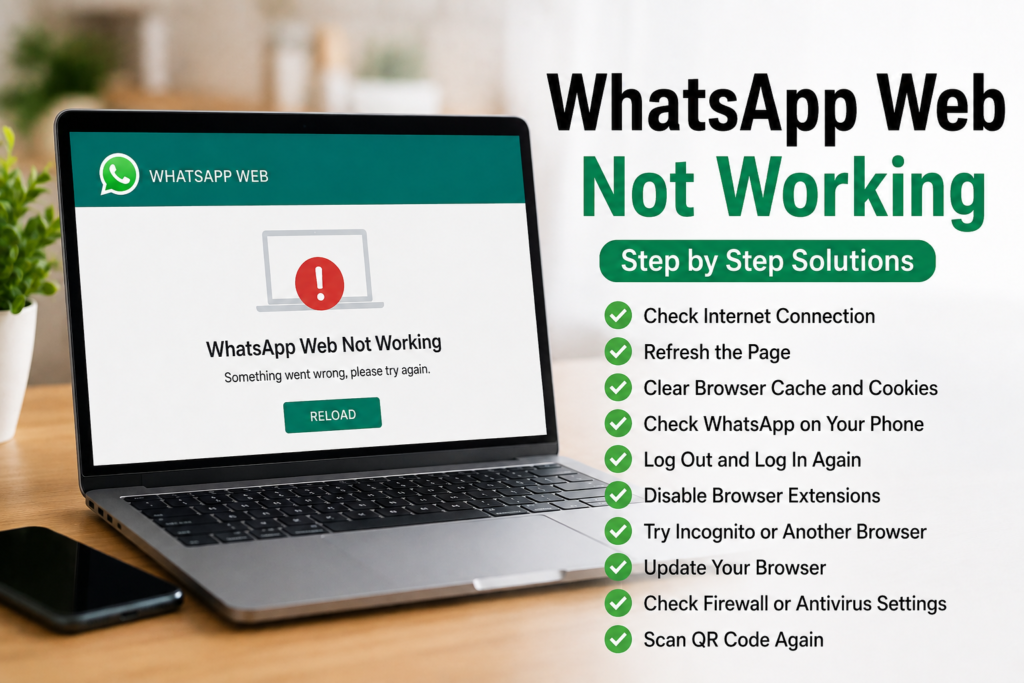
The WhatsApp Web not working problem can be frustrating, especially when you need to use WhatsApp for work or communication. Fortunately, most problems can be solved without doing anything complicated.
I recommend starting by checking the internet connection on both your computer and phone. Then refresh WhatsApp Web, check Linked Devices, and scan the QR code again.
If that does not help, clear your browser cache and cookies, try incognito mode, disable browser extensions, or test another browser. Updating your browser and WhatsApp can also fix compatibility problems.
For more difficult cases, check VPN and proxy settings, security software, computer date and time, and possible WhatsApp service problems.
The most important thing is to test one solution at a time. This makes it much easier to identify the real cause instead of changing many settings without knowing what worked.
In most cases, WhatsApp Web not working is caused by a temporary connection problem, an outdated browser, cached browser data, or a broken linked session. With the steps above, you should be able to identify the problem and get WhatsApp Web working normally again.