WhatsApp is one of those apps that most of us expect to work instantly. We open it, send a message, make a call, or check a status, and everything usually happens within seconds. That is why it can be frustrating when WhatsApp suddenly says Connecting, messages stay stuck, or nothing loads even though other apps seem to have internet access.
I have noticed that this problem is not always caused by a complete internet failure. Sometimes WhatsApp itself is restricted from using mobile data, the WiFi connection is unstable, the app cache is causing problems, or a simple phone setting is preventing WhatsApp from connecting properly.
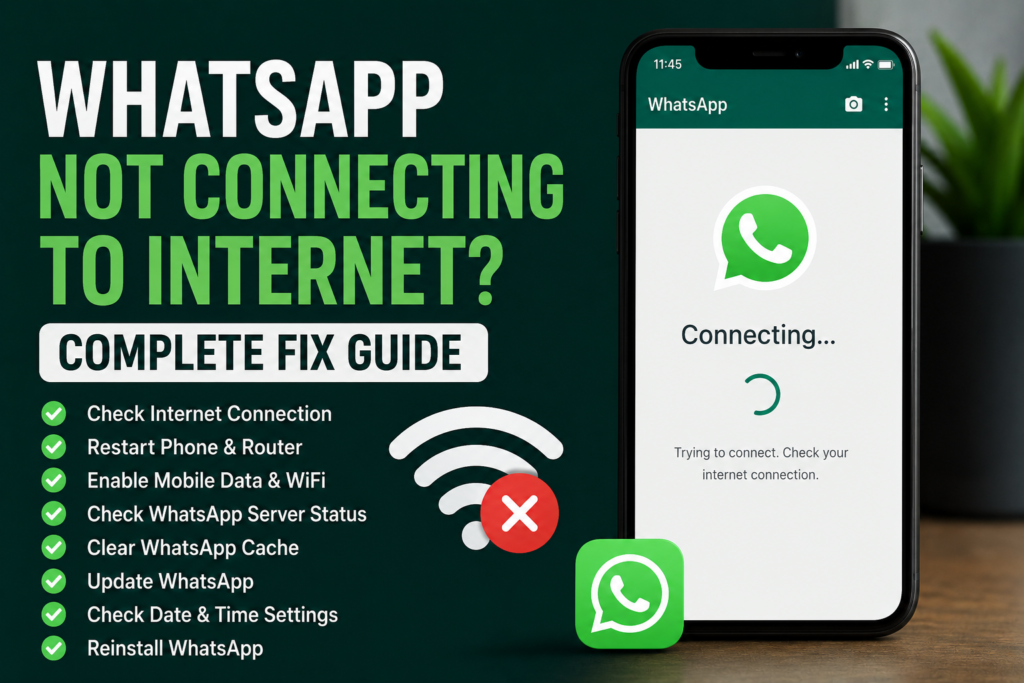
In this guide, I will explain the most common reasons behind the WhatsApp not connecting to internet problem and the solutions that I personally recommend trying first. These methods work for both Android and iPhone, although the exact settings can be slightly different depending on your device.
Why Is WhatsApp Not Connecting to Internet?
There are several possible reasons why WhatsApp may not connect to the internet.
The most obvious reason is a weak or unstable internet connection. Your phone may show that it is connected to WiFi or mobile data, but the connection may not actually be working properly.
Another common reason is that WhatsApp has been restricted from using mobile data or background data. Battery saving features can also prevent WhatsApp from maintaining a connection in the background.
An outdated version of WhatsApp can sometimes create compatibility problems as well. Other causes include incorrect date and time settings, VPN connections, corrupted cache files, DNS problems, router issues, and temporary WhatsApp service problems.
The good news is that most of these problems can be fixed without complicated technical knowledge.
Check Your Internet Connection First
Before changing WhatsApp settings, check whether your internet is actually working.
Open your browser and visit a few websites. You can also open another application that requires an internet connection.
If other apps are also having problems, your internet connection is probably the main issue.
If you are using WiFi, try switching to mobile data. If you are using mobile data, connect to a reliable WiFi network and test WhatsApp again.
This simple test can tell you whether the problem is with WhatsApp or your internet connection.
Turn Airplane Mode On and Off
One of the quickest solutions I like to try is toggling Airplane Mode.
Open the quick settings panel on Android or Control Center on iPhone and enable Airplane Mode. Wait for around ten seconds and then turn it off.
Your phone will reconnect to the mobile network or WiFi.
Now open WhatsApp and check whether messages are sending normally.
This refreshes the phone’s network connection and can sometimes fix temporary connection problems.
Restart Your Phone
A phone restart may sound too simple, but it can solve many temporary networking problems.
Close WhatsApp and restart your phone completely.
After the phone starts again, wait a few seconds for WiFi or mobile data to reconnect. Then open WhatsApp.
Try sending a short message.
If WhatsApp was stuck because of a temporary network process or background service, restarting the phone may be enough to fix it.
Restart Your WiFi Router
If WhatsApp works through mobile data but not WiFi, your router may be the problem.
Turn off your router and disconnect its power for around thirty seconds. Turn it back on and wait until the connection is fully restored.
Reconnect your phone to WiFi and open WhatsApp.
I also recommend testing another device on the same WiFi network. If WhatsApp and other internet services are failing on multiple devices, the problem is probably with the router or internet service rather than your phone.
Check WhatsApp Mobile Data Permission
Sometimes WhatsApp cannot connect because mobile data access has been restricted.
On iPhone, open Settings, find WhatsApp, and make sure mobile data access is enabled.
On Android, open Settings, go to Apps, select WhatsApp, and look for mobile data or network access settings.
Make sure WhatsApp is allowed to use mobile data and background data.
The exact menu names vary between Android manufacturers, so your settings may look slightly different.
After making the change, close WhatsApp and open it again.
Disable Data Saver Temporarily
Data Saver features can restrict applications from using data normally.
If you have enabled Data Saver on your phone, temporarily disable it and test WhatsApp.
On Android, you can usually find this under network or mobile data settings.
On iPhone, check whether Low Data Mode is enabled for your current WiFi or mobile connection.
If WhatsApp starts working after disabling these restrictions, you can adjust the settings to allow WhatsApp to use data normally without disabling the feature everywhere.
Check Battery Saver Settings
Battery saving features can also affect WhatsApp connectivity.
Some Android phones aggressively limit background activity to save battery. This can cause WhatsApp to stop connecting when the application is not open.
Open your phone’s battery settings and find WhatsApp.
Check whether it is being restricted by battery optimization or background activity controls.
Allow WhatsApp to operate normally in the background if your phone provides this option.
This is particularly important if WhatsApp messages only arrive after you manually open the app.
Check Date and Time Settings
Incorrect date and time settings can interfere with secure internet connections.
I recommend setting your phone’s date and time to automatic.
On Android, open Settings, find Date and Time, and enable automatic date and time.
On iPhone, open Settings, select General, then Date & Time, and enable Set Automatically when available.
After changing the setting, restart WhatsApp and check the connection again.
Disable VPN Temporarily
A VPN can change how your internet traffic is routed.
If WhatsApp was working normally before you enabled a VPN, disconnect from the VPN and try WhatsApp again.
Some VPN servers can have slow or unstable connections, while certain configurations may interfere with messaging services.
If WhatsApp works without the VPN, try connecting to another VPN server or checking the VPN application’s network settings.
You do not necessarily need to remove the VPN permanently.
Clear WhatsApp Cache on Android
Android users can try clearing the WhatsApp cache.
Open Settings, select Apps, find WhatsApp, and open its storage settings.
Choose Clear Cache.
Do not select the option that deletes application data unless you have a current WhatsApp backup and understand what will happen.
Clearing the cache removes temporary files and can resolve problems caused by corrupted temporary data.
After clearing the cache, restart WhatsApp and test your connection.
Update WhatsApp
An outdated WhatsApp application can sometimes cause connection problems.
Open the Google Play Store on Android or the App Store on iPhone.
Search for WhatsApp and check whether an update is available.
If there is an update, install it and restart your phone.
I recommend keeping WhatsApp updated because newer versions can contain important bug fixes, security improvements, and compatibility changes.
Check Your Phone Storage
Low storage space can cause unexpected problems with applications.
If your phone is almost completely full, WhatsApp may have difficulty downloading media, creating temporary files, or processing messages.
Open your phone’s storage settings and check how much free space is available.
Delete unnecessary videos, downloads, duplicate files, and unused applications if necessary.
After freeing some space, restart WhatsApp and check whether the connection has improved.
Try Changing Between WiFi and Mobile Data
This is one of the best ways to identify the source of the problem.
If WhatsApp does not work on WiFi, turn WiFi off and enable mobile data.
If WhatsApp immediately starts working, your WiFi network is likely responsible.
If WhatsApp works on WiFi but not mobile data, check your mobile data settings, data allowance, signal strength, and WhatsApp mobile data permissions.
This test can save you from changing unnecessary WhatsApp settings.
Reset Network Settings
If your phone has a persistent connection problem, resetting network settings may help.
On iPhone, you can find the network reset option under Settings, General, Transfer or Reset iPhone, and then Reset.
On Android, the location varies by manufacturer, but it is usually found under System, Reset Options, or a similar section.
Keep in mind that resetting network settings can remove saved WiFi passwords and other network configurations.
Because of this, I recommend using it only after trying the simpler solutions.
Check Whether WhatsApp Is Experiencing an Outage
Sometimes the problem has nothing to do with your phone.
WhatsApp can occasionally experience service interruptions that affect messaging, calls, media, or connections.
If WhatsApp suddenly stops working on multiple devices and networks, check whether other users are experiencing the same problem.
You can also ask a friend whether their WhatsApp is working.
If the service itself is experiencing an outage, changing your phone settings will not solve the problem. In that situation, the best option is usually to wait until the service is restored.
Reinstall WhatsApp as a Last Resort
If none of the previous solutions work, reinstalling WhatsApp can fix persistent application problems.
Before uninstalling WhatsApp, make sure you have a recent backup of your important chats.
Open WhatsApp’s backup settings and create a current backup.
Then uninstall the application, restart your phone, and install WhatsApp again from the official app store.
Sign in using your phone number and restore your backup when prompted.
After completing the setup, test WhatsApp again.
What If WhatsApp Works but Messages Are Delayed?
Sometimes WhatsApp is technically connected, but messages arrive late.
This usually points toward background restrictions, battery optimization, unstable internet, or notification settings.
Check whether WhatsApp is allowed to run in the background.
Also make sure notifications are enabled and that your phone is not putting WhatsApp into a restricted battery mode.
If messages appear immediately after opening WhatsApp, background restrictions are especially worth checking.
Final Thoughts
When WhatsApp is not connecting to the internet, I recommend starting with the simplest checks instead of immediately reinstalling the application.
Test your internet connection, switch between WiFi and mobile data, restart your phone and router, and check whether WhatsApp is allowed to use data.
After that, check Data Saver, battery restrictions, date and time, VPN settings, storage space, and WhatsApp updates.
If the problem continues, clearing the Android cache or resetting network settings can be useful. Reinstalling WhatsApp should generally be one of the final options, especially because you should make sure your chats are backed up first.
The most important thing is to identify whether the problem affects only WhatsApp or your entire internet connection. Once you know that, troubleshooting becomes much easier.
In my experience, most WhatsApp connection problems are caused by network restrictions, unstable internet, background settings, or temporary software issues. Working through these solutions one by one should help you find the cause and get WhatsApp connected again.