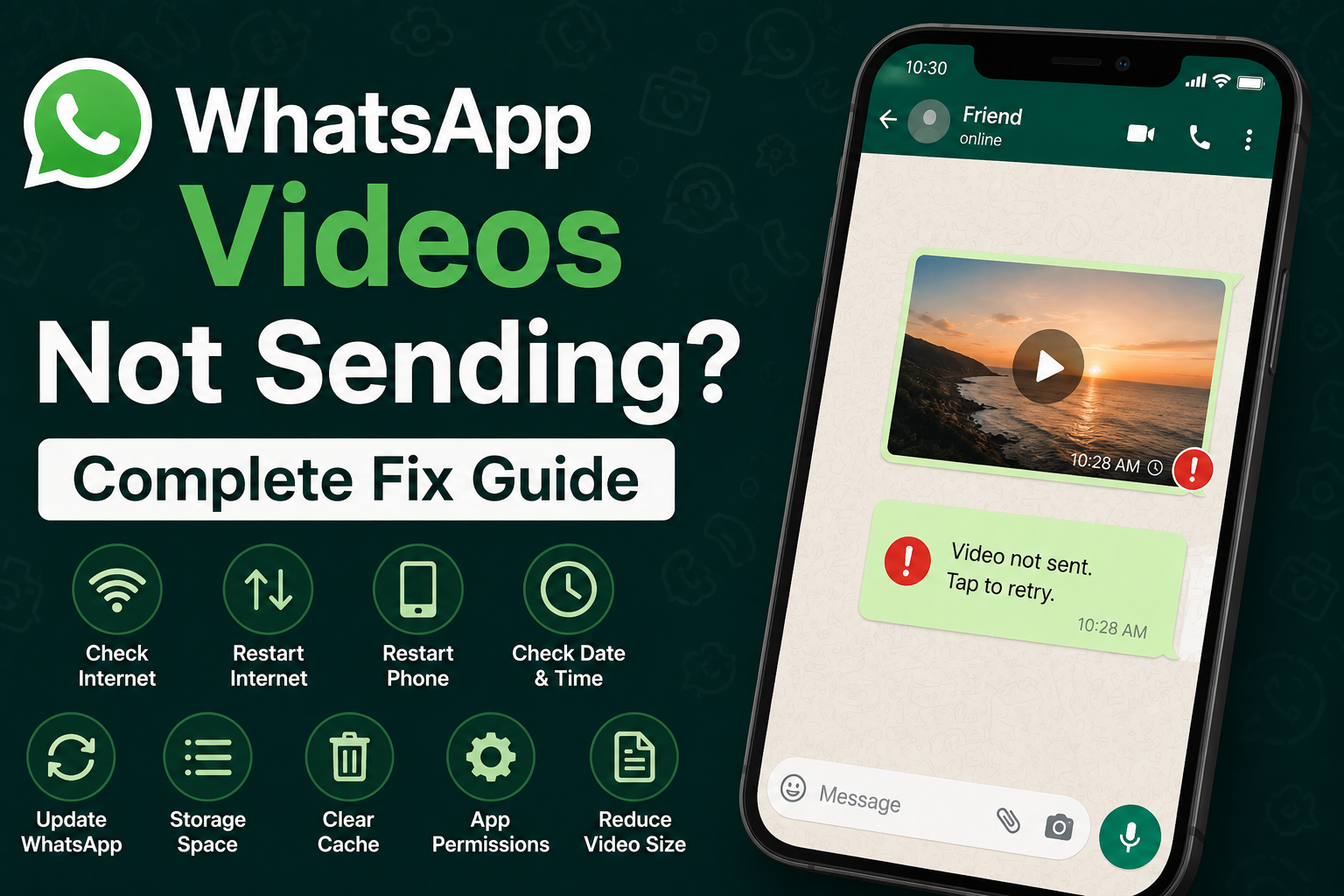
WhatsApp makes it very easy to share videos with friends, family, customers, and coworkers. Most of the time, I can select a video, tap the send button, and it reaches the other person within seconds. But sometimes WhatsApp videos are not sending, even when normal text messages work perfectly.
This problem can be confusing because WhatsApp may continue working normally while videos remain stuck. You might see a loading circle, a clock icon, a red exclamation mark, or a message asking you to try again. In some cases, the video starts uploading and then suddenly stops.
From my experience, this problem is usually related to the internet connection, video size, phone storage, app permissions, cache, or an outdated WhatsApp version. Sometimes the issue can also come from WhatsApp servers.
In this complete guide, I will explain the most useful solutions for WhatsApp videos not sending. I recommend starting with the simple methods and moving toward the advanced solutions if the problem continues.
Check Your Internet Connection
The first thing I always check when WhatsApp videos are not sending is the internet connection.
Videos require much more bandwidth than text messages. Your connection may be strong enough to send a short text but not stable enough to upload a large video.
Open your browser and visit a few websites. You can also try watching a short video online to see whether the connection is working normally.
If you are using WiFi, disconnect and reconnect to the network. You can also switch to mobile data and try sending the video again.
If the video sends successfully on mobile data but not WiFi, the problem is probably related to your WiFi connection or router.
Restart Your Internet Connection
Sometimes the internet connection looks normal but is not working properly in the background.
If you are using WiFi, restart your router. Turn it off, wait for a short time, and turn it back on.
If you are using mobile data, turn Airplane Mode on for a few seconds and then turn it off.
This forces your phone to reconnect to the network.
I usually recommend trying this before changing any WhatsApp settings because it is quick and does not affect your personal data.
Restart Your Phone
A simple phone restart can solve many temporary application problems.
WhatsApp depends on several background services to upload media. If one of these services becomes stuck, videos may remain in the uploading stage.
Close WhatsApp and restart your phone. Once the phone starts again, open WhatsApp and try sending the video.
If a temporary system problem was causing the issue, the video may send normally after the restart.
Check the Video Size
One of the biggest reasons WhatsApp videos may fail to send is the size of the video.
Large and high quality videos take longer to upload and require a stable connection. If the video is particularly large, try sending a shorter version.
You can edit the video using your phone’s built in editing tools and remove unnecessary parts.
Another useful test is to record a very short video and send it through WhatsApp.
If the short video sends but the original video does not, the size or format of the original file may be responsible.
Try Sending Another Video
Before changing complicated settings, test another video.
Choose a small video that you recently recorded and try sending it to the same contact.
If the smaller video sends successfully, the problem is probably related to the original file rather than WhatsApp itself.
The original video may be too large, damaged, or saved in a format that WhatsApp is having trouble processing.
This simple test can save a lot of time because it helps identify whether the problem affects all videos or only one particular file.
Check Your Phone Storage
Low storage space can cause problems with WhatsApp media.
When your phone is almost full, WhatsApp may not have enough temporary storage to process, prepare, or upload a video.
Open your phone’s storage settings and check how much free space is available.
If your storage is nearly full, remove unnecessary videos, duplicate photos, old downloads, and applications that you no longer use.
After freeing some space, restart WhatsApp and try sending the video again.
Check WhatsApp Permissions
WhatsApp needs permission to access photos, videos, and other media on your phone.
If these permissions were accidentally disabled, WhatsApp may have trouble accessing or processing videos.
On Android, open Settings, go to Apps, select WhatsApp, and review its permissions.
On iPhone, open Settings and select WhatsApp. Check the available permissions for photos and other relevant features.
The exact menu names can vary depending on your phone model and operating system version.
Make sure WhatsApp has the appropriate access needed to select and send your videos.
Update WhatsApp
An outdated version of WhatsApp can sometimes cause media sharing problems.
Open the Google Play Store on Android or the App Store on iPhone and search for WhatsApp.
If an update is available, install it.
Application updates can include bug fixes, performance improvements, and compatibility changes. Keeping WhatsApp updated is therefore a good habit even when everything is working normally.
After updating the app, restart it and try sending the video again.
Clear WhatsApp Cache on Android
If you are using Android, clearing the WhatsApp cache can help with temporary application problems.
WhatsApp stores temporary files to improve performance. Occasionally, these files can become outdated or corrupted.
Open your Android settings and go to Apps. Select WhatsApp and find Storage or Storage and cache.
Choose Clear cache.
Be careful not to select an option that deletes application data unless you understand what it does. Clearing the cache is the safer first option.
After clearing the cache, open WhatsApp and test the video again.
Check Data Saver Settings
Your phone may have a data saving feature that restricts how applications use mobile data.
If WhatsApp videos are not sending over mobile data, check whether Data Saver or a similar feature is enabled.
Temporarily disable it and try sending the video again.
You should also check whether WhatsApp is allowed to use mobile data in the background.
These settings can vary between Android phones, so look for options related to mobile data, background usage, and data restrictions.
Check Battery Saving Settings
Aggressive battery saving settings can sometimes restrict background activity.
If WhatsApp is heavily restricted by your phone’s battery optimization system, media uploads may stop when the app is running in the background.
Check your battery settings and look for WhatsApp.
If your phone allows you to choose how applications use battery in the background, make sure WhatsApp is not being unnecessarily restricted.
You can test the video upload again after changing the setting.
Check Date and Time Settings
Incorrect date and time settings can cause unexpected problems with internet based applications.
I recommend using automatic date and time on your phone.
On Android, open the Date and time settings and enable the automatic option if available.
On iPhone, open Settings, choose General, and then Date and Time. Make sure the phone is using the correct time automatically.
After correcting the settings, restart WhatsApp and try sending the video again.
Disable Your VPN Temporarily
If you are using a VPN, it may occasionally affect your connection to WhatsApp services.
Try disconnecting the VPN temporarily and send the video again.
If the video uploads normally after disconnecting the VPN, the VPN connection or server may be causing the problem.
You can try another VPN server or review the VPN settings.
There is no need to permanently disable a VPN simply because one upload failed. The goal is to determine whether it is affecting the connection.
Check Whether WhatsApp Is Experiencing an Outage
Sometimes your phone and internet connection are completely fine.
WhatsApp services can occasionally experience technical problems. When this happens, media uploads and messages may fail for many users.
If text messages, photos, and videos suddenly stop working at the same time, check whether other users are reporting a WhatsApp outage.
You can also check reputable service status websites or official WhatsApp communication channels.
If there is a widespread service problem, you may simply need to wait until the service is restored.
Check the Contact and Conversation
If videos fail to send to only one person, test another conversation.
Send the same video to a different trusted contact.
If it works elsewhere, the problem may be specific to the original conversation, contact, or connection.
This does not automatically mean that the other person has blocked you. There can be many reasons why communication with one contact behaves differently.
Testing another conversation is simply a useful troubleshooting step.
Try Sending the Video as a Document
If a video refuses to send normally, you can sometimes try sharing it as a document.
This can be useful when WhatsApp has difficulty processing the video through the normal media sharing option.
Open the attachment options in WhatsApp and choose the document option if available. Then select the video from your phone’s storage.
The available file size and sharing options can depend on your device and WhatsApp version.
Reinstall WhatsApp as a Last Resort
If nothing else works, reinstalling WhatsApp may help.
Before uninstalling the app, make sure your important chats and media are backed up using WhatsApp’s available backup feature.
Once you are confident that your important information is safely backed up, remove WhatsApp and install the latest version from the official app store.
Sign in again and restore your backup when prompted.
I recommend using this method only as a last resort because it takes more time and requires you to set up the application again.
Final Thoughts
When WhatsApp videos are not sending, I recommend checking the simple things first. Start with your internet connection and then test another video to determine whether the problem affects every file or only one video.
After that, check your phone storage, WhatsApp permissions, data saving settings, battery restrictions, and application version.
Clearing the WhatsApp cache can be useful on Android, while restarting the phone and reconnecting to the internet can solve many temporary problems on both Android and iPhone.
If a small video sends successfully but a large video does not, focus on the video size and your connection. If no videos send at all, investigate WhatsApp settings, permissions, storage, and possible service outages.
In my experience, there is usually a simple reason behind WhatsApp videos not sending. The key is to test one thing at a time instead of changing everything at once. Once you identify whether the problem is caused by your internet, phone, video file, or WhatsApp itself, the solution becomes much easier.
The featured image is separate from the article and is designed for WordPress use.