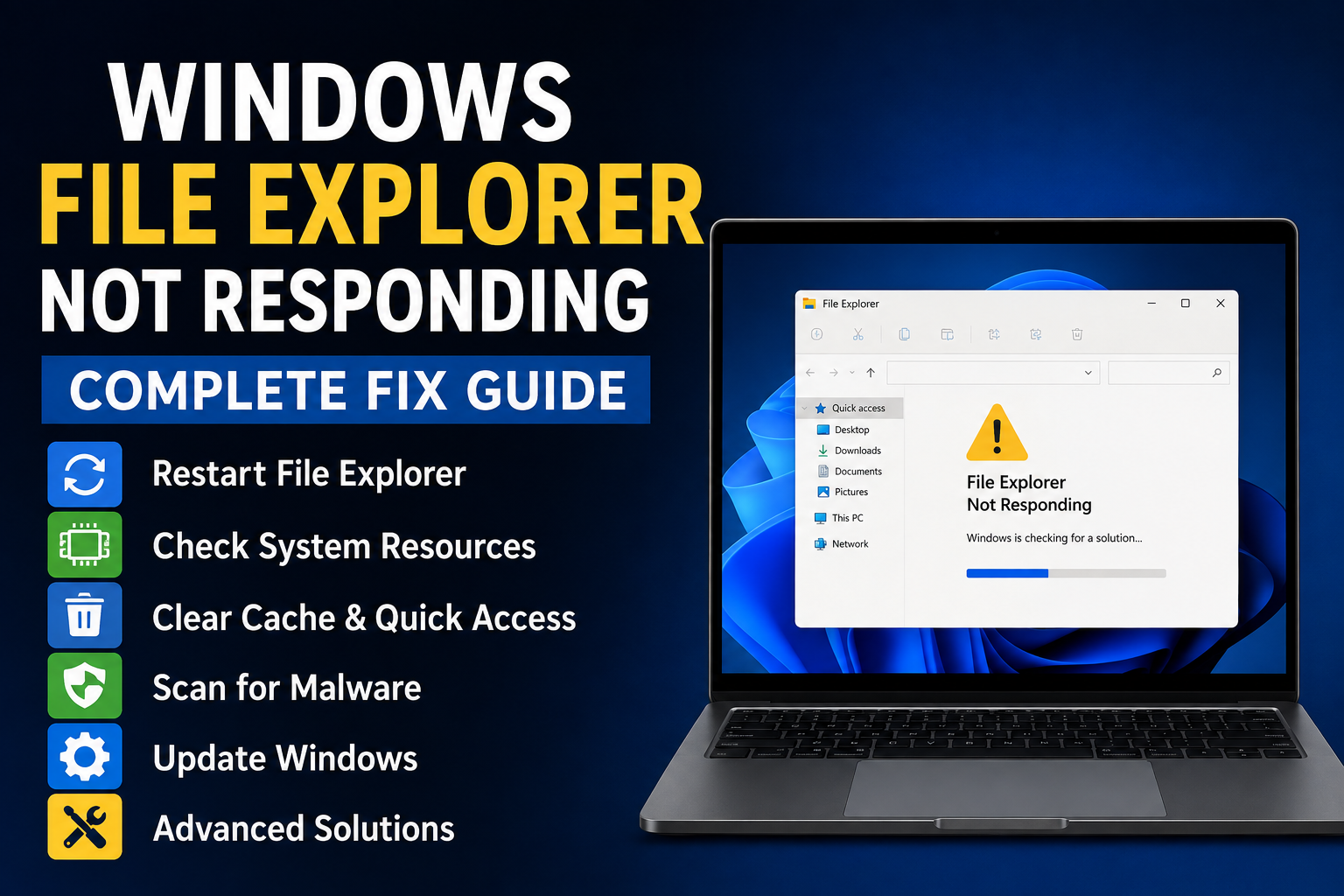
Windows File Explorer is one of the most important parts of the operating system because I use it for almost everything related to files and folders. Whether I am opening documents, checking downloads, moving pictures, or accessing an external drive, I expect File Explorer to respond quickly. That is why it can be frustrating when Windows File Explorer stops responding, freezes, crashes, or takes too long to open.
The good news is that this problem does not always mean something is seriously wrong with your computer. In many cases, File Explorer stops responding because of a temporary Windows issue, a problematic background process, damaged system files, a large number of files, or an external device causing a delay.
In this guide, I will explain the practical solutions I would try when File Explorer is not responding in Windows 11. I recommend starting with the easiest methods and moving toward the advanced solutions only if the problem continues.
Why Is Windows File Explorer Not Responding?
There are several possible reasons why File Explorer may become unresponsive.
A temporary Windows glitch is one common reason. Other causes can include corrupted system files, too many background applications, a damaged Quick Access history, problematic external storage devices, outdated Windows components, malware, insufficient system resources, or a drive that is having problems.
Sometimes File Explorer may also appear frozen because it is trying to access a folder containing thousands of files, network locations, or an unavailable external drive.
The first step is therefore to determine whether File Explorer is completely frozen or only slow when opening a particular folder.
1. Restart File Explorer
The first solution I recommend is restarting File Explorer through Task Manager.
Press Ctrl + Shift + Esc to open Task Manager. Find Windows Explorer in the list of running processes.
Right click Windows Explorer and select Restart.
Your taskbar and desktop may disappear briefly and then come back. This is normal.
After File Explorer restarts, try opening a folder again.
This method is particularly useful when the desktop and taskbar are working but File Explorer itself has become frozen.
2. Restart Your Computer
If restarting Windows Explorer does not solve the problem, restart the entire computer.
A complete restart can clear temporary memory issues and background processes that may be interfering with File Explorer.
Close your open applications, save your work, and restart Windows.
Once the computer starts again, open File Explorer and check whether the problem has disappeared.
I always recommend this simple step before moving into more advanced troubleshooting because it can resolve temporary Windows problems without changing any important settings.
3. Check Task Manager for High Resource Usage
File Explorer may stop responding because your computer is under heavy load.
Open Task Manager using Ctrl + Shift + Esc and check the CPU, Memory, Disk, and Network usage.
If another application is using almost all of your CPU or memory, Windows may become slow overall.
You may also notice very high disk usage. This can happen when Windows is installing updates, an application is scanning files, or another process is performing intensive disk activity.
Wait for heavy background activity to finish if possible.
If one unfamiliar application is consistently consuming a large amount of resources, investigate it before ending the process.
4. Disconnect External USB Devices
An external device can sometimes cause File Explorer to freeze.
USB hard drives, flash drives, memory cards, cameras, and other storage devices can create problems if Windows has difficulty reading them.
Disconnect unnecessary external devices and then open File Explorer again.
If File Explorer starts working normally, reconnect your devices one at a time.
This can help identify which device is causing the problem.
If a particular drive repeatedly causes File Explorer to freeze, avoid repeatedly disconnecting it while files are being transferred. Check the drive for errors and consider backing up important data.
5. Clear File Explorer History
File Explorer keeps a history of recently accessed locations. In some situations, this information can become problematic.
Open File Explorer and select the menu options that take you to Folder Options.
Under the General section, look for the privacy area and select the option to clear File Explorer history.
After clearing the history, close File Explorer and open it again.
This can be helpful if File Explorer freezes immediately when opening Home or Quick Access.
6. Remove Problematic Quick Access Items
Quick Access makes it easy to reach frequently used folders, but a broken or unavailable location can sometimes cause delays.
If you recently pinned a network folder, external drive, or unusual location to Quick Access, try removing it.
Open File Explorer and review the locations shown in Quick Access.
Unpin folders that no longer exist or are currently unavailable.
This is especially useful if File Explorer freezes when opening its Home page but works normally when accessing a specific local folder.
7. Clear Temporary Files
Temporary files can accumulate over time and contribute to storage problems.
Open Settings > System > Storage > Temporary files and review the available cleanup options.
Remove unnecessary temporary files after checking what Windows has selected.
You can also use the built in Windows storage cleanup features to manage unnecessary files.
Keeping enough free storage space is important because Windows needs available space for temporary operations, updates, and normal system activity.
8. Update Windows 11
Microsoft regularly releases Windows updates containing security fixes, bug fixes, and improvements.
If File Explorer has suddenly started crashing or freezing, check whether a Windows update is available.
Open Settings > Windows Update and select the option to check for updates.
Install available updates and restart the computer when required.
If the problem started immediately after an update, do not assume that every update is the cause. Temporary compatibility problems can happen, but it is better to check the specific behavior before making major system changes.
9. Run a Malware Scan
Malware can affect system performance and may cause unusual Windows behavior.
If File Explorer suddenly became slow after installing unknown software or downloading files from unreliable sources, run a security scan.
Open Windows Security and go to Virus & threat protection.
Start a scan and allow Windows Security to check your system.
Avoid downloading random PC repair tools that promise to fix every Windows problem. Some of these programs can create additional issues or consume system resources.
Using the built in Windows security tools is a good starting point.
10. Check System Files With System File Checker
Corrupted Windows system files can cause File Explorer and other Windows components to behave incorrectly.
Windows includes a tool called System File Checker that can scan protected system files and repair certain problems.
Open Command Prompt as administrator and run the System File Checker command.
Let the scan complete before closing the window.
The process may take some time depending on your computer.
If Windows reports that it found and repaired corrupted files, restart your computer and test File Explorer again.
Do not interrupt the scan while it is running.
11. Use DISM to Repair Windows Components
If System File Checker does not solve the issue, Windows also provides the Deployment Image Servicing and Management tool, commonly called DISM.
DISM can check and repair the Windows component store that other system repair tools depend on.
Open an administrator Command Prompt or Windows Terminal and use the appropriate DISM repair command.
Allow the process to finish completely.
Afterward, restart the computer and test File Explorer.
These commands are more advanced, so I recommend copying the commands carefully rather than typing random commands found on unknown websites.
12. Check Your Hard Drive or SSD
Storage problems can also cause File Explorer to freeze.
If the problem happens whenever you open a particular drive or folder, the storage device may need attention.
Look for other symptoms such as extremely slow file transfers, missing files, unusual noises from an older mechanical hard drive, or repeated Windows errors.
If you suspect a failing drive, back up important files as soon as possible.
For an older hard drive, replacing it with an SSD can also provide a major improvement in overall Windows performance.
13. Try a Clean Boot
If File Explorer works correctly after starting Windows but begins freezing after several programs load, a third party application may be responsible.
A clean boot starts Windows with a limited set of startup services and applications.
This allows you to identify whether background software is interfering with File Explorer.
You can use the System Configuration utility to manage startup services and test Windows with unnecessary third party services disabled.
Be careful when changing startup services. Do not disable Microsoft services unless you understand exactly what you are changing.
If File Explorer works normally during a clean boot, re enable services gradually until you identify the application responsible.
14. Create a New User Account
Sometimes the problem is limited to a specific Windows user profile.
If File Explorer continues freezing in your normal account, creating a temporary local user account can help determine whether the profile is damaged.
Sign in to the new account and test File Explorer.
If it works normally there, the problem may be connected to settings or files in your original Windows profile.
You can then move important personal data to the new profile if necessary.
15. Perform a System Restore
If File Explorer was working normally in the past and the problem started after a major software or configuration change, System Restore may be useful if restore points are available.
System Restore can return certain system settings and software configurations to an earlier state.
It does not normally function as a replacement for personal file backup, so keep your important files backed up separately.
Use this option carefully and select a restore point from before the problem began.
16. Reset Windows as a Last Resort
If none of the previous solutions work, you may consider resetting Windows.
I would not recommend doing this immediately because most File Explorer problems can be solved without reinstalling the operating system.
Before resetting Windows, back up important documents, photos, videos, downloads, and other personal files.
A reset can remove applications and settings depending on the option you choose.
If the issue is caused by severe system corruption, resetting Windows may restore normal operation. However, if the underlying problem is a failing SSD, hard drive, RAM, or other hardware component, a reset will not fix the hardware.
File Explorer Freezes When Opening a Folder
If File Explorer only freezes when opening one specific folder, the problem may be related to the contents of that folder.
A folder containing thousands of images, videos, archives, or other large files may take longer to load.
Try opening a smaller folder and compare the behavior.
If only one folder causes the problem, avoid repeatedly opening it until you have backed up important data.
You can also check whether the folder contains a damaged file or is located on a problematic external drive.
Final Thoughts
Windows File Explorer not responding can be annoying, but it does not necessarily mean your Windows installation is damaged. In my experience, restarting Windows Explorer, restarting the computer, checking Task Manager, disconnecting external devices, clearing File Explorer history, and installing Windows updates are the best places to start.
If those simple solutions do not work, move on to checking system files, scanning for malware, checking your storage drive, and identifying problematic background applications.
The most important thing is to troubleshoot the problem step by step instead of changing many settings at once. This makes it much easier to understand what actually fixed the issue.
If File Explorer remains completely unresponsive after software troubleshooting, especially when the problem is connected to a particular storage drive, take the possibility of hardware failure seriously and back up your important files.
With the right approach, most Windows File Explorer problems can be diagnosed and fixed without reinstalling Windows or replacing the entire computer.