A Windows blue screen error can be one of the most worrying things to see on a computer. One moment everything is working normally, and suddenly the screen turns blue, Windows stops responding, and the computer restarts. I have seen this problem happen for many different reasons, and the good thing is that a blue screen does not always mean that your computer is permanently damaged.
The Windows Blue Screen Error, often called a BSOD, usually appears when Windows encounters a serious system problem that it cannot safely handle. The operating system stops to protect the computer from further damage. In many cases, the problem is related to drivers, Windows updates, memory, storage, overheating, or recently installed software.
In this guide, I will explain the most common causes of the Windows blue screen error and the practical solutions I would try first.
What Is a Windows Blue Screen Error?
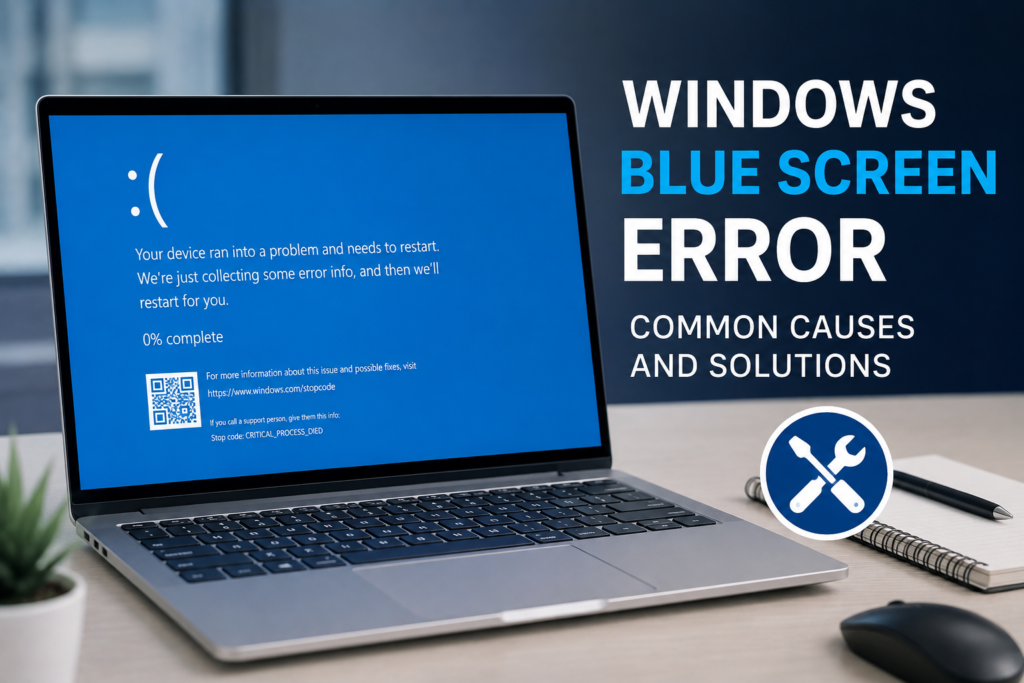
A Windows blue screen error happens when the operating system encounters a critical problem. Windows displays a blue screen containing an error message and a stop code. The computer may then restart automatically.
The stop code is important because it can provide a clue about the cause. Some examples include MEMORY MANAGEMENT, IRQL NOT LESS OR EQUAL, SYSTEM SERVICE EXCEPTION, CRITICAL PROCESS DIED, and PAGE FAULT IN NONPAGED AREA.
The exact message can vary depending on the problem. Instead of ignoring the stop code, I recommend taking a photo of the screen or writing down the error name. It can be extremely useful when troubleshooting.
Common Causes of Windows Blue Screen Errors
There is no single reason behind every BSOD. Different hardware and software problems can produce similar symptoms.
Outdated or Corrupted Drivers
Drivers allow Windows to communicate with hardware such as graphics cards, network adapters, storage devices, and sound hardware. If a driver is outdated, corrupted, or incompatible with your version of Windows, it can cause system instability.
Graphics drivers are a common source of blue screen problems, especially after installing a new graphics driver or Windows update.
To check your drivers, open Device Manager and look for devices showing warning symbols. You can update the driver through Windows or download the appropriate version from the hardware manufacturer’s official website.
Windows Updates
Windows updates are important for security and stability, but occasionally an update can introduce compatibility problems on certain computers.
If the blue screen started immediately after a Windows update, consider checking Windows Update for another available update. Microsoft sometimes releases follow up updates that resolve problems introduced by earlier releases.
If the issue is severe and you can identify a recent update as the cause, Windows also provides recovery options that may allow you to remove the problematic update.
Faulty RAM
Memory problems can cause random blue screens, application crashes, freezes, and unexpected restarts.
If your computer produces different blue screen messages at different times, RAM is worth investigating.
Windows includes a built in memory diagnostic tool. You can search for Windows Memory Diagnostic from the Start menu and use it to check your system memory.
If the diagnostic reports memory problems, the physical RAM may need to be replaced. If your computer has multiple memory modules, a technician can also test them individually to identify a faulty module.
Hard Drive or SSD Problems
Storage problems can also cause Windows blue screen errors. If Windows cannot reliably read important system files, the operating system may become unstable.
You may notice other warning signs such as slow startup, corrupted files, applications freezing, or unusual disk activity.
Windows provides tools that can check the file system and repair certain errors. You can also use the drive health information available in Windows or the manufacturer’s diagnostic software.
If a storage drive is showing signs of failure, I recommend backing up important files before doing extensive troubleshooting.
Overheating
High temperatures can make a computer unstable. This is particularly important for laptops and gaming computers that operate under heavy workloads.
Dust buildup, blocked ventilation, a failing cooling fan, or poor airflow can cause temperatures to rise.
If blue screens happen while gaming, video editing, rendering, or performing other demanding tasks, overheating should be considered.
Keep air vents clear and make sure the computer is placed on a hard, flat surface when appropriate. Desktop users should also make sure the internal fans and cooling system are functioning properly.
Recently Installed Software
Sometimes a newly installed application can interfere with Windows or another driver.
If the blue screen started after installing a particular program, remove the software temporarily and see whether the problem disappears.
This is especially useful for system utilities, hardware monitoring tools, third party security software, and applications that install low level drivers.
Restart the Computer and Observe the Pattern
If the Windows blue screen happens only once, I would not immediately assume that something is seriously wrong.
Temporary software problems can occasionally cause a single crash. Restart the computer and observe what happens.
However, repeated blue screens should not be ignored. Pay attention to when they happen. Do they occur during startup, gaming, browsing, connecting a USB device, waking the computer from sleep, or installing software?
Finding the pattern can help identify the underlying cause.
Update Windows
One of the first solutions I recommend is checking for Windows updates.
Open Settings and select Windows Update. Check for available updates and install appropriate updates. Restart your computer afterward.
Updates can contain security fixes, hardware compatibility improvements, and bug fixes that may resolve system stability problems.
If your computer is already fully updated and the problem started after a recent update, investigate whether a newer update or recovery option is available instead of repeatedly installing the same update.
Run System File Checker
Corrupted Windows system files can contribute to crashes and blue screen errors.
Windows includes a System File Checker tool that can scan protected system files and repair certain problems.
Open Command Prompt with administrator privileges and run the System File Checker command.
After the scan finishes, restart your computer and check whether the blue screen problem continues.
This is a useful step when Windows files may have become corrupted because of an interrupted update, unexpected shutdown, malware, or another system problem.
Use DISM to Repair Windows
If System File Checker cannot repair all problems, the Deployment Image Servicing and Management tool can be useful.
DISM can check and repair the Windows component store that is used by system repair tools.
I recommend using DISM when basic system file repair does not solve the issue. Once the repair process is complete, running System File Checker again can provide another check of Windows system files.
Check for Malware
Malware can sometimes interfere with Windows processes, drivers, and system files.
Run a security scan using Windows Security or another trusted security solution.
Avoid downloading unknown driver repair programs or suspicious system optimization applications while trying to fix a BSOD. Some of these programs can create more problems than they solve.
Keeping Windows and your security software updated is one of the simplest ways to reduce security related system problems.
Remove Recently Connected Hardware
If the blue screen began after connecting a new device, temporarily disconnect it.
USB devices, external storage, network adapters, and other peripherals can sometimes cause compatibility problems when their drivers are faulty or incompatible.
Disconnect unnecessary devices and restart Windows. If the blue screen stops occurring, reconnect devices one at a time to identify which one may be responsible.
Use Safe Mode
Safe Mode starts Windows with a limited set of drivers and services. It can be useful when normal Windows startup repeatedly results in a blue screen.
If your computer works correctly in Safe Mode but crashes during normal startup, a third party driver, service, or startup application may be responsible.
From Safe Mode, you can remove recently installed software, uninstall problematic drivers, or disable certain startup applications.
Check System Restore
If Windows worked correctly before a recent software or driver change, System Restore may help.
System Restore can return certain system settings and drivers to an earlier state using an available restore point.
It is particularly useful when the problem started suddenly after installing software or changing system settings.
Personal files are generally not the focus of System Restore, but I still recommend keeping important files backed up before performing major troubleshooting.
Reset or Reinstall Windows as a Last Resort
If blue screen errors continue after checking drivers, hardware, system files, updates, and software, a Windows reset may be worth considering.
I would keep this as one of the final options rather than the first solution. A reset takes more time and may require reinstalling applications and changing settings again.
Before resetting Windows, make sure important documents, photos, projects, and other personal files are safely backed up.
If the computer continues to crash even after a clean Windows installation, the problem is more likely to involve hardware such as RAM, storage, the motherboard, power delivery, or another component.
How to Prevent Windows Blue Screen Errors
There is no guaranteed way to prevent every blue screen, but good maintenance can reduce the chances.
Keep Windows updated and use drivers intended for your exact hardware. Avoid installing questionable system utilities and unofficial drivers. Keep your computer cool and clean its ventilation areas regularly.
It is also important to maintain regular backups. A blue screen is annoying, but losing important personal files because of a failing SSD or hard drive can be much more serious.
I also recommend creating a restore point before making major system changes when appropriate. That gives you another recovery option if something goes wrong.
Final Thoughts
A Windows blue screen error can look serious, but it is often possible to identify and fix the underlying problem without replacing the entire computer. The most important thing is to look for patterns instead of randomly changing settings.
Start with the stop code, recent changes, Windows updates, and device drivers. Then check system files, memory, storage health, temperatures, and recently installed hardware or software.
If the problem continues, use Safe Mode, System Restore, or Windows recovery options. Hardware testing may be necessary when crashes remain after software troubleshooting.
In my view, the best approach to a Windows Blue Screen Error is to make one change at a time and test the computer afterward. This makes it much easier to discover what actually solved the problem and helps avoid creating additional issues while troubleshooting.