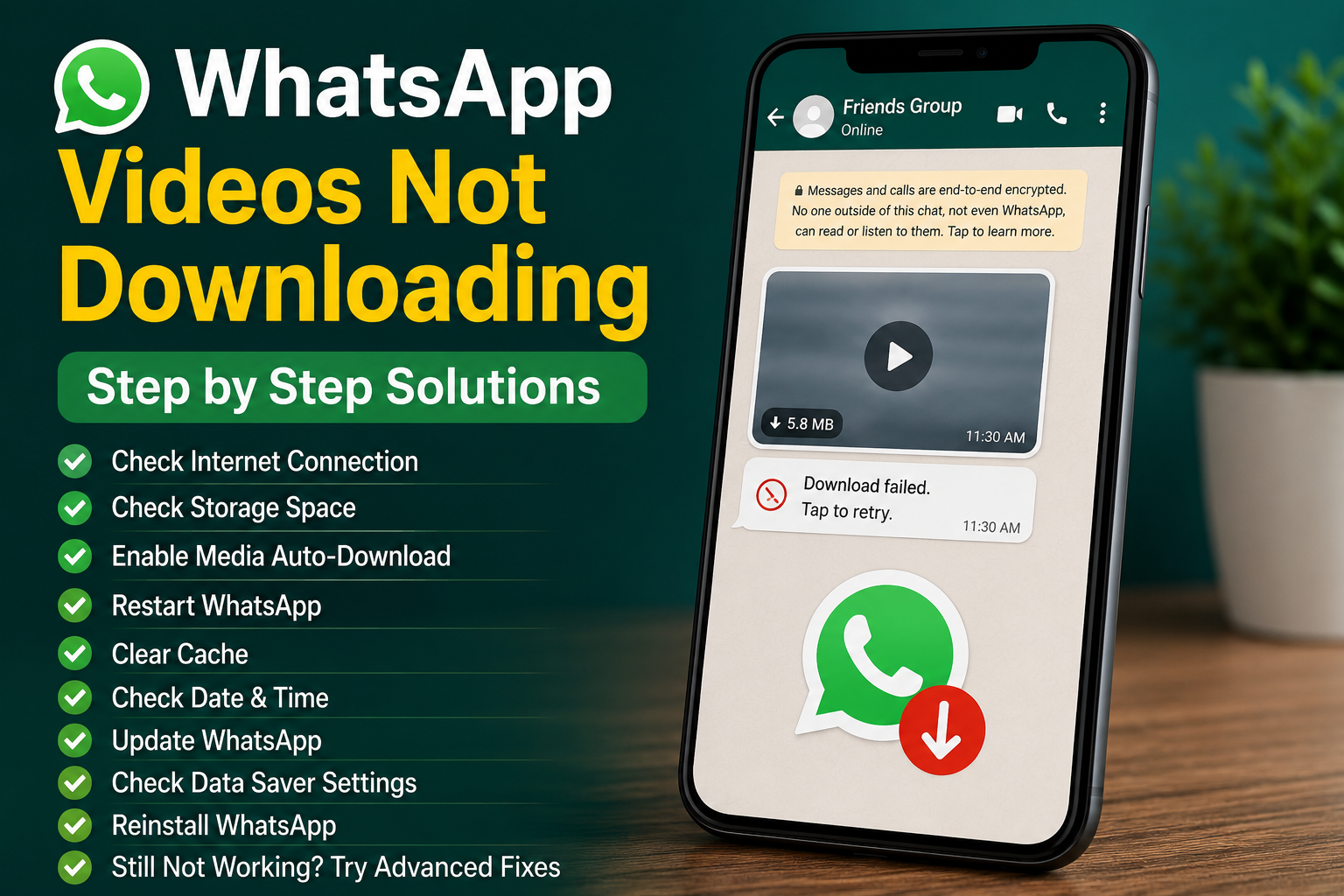
WhatsApp makes it very easy to share videos with friends, family, and groups. However, sometimes a video appears in a chat but refuses to download. You may see a loading circle, a download icon that does nothing, or an error saying that the download failed. If you are facing the WhatsApp videos not downloading problem, the good news is that it is usually caused by a simple setting or temporary connection issue.
I have dealt with this type of WhatsApp problem several times, and I normally start with the basic checks instead of immediately reinstalling the application. Internet connection, storage space, date and time settings, WhatsApp permissions, and data saving features can all affect video downloads.
In this guide, I will explain the most useful solutions I would try when WhatsApp videos are not downloading on Android or iPhone.
Check Your Internet Connection
The first thing I always check is the internet connection.
Videos are much larger than normal WhatsApp messages, so a weak or unstable connection can prevent them from downloading properly. Your phone may appear connected to WiFi or mobile data while the actual connection is too slow or unstable.
Open your browser and visit a few websites. If pages are loading slowly or not opening at all, fix the internet connection first.
You can also switch between WiFi and mobile data. If the WhatsApp video downloads after changing the connection, your original network was probably the cause.
If you are using WiFi, restarting your router can also help.
Restart WhatsApp
Sometimes WhatsApp itself may temporarily stop responding correctly.
Close WhatsApp completely and open it again. Then return to the conversation and tap the video download button.
On Android, you can also open the recent apps screen and remove WhatsApp before reopening it.
On iPhone, swipe WhatsApp away from the app switcher and launch it again.
This simple step can refresh the connection between WhatsApp and its servers and may immediately solve a temporary download problem.
Restart Your Phone
If restarting WhatsApp does not help, restart the phone.
Temporary operating system problems can affect internet access, storage permissions, background processes, and application behavior.
After restarting the phone, connect to a stable network, open WhatsApp, and try downloading the video again.
I recommend this early in the troubleshooting process because it is quick and does not remove your chats or personal information.
Check Available Storage
A lack of storage is one of the most important things to check when WhatsApp videos are not downloading.
Videos require more storage space than text messages or small images. If your phone is almost full, WhatsApp may not be able to save a new video.
Open your phone settings and check the available storage.
If you have very little free space, remove unnecessary downloads, duplicate photos, old videos, or applications you no longer use.
After freeing some space, restart WhatsApp and try the video again.
I would avoid deleting WhatsApp folders or important media unless you know exactly what you are removing.
Check WhatsApp Storage Permissions
WhatsApp needs permission to access storage and save media files.
On Android, open Settings, go to Apps, select WhatsApp, and review its permissions. Make sure WhatsApp has the permissions it needs to access photos, videos, or files according to your Android version.
On iPhone, open Settings and select WhatsApp. Check its Photos permission and make sure it is allowed to access your photos when needed.
Permission names can vary depending on your phone and operating system version, but the idea is the same. WhatsApp needs permission to save downloaded media.
Check WhatsApp Media Auto Download Settings
WhatsApp has settings that control when photos, videos, and other media are automatically downloaded.
Open WhatsApp Settings and find the Storage and Data section. Look at the media auto download options.
You can normally choose whether videos download automatically when using mobile data, WiFi, or roaming.
If videos are not downloading automatically, check these options.
However, there is an important difference between automatic downloading and manually downloading a video. Even when auto download is disabled, you should normally still be able to manually download media by tapping the download button.
Turn Off Data Saver
Data Saver features can interfere with media downloads.
Android phones can restrict background data when Data Saver is enabled. iPhones also have settings that can reduce data usage.
If WhatsApp videos are not downloading over mobile data, check your phone’s data saving settings.
Temporarily disable Data Saver and try downloading the video again.
If the download works after disabling it, you can adjust your settings to allow WhatsApp to use mobile data normally instead of keeping Data Saver completely disabled.
Check Battery Saver Settings
Battery Saver can also restrict background activity.
Some Android phones have aggressive battery management features that prevent applications from using resources normally when the screen is off or the battery is low.
If WhatsApp downloads work only when you keep the application open, check your battery settings.
Find WhatsApp in your battery management settings and make sure it is not being heavily restricted.
The exact options depend on your phone manufacturer, but look for terms such as battery optimization, background activity, unrestricted usage, or background limits.
Check Date and Time
Incorrect date and time settings can cause problems with internet based applications.
Open your phone’s date and time settings and enable automatic date and time if available.
Also make sure the correct time zone is selected.
After changing these settings, restart WhatsApp and try downloading the video again.
This is not the most common cause of WhatsApp video download problems, but it is simple to check and can eliminate another possible issue.
Update WhatsApp
An outdated WhatsApp version can sometimes contain bugs that affect media downloads.
Open the Google Play Store on Android or the App Store on iPhone and check for a WhatsApp update.
If an update is available, install it and restart your phone.
Updates can include fixes for problems involving media downloads, network connections, notifications, and storage compatibility.
I recommend keeping WhatsApp updated rather than using an old version for a long period.
Check If Only One Video Is Affected
An important test is to determine whether the problem affects every video or only one particular video.
Ask someone to send you a small video and try downloading it.
If the new video downloads normally but the older video does not, the problem may be specific to that media file.
The original video may no longer be available for download through WhatsApp, especially if it is very old or the media has been removed from the relevant storage system.
In that situation, you can ask the sender to send the video again.
Check Your Phone’s Internet Restrictions
Some phones allow users to restrict mobile data access separately for each application.
If WhatsApp is restricted from using mobile data, videos may not download when you are away from WiFi.
Open your phone’s mobile data settings and check WhatsApp.
Make sure it is allowed to use mobile data and background data if you want downloads to continue when WhatsApp is not actively open.
This is especially important if WhatsApp messages arrive but media files refuse to download.
Try Downloading on WiFi
If videos are not downloading through mobile data, connect your phone to a reliable WiFi network.
Then open WhatsApp and try again.
If the video downloads successfully over WiFi, your mobile data connection or mobile data restrictions are likely responsible.
You can then check your cellular signal, data balance, carrier settings, and data saving options.
Clear WhatsApp Cache on Android
Android users can try clearing the WhatsApp cache.
Open Settings, go to Apps, select WhatsApp, and open Storage.
Choose Clear Cache.
Cache consists of temporary application files. Clearing it can sometimes fix unusual problems without removing your WhatsApp account or conversations.
Be careful when using storage options because clearing app data is different from clearing cache. I recommend starting with the cache only.
After clearing it, open WhatsApp and try the video again.
Check Your VPN
If you are using a VPN, temporarily disconnect it and test WhatsApp.
A VPN changes the way your internet traffic is routed. In some situations, a particular VPN server may have connection problems that affect media downloads.
If WhatsApp videos start downloading normally after disconnecting the VPN, try another VPN server or check the VPN application settings.
Reinstall WhatsApp Carefully
If none of the previous solutions work, reinstalling WhatsApp may help.
However, I would not uninstall WhatsApp without checking your backup first.
Open WhatsApp settings and check the Chat Backup section. Make sure your important conversations are backed up before removing the application.
After confirming your backup, you can uninstall WhatsApp and install the latest version again from the official app store.
Verify your phone number and restore your backup when prompted.
Once WhatsApp is configured again, test whether videos download normally.
What To Do If WhatsApp Videos Still Will Not Download
If videos still refuse to download after trying everything above, test WhatsApp on another internet connection.
You can also ask another person whether they are experiencing similar problems.
If WhatsApp videos are not downloading for many users at the same time, there may be a temporary service issue. In that situation, changing your phone settings may not solve the problem.
If only your phone is affected, focus on storage, permissions, network settings, WhatsApp updates, and application restrictions.
Final Thoughts
WhatsApp videos not downloading can be frustrating, especially when someone sends you an important video and you cannot open it. Fortunately, the problem is often easier to fix than it first appears.
I recommend starting with your internet connection and available storage. Then restart WhatsApp and your phone, check media permissions, review auto download settings, and make sure Data Saver or Battery Saver is not restricting WhatsApp.
If the problem continues, update WhatsApp, check date and time settings, test another network, clear the cache on Android, and temporarily disconnect any VPN.
If only one particular video refuses to download, ask the sender to send it again. If every video fails to download, investigate your phone’s network, permissions, storage, and WhatsApp settings.
Finally, if you need to reinstall WhatsApp, make sure your chats are backed up first. I always recommend treating a WhatsApp backup as an important part of troubleshooting rather than something to check after the application has already been removed.
By working through these solutions one at a time, you can usually identify why WhatsApp videos are not downloading and get media downloads working normally again without making unnecessary changes to your phone.