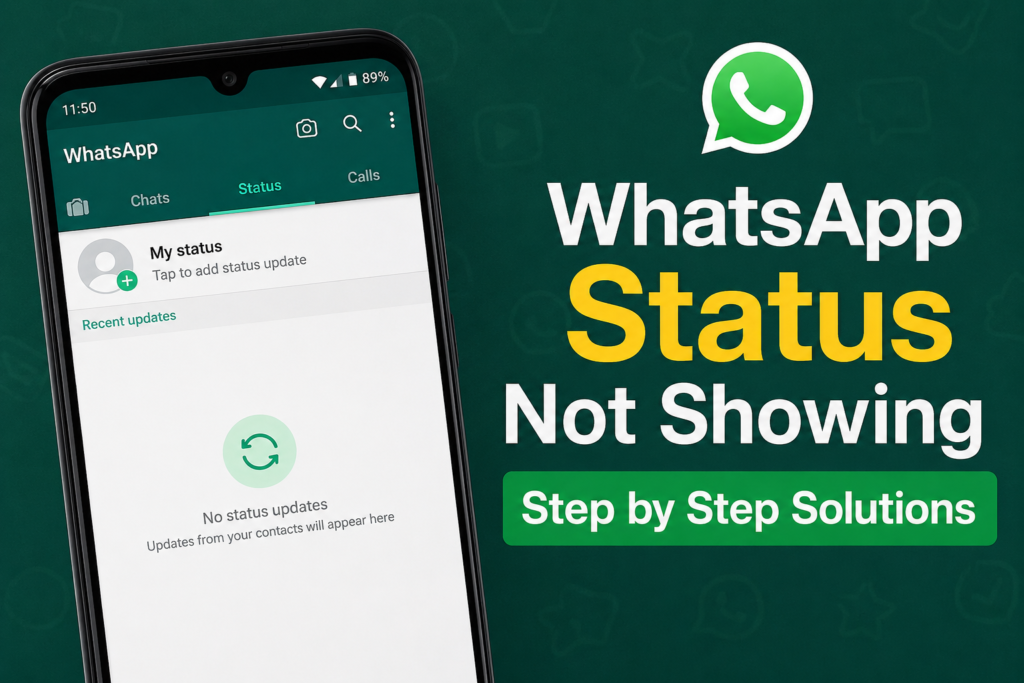
WhatsApp Status is one of the easiest ways to share photos, videos, text, and daily updates with friends and family. However, sometimes you may open WhatsApp and notice that status updates are not showing. You may see an empty Status tab even though you know your contacts have posted something. In some cases, your own WhatsApp Status may also fail to appear for other people.
I have faced this type of WhatsApp problem myself, and in many cases, the issue is not as serious as it first appears. A poor internet connection, incorrect privacy settings, an outdated WhatsApp app, or a simple temporary app problem can prevent status updates from appearing normally.
In this guide, I will explain the most common reasons why WhatsApp Status is not showing and share step by step solutions that you can try on your Android or iPhone.
Why Is WhatsApp Status Not Showing?
Before trying complicated solutions, it is useful to understand what may be causing the problem. WhatsApp Status may not show because of an unstable internet connection, privacy settings, muted updates, blocked contacts, outdated software, temporary WhatsApp glitches, or problems with your phone’s cache.
Another possibility is that the contact has changed their Status privacy settings. If someone has selected specific people who can view their status, you may not see their updates.
Sometimes the problem is simply caused by WhatsApp needing a quick refresh. That is why I recommend starting with the easiest solutions first.
1. Check Your Internet Connection
The first thing I recommend checking is your internet connection. WhatsApp needs a stable connection to load new status updates.
Try opening a website or another application that uses the internet. If other apps are also loading slowly, your internet connection may be the reason WhatsApp Status is not showing.
If you are using mobile data, turn mobile data off and on again. If you are connected to WiFi, disconnect and reconnect to the network.
You can also switch between WiFi and mobile data to see whether the Status tab starts working.
A quick internet refresh often solves temporary WhatsApp loading problems without requiring any other changes.
2. Refresh WhatsApp Status
Sometimes WhatsApp simply does not refresh the Status section correctly. You can try closing WhatsApp completely and opening it again.
On Android, open the recent apps screen and remove WhatsApp. Then launch the app again.
On iPhone, swipe up from the bottom of the screen and close WhatsApp from the recent apps view. Open WhatsApp again and check the Status tab.
Give the app a few seconds to load. If your internet connection is working properly, new status updates should appear.
3. Check If Status Updates Are Muted
One easy thing to overlook is muted status updates. If you accidentally muted a contact’s status, their updates may not appear in the normal Recent Updates section.
Open WhatsApp and go to the Status section. Look for a muted updates area. If the contact is listed there, open the muted updates section and check whether you can unmute the contact.
This is especially useful if WhatsApp Status is working normally for other contacts but one particular person’s status is missing.
4. Check WhatsApp Status Privacy Settings
If your own status is not visible to other people, your privacy settings could be responsible.
Open WhatsApp and go to Settings. Then select Privacy and look for the Status option.
WhatsApp normally provides different choices for who can see your status. Depending on your settings and app version, you may be able to share your status with all your contacts, exclude certain contacts, or choose specific people.
Review these settings carefully. If you accidentally excluded someone, that person will not be able to see your status updates.
This is one of the most important things to check when your WhatsApp Status appears to work on your phone but other people say they cannot see it.
5. Make Sure You Have the Contact Saved
WhatsApp Status visibility can also depend on contact information and privacy settings. If you cannot see a particular person’s status, make sure their phone number is saved correctly in your contacts.
Ask the person whether they still have your number saved as well. Privacy settings can affect whether status updates are visible between contacts.
If the person recently changed their phone number or updated their WhatsApp account, their status may also behave differently.
6. Update WhatsApp
An outdated WhatsApp version can sometimes cause different features to stop working properly.
Open the Google Play Store on Android or the App Store on iPhone and search for WhatsApp. If an update is available, install it.
After updating WhatsApp, open the application again and check the Status section.
I recommend keeping WhatsApp updated because updates can include bug fixes, performance improvements, security improvements, and changes to existing features.
7. Restart Your Phone
This may sound like a basic solution, but restarting your phone can fix temporary software problems.
Close WhatsApp and restart your Android phone or iPhone. After the phone starts again, connect to the internet and open WhatsApp.
A restart can clear temporary background issues that may prevent WhatsApp from refreshing properly.
If WhatsApp Status was working earlier and suddenly stopped showing, this is definitely worth trying.
8. Clear WhatsApp Cache on Android
If you are using Android, clearing the WhatsApp cache can help when the application is behaving strangely.
Open your phone’s Settings and go to Apps. Find WhatsApp and open its storage options. Look for the Clear Cache option.
Clearing the cache is different from clearing WhatsApp data. The cache contains temporary files, so clearing it is generally a safer first step when troubleshooting.
After clearing the cache, open WhatsApp and check whether Status updates are appearing.
The exact menu names can vary depending on your Android phone manufacturer and software version.
9. Check Your Phone’s Date and Time
Incorrect date and time settings can sometimes create problems with applications that depend on online services.
Go to your phone’s date and time settings and enable automatic date and time if the option is available.
Make sure your phone is using the correct time zone as well.
After correcting the settings, restart WhatsApp and check the Status section again.
10. Check Whether WhatsApp Is Experiencing an Outage
Sometimes the problem is not related to your phone at all. WhatsApp itself may experience temporary service problems.
If WhatsApp messages are also taking a long time to send, calls are failing, or several features are not working, there could be a temporary service issue.
In this situation, there may not be much you can do except wait for the service to return to normal.
You can also ask friends or family members whether WhatsApp Status is working for them. If several people are experiencing the same issue at the same time, the problem may be on WhatsApp’s side.
11. Check Whether You Are Blocked
If you cannot see one specific person’s WhatsApp Status while you can see everyone else’s updates, there are several possibilities.
The person may have changed their privacy settings, stopped posting statuses, removed your contact, or blocked you.
There is no reliable way to confirm a block simply because a Status is missing. Therefore, I would not immediately assume that someone has blocked you.
Look at the overall situation rather than relying on one missing status update.
12. Check Your Phone Storage
Low storage space can sometimes affect how applications operate. If your phone is almost full, WhatsApp may have difficulty handling new media and temporary files.
Check your phone’s available storage and remove unnecessary files if needed.
Photos, videos, downloaded files, and large applications can consume a lot of storage. Freeing some space may help WhatsApp operate more smoothly.
13. Reinstall WhatsApp as a Last Resort
If you have tried everything else and WhatsApp Status is still not showing, reinstalling WhatsApp can be another option.
Before removing WhatsApp, make sure your important chats and media are backed up properly. You do not want to delete the application without confirming that your backup is available.
After backing up your data, uninstall WhatsApp and install the latest version again from the official app store.
Log in with your phone number and restore your backup if prompted. Then check whether the Status feature is working normally.
Final Thoughts
When WhatsApp Status is not showing, there is usually a simple reason behind the problem. In my experience, checking the internet connection, refreshing WhatsApp, reviewing privacy settings, checking muted updates, and updating the application are the best places to start.
If the problem affects only one contact, their privacy settings or contact information may be responsible. If Status is not working for anyone, the issue could be related to your app, phone, internet connection, or a temporary WhatsApp service problem.
I recommend trying these solutions one at a time rather than changing everything at once. Start with the simple fixes and move toward advanced troubleshooting only if the problem continues.
With a stable internet connection, updated WhatsApp application, correct privacy settings, and enough phone storage, WhatsApp Status should normally load and display updates without any major problem.