Changing your phone is exciting, but it can become stressful when you open WhatsApp on the new device and discover that your old chats are missing. I have seen this happen when people move from one phone to another, especially when the backup was not restored correctly or the wrong account was used during setup.
If your WhatsApp chats are missing after a phone change, do not immediately assume that everything has been permanently deleted. In many situations, the chats are still available in a backup or on the old phone. The important thing is to stop making unnecessary changes until you understand where your WhatsApp data is stored.
In this guide, I will explain why WhatsApp chats can disappear after changing phones and share practical step by step solutions that you can try on Android and iPhone.
Why Are WhatsApp Chats Missing After Changing Phones?
WhatsApp does not simply move your entire chat history to a new phone just because you install the application and verify your number.
Your chat history normally needs to be transferred directly or restored from an available backup.
On Android, backups can involve your Google account and local device storage. On iPhone, WhatsApp backups are associated with iCloud. WhatsApp also provides transfer options that can move chats directly between compatible phones.
Problems usually happen when the backup was never created, the wrong Google account or Apple account is selected, a different phone number is used, the backup is outdated, or the restoration process is skipped.
This is why I always recommend checking the old phone and backup status before trying anything that could overwrite existing data.
1. Do Not Delete WhatsApp From Your Old Phone Yet
If you still have your old phone, keep it safe.
This is probably the most important advice I can give.
Open WhatsApp on the old device and check whether your conversations are still there.
If the chats are visible on the old phone, there is still a good chance that you can transfer or back them up before completing the setup on the new phone.
Do not reset your old phone or delete WhatsApp until you are certain that your conversations are safely available on the new device.
2. Check Your WhatsApp Backup
If your old phone still has your chats, check when the last WhatsApp backup was created.
On Android, open WhatsApp and go to Settings, then Chats, followed by Chat backup.
On iPhone, open WhatsApp and go to Settings, then Chats, followed by Chat Backup.
Look at the backup date and size.
If the backup was created recently, this is a good sign.
If the backup is several months old, remember that messages received after that backup may not be included.
If the old phone still contains newer conversations, create a fresh backup before moving forward.
3. Use the Same Phone Number
WhatsApp chat restoration is connected to your WhatsApp account and phone number.
Make sure you are using the same phone number that was associated with the old WhatsApp account.
If you verify WhatsApp with a different number, the expected backup may not appear.
This is one of the first things I check when someone says that their WhatsApp chats disappeared after changing phones.
If you recently changed your phone number as well as your phone, the process can be different. In that situation, make sure your WhatsApp account was properly changed to the new number before attempting to restore your chats.
4. Check the Google Account on Android
If you moved from one Android phone to another, check the Google account being used for WhatsApp backup.
The new phone needs access to the Google account where the WhatsApp backup was stored.
Open your phone settings and check which Google account is signed in.
If you have multiple Google accounts, make sure you are using the account associated with your old WhatsApp backup.
A very common mistake is setting up WhatsApp on the new phone while signed into a different Google account.
In that situation, WhatsApp may not find the expected backup.
5. Check iCloud on iPhone
For iPhone users, the equivalent check involves iCloud.
Make sure the new iPhone is signed into the same Apple account that was used for the WhatsApp backup.
Also make sure iCloud Drive is enabled and that WhatsApp has permission to use iCloud where required.
Then check whether a WhatsApp backup is available.
If the backup exists, reinstalling WhatsApp and completing the restoration process with the correct account can bring your conversations back.
6. Restore WhatsApp Backup During Setup
If WhatsApp finds a compatible backup during setup, it should give you an option to restore your chats.
Do not skip this step if you want to recover your previous conversations.
Choose the restore option and allow the process to finish.
Depending on the size of your backup and the speed of your internet connection, the restoration may take some time.
Keep your phone connected to a stable WiFi connection and make sure it has enough battery.
If you close the application or interrupt the restoration process, you may need to repeat the setup.
7. Make Sure You Have Enough Storage
A lack of storage can also create problems during chat restoration.
Check the available storage on your new phone.
If the phone is almost full, remove unnecessary applications, videos, downloads, or other files.
WhatsApp may need enough free storage to restore conversations and media.
Keep in mind that a chat backup containing many photos and videos can require significantly more space than a backup containing text messages only.
8. Use WhatsApp’s Direct Transfer Option
If your old phone still works and contains your chats, direct transfer can be a useful alternative to cloud restoration.
WhatsApp supports chat transfer between compatible devices.
The exact steps can vary depending on whether you are moving between Android devices, iPhones, or different operating systems.
Before starting the transfer, keep both phones nearby, make sure they have sufficient battery, and follow the instructions displayed inside WhatsApp.
I prefer direct transfer when it is available because you can move the information directly from the old device instead of depending entirely on an older cloud backup.
9. Check Your Internet Connection
A stable internet connection is important when restoring a cloud backup.
If your WiFi connection is weak or frequently disconnects, the restoration process may fail or take much longer than expected.
Try connecting the new phone to a reliable WiFi network.
Avoid switching networks while the restoration is running.
If the process repeatedly fails, restart your router and try again.
You should also make sure that your phone is not using an aggressive battery saving mode that could interrupt WhatsApp while it is restoring data.
10. Update WhatsApp
Make sure WhatsApp is updated to the latest version available for your device.
Open the Google Play Store on Android or the App Store on iPhone and check for an available update.
An outdated version can sometimes cause compatibility or restoration problems.
After updating WhatsApp, restart the application and check the restoration process again.
If you are reinstalling WhatsApp, use the official app store rather than downloading the application from an unknown website.
11. Restart Your New Phone
If you have confirmed that your backup exists but WhatsApp is behaving strangely, restart your new phone.
A restart can clear temporary system problems and allow background services to work normally.
After restarting, open WhatsApp and check your chats again.
If you have already completed setup without restoring a backup, be careful about repeatedly reinstalling the application. First confirm that the backup you need actually exists.
12. Check Whether Only Media Is Missing
Sometimes people think their WhatsApp chats are missing when the text conversations are actually present but photos and videos have not finished restoring.
Open several old conversations and check whether the messages are visible.
If the text messages are there but images show loading icons, the media restoration may still be in progress.
Give WhatsApp some time and keep the phone connected to WiFi.
Large backups can take longer to restore completely.
13. What If the Backup Cannot Be Found?
If WhatsApp says that no backup was found, check the important details again.
On Android, verify the Google account and phone number.
On iPhone, verify the Apple account, iCloud settings, and phone number.
Also check the old phone if you still have access to it.
If the chats are still present on the old phone, you may be able to create a new backup or use the direct transfer feature instead.
If there is no backup and the old phone no longer contains the chats, recovery may be much more difficult.
14. Avoid Unofficial WhatsApp Recovery Applications
When people lose important chats, they often search for applications that promise to recover deleted WhatsApp messages.
I recommend being very careful with these tools.
Some third party recovery applications may request access to private information, storage, contacts, or other sensitive data.
Do not give your WhatsApp account details or verification codes to unknown services.
Whenever possible, use WhatsApp’s own backup and transfer options.
Your conversations can contain personal information, photos, documents, and other private content, so protecting that information should be a priority.
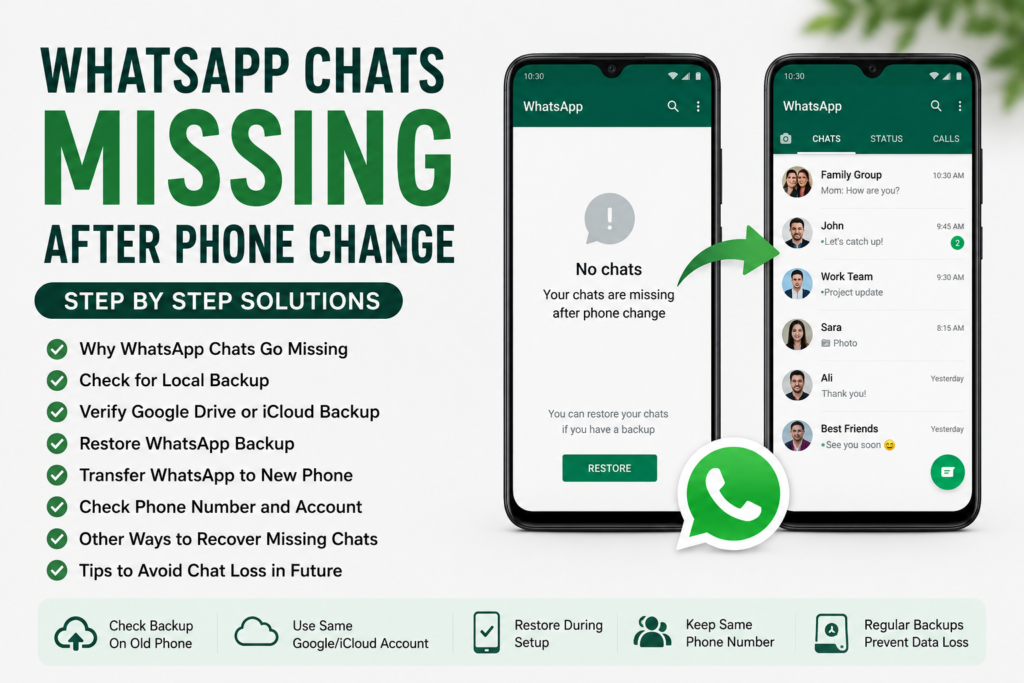
How to Prevent WhatsApp Chats From Going Missing Again
Once you recover your conversations, I recommend setting up regular backups.
On Android, check your WhatsApp backup settings and choose a suitable backup frequency.
On iPhone, review the WhatsApp iCloud backup settings.
Make sure your phone has enough cloud storage and that the backup is actually completing successfully.
Do not assume that backups are working just because the option is enabled. Occasionally check the backup date to make sure a recent backup exists.
I also recommend creating a backup before changing phones.
If you are moving to a new device, keep the old phone until you have confirmed that your chats, photos, videos, and important documents are available on the new phone.
Final Thoughts
The WhatsApp chats missing after phone change problem can be stressful, but it does not always mean that your conversations are permanently gone.
The first thing I recommend is checking your old phone. If the chats are still there, you have a much better chance of recovering them.
Next, check your WhatsApp backup, confirm that you are using the same phone number, and make sure you are signed into the correct Google account or Apple account.
If a backup is available, restore it during WhatsApp setup. If your old phone still works, consider using WhatsApp’s direct chat transfer option.
Also make sure you have enough storage, a stable internet connection, and an updated WhatsApp application.
Most importantly, avoid deleting WhatsApp from your old phone until you have confirmed that everything has successfully moved to the new device.
For future phone changes, create a fresh backup before switching devices and verify that the backup has completed. Taking a few minutes to check your backup can save you from a lot of stress later.
With these step by step solutions, you can troubleshoot most common cases of WhatsApp chats missing after changing phones and improve your chances of getting your conversations back safely.