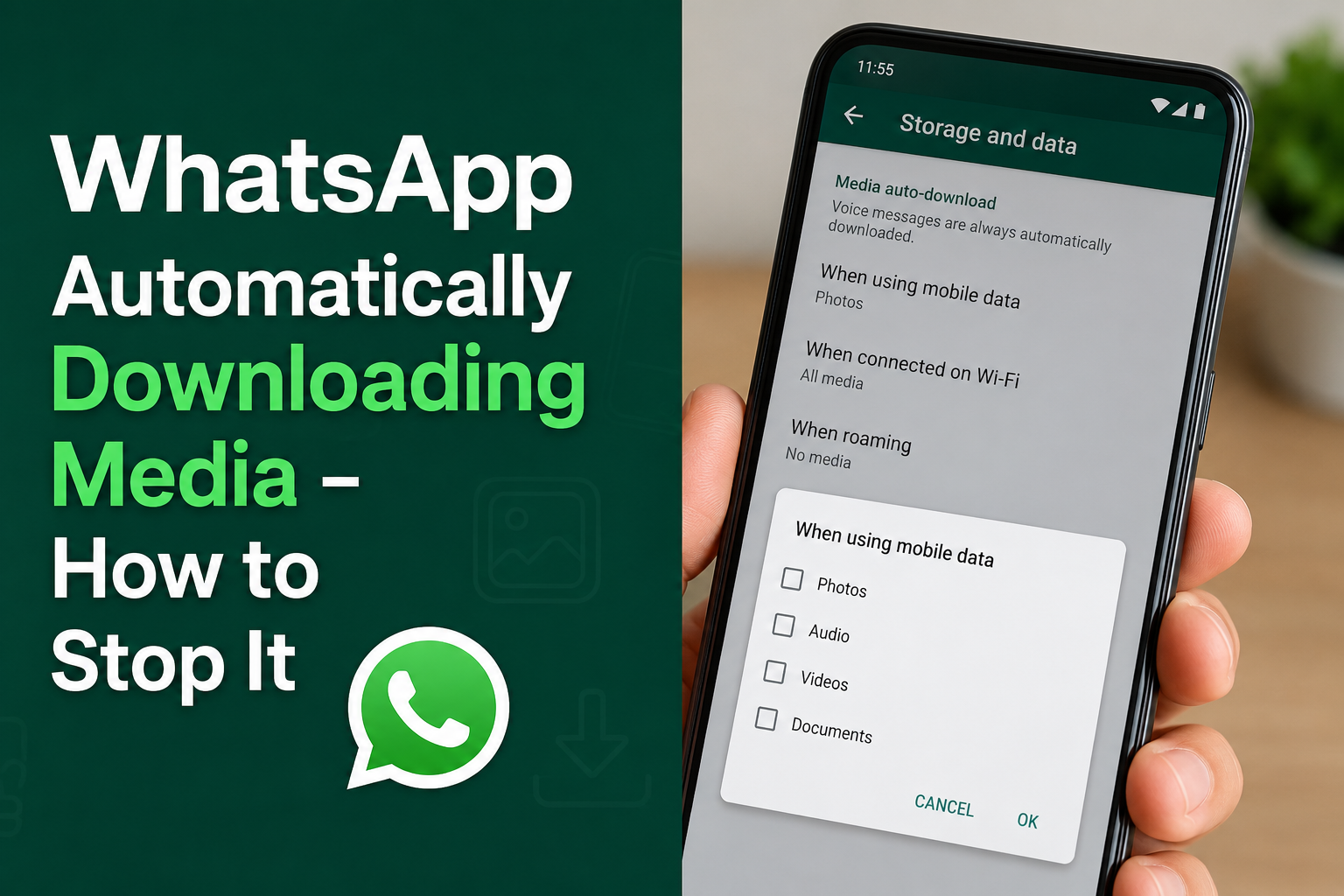
WhatsApp is one of the most commonly used messaging apps, and I personally find its media sharing feature very useful. We can send photos, videos, documents, voice messages, and other files within seconds. However, there is one problem that can become annoying very quickly. WhatsApp can automatically download media from chats, which may fill up phone storage, use mobile data, and save unwanted photos and videos to the gallery.
If you are searching for WhatsApp automatically downloading media how to stop it, you are in the right place. In this guide, I will explain the settings I use and the simple steps you can follow to stop WhatsApp from downloading media automatically. I will also explain how to control mobile data, WiFi downloads, gallery visibility, and storage so you can manage WhatsApp media more effectively.
Why Is WhatsApp Automatically Downloading Media?
WhatsApp has a media auto download feature that allows photos, videos, audio files, and documents to download automatically when certain network conditions are available. This feature is enabled by default in many situations because WhatsApp wants media to be ready when you open a conversation.
The problem starts when you are part of several active groups. People may send dozens of photos and videos every day, and your phone can quietly download many of them without you intentionally opening them.
In my experience, this is one of the easiest ways to waste mobile data and storage without realizing it. A few large videos can consume a significant amount of storage, especially if your phone has limited space.
The good news is that you do not need to stop receiving WhatsApp messages. You only need to change the media download settings.
How to Stop WhatsApp From Automatically Downloading Media
The easiest way to control automatic downloads is through the WhatsApp Storage and data settings.
Open WhatsApp on your phone and follow these steps.
- Open WhatsApp.
- Tap the three dot menu on Android or open Settings on iPhone.
- Go to Settings.
- Select Storage and data.
- Look for the Media auto download section.
Here you will normally find options related to mobile data, WiFi, and roaming. The exact layout can vary depending on your phone and WhatsApp version, but the main idea remains the same.
You can choose which types of media WhatsApp should download automatically.
For example, you can disable automatic downloads for photos, audio, videos, and documents. After changing these settings, WhatsApp will generally require you to tap the media before it downloads.
Stop WhatsApp Media Download on Mobile Data
Mobile data is usually the most important setting to change if you want to save your internet package.
When WhatsApp automatically downloads photos and videos while you are using mobile data, your data can disappear faster than expected. This is especially noticeable if you are using a limited monthly data package.
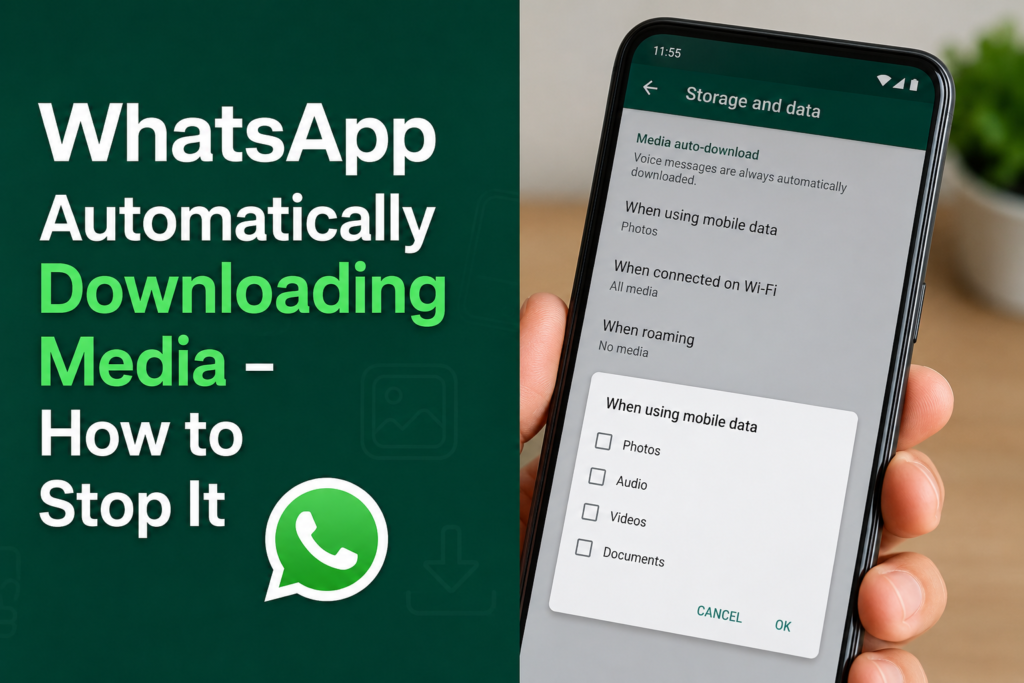
To change this setting, open WhatsApp Settings and go to Storage and data. Under the media auto download section, select the option for mobile data.
You will see different media categories. Depending on your WhatsApp version, these can include photos, audio, videos, and documents.
If you want maximum control, uncheck all media types and save the setting.
After doing this, WhatsApp should not automatically download those selected media files when you are using mobile data. You can still download an individual photo or video manually whenever you want.
Personally, I think this is a good option for people who have limited mobile data. It gives you control over what actually gets downloaded.
Stop WhatsApp Automatically Downloading Media on WiFi
Many people only change the mobile data setting and forget about WiFi. However, WhatsApp can also automatically download media while your phone is connected to WiFi.
If you are connected to a home network, automatic downloading may not affect your internet package, but it can still consume phone storage.
For example, if you are in several WhatsApp groups where people constantly share videos, your phone may keep downloading those files even when you are not interested in them.
To stop this, go to WhatsApp Settings, then Storage and data, and select the WiFi media download option.
You can disable photos, videos, audio, and documents according to your preference.
I personally recommend disabling automatic video downloads if you receive a lot of videos. Videos are usually much larger than normal photos and can quickly consume your available storage.
Stop WhatsApp Videos From Downloading Automatically
Videos are often the biggest reason people search for WhatsApp automatically downloading media how to stop it.
A single video can be much larger than a photo. If several videos are sent in active groups, they can quickly take up hundreds of megabytes or even several gigabytes.
If you do not want WhatsApp to automatically download videos, go to Settings, Storage and data, and change the video option under media auto download.
You can disable videos for mobile data, WiFi, or both.
This does not mean you will stop receiving videos. You can still tap a video whenever you actually want to watch it. The difference is that you decide which videos should be downloaded.
Stop WhatsApp Photos From Appearing in Your Gallery
There is another setting that is slightly different from media auto download.
Sometimes people think WhatsApp is downloading everything automatically because photos and videos are appearing in their phone gallery. In reality, the files may already be downloaded, and WhatsApp is simply making them visible in the gallery.
On Android, open WhatsApp and go to Settings. Select Chats and look for the Media visibility option.
If you turn off Media visibility, newly downloaded WhatsApp media will generally not appear in your main gallery.
This is useful if you want to keep your personal photos and WhatsApp group images separate.
Keep in mind that this setting does not necessarily prevent WhatsApp from downloading the media. It mainly controls whether the downloaded media is displayed in your gallery.
Manage Media From Individual WhatsApp Chats
Sometimes you may not want to disable automatic downloads for every conversation.
For example, you may have one family group where people share important photos, while another group constantly sends unnecessary videos. In that situation, controlling media visibility for individual chats can be more convenient.
Open the specific WhatsApp conversation and tap the contact or group name. Look for the media visibility option and choose the setting that works for you.
This gives you more control without changing your entire WhatsApp experience.
I find this approach useful when only a few groups are responsible for most of the unwanted media on my phone.
How to Free Up WhatsApp Storage
Stopping automatic downloads is only part of the solution. If WhatsApp has already downloaded hundreds of photos and videos, you should also clean the existing files.
Go to WhatsApp Settings and open Storage and data. Then select Manage storage.
WhatsApp can show you information about large files and media that have been forwarded or shared frequently. You can review these files and delete the ones you no longer need.
Before deleting anything important, I always recommend checking the files carefully. Some WhatsApp images or documents may contain information that you want to keep.
Cleaning WhatsApp storage regularly can make a noticeable difference, especially if you are part of many groups.
Why WhatsApp Keeps Downloading Media After Changing Settings
If you have changed the settings but WhatsApp is still downloading media, there are several possible reasons.
First, check whether you changed the setting for both mobile data and WiFi. Many users change one option and forget the other.
Second, check whether the media was already downloaded before you changed the setting. Changing auto download settings does not remove existing files.
Third, make sure you are using the latest version of WhatsApp available for your device. An outdated app can sometimes behave differently from the current version.
You can also restart WhatsApp after changing the settings. If the problem continues, restart your phone and check the settings again.
Does Turning Off Auto Download Stop WhatsApp Messages?
No. Turning off automatic media downloads does not stop normal WhatsApp messages.
You can continue receiving text messages, voice messages, photos, videos, documents, and other content. The main difference is that selected media will not automatically download under the conditions you disabled.
You can manually tap the media whenever you want to download and view it.
This is why I think disabling automatic downloads is a better option than making major changes to WhatsApp notifications or leaving groups that are still useful.
Best WhatsApp Media Settings
If your main goal is to save mobile data and phone storage, I would recommend a simple setup.
For mobile data, disable automatic downloads for photos, videos, audio, and documents.
For WiFi, you can allow photos if you frequently receive useful images, but I recommend disabling automatic video downloads if storage is limited.
For roaming, keeping automatic media downloads disabled is usually a sensible choice because roaming data can be expensive.
You should also review the Media visibility setting if you do not want WhatsApp images and videos appearing in your phone gallery.
These settings give you a good balance between convenience, storage management, and data usage.
Final Thoughts
If WhatsApp is automatically downloading media, you do not have to live with unwanted photos and videos filling your phone. WhatsApp provides built in settings that allow you to control what gets downloaded over mobile data, WiFi, and roaming.
The most effective solution is to open WhatsApp Settings, go to Storage and data, and adjust the media auto download options according to your needs. If videos are your biggest problem, disable automatic video downloads first. You can also turn off Media visibility if you do not want downloaded WhatsApp media appearing in your gallery.
In my opinion, taking a few minutes to configure these settings can make WhatsApp much easier to manage. You save data, protect your available storage, and avoid having your gallery filled with random images and videos from group chats.
The best part is that you still have complete access to the media you actually want. Instead of allowing WhatsApp to decide what should be downloaded, you can simply tap the photo, video, or document when you need it.
So, if you were searching for WhatsApp automatically downloading media how to stop it, start with the Storage and data settings. Once you adjust them correctly, WhatsApp will become much more predictable and your phone storage should stay cleaner for longer.
Frequently Asked Questions
Why does WhatsApp download photos automatically?
WhatsApp uses media auto download settings to download selected files automatically when your phone meets the selected network conditions. You can change these settings from Storage and data.
How do I stop WhatsApp from downloading videos?
Open WhatsApp Settings, go to Storage and data, select the appropriate media auto download option, and disable videos for mobile data, WiFi, or both.
Will disabling auto download delete old WhatsApp media?
No. Changing the setting does not automatically delete media that has already been downloaded. You need to remove old files separately through WhatsApp storage management or your phone’s file manager.
Can I stop WhatsApp photos from appearing in my gallery?
Yes. On supported devices, you can change the Media visibility option in WhatsApp settings. This controls whether newly downloaded WhatsApp media appears in your main gallery.
Does disabling automatic download save mobile data?
Yes. When photos, videos, audio files, and documents are not automatically downloaded over mobile data, you have greater control over how much data WhatsApp uses.