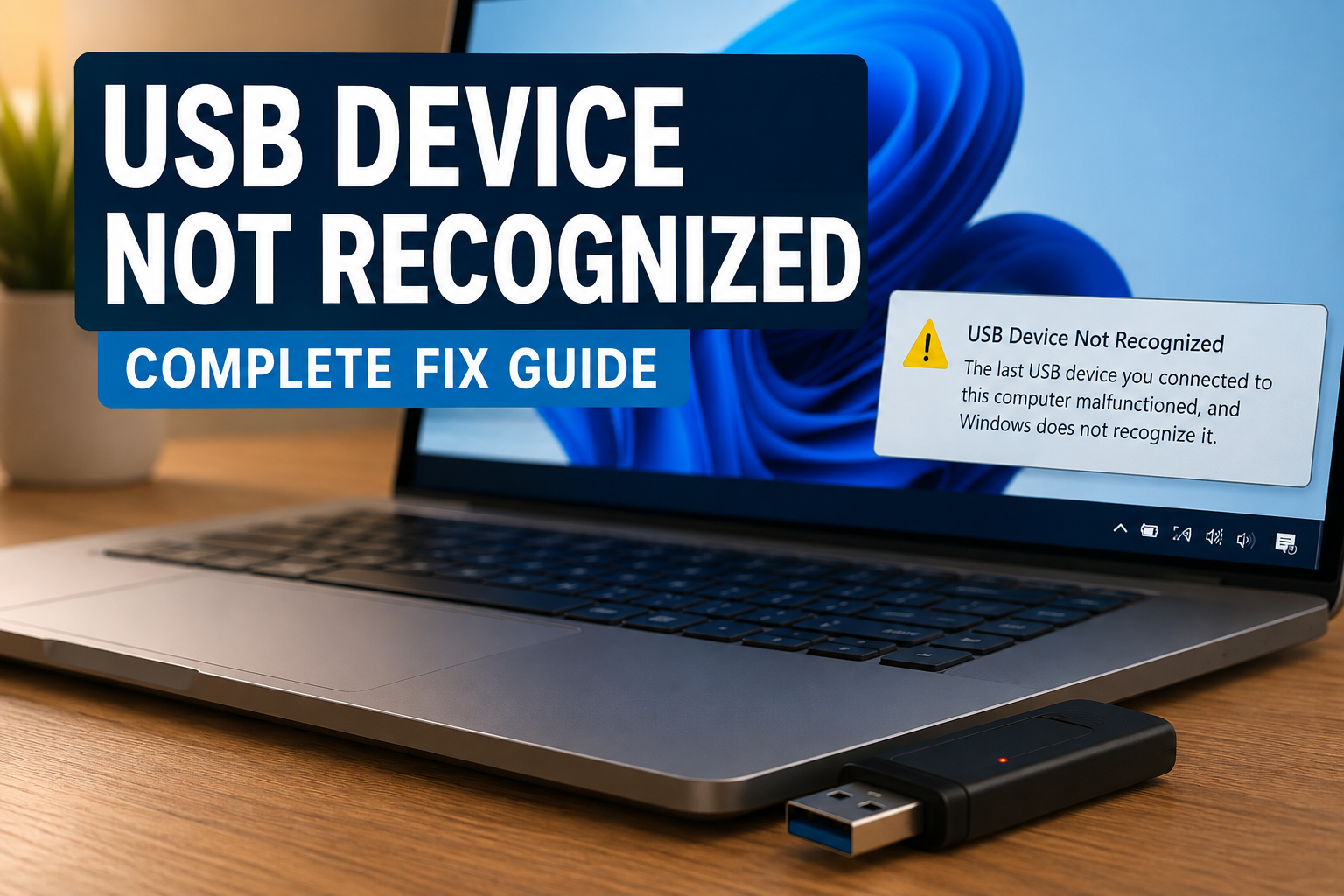
If you have connected a USB flash drive, keyboard, mouse, external hard drive, printer, or another USB device to your Windows PC and suddenly see the message “USB Device Not Recognized”, you are not alone. I have faced this problem myself, and in most cases, it does not immediately mean that the USB device is damaged.
Windows can fail to recognize a USB device for several reasons. Sometimes the problem is as simple as a loose connection or a faulty USB port. In other situations, outdated drivers, power management settings, Windows updates, or corrupted USB controller settings can be responsible.
In this guide, I will explain the most useful ways to fix USB Device Not Recognized in Windows. I recommend starting with the simple solutions first because they are quick and often solve the problem without changing complicated system settings.
Why Does Windows Say USB Device Not Recognized?
Before trying different fixes, it helps to understand what can cause this error.
The most common reason is a communication problem between Windows and the connected USB device. Your computer detects that something has been connected, but it cannot properly identify or communicate with it.
Some common causes include:
- A damaged USB cable
- A faulty USB port
- Outdated or corrupted USB drivers
- Temporary Windows problems
- Insufficient USB power
- Incorrect power management settings
- Problems with USB controllers
- A damaged flash drive or external hard drive
- Recent Windows updates
- Hardware failure
The good thing is that many of these problems can be fixed at home.
1. Disconnect and Reconnect the USB Device
The first solution I always recommend is also the easiest one.
Remove the USB device from your computer and wait for a few seconds. Then connect it again firmly.
If you are using an external hard drive, make sure the cable is properly connected at both ends. A slightly loose connection can cause Windows to detect the device incorrectly.
If possible, also try connecting the USB device while Windows is fully running rather than connecting it during startup.
Sometimes Windows simply needs to establish the connection again, and this simple step can immediately solve the problem.
2. Try a Different USB Port
A USB port can become faulty or may not provide enough power for a particular device.
Try another USB port on your computer. If you are using a desktop PC, I recommend trying a USB port directly on the back of the computer because these ports are connected directly to the motherboard.
For laptops, test every available USB port if possible.
If the device works in another port, the original USB port may have a hardware problem or a driver related issue.
This is one of the quickest ways to determine whether the problem is with the USB device or the computer port.
3. Restart Your Windows Computer
Restarting Windows sounds basic, but it can fix many temporary hardware detection problems.
When Windows runs for a long time, certain drivers and background services can occasionally stop working correctly. A restart reloads these components and gives Windows another opportunity to detect the USB device.
Disconnect the USB device, restart your computer, and connect the device again after Windows has completely loaded.
I personally prefer this step before making any advanced changes to Windows because it takes less than a minute.
4. Check the USB Cable
If you are using an external hard drive, smartphone, printer, webcam, or another device that uses a detachable USB cable, the cable itself could be the problem.
A damaged cable may still provide power while failing to transfer data correctly. This can make the device appear to be connected while Windows cannot recognize it properly.
Try another compatible USB cable if you have one available.
If the device works with the replacement cable, you have found the problem.
5. Check the Device on Another Computer
This is another useful troubleshooting method.
Connect the USB device to another computer. If Windows recognizes it normally on the second computer, the USB device is probably working correctly and the problem is likely related to your original PC.
However, if the same USB Device Not Recognized error appears on another computer, the device or cable may be damaged.
This test can save you a lot of time because it helps identify which side of the connection is causing the problem.
6. Run Windows Hardware Troubleshooting
Windows includes built in troubleshooting features that can help identify hardware related problems.
Open Windows Settings and look for the troubleshooting options under System.
Depending on your Windows version and available troubleshooters, you may find options related to connected devices or hardware.
Run the relevant troubleshooter and allow Windows to check for common configuration problems.
While Windows troubleshooters do not fix every USB problem, they are worth trying before moving to more advanced solutions.
7. Update USB Drivers
Outdated or corrupted drivers are one of the most common reasons Windows may fail to recognize USB hardware.
To check your USB drivers, right click the Start button and open Device Manager.
Expand categories such as:
Universal Serial Bus controllers
Look for USB controllers or devices showing a warning icon.
Right click the relevant device and select Update driver.
Then allow Windows to search for an available driver.
If the issue started after a driver update, you may also see an option to roll back the driver. In that situation, rolling back can sometimes restore normal USB functionality.
8. Uninstall the USB Device Driver
If updating the driver does not work, uninstalling the problematic USB device from Device Manager can help.
Open Device Manager and locate the USB device or controller associated with the problem.
Right click it and select Uninstall device.
After uninstalling it, restart your computer.
Windows should automatically detect the hardware again and reinstall the required driver.
This method is particularly useful when the existing driver installation has become corrupted.
Be careful when uninstalling devices in Device Manager. If you are not sure which device is causing the issue, avoid randomly removing important hardware.
9. Disable USB Power Saving
Windows can sometimes turn off USB devices to save power. This feature can be useful for battery life, but it may occasionally cause connectivity problems.
Open Device Manager and expand Universal Serial Bus controllers.
Open the properties of a USB Root Hub or similar USB controller and look for the Power Management tab.
If available, you may see an option allowing Windows to turn off the device to save power.
You can disable this option and then restart your computer.
This solution can be especially helpful if your USB device disconnects frequently or works for a while before Windows stops recognizing it.
10. Turn Off Fast Startup Temporarily
Windows Fast Startup is designed to make startup quicker, but in some situations it can contribute to hardware detection problems.
You can temporarily disable Fast Startup and check whether the USB problem disappears.
Open Control Panel and navigate to the power options. Look for the settings related to what the power buttons do and then open the option to change settings that are currently unavailable.
If Fast Startup is enabled, turn it off temporarily and restart your computer.
After restarting, test the USB device again.
If the device begins working normally, Fast Startup may have been involved in the issue.
11. Check Disk Management
Sometimes Windows recognizes a USB storage device but does not display it in File Explorer.
If you are dealing with a USB flash drive, memory card reader, or external hard drive, open Disk Management.
You can search for Disk Management from the Windows Start menu.
Look for your connected storage device in the list.
If the drive appears but does not have a drive letter, assigning an available drive letter may make it visible in File Explorer.
However, be very careful with formatting or deleting partitions. If the drive contains important files, do not format it simply because Windows cannot open it.
12. Scan for Hardware Changes
Device Manager also provides an option to scan your computer for hardware changes.
Open Device Manager and select the computer name at the top of the device list. Then use the option to scan for hardware changes.
Windows will search for connected hardware and attempt to detect devices that are not currently recognized.
This can sometimes restore a USB device without requiring a full system restart.
13. Install Pending Windows Updates
An outdated Windows installation can sometimes have compatibility problems with newer hardware and drivers.
Open Windows Settings and check Windows Update.
If updates are available, install them and restart your computer.
After the update process is complete, connect the USB device again.
I recommend keeping Windows updated, especially when you regularly connect newer USB devices or external storage hardware.
14. Check for Physical Damage
If none of the software solutions work, inspect the USB device carefully.
Look for bent connectors, cracks, damaged cables, loose components, or unusual physical damage.
For a USB flash drive, check whether the connector feels loose when inserted into the port.
For external drives, listen for unusual sounds and check whether the drive powers on normally.
If a storage device contains important files and appears to be failing, avoid repeatedly connecting and disconnecting it. Further attempts could potentially make data recovery more difficult.
15. When the USB Device May Actually Be Dead
Sometimes the problem is not Windows at all.
If the USB device is not recognized on multiple computers, different USB ports do not help, replacing the cable makes no difference, and the device shows signs of physical failure, the hardware itself may be damaged.
This is particularly common with older flash drives and external storage devices.
If the device contains valuable data, professional data recovery may be safer than trying random repair tools or formatting the drive.
Final Thoughts
The USB Device Not Recognized in Windows error can be frustrating, but it does not always mean that your USB device has failed.
In my experience, the best approach is to start with simple checks. Try another USB port, reconnect the device, restart Windows, test another cable, and connect the device to another computer. If those steps do not work, move on to Device Manager, driver updates, USB power settings, Windows updates, and Disk Management.
The most important thing is not to rush into formatting a USB storage device when important files are involved. A software problem can often be fixed without losing any data.
With a systematic approach, you can usually determine whether the problem is caused by Windows, the USB port, the driver, the cable, or the device itself. Once you identify the real cause, fixing USB Device Not Recognized in Windows becomes much easier.