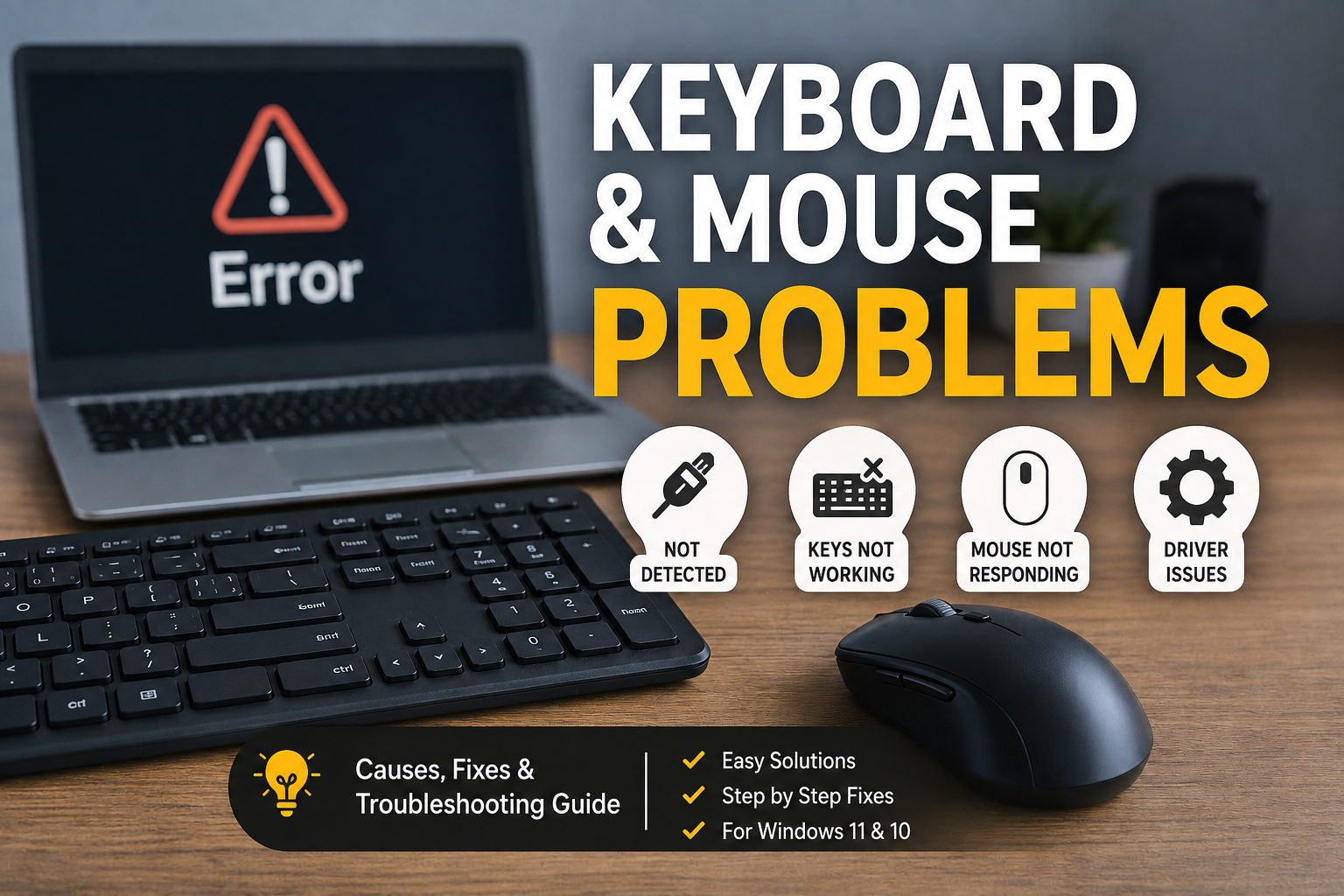
Keyboard and mouse problems are some of the most frustrating issues I have experienced while using a computer. Everything can seem normal, but suddenly the keyboard stops responding, certain keys do not work, the mouse freezes, or the cursor moves strangely across the screen. These problems can make even simple computer tasks difficult.
The good thing is that most keyboard and mouse problems are not difficult to fix. In many cases, the cause is a loose connection, low battery, outdated driver, incorrect Windows setting, dust, or a temporary software problem.
In this guide, I will share the practical troubleshooting methods I would normally try when a keyboard or mouse is not working properly in Windows 10 or Windows 11.
Common Keyboard and Mouse Problems
Keyboard and mouse problems can appear in different ways. Sometimes the entire device stops working, while in other situations only a few functions are affected.
Some common problems include:
Keyboard not responding
Certain keyboard keys not working
Wireless keyboard disconnecting
Mouse not moving
Mouse cursor freezing
Mouse buttons not responding
Wireless mouse disconnecting
Keyboard typing incorrect characters
Mouse moving slowly or randomly
Keyboard and mouse not detected by Windows
USB keyboard or mouse repeatedly disconnecting
The important thing is to identify whether the problem is caused by the device itself or by Windows. This makes troubleshooting much easier.
Restart Your Computer
The first solution I recommend is also the simplest one. Restart your computer.
Windows can sometimes experience temporary problems with USB devices, Bluetooth connections, drivers, or background services. A restart reloads these components and can restore normal operation.
If your keyboard is not responding, you can restart Windows using the mouse if it is working. If both devices are not responding, you can use the physical power button carefully.
After restarting, check whether the keyboard and mouse are working normally.
Check the Physical Connection
If you are using a wired keyboard or mouse, check the USB connection carefully.
Unplug the device and connect it to another USB port. If you are using a desktop computer, try both the front and rear USB ports.
A damaged USB port can cause intermittent connection problems. Moving the device to another port can quickly tell you whether the port is responsible.
Also check the cable for visible damage. If the cable is bent, broken, or loose near the connector, the device may disconnect repeatedly.
In my experience, simply changing the USB port fixes many keyboard and mouse problems without requiring any software changes.
Check Wireless Keyboard and Mouse Batteries
Wireless devices depend on batteries, and low battery power can create confusing symptoms.
A wireless mouse may still move for a few seconds before freezing. A keyboard may type only occasionally or disconnect completely.
Replace the batteries with fresh ones and test the device again.
If your keyboard and mouse use rechargeable batteries, charge them fully before troubleshooting other Windows settings.
Also make sure the wireless receiver is connected properly. If possible, connect the receiver directly to the computer instead of using an unpowered USB hub.
Check Bluetooth Connection
Bluetooth keyboard and mouse problems are also common.
Open Windows Settings and go to Bluetooth & devices. Make sure Bluetooth is enabled and check whether your keyboard or mouse appears in the list of connected devices.
If the device is connected but not responding, remove it from Windows and pair it again.
Turn the device off, wait a few seconds, turn it back on, and then try pairing it again.
If the problem continues, restarting Bluetooth through Windows or restarting the computer can sometimes resolve the connection.
Clean the Keyboard and Mouse
Dust and dirt can cause physical problems, especially with keyboards.
If one or two keys are not working, dirt may be preventing the key mechanism from registering the press correctly.
Turn off the computer or disconnect the keyboard before cleaning it. Use compressed air or a soft cleaning method to remove dust around the keys.
For a mouse, clean the sensor underneath the device. Dust around the optical sensor can cause inaccurate movement or make the cursor appear to freeze.
Also clean the mouse surface and make sure you are using it on a suitable surface.
Check Device Manager
Windows Device Manager is one of the most useful tools for troubleshooting hardware.
Right click the Start button and open Device Manager.
Expand Keyboards, Mice and other pointing devices, and Universal Serial Bus controllers.
Look for warning icons next to devices. A warning symbol may indicate a driver or hardware problem.
Right click the affected device and select Properties to view its status.
If Windows reports a problem, the message can provide useful information about what is wrong.
Update Keyboard and Mouse Drivers
Outdated or corrupted drivers can cause keyboard and mouse problems.
In Device Manager, right click the keyboard or mouse and select Update driver.
Allow Windows to search for an available driver.
If updating does not solve the problem, you can uninstall the device from Device Manager and restart the computer. Windows will often detect the hardware again and reinstall the necessary driver.
For specialized gaming keyboards and mice, you may also need the manufacturer’s official software and driver package.
I recommend downloading drivers only from trusted sources. Avoid random driver websites because they can provide incorrect or unsafe software.
Disable and Re Enable the Device
Sometimes Windows recognizes a device but does not communicate with it correctly.
You can try disabling the keyboard or mouse from Device Manager and then enabling it again.
Right click the device, select Disable device, wait a few seconds, and then enable it again.
This forces Windows to initialize the hardware again.
It is a simple step, but it can solve temporary driver communication problems.
Check Windows Accessibility Settings
Some keyboard problems are caused by Windows accessibility features rather than hardware.
Open Settings and go to Accessibility.
Check options such as Sticky Keys, Filter Keys, and other keyboard settings.
Filter Keys can change how Windows responds to certain key presses. If your keyboard feels delayed or some presses are being ignored, review these settings.
You should also check mouse accessibility options if the pointer behaves differently from normal.
Turn Off USB Power Saving
Windows may turn off USB devices to save power. In some situations, this can cause keyboards and mice to disconnect.
Open Device Manager and expand Universal Serial Bus controllers.
Check the properties of relevant USB devices and look for power management settings.
If Windows is allowed to turn off a USB device to save power, changing that option may help with repeated keyboard or mouse disconnections.
This is particularly useful if your device works normally after restarting but stops responding after the computer has been idle.
Check Windows Update
Windows updates can include hardware compatibility improvements and driver fixes.
Open Settings, select Windows Update, and check for available updates.
Install pending updates and restart your computer.
If the keyboard or mouse problem started after a major update, it may also be worth checking whether a newer update is available that addresses the issue.
Keeping Windows updated is generally a good troubleshooting step because outdated system components can create compatibility problems.
Test the Device on Another Computer
One of my favorite troubleshooting methods is testing the device on another computer.
If the keyboard works perfectly on another computer, the keyboard itself is probably fine. The problem is more likely related to Windows, drivers, USB ports, or system settings on the original computer.
The same applies to a mouse.
If the device does not work on another computer either, there is a greater possibility that the hardware is damaged.
This simple test can save a lot of time because it helps separate hardware problems from software problems.
Try a Different Keyboard or Mouse
If you have access to another keyboard or mouse, connect it to the computer.
If the second device works correctly, the original device may be defective.
If the second device has exactly the same problem, the computer itself may be responsible.
This method is especially useful when troubleshooting a desktop computer with several USB ports.
Check USB Ports
A faulty USB port can make a working keyboard or mouse appear defective.
Try several different USB ports. If the device works in one port but not another, the problem may be related to that specific port.
Avoid connecting several high power USB devices through a low quality USB hub.
If multiple USB devices disconnect at the same time, the problem could be related to USB power management, the hub, or the computer’s USB controller.
Run Windows Troubleshooter
Depending on your Windows version, available troubleshooting tools can help identify hardware and device problems.
Open Windows Settings and review the available troubleshooting options.
You can also use Device Manager to identify driver problems and Windows Update to check for system fixes.
Although Windows troubleshooting tools do not solve every problem automatically, they are useful because they can identify common configuration issues.
When Keyboard Keys Are Typing the Wrong Characters
Sometimes the keyboard works, but it types the wrong characters.
This can happen because of an incorrect keyboard layout.
Open Settings, go to Time & language, and check your language and keyboard settings.
Make sure the selected keyboard layout matches the physical keyboard you are using.
You should also check whether Windows has accidentally switched between installed keyboard layouts.
If only a few keys produce unexpected characters, test the keyboard in another application. This helps determine whether the problem affects the entire system or only one program.
When the Mouse Cursor Moves by Itself
A mouse cursor that moves randomly can be caused by a dirty sensor, an unsuitable surface, wireless interference, or a hardware problem.
Clean the sensor underneath the mouse and test it on a different surface.
If you are using a wireless mouse, move the receiver closer to the mouse if possible.
For laptops, remember that the touchpad can also cause unexpected cursor movement. If your palm touches the touchpad while typing, the pointer may move accidentally.
Check your touchpad settings and adjust sensitivity if necessary.
When Both Keyboard and Mouse Stop Working
If both devices suddenly stop working at the same time, I would first suspect a system, USB, power, or driver problem rather than two devices failing simultaneously.
Restart the computer and try different USB ports.
If both devices are connected through the same USB hub, connect them directly to the computer.
If the problem happens after waking the computer from sleep, investigate USB power management and available Windows updates.
You can also test the devices before Windows fully loads. If they work in the BIOS or startup environment but stop working inside Windows, the problem is more likely software related.
Final Thoughts
Keyboard and mouse problems can be annoying, but most of them can be fixed without replacing your computer. I recommend starting with the basic checks because loose connections, weak batteries, dirty sensors, and incorrect settings are surprisingly common causes.
If those steps do not help, move toward Device Manager, driver updates, USB troubleshooting, Windows updates, and power management settings.
Testing the keyboard or mouse on another computer is also one of the fastest ways to determine whether you are dealing with a hardware or software problem.
From my point of view, the best approach is to troubleshoot one thing at a time. Avoid changing several Windows settings simultaneously because it can make the actual cause harder to identify.
With the right troubleshooting steps, most keyboard and mouse problems in Windows 10 and Windows 11 can be resolved without professional repair. If a device still fails after testing different ports, computers, batteries, and drivers, however, replacing the keyboard or mouse may ultimately be the most practical solution.