Android gives us a lot of control over the apps installed on our phones. One of the most useful privacy features is app permissions. These permissions decide whether an app can access things such as your camera, microphone, location, contacts, photos, files, and other information.
In my experience, most people install an app, accept the requested permissions, and never check them again. This can be a problem because some apps may continue to have access to information they do not really need. The good thing is that Android makes it fairly easy to review and remove unnecessary app permissions.
In this guide, I will explain how to remove unnecessary app permissions on Android, what different permissions mean, which permissions deserve more attention, and how I personally recommend managing them.
Why Android App Permissions Matter
Every permission gives an app access to a specific feature or type of information on your phone. For example, a navigation app may need your location, while a video calling app may need your camera and microphone.
The problem starts when an app asks for permissions that do not seem related to its main purpose. A simple calculator should not normally need access to your contacts or microphone. Similarly, a basic wallpaper app may not need your location.
Removing unnecessary permissions can improve your privacy and reduce the amount of information apps can access. It also gives you better control over your Android phone.
I believe checking permissions occasionally is one of the simplest privacy habits every Android user should develop.
Common Android App Permissions
Android permissions can vary depending on your phone model, Android version, and the application you are using. Some common permissions include:
Camera: Allows an app to take pictures or record video.
Microphone: Allows an app to record audio.
Location: Allows an app to determine your approximate or precise location.
Contacts: Allows an app to access contacts saved on your phone.
Photos and videos: Allows an app to access selected or stored media.
Music and audio: Allows access to certain audio files or media.
Phone: Can allow access to phone related features and information.
SMS: Allows an app to read or send text messages when Android grants that access.
Notifications: Controls whether an app can send notifications.
Not every app needs every permission. That is why I recommend looking at the purpose of an app before allowing access.
How to Remove Unnecessary App Permissions on Android
The exact menu names can be slightly different depending on whether you use Samsung, Google Pixel, Xiaomi, OnePlus, Motorola, or another Android phone. However, the general process is very similar.
Step 1: Open Android Settings
Start by opening the Settings app on your Android phone.
You can usually find Settings in your app drawer or by opening the quick settings panel and tapping the gear icon.
Once Settings is open, look for an option called Apps, Apps & notifications, or something similar.
Step 2: Select the App
Tap Apps to see the applications installed on your phone.
Find the app whose permissions you want to review. You can scroll through the list or use the search option if your phone provides one.
Tap the app to open its information page.
Step 3: Open Permissions
On the app information screen, look for Permissions.
Tap it to see which permissions the app currently has.
You may see categories such as Camera, Microphone, Location, Contacts, Photos and videos, or other options depending on the application.
This is the part I recommend checking carefully instead of simply turning everything off.
Step 4: Select a Permission
Tap a permission that you believe the app does not need.
Android may show several choices depending on the permission. For some permissions, you may see options such as Allow only while using the app, Ask every time, or Don’t allow.
If the app does not need the permission for its main function, choose Don’t allow.
For permissions that are useful but do not need constant access, choosing a limited option can be a better choice.
Step 5: Repeat the Process
Go through the other permissions one by one.
Do not assume that every permission should be disabled. Some applications genuinely require certain permissions to work properly.
For example, a video calling application may need camera and microphone access. A navigation application may need location access. Removing those permissions could prevent important features from working.
The goal is not to block everything. The goal is to remove access that an app does not reasonably need.
How to Check Permissions for All Apps
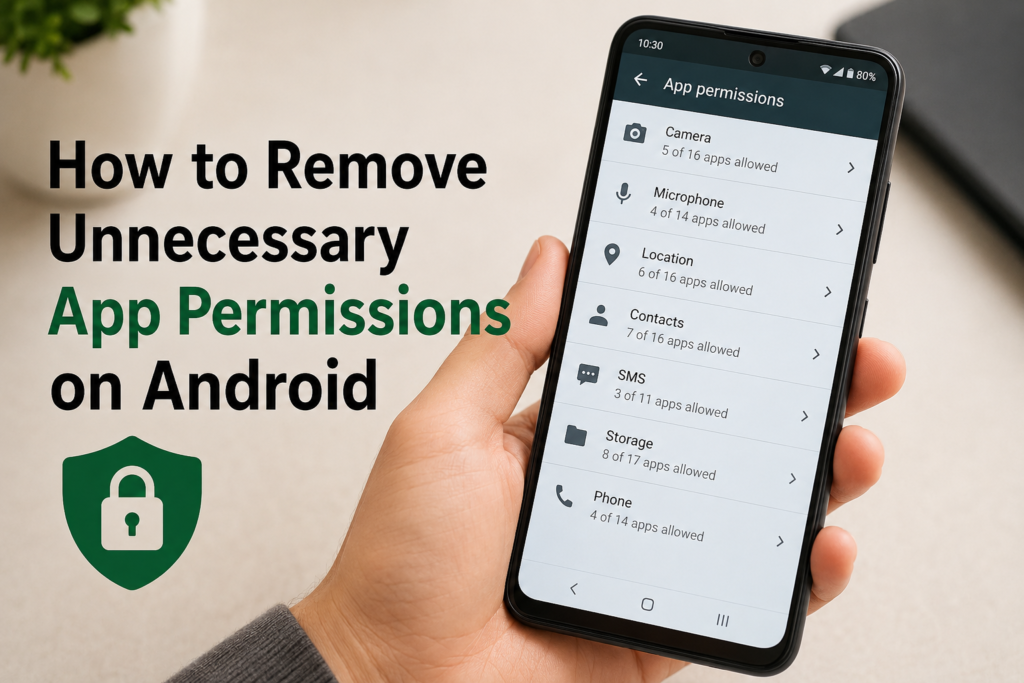
If you want to perform a wider privacy check, Android can also let you review permissions by category on many devices.
Open Settings, then look for Privacy or Permission Manager.
From there, you may be able to select categories such as Location, Camera, Microphone, Contacts, or other permissions.
When you select a category, Android can show which applications have access to it.
I find this method particularly useful because it allows you to look at one sensitive permission at a time.
For example, if you choose Microphone, you can see which apps have microphone access. You can then review whether each app really needs it.
Review Location Permissions Carefully
Location permission deserves special attention because location information can reveal where you live, work, travel, or spend your time.
When reviewing location access, ask yourself whether the application actually needs your location.
A maps application may need location access while you are using it. A weather application may also benefit from location access if you want local weather information.
However, other apps may work perfectly well without continuous location access.
If your Android phone provides an option to allow location only while using the app, I usually prefer that option for applications that do not need constant location access.
Check Camera and Microphone Permissions
Camera and microphone permissions are also worth reviewing.
A social media application may need camera access when you want to take a picture or record a video. A video meeting application may need both camera and microphone access.
But if an app has no obvious reason to use either feature, I recommend reviewing that permission.
Removing microphone or camera access does not necessarily mean the app is unsafe. It simply prevents the application from using that particular feature through the permission system.
If you later need the feature, Android can ask you for permission again.
Review Contacts and SMS Access
Contacts and SMS permissions can provide access to information that is more personal than many users realize.
An application that needs your contacts for a specific feature may have a reasonable reason to request contact access. However, if you cannot understand why an app needs your contact list, it is worth reviewing.
SMS permissions should receive similar attention. Some applications may require SMS access for legitimate functions such as certain verification features, but other apps may not need it at all.
I recommend asking one simple question whenever you see a permission: Does this app genuinely need this access to perform the feature I use?
If the answer is no, consider removing the permission.
Do Not Disable Permissions Without Thinking
Privacy is important, but disabling every permission is not always the best solution.
Some applications depend on permissions to provide their main functions. If you remove them, the app may stop working correctly.
For example, removing camera access from a camera application obviously prevents it from taking pictures. Removing microphone access from a voice recording application will prevent it from recording audio.
That is why I prefer a balanced approach. I check what the app does, understand why it needs the permission, and then decide whether access is appropriate.
Remove Permissions From Apps You Rarely Use
Another useful habit is checking applications that you rarely open.
Some Android versions can automatically remove permissions from unused apps. However, the exact behavior depends on the Android version and device.
You can also manually review old applications and remove permissions you no longer want them to have.
If you have not used an application for months and do not expect to use it again, uninstalling it may be a better solution than simply changing its permissions.
Removing unused applications also helps keep your phone organized.
What Happens After Removing a Permission?
When you remove an app permission, the application loses access to the feature or information controlled by that permission.
The app itself usually remains installed.
If you later open the application and use a feature that requires the permission, Android may display a permission request. You can then decide whether to allow access.
This makes permission management flexible. You do not have to make a permanent decision every time.
My Recommended Android Permission Routine
I personally think you do not need to check permissions every day. A quick review every few weeks or after installing several new applications is usually a sensible habit.
I would start with sensitive permissions such as location, camera, microphone, contacts, and SMS.
Then look at applications that you rarely use.
I would also review permissions after major Android updates because the available privacy controls and settings can change between Android versions.
Finally, if an app asks for a permission that does not make sense, I would pause before accepting it.
Final Thoughts
Learning how to remove unnecessary app permissions on Android is one of the easiest ways to improve your digital privacy. You do not need advanced technical knowledge to do it. Android provides permission controls that allow you to decide which applications can access important features and information.
My advice is to avoid automatically allowing every permission an app requests. Instead, think about what the app actually does and whether the requested access makes sense.
Check your location, camera, microphone, contacts, photos, and SMS permissions regularly. Remove access that is unnecessary, use limited permission options when available, and uninstall applications you no longer need.
A few minutes spent reviewing Android app permissions can give you greater control over your personal information and make your phone more private. The most important thing is to stay aware of what you allow instead of giving every application unrestricted access by default.