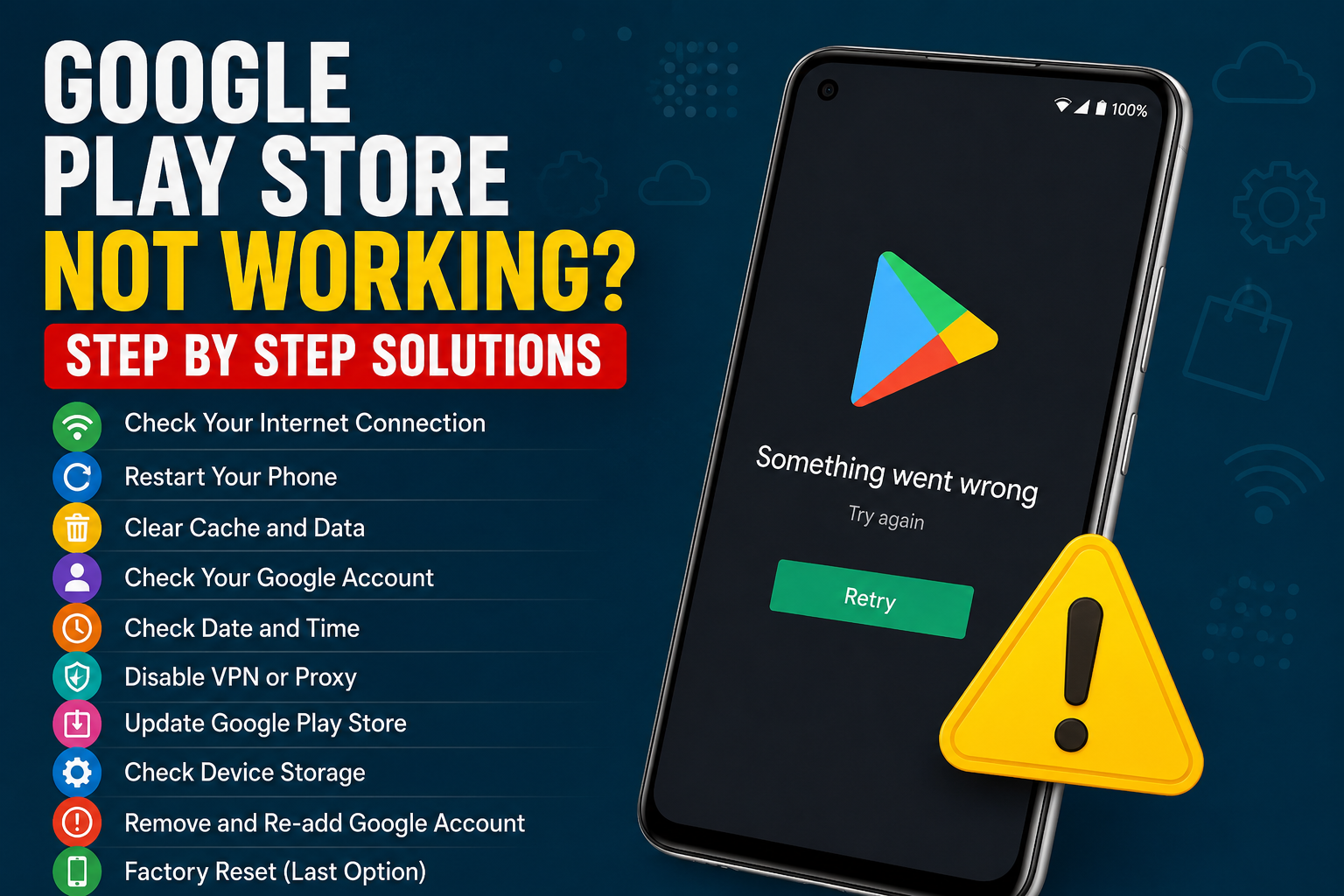
The Google Play Store is one of the most important apps on an Android phone. I use it whenever I need to install a new application, update an existing app, or check out something new. That is why it can be frustrating when the Google Play Store stops working, refuses to download apps, gets stuck on loading, or shows an error message.
The good thing is that most Google Play Store problems can be fixed without complicated technical knowledge. In my experience, the problem is often related to the internet connection, temporary cache files, incorrect date and time, insufficient storage, or an issue with Google Play Services.
In this guide, I will explain the most useful Google Play Store troubleshooting methods step by step. I recommend starting with the easiest solutions and moving toward the more advanced ones only if necessary.
Why Is Google Play Store Not Working?
There can be several reasons why Google Play Store is not working properly.
A weak internet connection is one of the most common causes. The Play Store needs a stable connection to communicate with Google’s servers and download applications.
Temporary cache files can also become corrupted. When this happens, the Play Store may freeze, fail to load, or repeatedly show an error.
Another possible reason is incorrect date and time settings. Android uses these settings for various online services, and an incorrect system clock can sometimes interfere with connections.
Low storage can prevent applications from downloading or updating. Problems with Google Play Services, your Google account, VPN settings, or outdated software can also affect the Play Store.
The important thing is not to panic. Start with the basic checks before making major changes.
1. Check Your Internet Connection
The first thing I would check is the internet connection.
Open a website in your browser or try another application that requires internet access. If other services are also having trouble, the problem may not be the Play Store itself.
If you are using WiFi, turn WiFi off and back on. You can also restart your router if necessary.
If possible, switch between WiFi and mobile data to see whether the Play Store works on another connection.
Sometimes the internet may appear connected while the connection is actually too slow or unstable for downloading applications.
2. Restart Your Android Phone
A simple restart can fix many temporary Android problems.
Close the Play Store and restart your phone. Once the phone starts again, open the Play Store and try downloading or updating an application.
I always recommend trying this early because it is quick and does not remove your personal information.
A restart can clear temporary processes and give Android and its Google services a fresh start.
3. Check Your Date and Time
Incorrect date and time settings can sometimes cause problems with online services.
Open your Android settings and find the Date and Time section. Turn on automatic date and time if that option is available.
Also check the automatic time zone setting.
After correcting the settings, restart the Play Store and try again.
This is a small step, but it is easy to overlook when troubleshooting a Google Play Store problem.
4. Clear Google Play Store Cache
If the Play Store opens but freezes, crashes, or refuses to download applications, clearing its cache can help.
Open Settings and go to Apps. Find Google Play Store and open its storage information.
Choose Clear Cache.
The exact menu names can vary between Android phones, but the general process is similar.
Clearing cache removes temporary files. It does not normally remove your installed applications or personal photos.
After clearing the cache, open Google Play Store again and check whether the problem has disappeared.
5. Clear Google Play Store Data
If clearing the cache did not help, you can consider clearing the Play Store data.
This is a stronger troubleshooting step because it resets some of the application’s stored information and settings.
Go to Settings, Apps, Google Play Store, Storage, and look for the option to clear storage or clear data.
After doing this, open the Play Store again. You may need to allow certain permissions or wait briefly while the application recreates its required data.
I would not use this step immediately. Try clearing the cache first.
6. Check Google Play Services
Google Play Services is an important part of the Android ecosystem. The Play Store relies on several Google components to provide its functionality.
If the Play Store is not working even after you have cleared its cache, check Google Play Services.
Open Settings, go to Apps, find Google Play Services, and check whether an update is available. Depending on your phone, you may also have options for managing its storage and temporary files.
Avoid randomly disabling Google Play Services because many Android features and applications depend on it.
7. Make Sure You Have Enough Storage
If your phone is almost full, the Play Store may not be able to download or update applications.
Open your phone’s Storage settings and check how much free space is available.
Look through large videos, downloads, unused applications, and other files that you no longer need.
Freeing up storage can solve download problems and also improve the overall performance of your Android phone.
I personally try not to let my phone storage remain completely full because it can create several unnecessary problems.
8. Check Your Google Account
Sometimes the problem may be connected to your Google account rather than the Play Store application itself.
Open your phone’s account settings and confirm that your Google account is properly signed in.
If you have multiple Google accounts, make sure you are using the account you normally use for the Play Store.
If an account synchronization problem is suspected, you can try removing and adding the Google account again. However, this is a more advanced step, so make sure you know your account email address and password before doing it.
9. Disable VPN Temporarily
If you use a VPN, try turning it off temporarily.
A VPN can sometimes affect how your phone connects to online services. This does not mean VPNs are bad, but a connection problem can occasionally be caused by the network configuration.
After disabling the VPN, open the Play Store and try again.
If everything works normally, you may want to check your VPN settings or server selection.
10. Check Download Manager
Android uses system services to manage downloads. If the Download Manager has been disabled or is experiencing a problem, application downloads may fail.
Open Settings and search for Download Manager or Downloads.
Make sure the relevant system service is enabled.
Because Android menus vary between manufacturers, the exact location may be different on your phone.
Do not disable system download services unless you understand what they do.
11. Update Android
An outdated Android version can sometimes create compatibility problems.
Open Settings and check for a system software update.
If an official update is available, install it when you have enough battery and a stable internet connection.
Software updates can contain bug fixes and improvements that may resolve Play Store problems.
You should also keep your important applications updated once the Play Store starts working again.
12. Uninstall Play Store Updates
If the Play Store recently started having problems after an update, removing its recent updates may sometimes help.
On some Android phones, you can open the Google Play Store app information screen and use the menu to uninstall updates.
This returns the Play Store to an earlier version that came with the device.
Afterward, the Play Store may update itself again automatically.
Only use this method if simpler solutions have failed. The exact option may not be available on every Android device.
13. Restart After Making Changes
After trying several troubleshooting steps, restart your phone again.
This gives Android an opportunity to reload its services and apply changes properly.
Open the Play Store after the restart and test it by searching for an application or checking for updates.
Sometimes a change does not appear to work until the device has been restarted.
14. Try Another Google Account
If the Play Store continues to fail and you have access to another Google account, you can test whether the problem is account related.
This is not necessary for everyone, but it can help identify the source of the problem.
If another account works normally, your original account may have a synchronization or configuration issue.
You can then focus on resolving the account problem instead of repeatedly changing your phone settings.
15. Factory Reset as a Last Option
A factory reset should be your final option.
It removes your personal data, installed applications, and many device settings. Before considering a factory reset, back up your important photos, videos, contacts, documents, and other files.
I would only consider this option if the Play Store and other Android services are consistently malfunctioning and normal troubleshooting has failed.
After resetting the phone, set it up carefully and test the Play Store before installing dozens of applications.
What If Google Play Store Is Down?
Sometimes the problem is not your phone at all.
Google services can occasionally experience temporary outages or technical problems. If the Play Store suddenly stops working for many users at the same time, waiting may be the only practical solution.
Before making major changes to your phone, check whether other Google services are also experiencing problems.
If everything else works and the Play Store suddenly stops responding, waiting for the service to recover can save you from unnecessary troubleshooting.
Final Thoughts
When Google Play Store is not working, I recommend avoiding complicated solutions at the beginning. Start by checking your internet connection, restarting your phone, correcting the date and time, and clearing the Play Store cache.
If that does not work, check storage space, Google Play Services, your Google account, VPN settings, and Android updates.
More advanced solutions such as clearing Play Store data, removing account information, uninstalling Play Store updates, or performing a factory reset should only be considered when simpler methods fail.
In most cases, a Google Play Store problem is temporary or related to a basic setting. By working through these solutions step by step, you can usually identify the cause without putting your personal data at risk.
The key is to stay patient and change one thing at a time. That makes troubleshooting much easier and helps you understand exactly what fixed the problem.