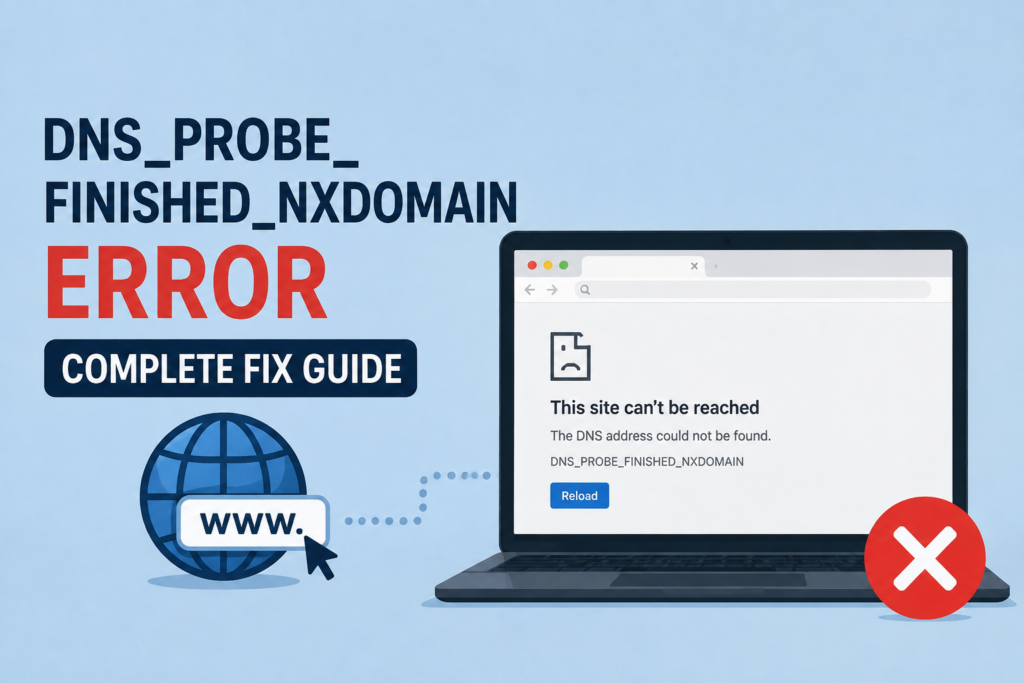
If you use Google Chrome or another modern web browser regularly, you may have seen the DNS_PROBE_FINISHED_NXDOMAIN error while trying to open a website. It can be confusing because your internet connection may appear to be working normally, yet the website refuses to load.
I have personally found that this error is usually related to DNS settings rather than a complete internet connection failure. The good thing is that it can often be fixed in a few minutes without installing any special software.
In this guide, I will explain what DNS_PROBE_FINISHED_NXDOMAIN means, why it happens, and the practical methods I use to fix it on Windows, Chrome, Android, and other devices.
What Does DNS_PROBE_FINISHED_NXDOMAIN Mean?
DNS stands for Domain Name System. Its main job is to translate website names into IP addresses that computers can understand.
For example, when you type a website address into your browser, your device needs to find the IP address connected to that domain. Your DNS server handles this request.
The term NXDOMAIN basically means that the DNS lookup could not find the requested domain. When Chrome displays DNS_PROBE_FINISHED_NXDOMAIN, it means the browser tried to find the website through DNS but could not get a valid result.
This does not always mean that the website is permanently unavailable. The problem can be caused by your DNS cache, network settings, router, DNS provider, VPN, browser configuration, or even a temporary issue with the website’s DNS records.
Why Does DNS_PROBE_FINISHED_NXDOMAIN Happen?
There are several possible reasons behind this error. Understanding the cause makes troubleshooting much easier.
One common reason is an incorrect website address. Even a small spelling mistake can cause a DNS lookup to fail.
Another possibility is a corrupted DNS cache. Your computer stores previously resolved DNS information so websites can load faster. Sometimes this information becomes outdated or incorrect.
Your DNS server can also be responsible. The DNS server provided by your internet service provider may temporarily experience problems or fail to resolve a particular domain.
I have also seen this error appear after changing network settings, using a VPN, switching WiFi networks, or modifying DNS addresses manually.
In some situations, the website itself may have expired, changed its DNS records, or stopped responding correctly.
First Check Your Website Address
Before changing any settings, check the website address carefully.
If you accidentally type something like example.con instead of example.com, your browser may return the DNS_PROBE_FINISHED_NXDOMAIN error because the incorrect domain does not exist.
Try opening another popular website. If other websites work normally, the problem may be limited to the particular domain you are trying to visit.
You can also try opening the website from your phone using mobile data. If it works on mobile data but not on your WiFi connection, the problem is more likely related to your network or DNS settings.
Restart Your Router
This is one of the simplest solutions, but it is worth trying before changing advanced settings.
Turn off your router and wait for about thirty seconds. Turn it back on and allow it a few minutes to reconnect to the internet.
After the connection becomes active, open your browser and try visiting the website again.
Restarting the router can refresh the network connection and sometimes resolve temporary DNS or connectivity problems.
Clear DNS Cache on Windows
A corrupted DNS cache is one of the most common causes of DNS related browsing problems.
Windows allows you to clear the DNS cache using Command Prompt.
Open the Start menu and search for Command Prompt. Right click it and choose Run as administrator.
Then enter this command:
ipconfig /flushdns
Press Enter.
Windows should display a message confirming that the DNS resolver cache was successfully flushed.
Now close the Command Prompt and try opening the website again.
This method is particularly useful when websites that worked previously suddenly start showing DNS errors.
Release and Renew Your IP Address
If flushing the DNS cache does not help, I recommend refreshing your IP configuration as well.
Open Command Prompt as administrator and run:
ipconfig /release
Then run:
ipconfig /renew
Finally, flush the DNS cache again:
ipconfig /flushdns
Restart your browser and test the website.
This process can resolve problems caused by an incorrect or outdated network configuration.
Change Your DNS Server
If your current DNS server is unreliable, switching to another trusted DNS provider can make a noticeable difference.
Two commonly used public DNS services are Google Public DNS and Cloudflare DNS.
Google Public DNS uses:
8.8.8.8
8.8.4.4
Cloudflare DNS uses:
1.1.1.1
1.0.0.1
You can change DNS settings through your Windows network settings.
Open Settings, go to Network and Internet, select your active connection, and find the DNS settings. Depending on your Windows version, the exact menu names may be slightly different.
Choose manual DNS configuration and enter your preferred DNS addresses.
After saving the settings, close and reopen your browser.
If the error was caused by your previous DNS provider, the website may start working immediately.
Clear Chrome DNS Cache
Sometimes the operating system DNS cache is fine, but Chrome has stored outdated information.
Chrome provides an internal DNS cache page.
Type this into the Chrome address bar:
chrome://net-internals/#dns
Look for the option to clear the host cache.
After clearing it, close Chrome completely and open it again.
Try visiting the website that was showing DNS_PROBE_FINISHED_NXDOMAIN.
This method is especially useful when the problem happens only in Chrome while other browsers work normally.
Restart the DNS Client Service
Windows uses a DNS Client service to handle DNS related requests.
If this service is temporarily stuck, restarting it may solve the problem.
Press Windows + R, type:
services.msc
and press Enter.
Find DNS Client in the list. If available, restart the service and then test your browser again.
Depending on your Windows version and system configuration, Windows may restrict some service controls. If the restart option is unavailable, continue with the other solutions in this guide.
Disable VPN Temporarily
A VPN changes how your internet traffic is routed and may also use its own DNS servers.
If you recently installed or enabled a VPN and the DNS_PROBE_FINISHED_NXDOMAIN error appeared afterward, disconnect from the VPN temporarily.
Then reload the website.
If the website works without the VPN, the VPN configuration or DNS routing may be responsible.
You can reconnect to the VPN later and try another server or review its DNS settings.
Check Your Browser Extensions
Browser extensions can occasionally interfere with website requests.
If the error appears only in Chrome, try opening the website in Incognito mode.
If it works in Incognito mode, an extension may be causing the problem.
You can disable extensions one at a time and test the website after each change. This makes it easier to identify the extension responsible.
Be particularly careful with extensions that modify DNS, privacy, security, proxies, or website traffic.
Check the Hosts File
Advanced users should also check the Windows hosts file if only one particular website refuses to load.
The hosts file can manually map domain names to IP addresses. If an incorrect entry has been added, it can prevent a website from resolving correctly.
The file is usually located at:
C:\Windows\System32\drivers\etc\hosts
Do not remove entries randomly. If you are unfamiliar with the hosts file, it is safer to leave it alone or ask someone experienced to review it.
Try Another Network
Another useful troubleshooting method is testing the same website on another network.
For example, if you are connected to home WiFi, try using your phone’s mobile hotspot.
If the website works through the hotspot but fails on your normal WiFi connection, the problem is probably related to your router, ISP, or DNS configuration.
If the website fails on every network and device, there is a stronger possibility that the domain itself has a DNS problem.
Reset Network Settings
If none of the previous solutions work, Windows provides a network reset option.
Go to Settings, then Network and Internet, and look for Advanced network settings. From there, you can find the network reset option.
Network reset removes and reinstalls network adapters and returns network settings to their default state.
Keep in mind that this can remove saved network configurations, so I recommend using it only after trying the simpler solutions.
How to Know Where the Problem Is
One of the easiest ways to troubleshoot DNS_PROBE_FINISHED_NXDOMAIN is to compare different situations.
If only one website fails, check the website address and test it from another network.
If many websites fail on your computer, check your DNS settings and flush the DNS cache.
If every device on your WiFi has the same problem, restart your router and consider changing the DNS server.
If websites work through mobile data but not WiFi, your router or internet provider may be involved.
If the problem occurs only in Chrome, clear Chrome’s DNS cache and check browser extensions.
This simple comparison can save a lot of time because you do not need to change every setting blindly.
Final Thoughts
The DNS_PROBE_FINISHED_NXDOMAIN error may look complicated, but in most cases it is simply a DNS resolution problem. Your browser is trying to find the IP address associated with a domain and is not receiving a usable answer.
I recommend starting with the easiest solutions first. Check the website address, restart your router, flush the DNS cache, and test the website on another network. If the problem continues, changing your DNS server to a trusted public DNS service can be a useful next step.
For Windows users, commands such as ipconfig /flushdns, ipconfig /release, and ipconfig /renew are also worth trying.
The important thing is not to change too many settings at once. Test each solution individually so you can understand what actually fixed the problem. Once you identify whether the issue is coming from your computer, browser, router, DNS provider, or the website itself, fixing DNS_PROBE_FINISHED_NXDOMAIN becomes much easier.