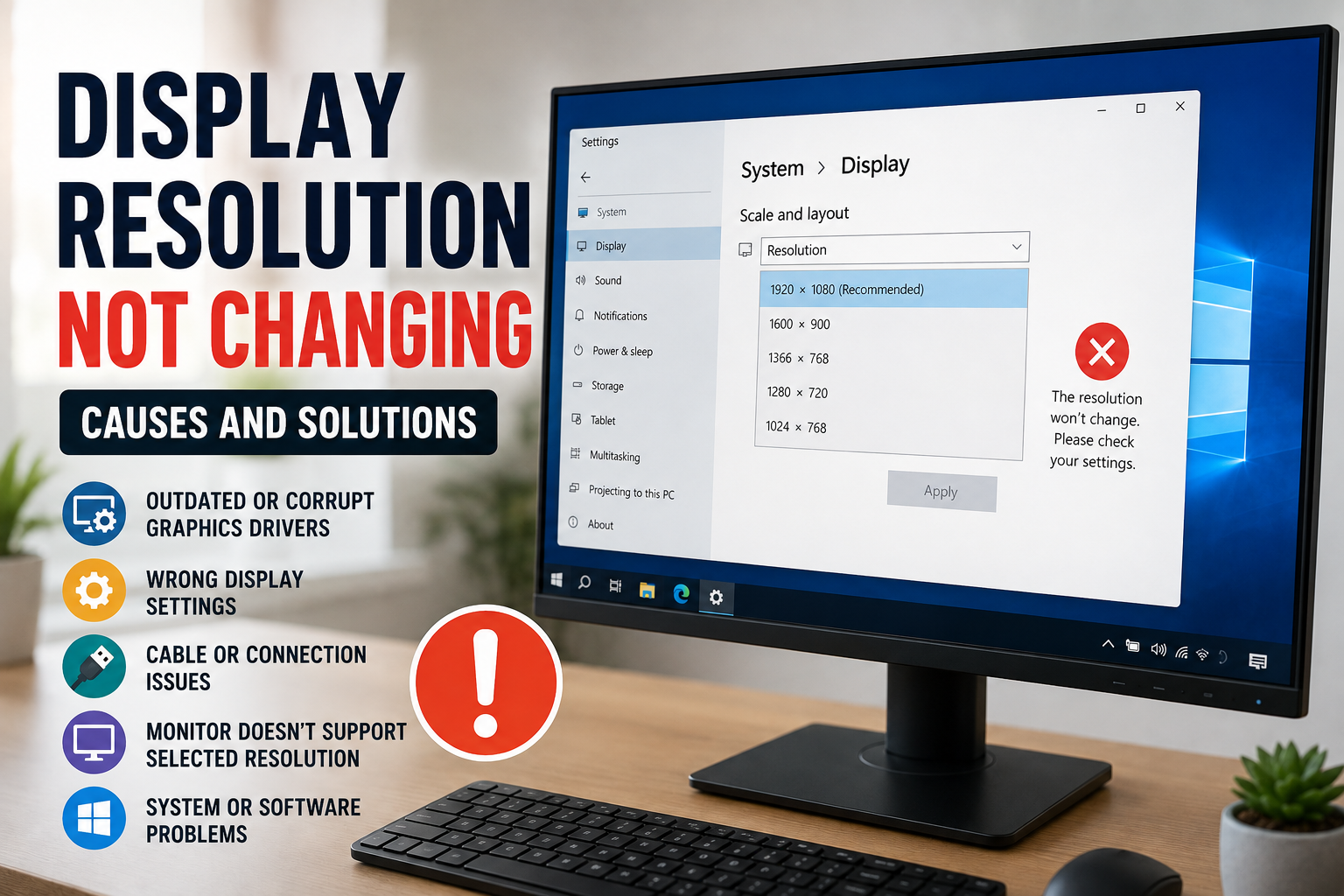
Display resolution problems can be frustrating, especially when the resolution option is available but refuses to change. Sometimes the screen becomes blurry, the recommended resolution disappears, or Windows keeps switching back to the previous setting. I have found that these problems are usually connected to display drivers, monitor compatibility, connection issues, or incorrect system settings.
The good thing is that most display resolution problems can be fixed without replacing the monitor or making complicated changes. In this guide, I will explain the common reasons why display resolution is not changing and the practical solutions you can try.
What Is Display Resolution?
Display resolution refers to the number of pixels shown on your screen. For example, 1920 by 1080 means the display produces 1920 pixels horizontally and 1080 pixels vertically.
A higher supported resolution can provide a sharper and more detailed image. However, the best resolution depends on your monitor, graphics hardware, connection type, and operating system.
If the selected resolution does not match your monitor, you may experience blurry text, stretched images, black borders, or other display problems.
Why Is Display Resolution Not Changing?
There are several possible reasons for this issue. The most common causes include outdated graphics drivers, incorrect display settings, unsupported resolutions, faulty cables, Windows configuration problems, and monitor compatibility limitations.
Before trying complicated solutions, I recommend starting with the simplest checks. A quick restart and connection check can sometimes solve the problem immediately.
Restart Your Computer
It may sound basic, but restarting the computer is one of the first solutions I recommend.
Windows can sometimes experience temporary graphics or display errors after installing an update, connecting a new monitor, waking the computer from sleep, or changing display settings.
Restart your computer and check the display resolution again after Windows loads. If the problem was caused by a temporary software issue, the resolution options may return to normal.
Check Windows Display Settings
The first place to check is the Windows display settings.
Open Settings and go to System, then Display. Find the Display Resolution option and open the available resolutions.
Windows usually identifies a recommended resolution based on your monitor. If the correct resolution is available, select it and apply the change.
If you select a resolution but the screen immediately returns to the previous setting, the problem may be related to your graphics driver, monitor connection, or hardware compatibility.
Update Your Graphics Driver
One of the most common causes of display resolution problems is an outdated or damaged graphics driver.
Your computer uses a graphics driver to communicate between Windows and the graphics hardware. If the driver is missing, corrupted, or incompatible, Windows may offer limited resolution options.
You can check your graphics adapter through Device Manager. Look under Display Adapters to identify the installed graphics hardware.
If Windows reports a driver problem, installing the correct driver from the graphics hardware manufacturer can often restore normal display options.
I recommend downloading drivers from official manufacturer websites rather than unknown driver download websites.
Reinstall the Display Driver
Updating the driver may not always solve the problem. If the current driver is corrupted, reinstalling it can sometimes be more effective.
You can remove the problematic display driver through Device Manager and then restart the computer. Windows may reinstall a basic driver automatically.
For the best results, install the appropriate driver for your graphics hardware after confirming the exact model.
This solution is particularly useful when the resolution problem appeared after a driver update or system change.
Check Your Monitor Connection
A loose or damaged cable can cause unexpected display problems.
Check the cable connecting your computer to the monitor. Depending on your setup, you may be using HDMI, DisplayPort, USB C, DVI, or another connection.
Disconnect the cable and reconnect it securely. If possible, test another compatible cable.
I have found that replacing a damaged cable can solve many display issues that initially look like software problems.
Also make sure the cable is connected to the correct graphics output. On desktop computers with a dedicated graphics card, connecting the monitor to the motherboard video output instead of the graphics card can cause unexpected display behavior.
Make Sure the Monitor Supports the Selected Resolution
Not every monitor supports every resolution.
For example, an older monitor may not support a newer high resolution mode. Similarly, a graphics card and monitor may support different maximum resolutions.
Check the specifications of your monitor to confirm the supported resolutions and refresh rates.
If Windows allows you to select a resolution that the monitor cannot properly display, the screen may become unstable or return to a previous setting.
Using the monitor’s native resolution is usually the best option for image quality.
Check the Refresh Rate
Resolution and refresh rate are different settings, but they can sometimes affect each other.
A monitor may support a certain resolution at one refresh rate but not at another. For example, a display might support a high resolution at a lower refresh rate while requiring a different connection or configuration for a higher refresh rate.
Open the advanced display settings in Windows and check the available refresh rates.
If you recently changed the refresh rate and then started experiencing resolution problems, try returning to a standard supported setting and test the resolution again.
Disconnect Additional Monitors
Using multiple monitors can sometimes make troubleshooting more difficult.
If you have two or more displays connected, Windows may apply different resolution and scaling settings to each screen.
Try disconnecting the additional monitor and use only the main display. Then check whether the resolution can be changed normally.
If the problem disappears, reconnect the other display and configure each monitor separately.
This can also help identify whether a particular monitor, adapter, or cable is causing the issue.
Check Display Scaling
Display scaling controls the size of text, applications, and other interface elements. It is different from resolution, but incorrect scaling can sometimes make users think that the resolution is wrong.
Open Windows Display settings and check the Scale option.
If your screen looks unusually large or small after changing resolution, review both resolution and scaling settings.
For most users, the recommended scaling option is a good starting point.
Run Windows Updates
Windows updates can include important graphics and compatibility improvements.
If your display resolution stopped changing after a system update, check whether another update is available. Sometimes Microsoft releases additional fixes after a larger Windows update.
Open Windows Update and check for available updates. Restart the computer after installation if required.
However, if the problem started immediately after a graphics driver update, the driver itself may need to be rolled back or reinstalled.
Roll Back a Problematic Driver
Sometimes a new driver can introduce compatibility problems. If your display worked correctly before a driver update and stopped working afterward, rolling back the driver may help.
Device Manager may provide a Roll Back Driver option for the display adapter.
This option is not always available, but when it is, it can be useful for testing whether the recent driver update caused the problem.
If rolling back the driver restores the correct resolution, you can investigate a newer compatible driver later.
Check Your Graphics Card
A graphics card can also cause resolution problems if it is not working correctly.
Check whether the graphics card appears normally in Device Manager. If you see a warning symbol, Windows may be experiencing a hardware or driver problem.
Desktop users should also make sure the graphics card is properly installed and receiving the required power.
If you recently installed a new graphics card, confirm that the correct drivers are installed and that the monitor cable is connected to the graphics card.
Try Another Monitor or Cable
If you have access to another compatible monitor or cable, testing them can help identify the source of the problem.
Connect your computer to another monitor and check whether the resolution changes normally. If it works correctly, your original monitor or cable may be responsible.
You can also connect your existing monitor using another compatible cable or port.
This simple process of elimination can save a lot of time because it helps determine whether the problem is caused by software or hardware.
Reset Display Settings
If you have changed several display options and cannot remember the original settings, returning to standard settings may help.
Set the display to its recommended resolution and a standard refresh rate. Then restart the computer and test the display again.
Avoid changing several settings at the same time. I prefer changing one setting, testing it, and then moving to the next step. This makes it easier to identify what actually fixed the problem.
When Hardware Replacement May Be Necessary
Most display resolution problems are software or configuration related, but hardware can occasionally be responsible.
If different cables, monitors, ports, drivers, and Windows settings do not solve the issue, there may be a problem with the graphics card, monitor, adapter, or another hardware component.
Before replacing anything, test the computer with another known working monitor and cable if possible.
This can prevent unnecessary spending on hardware when the actual problem is simply a driver or configuration issue.
Final Thoughts
When your display resolution is not changing, there is usually a practical explanation. The problem may come from a graphics driver, Windows display settings, an unsupported resolution, a faulty cable, refresh rate settings, or monitor compatibility.
In my opinion, the best approach is to troubleshoot the problem step by step. Start with a restart and check Windows Display settings. Then examine the graphics driver, cable, monitor connection, refresh rate, and hardware.
Do not immediately assume that your monitor or graphics card is damaged. Many display resolution problems can be fixed with a driver update, a different cable, or a simple settings adjustment.
By understanding how display resolution works and knowing the common causes of resolution problems, you can solve many issues yourself and keep your computer display working clearly and correctly.