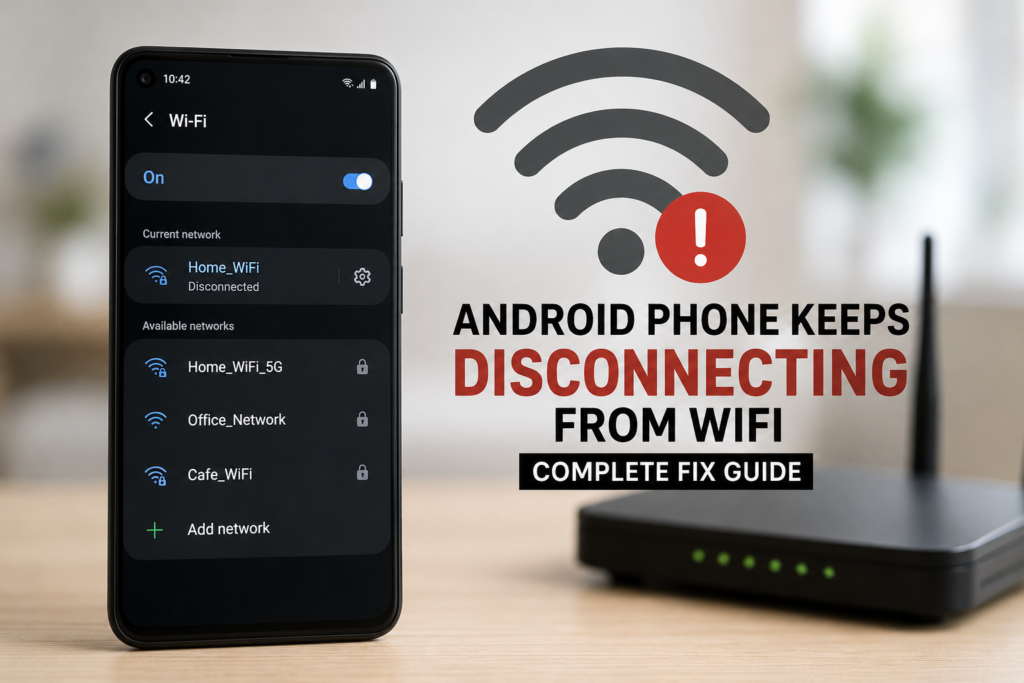
Having an Android phone that keeps disconnecting from WiFi can be extremely frustrating, especially when you are watching a video, downloading something, attending an online meeting, or simply browsing the internet. The connection may work perfectly for a few minutes and then suddenly drop. Sometimes the phone reconnects automatically, while in other cases you have to turn WiFi off and on again.
In my experience, this problem is usually caused by a simple network setting, weak WiFi signal, router issues, battery saving features, outdated software, or a temporary system glitch. The good thing is that you can try several solutions before thinking about a factory reset or professional repair.
In this guide, I will explain the most common reasons why an Android phone keeps disconnecting from WiFi and the practical methods you can use to fix the problem.
Why Does My Android Phone Keep Disconnecting From WiFi?
There can be several reasons behind unstable WiFi on an Android phone. Understanding the possible cause can make troubleshooting much easier.
A weak WiFi signal is one of the most common reasons. If you are far away from the router or there are thick walls between your phone and the router, the connection may become unstable.
Another common reason is a problem with the router itself. The router may need a restart, its firmware may be outdated, or too many devices may be connected at the same time.
Android settings can also affect WiFi performance. Battery saving features, adaptive connectivity, private DNS settings, or network configuration problems can sometimes interfere with a stable connection.
An outdated Android version or a temporary software bug can also cause WiFi disconnecting problems.
1. Restart Your Android Phone
Before trying complicated solutions, restart your phone.
I always recommend starting with this simple step because a restart clears temporary system processes and can resolve minor software problems.
Press and hold the power button and select the restart option. Once the phone turns back on, connect to your WiFi network and check whether the connection remains stable.
If the problem disappears after restarting, it was probably caused by a temporary software or network process.
2. Restart Your WiFi Router
If your Android phone keeps disconnecting from WiFi, the router should also be checked.
Turn off the router and unplug its power cable. Wait for about 30 seconds to one minute. Plug it back in and allow a few minutes for the internet connection to become available.
Now connect your Android phone again.
If other devices such as laptops, tablets, or smart TVs are also losing WiFi, the router or internet connection is more likely to be the problem than your phone.
3. Forget the WiFi Network and Reconnect
A corrupted or incorrect saved network configuration can cause repeated WiFi disconnections.
To fix this, open your Android phone’s Settings and go to WiFi or Network and Internet. Select the connected WiFi network and choose Forget.
After forgetting the network, search for available WiFi networks again. Select your home network and enter the WiFi password.
This creates a fresh connection between your Android phone and router.
This solution is particularly useful when the phone connects to WiFi but repeatedly loses the connection after a short period.
4. Check Your WiFi Signal Strength
Your Android phone may disconnect because the WiFi signal is too weak.
Try moving closer to the router and see whether the connection becomes stable. If WiFi works normally when you are near the router but disconnects when you move into another room, signal strength is probably the main issue.
Keep the router in an open and central location whenever possible. Avoid placing it behind large furniture, inside cabinets, or near devices that can interfere with wireless signals.
If your home is large, a WiFi extender or mesh WiFi system may provide better coverage.
5. Turn Off Battery Saver
Battery saving features can sometimes restrict background network activity.
If your Android phone keeps disconnecting from WiFi when the screen is turned off or when the phone is idle, check your battery settings.
Open Settings and look for Battery or Battery and device care. If Battery Saver or Power Saving Mode is enabled, temporarily turn it off.
Then connect to WiFi again and monitor the phone.
If the WiFi problem disappears, you may need to adjust battery optimization settings instead of keeping battery saving features disabled permanently.
6. Turn WiFi Off and On Again
This sounds very simple, but it can refresh the wireless connection.
Open the quick settings panel and turn WiFi off. Wait a few seconds and turn it back on.
You can also enable Airplane Mode for about 10 seconds and then disable it.
This refreshes the phone’s wireless connections and can sometimes resolve temporary WiFi problems without restarting the entire device.
7. Check Automatic WiFi Settings
Some Android phones include features that automatically manage network connections.
Depending on your phone manufacturer, you may find settings related to adaptive connectivity, intelligent WiFi, automatic network switching, or WiFi optimization.
These features can be useful, but they may occasionally cause unexpected behavior when the phone switches between WiFi and mobile data.
Open your network settings and review these options. If you find an automatic switching feature, temporarily disable it and test your WiFi connection.
The exact names and locations of these options can vary between Samsung, Google Pixel, Xiaomi, OnePlus, Motorola, and other Android phones.
8. Disable Mobile Data Temporarily
Sometimes an Android phone appears to have a WiFi problem when it is actually switching between WiFi and mobile data.
Temporarily turn off mobile data and use WiFi only.
If the WiFi connection becomes stable, check whether your phone has an automatic network switching or adaptive connectivity feature enabled.
After testing, you can turn mobile data back on and adjust the relevant setting if necessary.
9. Restart Your Phone in Safe Mode
Third party applications can sometimes interfere with network connections.
If you recently installed a VPN, security application, network optimizer, firewall, or similar app, it could be affecting WiFi.
Try starting your Android phone in Safe Mode. The exact process depends on the manufacturer, but it usually involves pressing and holding the power menu and selecting or entering Safe Mode.
Once in Safe Mode, connect to WiFi and use the phone normally for a while.
If the WiFi connection becomes stable in Safe Mode, a third party application may be responsible. Think about apps you installed or updated shortly before the problem started.
10. Reset Network Settings
If none of the previous methods work, resetting network settings is one of the most useful solutions.
Open Settings and search for Reset options. Depending on your Android phone, you may see an option such as Reset WiFi, mobile network, and Bluetooth or Reset network settings.
This removes saved WiFi networks, Bluetooth connections, and certain network configurations.
After the reset, reconnect to your WiFi network using your password.
Keep in mind that this does not normally delete your photos, videos, documents, or personal files. However, you should be prepared to reconnect your wireless devices afterward.
11. Update Android Software
Software updates often include bug fixes and improvements for connectivity, security, and device stability.
Go to Settings and open System or Software Update. Check whether a new update is available.
If an update is available, install it when your phone has enough battery and a reliable internet connection.
If the WiFi problem started immediately after an Android update, it may be related to a software bug. In that situation, checking for another available update is still worthwhile because manufacturers often release follow up fixes.
12. Check the Router Frequency
Modern routers often provide both 2.4 GHz and 5 GHz WiFi networks.
The 2.4 GHz band generally provides better range, while 5 GHz can offer higher speeds when you are relatively close to the router.
If your Android phone keeps disconnecting from a 5 GHz network, try connecting to the 2.4 GHz network if your router provides both.
If the 2.4 GHz connection remains stable, the issue may involve range, interference, router settings, or compatibility with the 5 GHz network.
13. Check Whether Other Devices Have the Same Problem
This is one of the easiest ways to identify where the problem is coming from.
Connect another phone or laptop to the same WiFi network.
If only your Android phone disconnects, the phone’s settings or software are more likely to be responsible.
If every device loses connection, the router or internet service is probably the issue.
This simple test can save a lot of time because it helps you avoid changing unnecessary settings on your phone.
14. Keep Your Phone and Router Cool
Heat can sometimes affect electronic devices and wireless performance.
If your phone becomes unusually hot while using WiFi, remove it from direct sunlight and allow it to cool down. Avoid using demanding applications while the device is extremely warm.
The router should also have proper ventilation. Do not cover it with clothes or place it in an enclosed area where heat can build up.
15. When Should You Contact a Professional?
If your Android phone continues disconnecting from WiFi after trying these solutions, there may be a deeper software or hardware issue.
Before visiting a repair center, test the phone on another WiFi network. For example, connect it to a friend’s WiFi or a different trusted network.
If your phone works perfectly on another network, your home router or internet connection may be responsible.
If the phone disconnects from multiple different WiFi networks, the problem is more likely related to the phone itself.
A professional can then check the device for hardware problems or more complicated software issues.
Final Thoughts
When an Android phone keeps disconnecting from WiFi, there is usually no need to panic. In many cases, the problem can be fixed by restarting the phone and router, forgetting and reconnecting to the WiFi network, improving signal strength, disabling problematic battery settings, or resetting network settings.
I recommend starting with the simplest solutions first. There is no reason to reset the entire phone when a quick router restart or WiFi reconnect might solve the problem.
If the issue continues, test your Android phone on another WiFi network. This is an important step because it helps determine whether the problem is coming from your phone or your router.
With a little troubleshooting, most Android WiFi disconnection problems can be resolved without losing your personal data or visiting a repair shop.