If your Android microphone is not working, it can be frustrating because the microphone is used for almost everything we do on a phone. From making calls and sending voice messages to using Google Assistant, recording videos, and joining online meetings, a working microphone is essential. I have faced microphone problems on Android phones myself, and in many cases, the issue is not serious. It can be caused by a blocked microphone opening, an app permission, a temporary software problem, Bluetooth, or an incorrect setting.
In this guide, I will explain the most useful ways to fix the Android microphone not working problem. I will start with the simple solutions first and then move toward more advanced troubleshooting methods.
Why Is My Android Microphone Not Working?
There can be several reasons why your Android microphone is not working. Sometimes the microphone itself is fine, but the phone is preventing an app from accessing it. In other cases, dirt or dust can block the microphone opening.
Common causes include microphone permission being disabled, temporary system bugs, Bluetooth devices being connected, a blocked microphone, outdated software, problems with a specific application, or physical damage.
The first thing I recommend is finding out whether the microphone works in any application. This helps determine whether the problem is related to the entire phone or only one app.
Test Your Android Microphone First
Before changing many settings, test the microphone using the built in voice recorder application. Open your phone’s Voice Recorder or Recorder app and record a short voice message.
Play the recording afterward.
If your voice sounds clear, the microphone is probably working correctly and the problem may be related to a particular app. If the recording is completely silent, you should continue with the troubleshooting steps below.
You can also make a phone call and ask the other person whether they can hear you. Try recording a video with the front and rear cameras as well. Some Android phones have more than one microphone, so testing different functions can provide useful clues.
Restart Your Android Phone
This is one of the simplest solutions, but I would not ignore it. A temporary software process can sometimes interfere with the microphone.
Press and hold the power button and restart your phone. Once the device starts again, test the microphone.
A restart can clear temporary system problems and close applications that may still be using the microphone in the background. If your Android microphone started having problems suddenly, this solution is worth trying before changing anything else.
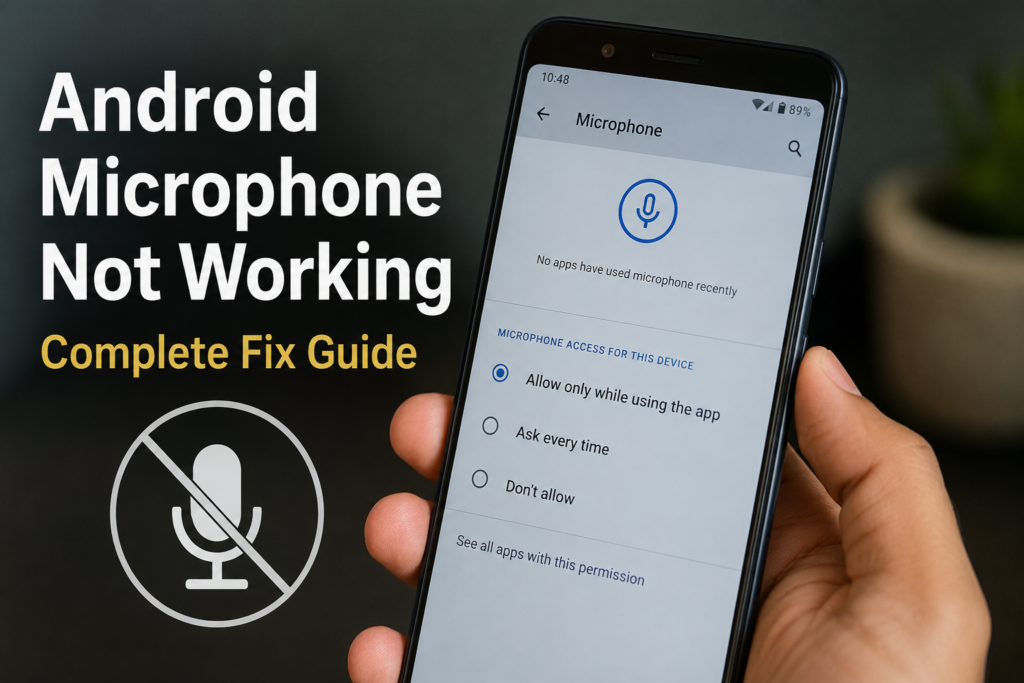
Check Microphone Permission
One of the most common reasons for an Android microphone not working is permission being disabled.
Android allows you to control which applications can access your microphone. If microphone permission is turned off for an app, that application cannot record your voice.
To check the permission, open Settings and go to Apps. Select the application that is having the problem. Tap Permissions and look for Microphone.
Make sure microphone access is allowed when the app is being used.
The exact menu names can be different depending on your Android phone and software version. Samsung, Google Pixel, Xiaomi, OnePlus, Motorola, and other brands may organize these settings slightly differently.
After enabling microphone permission, close the application completely and open it again. Then test the microphone.
Check the Global Microphone Access Setting
Some newer Android versions include a system wide microphone access control. If this setting is disabled, applications may not be able to use the microphone even when individual permissions are enabled.
Swipe down from the top of the screen to open Quick Settings. Look for a microphone access option. If microphone access is turned off, enable it.
If you cannot find the option, open Settings and search for Microphone access.
This setting is especially important if the microphone stopped working across several applications at the same time.
Disconnect Bluetooth Devices
Bluetooth is another thing I always check when troubleshooting microphone problems.
If your phone is connected to wireless earbuds, headphones, a smartwatch, a car system, or another Bluetooth device, Android may use that device’s microphone instead of the phone’s built in microphone.
Turn off Bluetooth temporarily and test the microphone again.
If the microphone works after Bluetooth is disabled, reconnect your devices one at a time to find out which device is causing the problem. You may also need to check the microphone settings of your wireless headphones or earbuds.
Clean the Microphone Opening Carefully
Dust, lint, and dirt can collect around the microphone opening over time. This can make your voice sound quiet, unclear, or completely missing during calls and recordings.
Look at the small microphone openings on your phone. Depending on the model, you may find one near the charging port and additional microphones around the top or camera area.
Clean the outside area gently with a soft, dry brush. Do not push anything sharp into the microphone opening. Avoid using liquids directly on the phone.
I recommend cleaning the phone carefully because aggressive cleaning can damage the microphone or push dirt further inside the device.
Remove the Phone Case Temporarily
A poorly designed or damaged phone case can partially cover a microphone opening.
Remove your case and test the microphone again. This is particularly useful if the microphone problem started after changing the case.
Check whether the microphone openings line up correctly with the holes in the case. If the case is blocking the opening, replacing it may solve the problem.
Check the Problematic App
If the microphone works in the voice recorder but does not work in WhatsApp, Messenger, Instagram, Zoom, or another application, the issue is probably related to that application rather than the phone hardware.
First, check the app’s microphone permission. Then update the application through the Google Play Store.
You can also clear the app cache. Open Settings, go to Apps, select the application, and look for Storage. Choose Clear Cache if the option is available.
After clearing the cache, open the application and test the microphone again.
Update Android Software
Software updates can fix bugs that affect phone functions, including audio and microphone performance.
Open Settings and check for a system software update. If an update is available, install it when your phone has enough battery and a stable internet connection.
I recommend keeping Android updated because manufacturers regularly release security improvements, compatibility fixes, and performance improvements.
After updating the phone, restart it and test the microphone.
Try Safe Mode
If your Android microphone works normally in Safe Mode, a third party application may be causing the problem.
Safe Mode starts Android with most third party applications temporarily disabled. The method for entering Safe Mode varies between manufacturers, but many phones allow you to access it by pressing and holding the power menu and then pressing and holding the Power Off option.
Once in Safe Mode, make a recording and check the microphone.
If the microphone works in Safe Mode, think about applications you installed or updated recently. Remove suspicious or recently installed applications one at a time and test the microphone after each removal.
Reset App Preferences
If microphone permissions or other app settings have become confused, resetting app preferences can sometimes help.
On many Android phones, you can find this option under Settings, Apps, and then the menu containing additional options. Look for Reset App Preferences.
This does not normally delete your personal files, photos, or messages. However, it can reset disabled apps, default applications, permissions, and other application settings.
Because menu names vary by Android version, use the Settings search function if you cannot find the option.
Reset Network Settings if Calls Are Affected
If the microphone problem happens mainly during phone calls, network related issues may sometimes contribute to call audio problems.
You can consider resetting network settings. Keep in mind that this may remove saved WiFi networks and Bluetooth connections, so you will need to reconnect them afterward.
This is not the first solution I would try for a microphone problem, but it can be useful when normal voice recording works while cellular calls have audio problems.
Factory Reset as a Last Resort
A factory reset should not be your first choice. It removes personal data and returns the phone to its original software state.
Before considering a factory reset, make sure you have backed up your photos, videos, contacts, messages, documents, and other important information.
If the microphone still does not work after software troubleshooting, a factory reset can help determine whether a serious software issue is responsible. However, if the microphone remains broken after a clean factory reset, hardware damage becomes more likely.
What If the Android Microphone Is Still Not Working?
If you have tried the steps above and the microphone still does not work in any application, there may be a hardware problem.
The microphone could have been damaged by a drop, moisture, dust, or internal component failure. In some cases, the microphone itself is fine but another internal component connected to the audio system may be damaged.
If the phone has recently been dropped or exposed to water, professional inspection is a better option than opening the phone yourself.
If your device is under warranty, contact the manufacturer or an authorized service center before paying for repairs.
Android Microphone Not Working During Calls
If people cannot hear you during phone calls, but voice recordings work normally, check whether the problem happens with every call or only certain calls.
Restart the phone, turn off Bluetooth, check microphone permissions, and try another location if the issue appears to be related to network coverage.
You can also test speakerphone mode. If your voice works differently between normal calls and speakerphone calls, your phone may be using different microphones.
This type of testing can help a technician identify which microphone or audio component may be affected.
Android Microphone Not Working in WhatsApp
If WhatsApp cannot record voice messages, first check its microphone permission.
Open Settings, select Apps, find WhatsApp, and open Permissions. Make sure microphone access is allowed.
Then update WhatsApp, restart the phone, and test again.
If the microphone works in the normal Recorder app but fails only in WhatsApp, there is a good chance the issue is software related rather than a damaged microphone.
Final Thoughts
An Android microphone not working does not always mean that your phone needs repair. In my experience, it is better to start with simple checks before assuming there is a hardware failure.
Restart the phone, test the microphone with the Recorder app, check microphone permissions, disable Bluetooth, clean the microphone opening carefully, remove the phone case, and update both Android and the affected application.
If the microphone works in some apps but not others, focus on app permissions and software settings. If it does not work anywhere, even after restarting and testing different applications, hardware damage becomes more likely.
The most important thing is to troubleshoot the problem step by step instead of changing many settings at once. This makes it much easier to identify the actual cause and find the right solution without unnecessarily resetting your phone or losing your data.