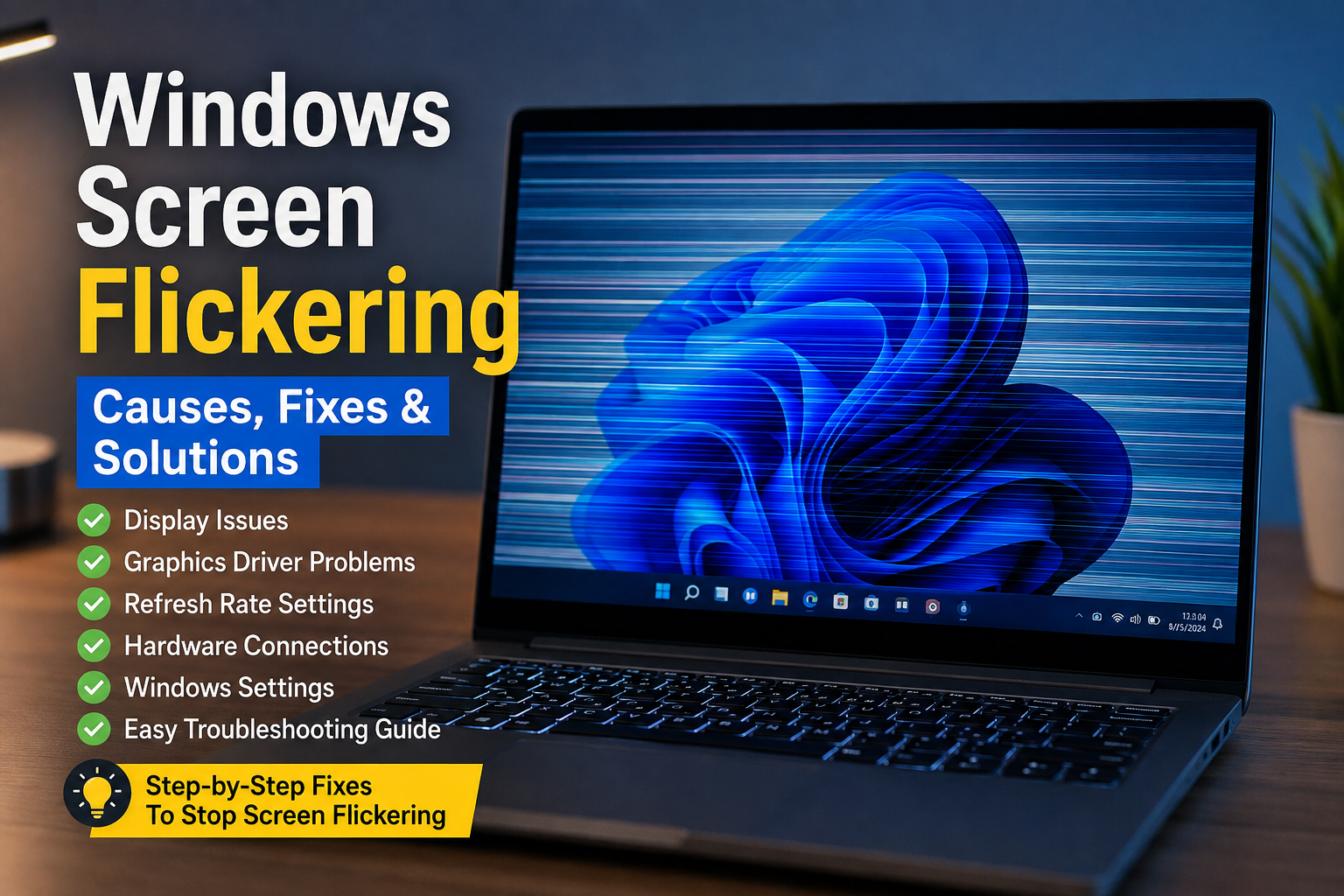
Windows screen flickering can be one of the most frustrating problems to deal with, especially when you are trying to work, watch videos, browse the internet, or play games. The screen may blink continuously, flash for a few seconds, show horizontal lines, or suddenly go black and come back. Sometimes the problem appears after a Windows update, while in other cases it starts without any obvious reason.
From my experience with Windows computers, screen flickering is usually connected to a display driver, refresh rate, application conflict, cable connection, or graphics hardware. The good thing is that many Windows screen flickering problems can be fixed without replacing the monitor or taking the computer to a repair shop.
In this guide, I will explain the most common causes and the practical solutions I would try first.
What Causes Windows Screen Flickering?
There is no single reason behind screen flickering. Windows uses several components to display images correctly, including the graphics driver, display settings, graphics processor, monitor, cables, and applications.
A corrupted or outdated graphics driver is one of the most common causes. An incompatible application can also interfere with the display. On laptops, loose internal connections or hardware problems may cause flickering when the screen is moved.
Incorrect refresh rate settings can also create display problems. In some situations, Windows updates may change display settings or introduce compatibility issues with an existing driver.
Understanding the possible cause is important because it helps you choose the right solution instead of changing random settings.
Restart Your Computer First
Before trying complicated solutions, I always recommend restarting the computer.
Temporary Windows problems can sometimes affect the graphics system. A restart reloads important system components and can restore normal display behavior.
If the screen is flickering constantly, save your work if possible and restart Windows. After restarting, check whether the problem continues.
This simple step does not fix every problem, but it is worth trying because it takes very little time.
Check Your Monitor and Cable
If you are using a desktop computer with an external monitor, check the physical connections.
Make sure the display cable is firmly connected to both the computer and the monitor. A loose HDMI, DisplayPort, or other display connection can cause flashing, blinking, or intermittent black screens.
If possible, try another compatible cable. You can also test the monitor with another computer. This helps determine whether the problem is coming from Windows or the display hardware.
For laptop users, gently moving the screen can provide a useful clue. If flickering changes when the lid is moved, there may be a hardware connection issue that requires professional inspection.
Update the Graphics Driver
The graphics driver is one of the first things I would check when dealing with Windows screen flickering.
A graphics driver allows Windows to communicate properly with your graphics hardware. If the driver is outdated, corrupted, or incompatible with the current Windows version, display problems may occur.
You can open Device Manager and locate the display adapter. From there, you can check for driver updates.
It is also a good idea to visit the official website of your graphics hardware manufacturer when appropriate. Depending on your computer, the graphics hardware may come from Intel, AMD, NVIDIA, or another manufacturer.
Always download drivers from trusted sources.
Roll Back a Recent Driver
Sometimes updating a graphics driver can actually create a problem instead of solving one.
If your Windows screen flickering started immediately after a driver update, rolling back the driver may help.
Windows can provide a previous driver option when an appropriate older version is available. This can be useful when a new driver has compatibility problems with your hardware or applications.
I would only use this option when the timing clearly suggests that a recent driver update caused the issue.
Check the Screen Refresh Rate
The refresh rate determines how many times the display updates the image every second. Windows allows you to select supported refresh rates through the display settings.
An incorrect or unsupported refresh rate can sometimes contribute to flickering or an unstable display.
Open Windows Settings and go to the display section. Look for the advanced display settings and review the available refresh rate options.
If you recently changed this setting, try returning to the recommended option for your monitor.
For many users, simply selecting the correct supported refresh rate can resolve display problems.
Test Windows Task Manager
One useful troubleshooting method is to check whether Task Manager flickers along with the rest of the screen.
Press the appropriate Windows keyboard shortcut to open Task Manager and observe it while the screen is flickering.
If Task Manager is also flickering, the problem may be related to the display driver or Windows display system.
If Task Manager remains stable while other parts of the screen flicker, a third party application may be responsible.
This test can save time because it helps narrow down the possible cause.
Check Recently Installed Applications
If your screen started flickering after installing a new application, that application could be involved.
Some programs interact heavily with graphics hardware. Video editing software, games, screen recording tools, browser extensions, overlay applications, and other graphics intensive programs can sometimes create compatibility problems.
Try closing applications one at a time and observe whether the flickering stops.
If you identify a specific program as the cause, update it first. If an update does not help, temporarily uninstalling it can confirm whether the application is responsible.
Disable Hardware Acceleration When Necessary
Some applications use hardware acceleration to improve performance. While this can make applications faster, compatibility problems can occasionally occur between hardware acceleration, Windows, and graphics drivers.
Web browsers and other applications may provide an option to disable hardware acceleration.
If your screen flickers mainly while using a particular browser or application, check that program’s settings.
I would not disable hardware acceleration everywhere without a reason. Instead, use it as a troubleshooting step when the flickering appears only in a specific application.
Start Windows in Safe Mode
Safe Mode loads Windows with a limited set of drivers and services. It can help determine whether third party software or a normal graphics driver is causing the problem.
If the screen works normally in Safe Mode, that provides an important clue.
The issue may be connected to a driver, startup application, or another component that does not load in Safe Mode.
Safe Mode is particularly useful when the screen flickers so badly that normal Windows troubleshooting becomes difficult.
Install Windows Updates
Windows updates can include important compatibility and security improvements.
If your computer has been running an older version of Windows, check for available updates. An update may contain a fix for a known display problem.
However, if the flickering started immediately after a Windows update, you should also consider whether the update changed something related to your display driver or configuration.
Keeping Windows updated is generally a good security and performance practice, but troubleshooting sometimes requires looking at what changed recently.
Check for Hardware Problems
If software troubleshooting does not solve the problem, hardware should be considered.
A failing graphics processor, damaged display panel, faulty cable, overheating component, or internal connection can cause screen flickering.
Desktop users can test another monitor if one is available. Laptop users can connect an external monitor and compare the results.
If the external monitor works normally while the laptop’s built in screen continues flickering, the internal display or its connection may be responsible.
If both displays flicker, the graphics hardware or software becomes more suspicious.
When hardware failure appears likely, professional diagnosis is usually safer than opening the device without the necessary experience.
Check Your Graphics Settings
Graphics settings can also affect screen stability.
If you recently changed resolution, refresh rate, HDR settings, scaling, or graphics preferences, consider returning the settings to their recommended values.
For gaming computers, also check game specific display settings. Some games may use refresh rates or display modes that behave differently from normal Windows applications.
Testing a standard resolution and supported refresh rate can help identify whether a particular graphics configuration is responsible.
Keep Your Computer Cool
Overheating can create unusual graphics problems.
If your computer becomes extremely hot before the screen begins flickering, check whether the cooling system is working properly. Make sure air vents are not blocked and that the computer has enough ventilation.
Desktop computers should also be kept reasonably clean, especially around fans and ventilation areas.
Do not ignore repeated overheating. Excessive heat can affect overall computer stability and may eventually damage hardware.
Final Thoughts
Windows screen flickering can look like a serious hardware failure, but that is not always the case. In many situations, the problem is caused by a graphics driver, refresh rate setting, application conflict, Windows configuration, or loose display connection.
From my point of view, the best approach is to troubleshoot in a logical order. Start with a restart and cable check. Then examine the graphics driver and refresh rate. Test Task Manager, recently installed applications, and Windows updates. If the problem continues, use Safe Mode and test another monitor when possible.
If none of these solutions work and the flickering continues across different applications or displays, hardware may be involved.
The important thing is not to panic when your Windows screen starts flickering. By checking the common causes one at a time, you can often identify the problem and restore a stable display without unnecessary expense.