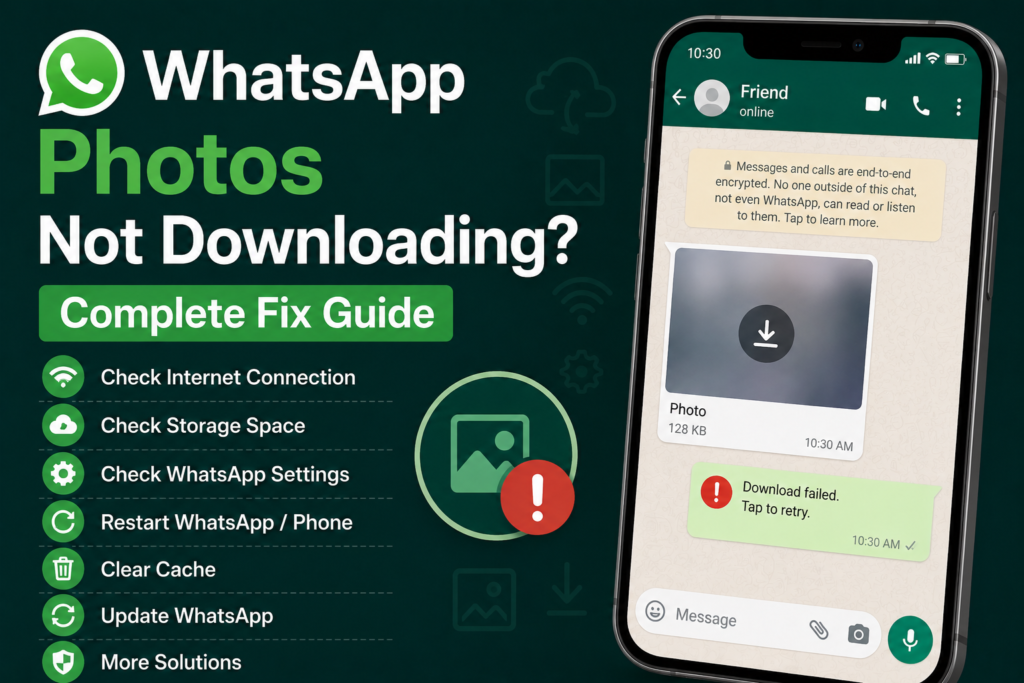
WhatsApp makes sharing photos incredibly easy, but sometimes you may open a chat and find that the photos are not downloading. You may see a download icon that does nothing, a message saying the download failed, or the image may simply remain unavailable.
I have faced this kind of problem myself, and in my experience, WhatsApp photos not downloading is usually caused by a few common things. A weak internet connection, low phone storage, incorrect WhatsApp settings, restricted permissions, an outdated application, or a temporary software problem can all affect media downloads.
The good news is that you usually do not need to reset your phone or reinstall WhatsApp immediately. There are several simple solutions that you can try first.
In this complete guide, I will explain how to fix WhatsApp photos not downloading on Android and iPhone. I recommend following the solutions one by one because this makes it easier to identify the actual cause.
Check Your Internet Connection
The first thing I check when WhatsApp photos are not downloading is the internet connection.
Text messages require very little data, but photos need a stable connection to download properly. Your phone may show that it is connected to WiFi or mobile data while the actual connection is slow or unstable.
Open your browser and visit a few websites to test the connection.
You can also try switching between WiFi and mobile data. If the photo downloads when you change the connection, your original network may be the reason for the problem.
If you are using WiFi, restart your router and reconnect your phone. If you are using mobile data, make sure you have an active data connection and enough data available.
Restart WhatsApp
Sometimes WhatsApp itself can temporarily stop responding correctly.
Close WhatsApp completely and open it again. Then return to the conversation and tap the download button on the photo.
If you are using Android, you can also force close WhatsApp through the app settings and then reopen it.
On iPhone, close WhatsApp from the recent apps screen and launch it again.
This simple step can refresh the connection between WhatsApp and its servers and may solve temporary download problems.
Restart Your Phone
If restarting WhatsApp does not help, restart your phone.
A phone restart can clear temporary system issues and refresh network services. It can also stop background processes that may be interfering with WhatsApp.
After restarting your phone, connect to a reliable internet connection and try downloading the photo again.
I personally recommend trying this early because it is quick and does not remove any WhatsApp data.
Check Your Phone Storage
Low storage is one of the most common reasons WhatsApp photos may fail to download.
When your phone has very little free space, WhatsApp may not be able to save new images to your device.
Open your phone’s storage settings and check how much free space is available.
If your storage is nearly full, remove unnecessary videos, duplicate photos, old downloads, and applications that you no longer use.
After freeing some space, restart WhatsApp and try downloading the photo again.
It is a good idea to keep some free storage available because WhatsApp needs space for temporary files as well as downloaded media.
Check WhatsApp Storage Permissions
WhatsApp needs permission to access storage or photos so it can save downloaded media.
If these permissions have been disabled, WhatsApp may show an error when you try to download an image.
On Android, open Settings, go to Apps, select WhatsApp, and check its permissions.
On iPhone, open Settings and select WhatsApp. Review the Photos permission and make sure WhatsApp has the access it needs.
The exact options may be different depending on your phone model and operating system version.
After changing the permission, return to WhatsApp and try downloading the photo again.
Check WhatsApp Media Auto Download Settings
WhatsApp includes settings that control when photos, videos, documents, and other media are downloaded automatically.
If photos are not downloading automatically, open WhatsApp settings and review the media auto download options.
Check the settings for mobile data and WiFi.
You can choose which types of media WhatsApp should download automatically under different network conditions.
If your settings are configured to prevent photo downloads, WhatsApp may wait for you to manually download them.
These settings are useful if you want to save mobile data, but they can sometimes make it look like WhatsApp is not downloading photos.
Turn Off Data Saver Temporarily
Your phone may have a Data Saver feature that restricts how applications use the internet.
If WhatsApp is being restricted, photo downloads may fail or remain stuck.
Check your phone’s network settings and temporarily disable Data Saver.
You can also check whether WhatsApp is allowed to use mobile data in the background.
After changing the setting, open WhatsApp and try downloading the photo again.
If the problem disappears, you can adjust your data saving settings so WhatsApp is allowed to download media normally.
Check Battery Saver Settings
Battery saving features can also restrict applications from working in the background.
Some Android phones are particularly aggressive about stopping background activity.
If WhatsApp is restricted by battery optimization, downloads may pause when the application is not actively being used.
Open your phone’s battery settings and find WhatsApp. Check whether the application is being heavily restricted.
Allow WhatsApp to operate normally in the background if your phone provides this option.
Then try downloading the photo again.
Check Date and Time
Incorrect date and time settings can sometimes interfere with online services.
I recommend using automatic date and time on your phone.
On Android, open the Date and time settings and enable automatic time if available.
On iPhone, open Settings, select General, and then Date and Time. Make sure the automatic setting is enabled when available.
After correcting the time, restart WhatsApp and try downloading the photo again.
This is a simple solution, but it is worth checking when other methods do not work.
Update WhatsApp
An outdated WhatsApp version can sometimes cause media download problems.
Open the Google Play Store on Android or the App Store on iPhone and search for WhatsApp.
If an update is available, install it.
Updates can include bug fixes, performance improvements, and compatibility changes that may resolve problems with photos and other media.
After updating WhatsApp, restart the application and try downloading the image again.
Keeping WhatsApp updated is also important for security and overall performance.
Clear WhatsApp Cache on Android
If you are using Android, clearing the WhatsApp cache can help when temporary files become corrupted.
WhatsApp stores temporary data to improve performance. Occasionally, this data can cause problems.
Open Android Settings, go to Apps, select WhatsApp, and open Storage or Storage and cache.
Tap Clear cache.
Be careful not to choose an option that deletes WhatsApp application data unless you understand what it does. Clearing the cache is the safer option for basic troubleshooting.
After clearing the cache, open WhatsApp and try downloading the photo again.
Check Whether the Photo Is Available
Sometimes the problem is not your phone.
If the photo was sent a long time ago and was never downloaded, it may no longer be available for download in the way you expect.
Ask the sender to send the photo again.
This is also useful if only one particular image refuses to download while other photos work normally.
If new photos download correctly but an older image does not, the issue may be specific to that particular media file.
Try Another Conversation
Another useful test is to download a photo from a different WhatsApp conversation.
Ask a trusted contact to send you a simple photo and try downloading it.
If the new photo downloads normally, the problem may be related to the original image or conversation.
If no photos download from any chat, the problem is more likely related to your internet connection, storage, WhatsApp settings, or the application itself.
This small test can help narrow down the cause without changing unnecessary settings.
Disable Your VPN Temporarily
If you use a VPN, try disconnecting it temporarily.
A VPN can sometimes affect the connection between your phone and online services.
After disconnecting the VPN, open WhatsApp and try downloading the photo.
If the download works normally, the VPN server or configuration may have been responsible.
You can try another server or check the VPN settings instead of permanently disabling the service.
Check Your Internet Restrictions
Some mobile networks or WiFi networks may have restrictions that affect certain services.
If WhatsApp photos work on one network but not another, compare the two connections.
For example, try mobile data if you normally use WiFi. If the photo downloads over mobile data, your WiFi network may be causing the issue.
You can then restart your router or contact your internet provider if the problem continues.
Reinstall WhatsApp as a Last Resort
If none of the solutions work, reinstalling WhatsApp may help.
However, I would not recommend uninstalling the application immediately.
First make sure your important WhatsApp chats and media are backed up. If you cannot create a backup, be especially careful before removing the application.
Once your important information is safely backed up, you can uninstall WhatsApp and install the latest version from the official app store.
Sign in again and restore your backup if prompted.
Reinstalling the app can fix corrupted application files, but it should be considered a last resort rather than the first solution.
What to Do If WhatsApp Photos Still Will Not Download
If photos are still not downloading after trying these solutions, look at the exact behavior.
If all photos fail, focus on your internet connection, phone storage, permissions, and WhatsApp settings.
If only one photo fails, ask the sender to send it again.
If photos work on WiFi but not mobile data, check mobile data restrictions and your network connection.
If photos work on mobile data but not WiFi, restart your router and investigate the WiFi connection.
If the problem started immediately after a WhatsApp or phone update, check for another available update because software compatibility can sometimes cause temporary problems.
Final Thoughts
When WhatsApp photos are not downloading, there is usually no need to panic. In most cases, the problem can be fixed by checking a few basic settings.
Start by testing your internet connection and switching between WiFi and mobile data. Then restart WhatsApp and your phone.
After that, check your phone storage, WhatsApp permissions, media download settings, Data Saver, and battery restrictions. Android users can also clear the WhatsApp cache.
Keeping WhatsApp updated is another simple way to avoid compatibility problems.
I believe the most useful troubleshooting method is to test one thing at a time. Try downloading another photo, test another conversation, and switch your internet connection. These small tests can tell you whether the problem is with WhatsApp, your phone, the network, or a particular photo.
Once you identify the cause, the solution is usually much easier. With enough free storage, a stable internet connection, correct permissions, and an updated WhatsApp application, your photos should normally download without problems.
The featured image is separate from the article and is designed specifically for WordPress use.
I can also create a separate SEO friendly image for this article if you need another version.