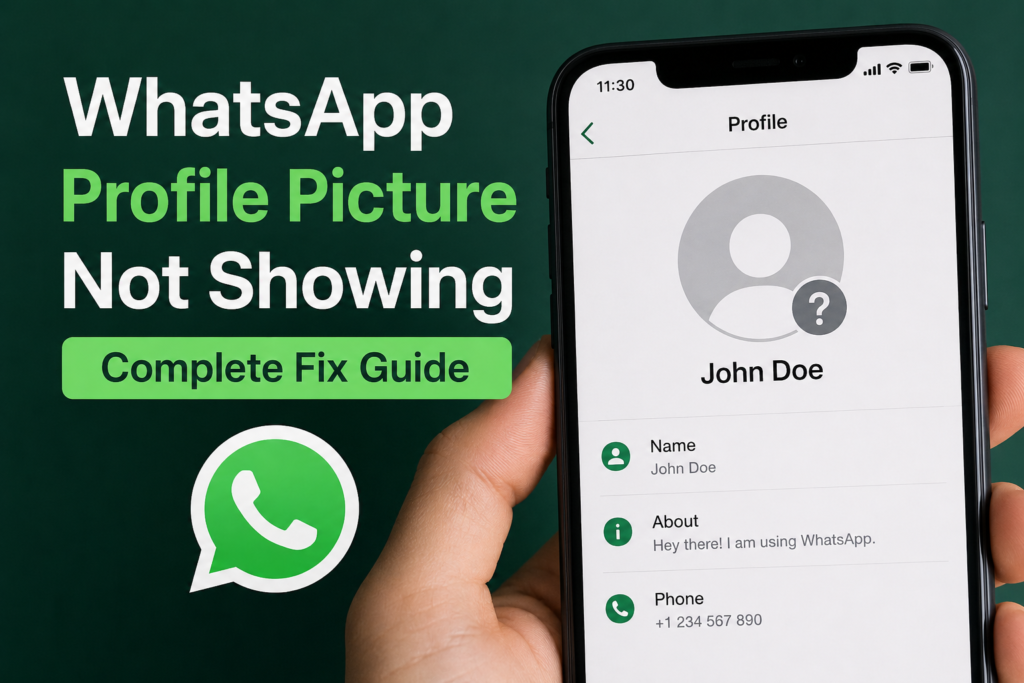
If your WhatsApp profile picture is not showing, you are not alone. I have seen this issue happen for different reasons, and in many cases the problem is not actually with the profile picture itself. Sometimes it is related to privacy settings, contact permissions, an internet connection, an outdated WhatsApp app, or even a temporary application glitch.
The good thing is that most WhatsApp profile picture problems can be fixed without doing anything complicated. In this guide, I will explain the most common reasons why your WhatsApp profile picture is not showing and the practical solutions you can try on your Android phone or iPhone.
Why Is My WhatsApp Profile Picture Not Showing?
There can be several reasons why a WhatsApp profile picture is not visible. Before changing anything, it is useful to understand what might be causing the problem.
The most common reason is WhatsApp privacy settings. WhatsApp allows users to control who can see their profile picture. If the setting is changed to Nobody, other people will not be able to see your photo.
Another possibility is that the person has not saved your number. Depending on their privacy settings, this can prevent you from seeing their profile picture.
A weak internet connection can also stop WhatsApp from loading profile information correctly. In some cases, the image may appear after reconnecting to a stable network.
There can also be temporary bugs, outdated app versions, cached data, or synchronization problems with your contacts.
Check Your WhatsApp Privacy Settings
The first thing I recommend checking is your profile photo privacy setting. This is especially important if other people are telling you that your WhatsApp profile picture is not visible.
Open WhatsApp and go to Settings. On Android, tap the three dot menu and select Settings. On iPhone, open WhatsApp and tap Settings at the bottom.
Now select Privacy and look for Profile Photo.
WhatsApp normally provides options that allow you to control who can view your profile photo. If you want your profile picture to be visible to your contacts, select My Contacts.
If you want everyone to see it, select Everyone if that option is available on your version of WhatsApp.
If your setting is currently Nobody, your profile picture may not be visible to other people.
Make Sure You Actually Have a Profile Picture
Sometimes the solution is surprisingly simple. Open WhatsApp and go to your profile.
Check whether your profile picture is still there. If the image has disappeared, you may need to add it again.
Tap your profile picture area and choose the option to change or add a photo. Select an image from your gallery and save it.
After changing the photo, give WhatsApp a little time to synchronize the update. You can then ask a trusted contact to check whether the new profile picture is visible.
Check Your Internet Connection
WhatsApp needs an internet connection to load profile information and other online content. If your internet connection is slow or unstable, profile pictures may not load properly.
Try switching between WiFi and mobile data. If you are using WiFi, disconnect and reconnect to the network.
You can also open a website or another online application to confirm that your internet is working normally.
If other apps are also having connection problems, the issue is probably with your network rather than WhatsApp.
Once the connection becomes stable, open WhatsApp again and check the profile picture.
Restart WhatsApp
A simple restart can sometimes fix temporary WhatsApp problems. I usually recommend trying this before making major changes to the app.
Close WhatsApp completely and remove it from your recent applications. Wait for a few seconds and then open it again.
Check the chat where the profile picture was missing.
If the image appears after restarting the application, the issue was likely caused by a temporary loading or synchronization problem.
Restart Your Phone
If restarting WhatsApp does not work, restart your phone.
A phone restart can clear temporary system problems and refresh background services. This is especially useful if you have been using your phone continuously for a long time.
After restarting your Android phone or iPhone, open WhatsApp and check whether the profile picture is showing again.
This method is simple, but it can solve many small application problems.
Check Whether the Contact Is Saved Correctly
If you cannot see another person’s WhatsApp profile picture, check how their phone number is saved in your contacts.
Make sure the number is saved with the correct country code. For example, Pakistani numbers should normally be stored with the appropriate Pakistan country code instead of an incorrect local or international format.
After correcting the number, close WhatsApp and open it again.
You can also refresh your contacts on Android by opening WhatsApp, starting a new chat, opening the menu, and selecting the contact refresh option if it is available on your version.
On iPhone, make sure WhatsApp has permission to access your contacts.
Check WhatsApp Contact Permissions
Another reason why a WhatsApp profile picture may not show correctly is restricted contact access.
On Android, open your phone Settings and find Apps. Select WhatsApp and then open Permissions. Make sure Contacts permission is allowed.
On iPhone, open Settings and find WhatsApp. Check that Contacts permission is enabled.
After changing the permission, reopen WhatsApp and check the profile picture.
This is particularly useful when WhatsApp is having trouble matching your saved contacts with WhatsApp accounts.
Update WhatsApp
Using an older version of WhatsApp can sometimes cause unexpected problems. Developers regularly release updates that include bug fixes, performance improvements, and compatibility changes.
Open the Google Play Store on Android or the App Store on iPhone and search for WhatsApp.
If an update is available, install it and then restart WhatsApp.
I recommend keeping WhatsApp updated because an outdated application can cause several problems besides profile pictures, including notification issues, media loading problems, and chat synchronization errors.
Clear WhatsApp Cache on Android
If you are using Android, clearing the WhatsApp cache can help when temporary application data becomes corrupted.
Go to Settings on your phone and open Apps. Select WhatsApp and then Storage.
You should see an option to clear the cache.
Tap Clear Cache and then open WhatsApp again.
Clearing the cache does not normally delete your chats or personal WhatsApp account information. However, I recommend avoiding the Clear Data option unless you understand exactly what it does and have a reliable backup of your important WhatsApp information.
The exact menu names can be different depending on your Android phone manufacturer.
Check If the Other Person Changed Their Privacy Settings
If you can see most people’s WhatsApp profile pictures but cannot see one particular person’s picture, the issue may not be on your phone.
That person may have changed their privacy settings.
They may have selected Nobody, My Contacts, or another privacy option that prevents you from seeing their profile picture.
They could also have removed their profile photo completely.
In this situation, there is nothing wrong with your WhatsApp application. The profile picture is simply not available to you because of the other person’s privacy settings.
Check If You Have Been Blocked
If a specific person’s profile picture suddenly disappears along with other changes, blocking is another possibility.
However, a missing profile picture alone does not prove that someone has blocked you.
There can be many other explanations, including privacy settings, a deleted profile picture, contact changes, or temporary WhatsApp issues.
For this reason, I would not recommend assuming that you have been blocked just because you cannot see someone’s profile photo.
Look at the overall behavior of the account rather than relying on one sign.
Check WhatsApp Server Problems
Sometimes WhatsApp itself can experience temporary service problems. If many users are reporting problems with WhatsApp at the same time, there may be a broader service issue.
In that situation, changing your phone settings will probably not help.
Wait for some time and try again later.
You can also check whether other WhatsApp features are working normally. If messages, media, calls, and profile information are all behaving strangely, the issue may be related to the service rather than your device.
Reinstall WhatsApp as a Last Option
If nothing else works, reinstalling WhatsApp can be worth trying. However, I would keep this as one of the final solutions.
Before uninstalling WhatsApp, make sure your important chats and media are backed up properly.
After confirming your backup, uninstall WhatsApp and install the latest version again from the official app store.
Log in with your phone number and restore your backup when prompted.
Once the setup is complete, check whether your profile picture and contact information are working normally.
WhatsApp Profile Picture Not Showing After Changing It
If you recently changed your WhatsApp profile picture and the new image is not showing, wait a little while and check your privacy settings first.
Make sure the image was successfully saved. Then close WhatsApp and reopen it.
You can also ask a contact to check your profile from their phone.
If the picture is visible on your own profile but not to another person, privacy settings are one of the first things I would check.
Final Thoughts
When your WhatsApp profile picture is not showing, there is usually a simple explanation. Privacy settings, contact permissions, internet problems, outdated applications, and temporary glitches are some of the most common causes.
I recommend starting with the easiest solutions. Check your profile photo privacy setting, confirm that your picture is actually saved, check your internet connection, restart WhatsApp, and restart your phone.
If the problem affects only one person’s profile picture, their privacy settings or account changes may be responsible. If profile pictures are missing for many contacts, check your internet connection, WhatsApp permissions, application version, and cache.
Most importantly, do not assume that a missing WhatsApp profile picture automatically means you have been blocked. There are many legitimate reasons why a profile photo may not be visible.
By following these steps one by one, you should be able to identify the cause and fix the WhatsApp profile picture not showing problem without unnecessary complications.