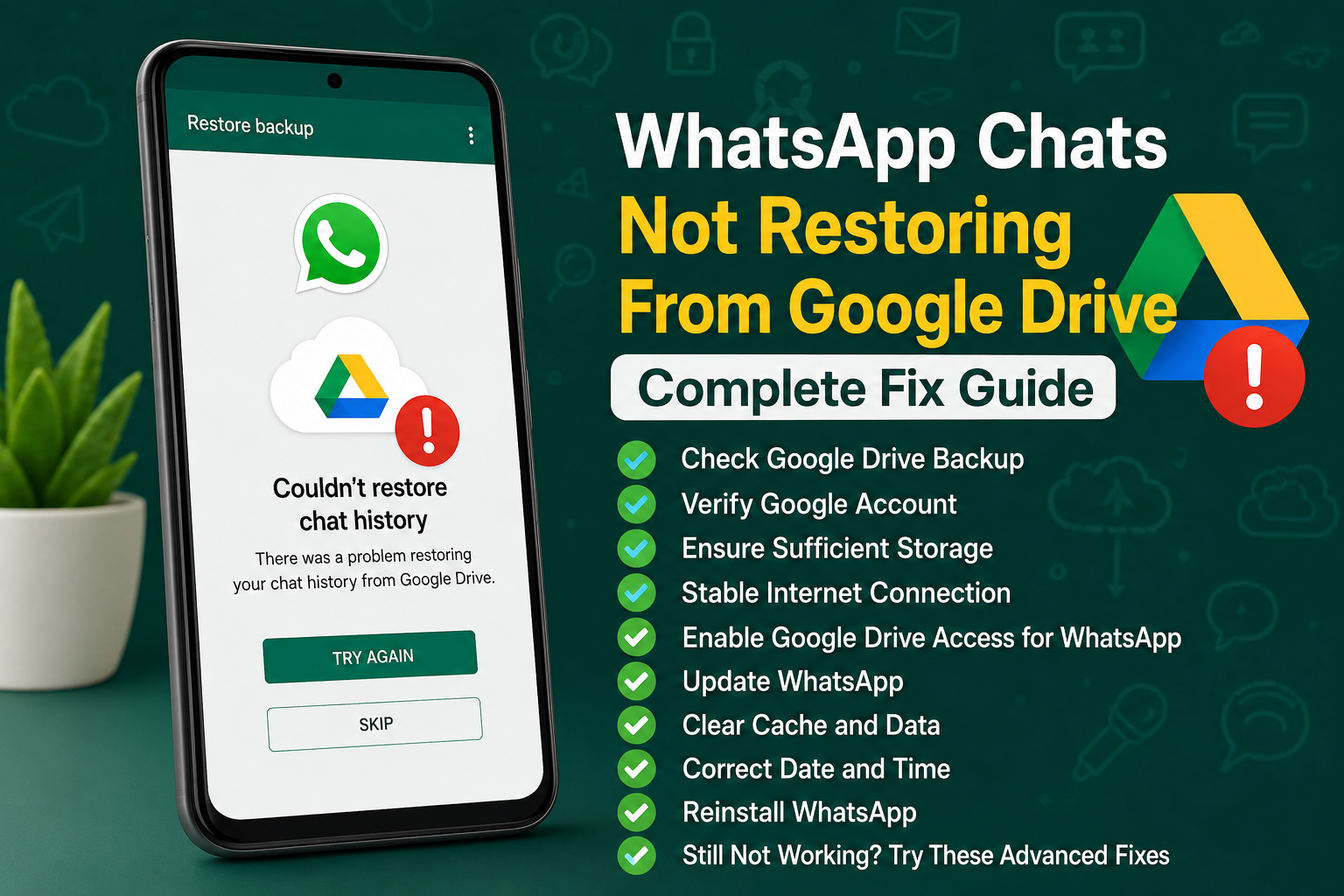
Restoring WhatsApp chats from Google Drive should normally be a simple process. You install WhatsApp on your Android phone, verify your phone number, select the Google account that contains your backup, and choose the restore option. However, sometimes WhatsApp finds the backup but refuses to restore it. In other cases, the backup does not appear at all.
I have seen this problem happen for several different reasons. The Google account may be wrong, the phone number may not match, the backup may be outdated, Google Play services may have a problem, or the phone may simply not have enough free storage. A weak internet connection can also interrupt the restoration process.
If you are facing the WhatsApp chats not restoring from Google Drive problem, do not immediately skip the restoration screen. If you continue without restoring your backup, recovering the older chat history later can become more complicated.
In this guide, I will explain the solutions I would try one by one.
Make Sure You Are Using the Same Google Account
The first thing I recommend checking is your Google account.
The Google account on your new Android phone should be the same account that was used to create the WhatsApp backup. If you have several Google accounts on your phone, WhatsApp may not find the backup you are expecting.
Open your phone settings and check the Google accounts currently signed in. Think about which account you used when you previously backed up WhatsApp.
If you recently changed phones, it is very easy to accidentally use a different Google account during the setup process.
Adding the correct Google account to the phone and then trying the WhatsApp restoration process again can solve the problem.
Check the Phone Number
Your Google account is only one part of the restoration process. The phone number also needs to match the number associated with the WhatsApp backup.
When setting up WhatsApp, make sure you verify the same phone number that was used when the backup was created.
If you are trying to restore a backup from an old number using a completely different number, WhatsApp may not find or restore that backup normally.
If you changed your phone number previously, you should have used WhatsApp’s number change feature before creating the backup. This helps keep your account information connected correctly.
Check Whether a Google Drive Backup Actually Exists
Before troubleshooting the restoration process, I recommend confirming that the backup exists.
If you still have access to your old Android phone, open WhatsApp and check the Chat Backup section in WhatsApp settings.
Look at the backup date and size. This is important because sometimes people expect WhatsApp to restore messages from a backup that was never created.
A backup may also be much older than expected. For example, if the last backup happened several months ago, messages received after that backup date will not be included.
If the old phone still contains your recent chats, do not delete WhatsApp or reset the phone until you have confirmed that your latest backup is available.
Check Your Internet Connection
Restoring a WhatsApp backup from Google Drive requires a stable internet connection.
I prefer using a reliable WiFi connection for a large backup because the restoration can involve downloading a significant amount of data.
If your WiFi keeps disconnecting, move closer to the router or restart the router. You can also try another reliable network.
Avoid starting a large restoration while using an unstable connection. If the connection fails repeatedly, the restoration process may stop or take much longer than expected.
Make Sure You Have Enough Storage
Insufficient storage is another important reason WhatsApp chats may fail to restore.
The backup itself may have a certain size, but your phone also needs enough free space for WhatsApp, restored messages, media files, and temporary files used during the process.
Open your Android storage settings and check how much free space is available.
If your storage is almost full, remove unnecessary videos, downloads, duplicate files, or unused applications.
I would avoid deleting WhatsApp folders or important media unless you are completely sure they are not needed.
Having plenty of free storage gives WhatsApp a better chance of completing the restoration successfully.
Update WhatsApp
An outdated version of WhatsApp can sometimes cause compatibility or restoration problems.
Open the Google Play Store and search for WhatsApp. If an update is available, install it before trying the restoration again.
Also make sure Android itself is reasonably up to date.
After updating WhatsApp, restart the phone and repeat the setup process if necessary.
Using the latest version is particularly useful when moving from an older Android phone to a newer device.
Update Google Play Services
Google Play services are important for many Android features, including communication between applications and Google services.
If Google Play services are outdated or experiencing a problem, WhatsApp may have difficulty accessing your Google Drive backup.
Open the Google Play Store and check whether Google Play services or other important Google components have pending updates.
After updating them, restart your phone and try the WhatsApp setup again.
Check Google Drive Access
WhatsApp needs access to the Google account where the backup is stored.
If your Google account is not syncing properly, the backup may not appear even though you know it exists.
Open Google Drive and make sure you are signed in with the correct Google account.
You can also check whether Google services are working normally by opening other Google applications.
If the account is experiencing a synchronization problem, resolving that issue first may help WhatsApp detect the backup.
Check Your Date and Time
Incorrect date and time settings can cause unexpected problems with online services.
Open your Android date and time settings and enable automatic date and time if the option is available.
Also make sure the correct time zone is selected.
After changing the settings, restart your phone and try again.
This is not always the cause of a WhatsApp restoration problem, but it is an easy setting to verify before moving to more advanced solutions.
Clear WhatsApp Cache
If WhatsApp is installed but the restoration process keeps failing, clearing its cache may help.
Open Android settings, go to Apps, select WhatsApp, and open the storage section.
Choose the option to clear cache.
Be careful not to randomly select options that delete application data unless you understand what they do. Clearing cache is the safer first step because it removes temporary files rather than intentionally wiping your application data.
After clearing the cache, open WhatsApp again and check whether the restoration process works.
Restart Your Phone
A simple restart can sometimes fix Google account, network, or application issues.
After checking your account, storage, internet connection, and updates, restart the phone.
Once Android starts again, open WhatsApp and continue the setup.
This is especially worth trying if WhatsApp was recently installed or updated.
Remove and Add the Google Account Again
If WhatsApp still cannot find your Google Drive backup, there may be a synchronization issue with the Google account.
Before removing an account, make sure you know the account password and that your important Google data is synchronized.
You can then remove the relevant Google account from the phone and add it again.
After adding the account, allow Android some time to synchronize Google services. Then install or open WhatsApp and check the restoration process again.
I would only try this after confirming that you are using the correct account.
Reinstall WhatsApp Carefully
If all the basic solutions fail, reinstalling WhatsApp can be worth trying.
However, this step requires caution.
If you are still on the restoration screen and your backup is important, do not simply keep skipping the restore option. Make sure you understand where your current chat data is stored before removing the application.
If you have already confirmed that your Google Drive backup exists, uninstall WhatsApp and install the latest version from the Google Play Store.
Open WhatsApp, verify the same phone number, select the correct Google account, and wait for WhatsApp to search for the backup.
When the backup is detected, select the restore option and allow the process to finish.
Do Not Interrupt the Restoration
Large WhatsApp backups can take time to restore.
Do not repeatedly close WhatsApp while it is restoring your chats and media. Keep the phone connected to a reliable network and preferably keep it connected to a charger if the process is taking a long time.
The amount of time required depends on the backup size, internet speed, phone performance, and other factors.
If your chats restore first but media takes longer, give the process some additional time before assuming that everything has failed.
What If WhatsApp Says No Backup Was Found?
If WhatsApp says that no backup was found, check the two most important things first.
Make sure the correct Google account is signed into the phone and make sure you are verifying the same phone number that was associated with the backup.
Then confirm that a backup actually exists.
If you still have your old phone, check WhatsApp’s Chat Backup settings before changing anything else.
Do not create a new empty backup over an existing backup if you are trying to recover older conversations. Creating or replacing backups without checking what they contain can make the recovery situation more confusing.
Final Thoughts
WhatsApp chats not restoring from Google Drive can be stressful, especially when those conversations contain important personal or work information. The good news is that many restoration problems are caused by simple account, storage, connection, or application issues.
I recommend checking the Google account and phone number first. Then confirm that a WhatsApp backup actually exists and check its date and size.
After that, make sure your internet connection is stable and that your phone has enough free storage. Update WhatsApp and Google services, check your date and time settings, and restart the device.
If the problem continues, clearing the WhatsApp cache or reconnecting your Google account may help. Reinstalling WhatsApp can be considered later, but I would always be careful with your existing chat data before doing so.
The most important advice I can give is not to rush through the WhatsApp setup screen. If your old chats are important, take the time to confirm that the correct Google account and phone number are being used and that the backup exists.
With these steps, most common Google Drive restoration problems can be identified and fixed without losing your existing WhatsApp backup.