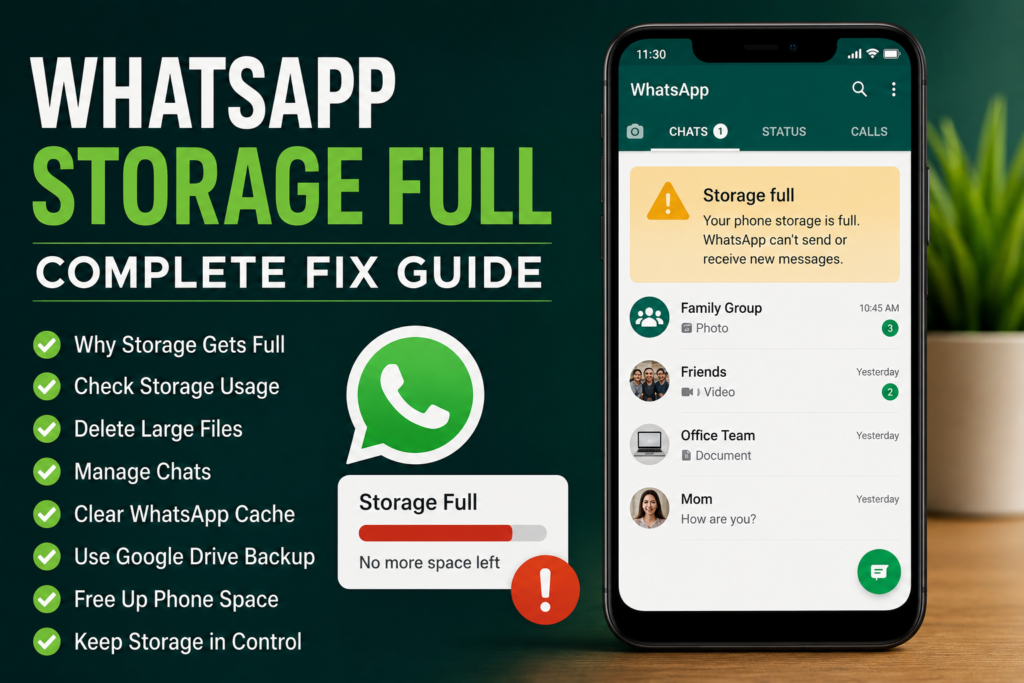
If you use WhatsApp regularly, you have probably noticed how quickly it can consume phone storage. Photos, videos, voice messages, documents, GIFs, stickers, and forwarded files can quietly build up over time. One day everything works normally, and the next day you see a storage warning or WhatsApp starts having problems downloading or sending media.
I have seen this happen quite often, especially when WhatsApp is used for several group chats. Some groups can receive hundreds of photos and videos every week, and most of those files are automatically saved on the phone.
The good news is that WhatsApp storage full is usually easy to manage once you know where the space is being used. In this guide, I will explain why WhatsApp takes so much storage and how you can safely free up space on Android and iPhone.
Why Does WhatsApp Storage Get Full?
WhatsApp itself may not be the only thing using your phone storage. The biggest space consumption usually comes from media files received through chats.
Videos are usually the biggest problem because even a short high quality video can take a significant amount of storage. Photos, documents, voice messages, stickers, and other media can also accumulate.
Group chats are another major reason. A single group can continuously send pictures, videos, documents, and forwarded content. Even if you never open some of these files, they may still be downloaded to your phone depending on your WhatsApp settings.
Over time, thousands of files can take up several gigabytes.
This is why simply deleting a few recent pictures often does not solve the problem. You need to identify which chats and file types are consuming the most storage.
Check WhatsApp Storage Usage
The first thing I recommend doing is checking WhatsApp’s storage manager.
Open WhatsApp and go to Settings. Look for Storage and Data, then open the storage management section.
The exact wording can change slightly depending on your WhatsApp version and device.
Here you can see how much space WhatsApp media is using and which conversations are responsible for the largest amount of data.
WhatsApp may show large files and chats with a significant amount of media.
This is one of the safest ways to start because you can review files before deleting them.
Delete Large Videos First
If your WhatsApp storage is almost full, start with large videos.
Videos normally consume much more space than text messages or individual photos.
Open the storage management section and review the largest files.
Look through the videos and decide which ones you genuinely need.
Delete unnecessary videos, especially forwarded clips, duplicate files, old status videos, and content from inactive group chats.
I recommend reviewing everything before deleting it because some files may be important.
Once large videos are removed, you may immediately recover hundreds of megabytes or even several gigabytes.
Remove Unnecessary Photos
Photos can also consume a surprising amount of storage when they accumulate over months or years.
Check your WhatsApp media and look for duplicate pictures, screenshots, memes, old forwarded images, and pictures you no longer need.
You do not have to delete everything.
Keeping important family pictures, documents, receipts, or personal memories is perfectly fine. The goal is to remove unnecessary files that are taking up space without providing any real value.
Clean Large WhatsApp Documents
Many people forget about documents when cleaning WhatsApp storage.
PDF files, presentations, ZIP files, spreadsheets, and other documents can remain on your phone long after you have finished using them.
Open the WhatsApp storage manager and review large documents.
Delete files that you no longer need.
Be especially careful with documents related to work, education, banking, travel, or personal records. If something may be useful later, save it somewhere safe before removing it from WhatsApp.
Check Which Chats Use the Most Storage
WhatsApp can help you identify conversations that consume the most storage.
You may discover that one group chat is responsible for a huge percentage of your WhatsApp storage.
This is common with family groups, business groups, community groups, and groups where people frequently share videos.
Open the largest conversations in the storage manager and review their media.
You can then remove unnecessary files from those chats without deleting the entire conversation.
This targeted approach is much better than randomly deleting files.
Stop WhatsApp From Automatically Downloading Everything
Cleaning existing files is only half of the solution.
If WhatsApp continues downloading every photo and video automatically, your storage can become full again.
Open WhatsApp Settings, go to Storage and Data, and review the media auto download options.
You can choose which types of media should automatically download when using mobile data, WiFi, or roaming.
I personally recommend being selective with automatic downloads.
For example, you may want photos to download automatically but prevent videos and documents from downloading unless you specifically choose them.
This can make a significant difference over time.
Turn Off Automatic Media Saving
On some phones, WhatsApp media may also be saved to the device gallery.
If you do not want every WhatsApp picture and video appearing in your gallery, review the media visibility or save to camera roll settings.
On Android, WhatsApp provides media visibility settings for chats.
On iPhone, you can control whether WhatsApp media is saved to the Photos app.
Disabling automatic saving does not necessarily stop WhatsApp from storing media internally, so you should also manage WhatsApp storage itself.
Clear WhatsApp Cache on Android
Android users may be able to free some temporary space by clearing the WhatsApp cache.
Open your phone’s Settings, go to Apps, select WhatsApp, and open Storage or Storage and Cache.
Choose Clear Cache.
Be careful not to select an option that deletes WhatsApp application data unless you know exactly what it does and have a current backup.
Clearing the cache is different from deleting your chats and media.
It removes temporary files that Android has stored for the application.
If your phone has been running for a long time without clearing temporary data, this can sometimes help recover some additional space.
Check Your Phone’s Overall Storage
Sometimes the message saying WhatsApp storage full is actually related to your phone running out of overall storage.
Open your phone’s storage settings and check how much free space remains.
Look beyond WhatsApp.
Large videos in your gallery, downloaded movies, screen recordings, offline maps, unused applications, and downloads can consume a large amount of storage.
If your phone has almost no free space, WhatsApp may not be the only application affected.
Try to keep a reasonable amount of free storage available so your phone can continue creating temporary files and operating normally.
Delete Unnecessary Downloads
The Downloads folder is another place worth checking.
Files downloaded from browsers, social media applications, messaging applications, and websites can remain there for months.
Open your phone’s file manager and review the Downloads folder.
Remove files you no longer need.
You may find old APK files, documents, compressed files, videos, and duplicate downloads that are taking up valuable storage.
Back Up Important WhatsApp Media Before Deleting
Before doing a major WhatsApp cleanup, I recommend backing up important files.
If you have pictures or videos that you want to keep, move them to another safe location.
You can use your preferred cloud storage service, computer, external storage, or another backup method.
Do not assume that every deleted WhatsApp file can easily be recovered later.
A few minutes spent checking important media can prevent accidental loss of something valuable.
Be Careful With WhatsApp Backups
WhatsApp backups are useful, but they should not be confused with simply freeing phone storage.
Your WhatsApp backup can contain your chats and other information depending on your settings.
If you delete important WhatsApp media from your phone and later restore an older backup, some previously deleted content may return depending on how the backup was created.
Before performing a major cleanup, check your current backup settings and make sure important conversations are protected.
WhatsApp Storage Full After Deleting Files
Sometimes users delete several gigabytes of media but the phone still shows very little free space.
This can happen because the phone has not immediately refreshed its storage calculation.
Restart your phone and check the storage again.
Also look in your gallery and file manager for duplicate WhatsApp folders or downloaded copies.
Android devices can sometimes contain multiple media locations depending on the WhatsApp version and phone configuration.
If you use cloud backup or gallery synchronization, remember that deleting a local file may behave differently depending on your backup and synchronization settings.
Prevent WhatsApp Storage From Filling Again
Once you clean your storage, the next goal is to prevent the same problem from returning.
Review your media auto download settings.
Avoid automatically downloading every video from group chats.
Leave groups that you no longer need.
Delete unnecessary media regularly instead of waiting until your phone becomes completely full.
I personally find that a quick storage check every few weeks is much easier than trying to clean several years of WhatsApp files at once.
What If WhatsApp Cannot Send or Receive Messages?
A completely full phone can cause more than storage warnings.
WhatsApp may have trouble downloading pictures, videos, documents, and voice messages. In severe cases, other application functions can also become unreliable because the phone has very little space available for temporary files.
If WhatsApp is not sending or downloading media, check your available phone storage first.
Free up some space and restart the phone.
Then open WhatsApp and try the same action again.
If the problem continues despite having plenty of free storage, the cause may be your internet connection, WhatsApp permissions, application settings, or another software problem.
Final Thoughts
The WhatsApp storage full problem is usually caused by years of accumulated photos, videos, documents, voice messages, and forwarded media.
The best solution is not simply deleting random files. Start by checking WhatsApp’s storage manager and identify the chats and file types consuming the most space.
Large videos are usually the best place to start. After that, review unnecessary photos, documents, duplicate files, and old group chat media.
You should also change your automatic download settings so WhatsApp does not continue filling your phone with unwanted media.
If you use Android, clearing the WhatsApp cache can also help with temporary storage. Finally, check your phone’s overall storage because WhatsApp may only be one part of the problem.
In my experience, regular cleanup is the easiest way to keep WhatsApp storage under control. You do not need to delete everything or sacrifice important memories. A little organization and better automatic download settings can keep your phone running smoothly while allowing you to continue using WhatsApp normally.