WhatsApp Web is one of the easiest ways to use WhatsApp on a computer. I personally find it very useful when I am working on a laptop because I can read messages, send files, and reply to contacts without constantly picking up my phone. However, sometimes the WhatsApp Web QR code not loading problem can make the whole process frustrating.
You may open WhatsApp Web and see a blank QR code area, a loading circle, or a message asking you to refresh the page. In some cases, the QR code appears but does not scan properly. The problem can happen because of your internet connection, browser cache, extensions, VPN, outdated WhatsApp, incorrect date and time settings, or a temporary browser issue.
The good news is that most WhatsApp Web QR code problems are easy to fix. In this guide, I will explain the most useful solutions step by step so you can get WhatsApp Web working again.
What Is the WhatsApp Web QR Code Used For?
WhatsApp Web uses a QR code to connect your WhatsApp account on your phone with your computer.
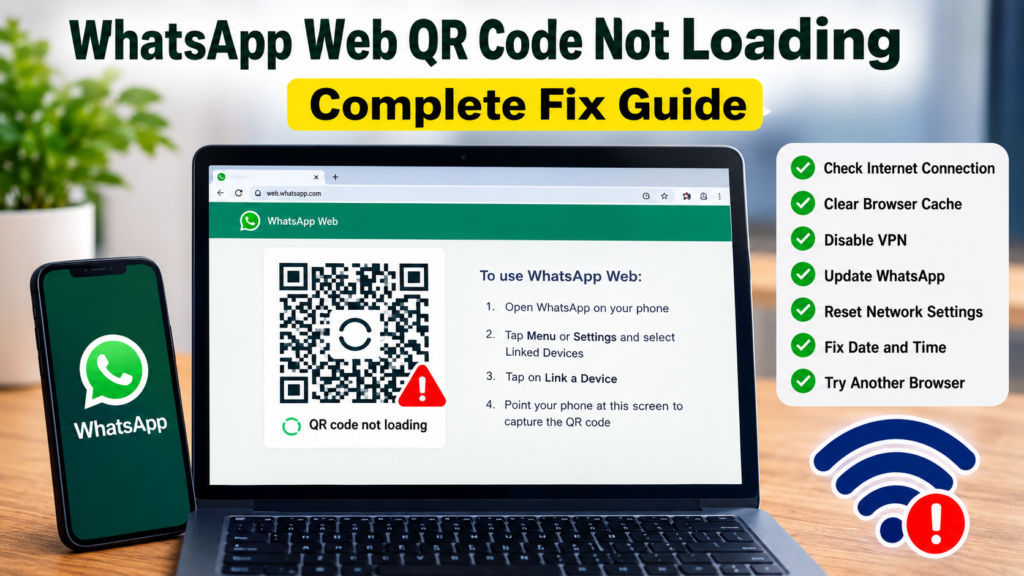
When you open WhatsApp Web in a supported browser, the website normally displays a QR code. You then open WhatsApp on your phone, go to Linked Devices, choose the option to link a device, and scan the QR code displayed on your computer.
If the QR code does not load, your phone cannot complete the linking process.
This means the problem can be related to either your computer, browser, phone, or internet connection.
Why Is the WhatsApp Web QR Code Not Loading?
There are several possible reasons.
Your internet connection may be unstable, your browser may have corrupted cached files, or a browser extension may interfere with WhatsApp Web. A VPN or proxy can also affect the connection.
Sometimes the WhatsApp application on your phone needs an update. Incorrect date and time settings on your device or computer can also create unexpected connection problems.
Before trying complicated solutions, I recommend starting with the easiest fixes.
1. Check Your Internet Connection
The first thing I check when WhatsApp Web does not load correctly is the internet connection.
Open another website in the same browser and see whether it loads normally.
If other websites are also slow or unavailable, your internet connection may be the main problem.
Try restarting your WiFi router and reconnecting your computer.
You can also try opening WhatsApp Web using mobile data through a phone hotspot. If the QR code loads normally through the hotspot, your original WiFi connection may be causing the problem.
This simple test can save a lot of time because it tells you whether the problem is related to the browser or the network.
2. Refresh WhatsApp Web
Sometimes the QR code simply fails to load during the first attempt.
Open WhatsApp Web and refresh the page.
On Windows, you can press Ctrl + R or use the browser refresh button.
Wait a few seconds after refreshing and allow the page to load completely.
If the QR code appears, open WhatsApp on your phone and scan it normally.
If refreshing does not help, move to the next solution.
3. Restart Your Browser
Close your browser completely and open it again.
If you have several browser windows open, close all of them before restarting.
Then visit WhatsApp Web again.
Browsers can sometimes develop temporary problems with memory, scripts, or active sessions. Restarting the browser gives the website a fresh environment.
I recommend trying this before clearing all browser data because it is quick and does not remove your saved information.
4. Clear Browser Cache
A corrupted browser cache is another possible reason why the WhatsApp Web QR code is not loading.
Your browser stores temporary website files to make pages load faster. Occasionally, those files can become outdated or corrupted.
Open your browser settings and find the privacy or browsing data section.
Select the option to clear cached images and files.
You do not necessarily need to delete your passwords or saved browsing information. Focus on clearing the cache first.
After clearing the cache, restart the browser and open WhatsApp Web again.
The QR code should have a better chance of loading correctly.
5. Try Incognito or Private Mode
This is one of my favorite troubleshooting methods because it quickly tells you whether your normal browser profile is causing the problem.
Open an Incognito window in Chrome or a Private window in another supported browser.
Then visit WhatsApp Web.
If the QR code loads normally in private browsing mode, one of your browser extensions, cookies, or cached files may be causing the issue.
You can then return to your normal browser and investigate the extensions one by one.
6. Disable Browser Extensions
Browser extensions can change how websites load.
Ad blockers, privacy extensions, script blockers, VPN extensions, and security tools can sometimes interfere with web applications.
If WhatsApp Web works in Incognito mode but not in your normal browser, temporarily disable your extensions.
Then reload WhatsApp Web.
If the QR code appears after disabling an extension, you have probably found the cause.
You can enable your extensions one at a time to identify which one is creating the problem.
7. Try Another Browser
If the QR code still does not load, try another browser.
For example, if you normally use Chrome, test WhatsApp Web in Microsoft Edge or another supported browser.
If the QR code works in another browser, your original browser may have a configuration or extension problem.
You can then reset the original browser settings, clear its cache, or reinstall it if necessary.
This is another useful test because it helps separate a WhatsApp Web problem from a browser problem.
8. Disable VPN or Proxy
If you use a VPN, disconnect it temporarily and reload WhatsApp Web.
VPNs can change your network route and sometimes cause connection problems with web services.
The same applies to certain proxy configurations.
After disabling the VPN, close and reopen your browser and visit WhatsApp Web again.
If the QR code starts loading normally, the VPN or proxy configuration may be responsible.
You can later reconnect the VPN and try another server to see whether the problem remains.
9. Update WhatsApp on Your Phone
Your phone’s WhatsApp application should also be kept updated.
Open the Google Play Store on Android or the App Store on iPhone and check for a WhatsApp update.
If an update is available, install it.
An outdated application may have compatibility issues with the current WhatsApp Web service.
After updating WhatsApp, restart the application and try linking your computer again.
10. Restart Your Phone
Sometimes the problem is on the phone rather than the computer.
Close WhatsApp and restart your phone.
Once the phone starts again, open WhatsApp and go to the linked devices section.
Then open WhatsApp Web on your computer and try scanning the new QR code.
Restarting your phone can clear temporary application and network problems.
11. Check Your Phone’s Internet Connection
Although the QR code is displayed on your computer, your phone also needs a working internet connection for the linking process.
Make sure your phone is connected to WiFi or mobile data.
Open a website or another online application to confirm that the internet is working.
If your phone has a weak connection, move to a stronger WiFi signal or switch between WiFi and mobile data.
Then try linking the device again.
12. Check Date and Time Settings
Incorrect date and time settings can sometimes create problems with secure internet connections.
Make sure your computer is using the correct date, time, and time zone.
On Windows, open Settings, go to Time and Language, and check the date and time settings.
Enable automatic time settings if appropriate.
Also check your phone’s date and time settings.
Once both devices have the correct time, restart WhatsApp Web and try again.
13. Restart Your Router
If the QR code does not load on your computer and other websites are also experiencing problems, restart your router.
Turn the router off and unplug it from the power source.
Wait around 30 seconds and then reconnect it.
Allow the router a few minutes to establish the internet connection.
After that, reconnect your computer and try WhatsApp Web again.
A router restart can resolve temporary DNS, connectivity, and routing problems.
14. Check Firewall or Security Software
Security software can sometimes block certain website connections.
If you have recently installed new antivirus software, firewall software, or a network security application, check its settings.
Do not permanently disable your security protection just to use WhatsApp Web.
Instead, look for website blocking, web protection, or firewall rules that may be preventing the page from loading correctly.
If you are not comfortable changing firewall settings, it is safer to keep the protection enabled and investigate the issue using another browser or network.
15. Log Out of Old Linked Devices
If you have many devices linked to your WhatsApp account, it can be useful to review your linked devices.
Open WhatsApp on your phone and go to Linked Devices.
Review the devices shown there.
If you see an old computer or browser session that you no longer use, log it out.
After cleaning up old sessions, try linking your current computer again.
This also has the benefit of improving the security of your WhatsApp account because you can remove devices that you no longer recognize or use.
16. Restart Everything and Try Again
If you have tried several solutions but the QR code still does not appear, perform a complete restart.
Restart your phone.
Restart your computer.
Restart your router.
Then open your browser without unnecessary extensions and visit WhatsApp Web.
Make sure WhatsApp is updated and that both devices have a stable internet connection.
In many cases, a clean restart of the entire setup can resolve temporary problems.
What If the QR Code Appears but Will Not Scan?
The problem is slightly different if the QR code loads but your phone cannot scan it.
First, make sure your phone camera lens is clean.
Hold the phone at a reasonable distance from the computer screen and make sure the entire QR code is visible.
Increase the brightness of your computer display if necessary.
You should also make sure that the QR code has not expired. If it has been displayed for a long time, refresh WhatsApp Web to generate a new code.
Then open WhatsApp on your phone and scan the new code.
Final Thoughts
The WhatsApp Web QR Code Not Loading problem can be annoying, but it is usually caused by something that can be fixed without advanced technical knowledge.
I recommend starting with the internet connection, refreshing WhatsApp Web, restarting your browser, and trying private browsing mode. If that does not work, clear the browser cache, disable extensions, turn off your VPN, and try another browser.
You should also make sure that WhatsApp is updated on your phone and that both your phone and computer have the correct date and time.
If the QR code loads but refuses to scan, generate a fresh code and make sure your phone camera can clearly see the entire screen.
The most important thing is to test each solution separately. This makes it easier to identify whether the problem comes from your internet connection, browser, phone, WhatsApp application, or computer settings.
In my experience, most WhatsApp Web problems can be solved by going through these basic checks patiently rather than immediately reinstalling applications or changing complicated settings.
With the solutions in this guide, you should be able to troubleshoot most common cases where the WhatsApp Web QR code is not loading and get your computer connected again.