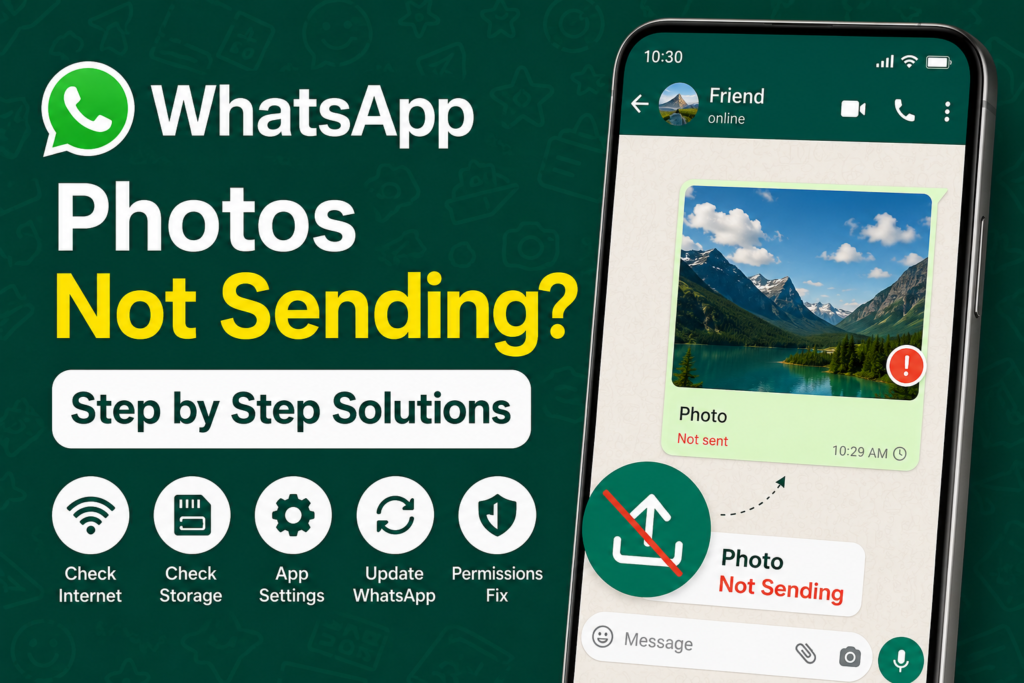
WhatsApp is one of the easiest ways to share photos with friends, family, and coworkers, so it can be frustrating when a photo suddenly refuses to send. You select a picture, tap the send button, and instead of delivering normally, the message stays stuck, shows a clock icon, or displays a failed upload message.
I have dealt with this problem myself, and in my experience, WhatsApp photos not sending is usually caused by something simple. It can be a weak internet connection, restricted app permissions, low storage, an outdated WhatsApp version, incorrect phone settings, or a temporary WhatsApp service problem.
The good news is that you normally do not need to reinstall WhatsApp immediately. In this guide, I will explain the most practical WhatsApp photo not sending solutions step by step. I recommend trying them in order because the first few methods can solve the problem without changing anything complicated.
Check Your Internet Connection
The first thing I check when WhatsApp photos are not sending is the internet connection.
WhatsApp needs a stable internet connection to upload photos. Your phone might show that it is connected to WiFi or mobile data, but the connection can still be slow or unstable.
Open your browser and visit a few websites. You can also try playing a short online video.
If websites are loading slowly, switch from WiFi to mobile data or from mobile data to WiFi and try sending the photo again.
If you are using WiFi, restart your router if other apps are also having connection problems.
A weak connection is one of the most common reasons WhatsApp photos remain stuck while sending.
Turn Airplane Mode On and Off
This is a very simple trick, but it can refresh your phone’s network connection.
Turn on Airplane Mode and wait for around ten seconds. Then turn it off again.
After your mobile network or WiFi reconnects, open WhatsApp and try sending the photo again.
I often use this method when mobile data appears to be working but WhatsApp is not communicating properly with the internet.
Check Whether WhatsApp Is Down
Sometimes the problem has nothing to do with your phone.
WhatsApp can occasionally experience temporary service problems. When this happens, messages and media may fail to send for many users.
If text messages are also failing to send, check whether other people are experiencing the same issue.
You can also check WhatsApp related service reports online.
If WhatsApp is experiencing a widespread outage, there is usually nothing you can change on your phone to fix it. In that situation, waiting until the service is restored is the best option.
Check WhatsApp Mobile Data Permission
On both Android and iPhone, apps can have restrictions on internet access.
If WhatsApp does not have permission to use mobile data, photos may not upload when you are away from WiFi.
On Android, open your phone settings and find WhatsApp under Apps. Look for the mobile data or data usage section and make sure mobile data access is allowed.
On iPhone, open Settings, select Mobile Service, and make sure WhatsApp is enabled.
After changing the setting, open WhatsApp and try sending the photo again.
Check WhatsApp Storage Permissions
WhatsApp needs access to your phone’s media files to select and send photos.
If the required permission has been removed, WhatsApp may have trouble accessing your pictures.
On Android, open Settings, go to Apps, select WhatsApp, and open Permissions.
Make sure WhatsApp has permission to access photos and videos.
On iPhone, open Settings, select Privacy & Security, and check the Photos permissions for WhatsApp.
If access is limited, change it to an appropriate permission level and then try sending the photo again.
Check Your Phone Storage
Low storage can cause several problems with WhatsApp.
If your phone is almost full, WhatsApp may not have enough space to process, cache, or download media files.
Open your phone’s storage settings and check how much free space remains.
If storage is nearly full, remove unnecessary videos, duplicate photos, old downloads, or apps that you no longer use.
After freeing some space, restart WhatsApp and try sending the photo again.
This is particularly important if WhatsApp is also having problems downloading photos and videos from other people.
Try Sending a Different Photo
This is a useful test that many people overlook.
Instead of repeatedly trying to send the same picture, choose another photo from your gallery and send it.
If the second photo sends successfully, the problem may be related to the original image.
The file could be damaged, unusually large, or stored in a location that WhatsApp cannot currently access.
You can also take a new photo using your phone’s camera and immediately try sending it through WhatsApp.
If the new photo works, you know the issue is probably related to the original file rather than WhatsApp’s internet connection.
Check the Photo File
Very large or unusual image files can sometimes cause upload problems.
If a particular photo refuses to send, open it in your gallery first to make sure it loads correctly.
You can also create a screenshot of the image and send the screenshot instead.
If the screenshot sends successfully, the original image may have a file related problem.
This is a quick way to determine whether the problem affects WhatsApp generally or only one specific picture.
Restart WhatsApp
Sometimes WhatsApp simply needs to be restarted.
Close WhatsApp completely and remove it from your recent apps. Then open it again.
Try sending the same photo.
On Android, you can also force stop the application from its app settings and then launch it again.
A simple restart can clear temporary app glitches without deleting your chats or media.
Restart Your Phone
If restarting WhatsApp does not help, restart your phone.
This refreshes background services, network connections, memory, and application processes.
After the phone starts again, connect to your WiFi or mobile data and test WhatsApp.
I recommend this step before making more advanced changes because it is quick and completely straightforward.
Update WhatsApp
Using an outdated version of WhatsApp can sometimes cause compatibility problems.
Open the Google Play Store on Android or the App Store on iPhone and search for WhatsApp.
If an update is available, install it.
After updating, open WhatsApp and try sending the photo again.
Keeping WhatsApp updated also provides important security improvements and bug fixes, so it is worth checking for updates regularly.
Clear WhatsApp Cache on Android
If you use Android, clearing the WhatsApp cache can help with temporary app problems.
Open Settings, go to Apps, select WhatsApp, and look for Storage.
You should see an option to clear the cache.
Clearing the cache does not normally remove your WhatsApp chats because it only removes temporary files.
Be careful not to select options that delete application data unless you understand exactly what they will do.
After clearing the cache, open WhatsApp and try sending the photo again.
Disable Data Saver
Data Saver settings can restrict background internet activity.
If your phone has Data Saver enabled, WhatsApp may have limited access to mobile data.
Check your phone’s network settings and temporarily disable Data Saver.
You can also allow WhatsApp unrestricted data usage if your device provides that option.
Then test the photo upload again.
If WhatsApp starts working normally, the data restriction was probably preventing the photo from uploading correctly.
Check Battery Saver Settings
Battery saving modes can sometimes restrict background activity for apps.
If your phone is aggressively limiting WhatsApp, uploads may become delayed or stuck.
Open your battery settings and check whether WhatsApp has been placed under restricted battery usage.
Temporarily disabling battery saving mode can help you determine whether it is affecting WhatsApp.
You do not necessarily need to keep battery saving disabled permanently. The goal is simply to test whether it is responsible for the problem.
Check Date and Time Settings
Incorrect date and time settings can occasionally interfere with secure internet connections and application services.
Make sure your phone is set to automatically determine the date, time, and time zone.
On Android and iPhone, these settings can normally be found under the system date and time section.
After correcting the settings, restart WhatsApp and try sending the photo again.
Try Sending the Photo to Another Contact
Another useful test is to send the same photo to a different WhatsApp contact.
If the picture sends successfully to another person, the problem might be related to the original chat or recipient.
If the photo fails in every conversation, the problem is more likely to be related to your phone, internet connection, WhatsApp permissions, or the WhatsApp service itself.
This simple test can help narrow down the problem quickly.
Reinstall WhatsApp as a Last Resort
If nothing else works, reinstalling WhatsApp may solve persistent application problems.
However, I would not recommend doing this as your first solution.
Before uninstalling WhatsApp, make sure your important chats and media are backed up using the available WhatsApp backup options.
After confirming that your backup is available, uninstall and reinstall WhatsApp from the official app store.
Sign in again and restore your backup if prompted.
Once the setup is complete, test photo sharing again.
Final Thoughts
When WhatsApp photos are not sending, the problem can be caused by something as simple as an unstable internet connection or a restricted permission. In other cases, low storage, outdated software, battery restrictions, or a temporary WhatsApp service problem may be responsible.
I recommend starting with the basics. Check your internet connection, switch between WiFi and mobile data, restart WhatsApp, and restart your phone. Then check WhatsApp permissions, available storage, Data Saver, and battery restrictions.
If the problem continues, update WhatsApp, clear the Android cache if applicable, check your date and time settings, and test whether other photos or contacts are affected.
The most important thing is to identify whether the problem affects one photo, one conversation, or WhatsApp as a whole. That small test can save you a lot of unnecessary troubleshooting.
In most cases, WhatsApp photo not sending problems can be fixed without deleting the application or losing your conversations. By following these step by step solutions, you should be able to find the cause and get your photos sending normally again.