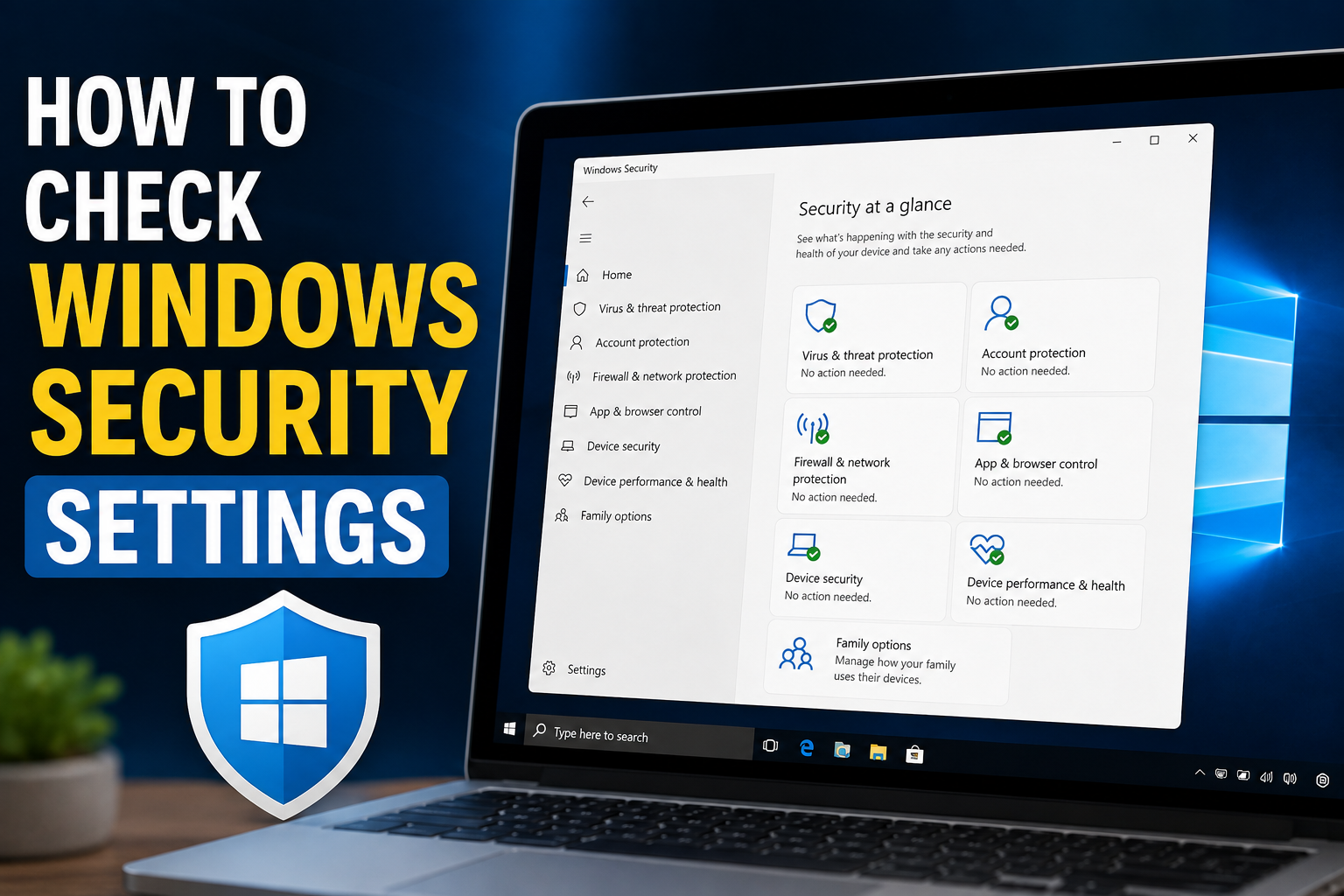
Windows includes several built in security features that can help protect your computer from viruses, suspicious applications, unsafe websites, unauthorized access, and other common security problems. However, simply having Windows Security installed does not mean every setting is properly configured.
I personally think checking Windows Security settings from time to time is one of the easiest things you can do to keep a Windows computer safer. You do not need to be an advanced computer user to review the important security options. Most of the useful controls are available in one place through the Windows Security app.
In this guide, I will explain how to check Windows Security settings, what each important section does, and which settings I recommend reviewing regularly. The steps are mainly focused on modern Windows versions, including Windows 11.
What Is Windows Security?
Windows Security is the built in security application included with Windows. It brings several important protection features together in one place.
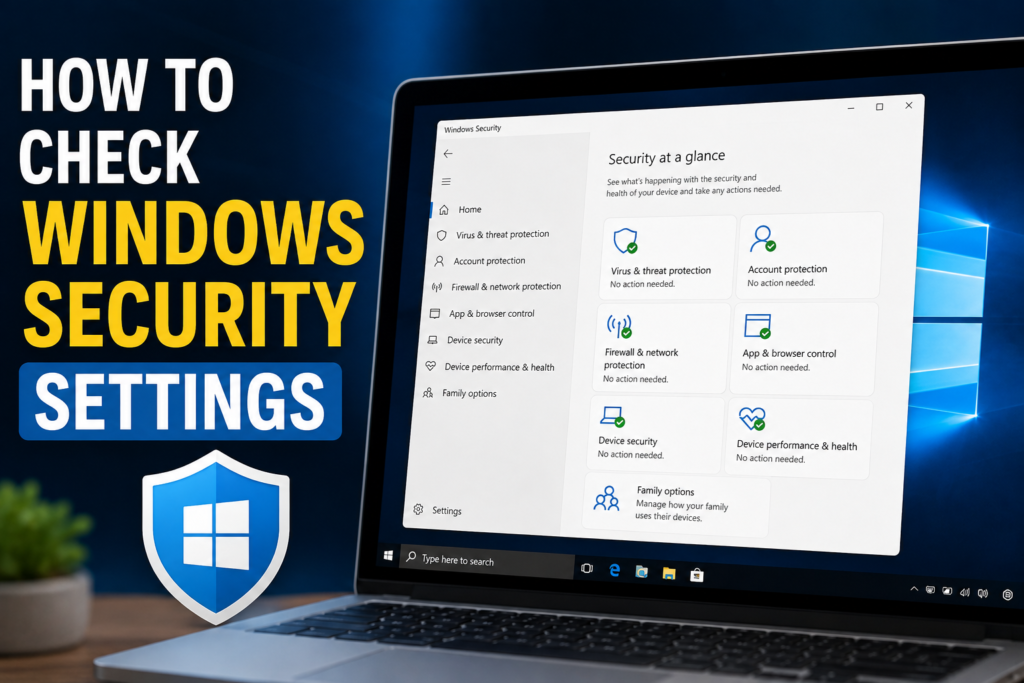
Depending on your Windows version and configuration, Windows Security can include virus and threat protection, firewall and network protection, account protection, app and browser control, device security, and device performance and health.
Instead of installing multiple security tools immediately, I recommend first understanding what Windows already provides. For many everyday users, the built in protection features are an important first layer of security.
How to Open Windows Security
The easiest way to open Windows Security is through the Windows search feature.
Click the Start button and type Windows Security.
Select the Windows Security application from the search results.
You should see the main Windows Security dashboard. This page gives you an overview of your computer’s security status.
You may see different sections with messages such as no action needed or recommendations that require your attention.
I usually recommend starting from this main screen because it gives you a quick idea of whether Windows has detected any security issues.
Check Virus and Threat Protection
One of the most important areas in Windows Security is Virus and threat protection.
Open Windows Security and select Virus and threat protection.
Here you can check the current antivirus status and review information about recent scans and detected threats.
Look for information showing whether protection is active. You can also start a quick scan if you want to check your computer for common threats.
For a deeper check, Windows may provide options for a full scan or other scanning methods.
I recommend running a scan if your computer suddenly becomes slow, you notice unusual popups, or you have opened a suspicious file.
You should also keep antivirus protection enabled unless you have a specific and informed reason to change it.
Check Real Time Protection
Inside the virus and threat protection settings, you can find important protection controls.
One of the most important is Real time protection.
Real time protection helps Windows monitor files and activities for potential threats.
I recommend keeping this feature enabled for normal everyday computer use.
If you notice that real time protection has been turned off unexpectedly, investigate the reason instead of simply ignoring the warning.
Security software can sometimes be disabled by another antivirus program, system changes, or malicious software.
Check Firewall and Network Protection
Another important Windows Security setting is Firewall and network protection.
The Windows firewall helps control network traffic between your computer and other devices or services.
Open Windows Security and select Firewall and network protection.
You may see different network profiles, such as domain network, private network, and public network.
For most users, the firewall should remain enabled.
The public network setting is particularly important when using your laptop on networks outside your home, such as airports, hotels, cafes, or other public locations.
I recommend avoiding unnecessary firewall changes unless you understand what they do. Turning off firewall protection simply because an application displays an error can create unnecessary security risks.
Check App and Browser Control
Windows Security also includes App and browser control.
This area contains protection features designed to help protect you from potentially unsafe applications, files, websites, and downloads.
Windows may use reputation based protection to identify suspicious applications or websites.
I recommend keeping these protections enabled unless you have a specific reason to change them.
This is especially useful because many security problems begin with a user downloading a suspicious program or visiting a dangerous website.
If Windows displays a warning about a file or website, do not immediately ignore it. Take a moment to determine why the warning appeared.
Check Account Protection
The Account protection section is another area worth reviewing.
It can provide information related to your Microsoft account, Windows Hello, and other account security features depending on your system.
Strong account security is important because someone who gains access to your Windows account may be able to access personal files, applications, browser information, and other sensitive data.
If your computer supports Windows Hello, you may be able to use features such as facial recognition, fingerprint recognition, or a PIN.
I recommend using a strong sign in method and avoiding simple passwords that are easy to guess.
Check Device Security
The Device security section focuses on hardware based security features available on your computer.
Depending on your hardware and Windows configuration, you may see options related to security processors, secure boot, and virtualization based security.
Not every computer supports every feature.
If Windows shows that a security feature is unavailable, do not automatically assume your computer is infected or unsafe. Some features depend on the computer’s hardware and firmware.
For users who want to improve Windows security, it is useful to understand which device security features their computer supports.
Check Device Performance and Health
Windows Security also includes Device performance and health.
This section can provide information about the general condition of your Windows installation.
It may highlight problems involving storage, applications, battery, or other areas depending on the type of computer and Windows version.
I find this section useful because security is not only about antivirus protection. Keeping Windows updated and maintaining a healthy system can also contribute to a safer and more reliable computer.
If Windows recommends an action, read the message carefully before making changes.
Check Windows Update
Windows Update is not located entirely inside Windows Security, but it is an important part of maintaining Windows security.
Open Settings and go to Windows Update.
Check whether updates are available and install important updates when appropriate.
Security updates can address known vulnerabilities. Delaying updates for long periods can leave your computer exposed to problems that may already have fixes available.
I recommend checking Windows Update regularly and restarting the computer when Windows requires it to complete an update.
Review Privacy Settings
Privacy settings are also worth checking when reviewing Windows security.
Open Settings and go to Privacy and security.
Here you can review permissions for features such as location, camera, microphone, notifications, account information, and other types of access.
I personally believe that users should not automatically give every application access to everything it requests.
If an application does not need your microphone or camera to perform its main function, consider whether it really needs that permission.
Reviewing privacy settings can help you understand what applications are allowed to access on your computer.
Check Windows Security Notifications
Windows can display security notifications when it detects problems or needs your attention.
Do not ignore these notifications automatically.
If Windows Security tells you that antivirus protection is disabled, an update is needed, or another security feature requires attention, open Windows Security and investigate the message.
At the same time, be careful with fake security warnings that appear in web browsers.
A website may display a frightening message claiming that your computer is infected and asking you to call a phone number. These messages can be scams.
Use the actual Windows Security application rather than trusting random security warnings displayed by websites.
Keep Windows Security Updated
Security tools are only useful when they are kept up to date.
Windows normally handles many security updates automatically, but it is still worth checking your update status occasionally.
Make sure your Windows installation is receiving updates and that your antivirus definitions are current.
If Windows Security reports that protection is outdated, follow the recommended steps to update it.
Avoid downloading random antivirus files or security tools from unfamiliar websites because scammers sometimes disguise malicious software as security programs.
Review Security Settings Regularly
Checking Windows Security once is helpful, but making it a regular habit is even better.
I recommend reviewing the main security dashboard whenever you notice unusual computer behavior or after installing important software.
You can also make a simple monthly security check.
Look at virus and threat protection, firewall settings, app and browser protection, account protection, device security, Windows Update, and privacy permissions.
You do not need to change everything. The purpose of the review is to make sure important protection features are active and that you understand any warnings.
What Should You Do If Windows Security Shows a Warning?
If Windows Security displays a warning, do not panic.
First, read the message carefully.
Find out which feature is affected and what action Windows recommends.
If a threat has been detected, follow the recommended protection steps. If the warning relates to an update, install the appropriate update.
If you are unsure about a particular setting, avoid changing it randomly. Search for information about the exact Windows feature or use Microsoft’s official support resources.
The important thing is to investigate warnings instead of ignoring them.
Final Thoughts
Learning how to check Windows Security settings is a simple but valuable computer maintenance habit. Windows already provides several built in security tools, including antivirus protection, firewall protection, app and browser protection, account security, and device security features.
The most important thing is to keep these features properly configured and pay attention when Windows reports a problem.
I recommend opening Windows Security regularly and checking the main dashboard. Make sure virus protection is active, keep the firewall enabled, review app and browser protection, check account security, and install important Windows updates.
You should also review privacy permissions and be careful about suspicious websites, downloads, emails, and popups.
Good Windows security does not require complicated technical knowledge. In my opinion, it mainly requires awareness and a few good habits. By spending a few minutes checking your Windows Security settings, you can better understand how your computer is protected and identify potential problems before they become bigger issues.