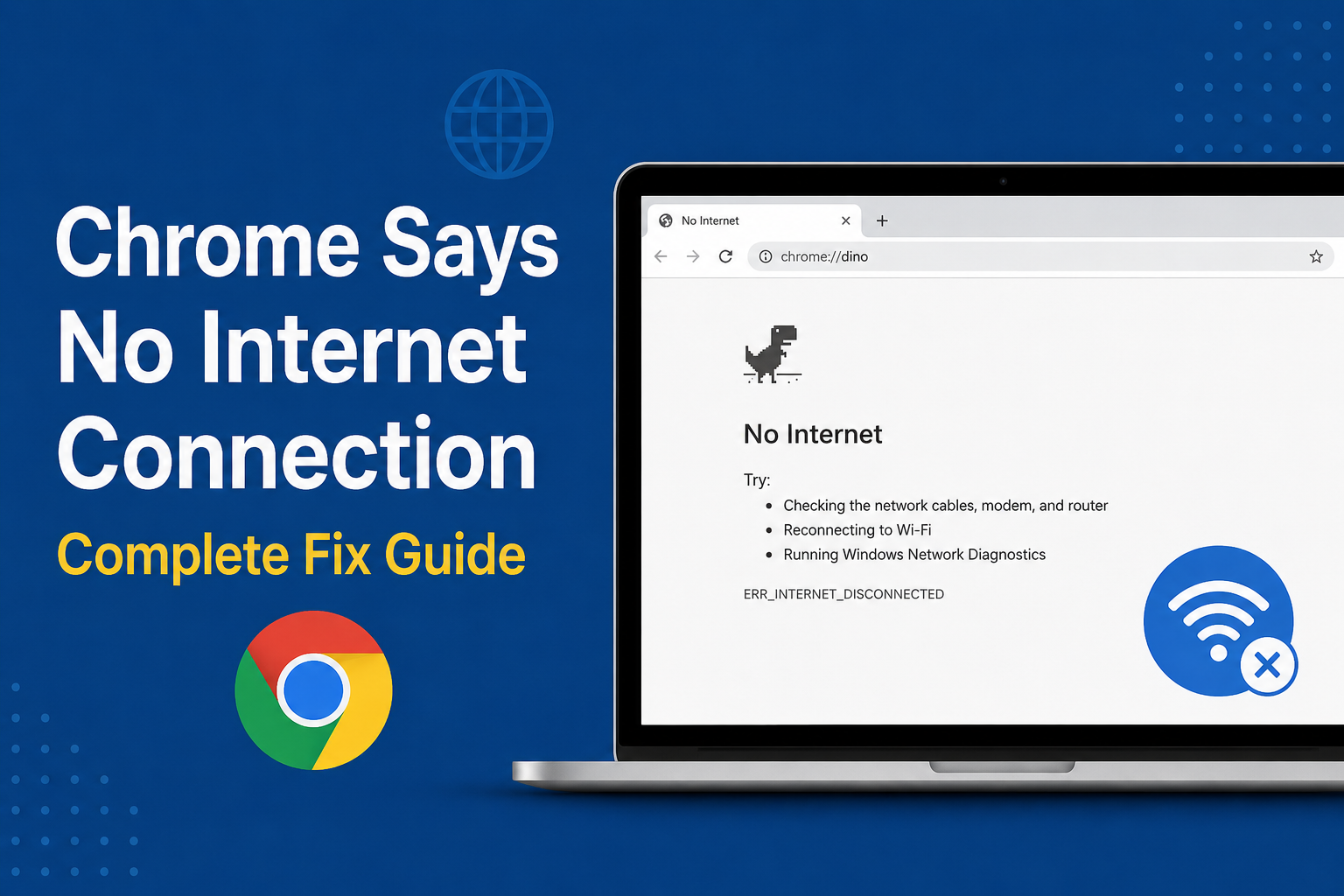
There are few things more frustrating than opening Google Chrome, trying to visit a website, and suddenly seeing a message saying No Internet Connection. The confusing part is that sometimes the internet works perfectly on your phone or another computer, while Chrome still refuses to load websites.
I have faced this issue several times, and in my experience, it is not always caused by the internet connection itself. Chrome can show a no internet connection message because of network settings, DNS problems, browser extensions, VPN software, firewall settings, corrupted cache, or even a temporary problem with the router.
In this guide, I will explain the most practical ways to fix Chrome says no internet connection problems. I recommend starting with the simple solutions first and then moving toward the advanced fixes if Chrome is still offline.
Check Your Internet Connection First
Before changing any Chrome settings, make sure your internet is actually working.
Try opening the same website on another browser such as Microsoft Edge or Firefox. You can also check the internet connection on your phone using the same WiFi network.
If websites do not work on any device, the problem is probably related to your router, modem, WiFi network, or internet service provider.
If other devices have internet access but Chrome does not, the problem is more likely related to your computer or Chrome itself.
This simple test can save a lot of time because there is no reason to troubleshoot Chrome when the internet connection itself is down.
Restart Your Router and Computer
Sometimes the easiest solution works surprisingly well.
Turn off your router and wait for about thirty seconds. Turn it back on and give it a few minutes to reconnect to the internet. After that, restart your computer and open Chrome again.
Restarting the router can clear temporary network problems and refresh the connection between your device and your internet service provider.
I usually recommend trying this before making complicated changes to Windows network settings.
Check WiFi or Ethernet Connection
If you are using WiFi, check whether your computer is actually connected to the correct network.
Click the network icon in Windows and make sure your WiFi connection is active. If necessary, disconnect from the network and connect again.
For an Ethernet connection, make sure the cable is properly connected to both your computer and router.
If possible, test another website after reconnecting.
A weak or unstable WiFi connection can sometimes make Chrome appear to be offline even when the network icon shows that you are connected.
Disable Airplane Mode
This may sound obvious, but Airplane Mode can sometimes be enabled accidentally, especially on laptops.
Open Windows network settings and make sure Airplane Mode is turned off. Then check that WiFi or Ethernet is enabled.
If you are connected through WiFi, disconnecting and reconnecting after turning Airplane Mode off can also refresh the network connection.
Restart Chrome
Chrome itself can occasionally experience a temporary problem.
Close all Chrome windows and open the browser again. If Chrome is still showing No Internet Connection, open another browser and test the same website.
You can also open a new Chrome Incognito window by pressing Ctrl + Shift + N.
If websites work in Incognito mode but not in your normal Chrome window, an extension or browser setting may be causing the problem.
Disable Chrome Extensions
Browser extensions are useful, but poorly configured or outdated extensions can interfere with internet access.
To check your extensions, type the following into the Chrome address bar:
chrome://extensions/
Disable the extensions one at a time and test your internet connection after each change.
Pay particular attention to VPN extensions, proxy extensions, ad blockers, security tools, and extensions that modify network traffic.
If Chrome starts working after disabling a particular extension, you have probably found the cause.
I recommend removing extensions that you no longer use instead of keeping too many installed.
Clear Chrome Cache and Cookies
Corrupted browser data can sometimes cause unexpected connection problems.
To clear Chrome browsing data, open Chrome settings and search for Clear browsing data.
You can clear cached images and files and cookies. If you do not want to sign out of websites, check the selected options carefully before deleting cookies.
After clearing the data, close Chrome completely and open it again.
Then try visiting the website that was previously showing the no internet connection message.
Turn Off VPN Temporarily
A VPN changes the way your computer connects to the internet. If the VPN server is unavailable or its connection becomes unstable, Chrome may fail to load websites.
If you are using a VPN application, disconnect from it temporarily and test Chrome.
Also check whether you have a VPN browser extension installed.
If Chrome works normally after disabling the VPN, the VPN connection or configuration is likely responsible for the problem.
You can then reconnect the VPN and try another server.
Check Proxy Settings
Incorrect proxy settings are another common reason for Chrome internet problems.
In Windows, open Settings, go to Network and Internet, and find the Proxy section.
If you do not intentionally use a proxy, make sure manual proxy settings are disabled.
After changing the setting, restart Chrome and test your connection again.
A proxy configuration can sometimes remain enabled after installing certain software, using a corporate network, or changing network settings.
Flush DNS Cache
DNS converts website names into IP addresses. If the DNS cache becomes outdated or corrupted, Chrome may have trouble reaching websites.
Windows allows you to clear the DNS cache using Command Prompt.
Open Command Prompt as administrator and run:
ipconfig /flushdns
Windows should display a message confirming that the DNS resolver cache was successfully flushed.
Restart Chrome afterward and try opening a website.
This is one of the fixes I recommend whenever Chrome shows connection errors even though the internet appears to be working.
Reset Windows Network Settings
If Chrome still says no internet connection, the Windows network configuration may be damaged.
You can reset the network from Windows settings.
Open Settings, select Network and Internet, then look for Advanced network settings and Network reset.
Keep in mind that a network reset can remove saved network information and reset network adapters. You may need to reconnect to your WiFi network afterward.
For that reason, I would use this method after trying the simpler solutions.
Change DNS Server
Your internet provider normally assigns DNS servers automatically, but sometimes those servers can become slow or unreliable.
You can try using a different DNS service such as Google Public DNS or Cloudflare DNS.
Popular DNS addresses include:
Google DNS
8.8.8.8
8.8.4.4
Cloudflare DNS
1.1.1.1
1.0.0.1
After changing DNS settings, reconnect to the network and restart Chrome.
If websites start loading normally, the original DNS server may have been the reason Chrome was unable to reach websites.
Check Firewall and Security Software
Windows Firewall and third party security programs protect your computer, but incorrect rules can sometimes interfere with Chrome.
If you recently installed security software, changed firewall settings, or updated an antivirus program, temporarily checking those settings may help identify the problem.
Do not leave your firewall or antivirus protection disabled permanently.
Instead, use temporary testing only to determine whether security software is blocking Chrome. If you discover that it is responsible, enable protection again and adjust the relevant application permissions.
Update Google Chrome
An outdated Chrome installation can sometimes cause compatibility and connectivity problems.
Open Chrome and go to:
chrome://settings/help
Chrome will automatically check for available updates.
If an update is available, allow Chrome to install it and restart the browser.
Keeping Chrome updated is useful not only for fixing bugs but also for improving security and compatibility with modern websites.
Check Windows Date and Time
Incorrect system date and time can cause problems with secure website connections.
Open Windows date and time settings and make sure the correct time zone, date, and time are selected.
You can enable automatic time synchronization if available.
After correcting the system clock, restart Chrome and test the affected websites again.
Reset Chrome Settings
If none of the previous solutions work, resetting Chrome settings may help.
Open Chrome settings and search for Reset settings.
The reset option can restore browser settings to their defaults while helping remove unwanted configuration changes.
Before doing this, remember that resetting settings can affect your homepage, startup pages, search engine, and extensions.
Reinstall Google Chrome
Reinstalling Chrome should generally be one of the last options.
If Chrome is corrupted or important browser files are damaged, uninstalling and installing Chrome again may solve the problem.
Before uninstalling, make sure important bookmarks, passwords, and other browser information are synchronized or backed up.
After reinstalling Chrome, test the browser before adding all your extensions again. This makes it easier to determine whether an extension was responsible for the original problem.
What If Chrome Works but One Website Does Not?
Sometimes Chrome is working perfectly and only one website is unavailable.
Try opening several different websites. If Google, YouTube, Microsoft, and other websites load normally but one particular website does not, the issue may be with that website rather than your computer.
The website could be temporarily down, experiencing server problems, or having DNS issues.
You can also try the same website on your phone or another browser.
Final Thoughts
When Chrome says no internet connection, it does not always mean your internet service is completely down. The actual problem can be anywhere between your WiFi connection, Windows network configuration, DNS settings, Chrome extensions, VPN, proxy, firewall, or the browser itself.
I recommend troubleshooting the problem in a simple order. First check whether other devices have internet access. Then restart your router and computer, reconnect to WiFi, and test another browser. If the internet works elsewhere, move on to Chrome specific solutions such as disabling extensions, clearing browser data, checking VPN and proxy settings, and updating Chrome.
If the problem continues, flushing DNS, changing DNS servers, resetting Windows network settings, or reinstalling Chrome can help.
The important thing is not to change everything at once. Try one solution, test Chrome, and then move to the next one. That approach makes it much easier to identify what actually caused the Chrome no internet connection problem.
With these methods, most Chrome connection problems can be diagnosed without immediately resetting your entire computer or calling technical support.