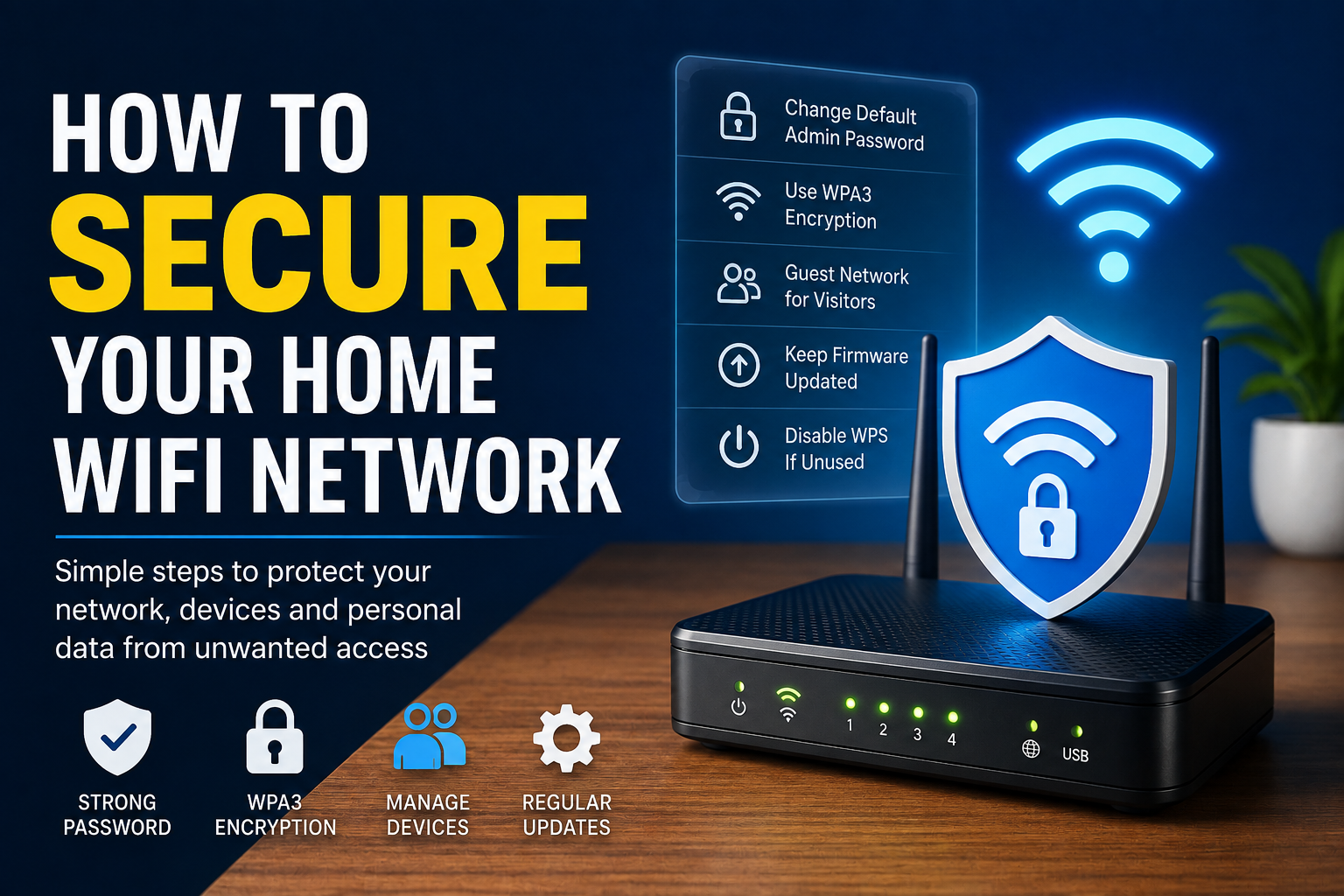
A home WiFi network is something most of us use every day without thinking much about security. Our phones, laptops, smart TVs, cameras, printers, and other devices may all depend on the same wireless connection. Because so many devices are connected, I believe securing your home WiFi network should be part of basic digital security.
A weak WiFi network can create unnecessary risks. Someone nearby may try to connect to it, access shared devices, use your internet connection, or take advantage of security weaknesses in an outdated router. The good news is that you do not need to be a networking expert to improve your WiFi security.
In this guide, I will explain how to secure your home WiFi network using practical steps that are easy to follow. These tips can help protect your network, connected devices, and personal information from unwanted access.
Why Home WiFi Security Matters
Your router is more than a device that provides internet access. It acts as a central connection point between your home devices and the internet.
When your phone, computer, smart TV, and other devices connect through the same router, the router becomes an important part of your home security.
I always recommend treating the router as seriously as you treat your computer or smartphone. If the router uses weak settings, your entire network may be less protected.
Good WiFi security starts with a few basic changes and regular maintenance.
Change the Default Router Password
One of the first things I recommend doing is changing the router’s default administrator password.
Many routers come with a standard username and password when they are first installed. Leaving these details unchanged can make it easier for someone to access the router’s administration settings.
The administrator password is different from your normal WiFi password. It controls access to the router’s settings, so it should be strong and unique.
Choose a long password that you do not use for any other account.
Create a Strong WiFi Password
Your WiFi password is another important part of network security.
Avoid using simple passwords such as your name, phone number, house number, birthday, or common words. These can be easier to guess.
I prefer using a long password or passphrase that is difficult for others to predict.
If your router supports modern security standards, use the strongest option available that is compatible with your devices.
Do not share your WiFi password publicly or give it to people who do not need long term access.
Use WPA3 Encryption
Modern routers may support WPA3, which provides stronger wireless security than older standards.
If your router and devices support WPA3, I recommend using it. Some routers may also offer a mixed mode that allows older devices to connect while still supporting newer security features.
Avoid using outdated security methods when your router provides newer options.
You can usually find wireless security settings inside your router’s administration panel.
Change the Default WiFi Network Name
Your WiFi network name, also known as the SSID, can reveal information about your router or internet provider.
Changing the default network name is not a complete security measure, but it can make your network less identifiable.
I recommend choosing a simple name that does not reveal your address, family name, phone number, or other personal information.
Remember that hiding the network name is not a replacement for strong encryption and a strong password.
Keep Router Firmware Updated
Router manufacturers release firmware updates to improve performance and fix security problems.
An outdated router may contain vulnerabilities that have already been addressed by the manufacturer.
Check your router’s administration settings for firmware updates. Some modern routers support automatic updates, which can make maintenance easier.
If your router does not update automatically, check periodically for new firmware.
Keeping the router updated is one of those simple maintenance tasks that can provide an important security benefit.
Create a Guest WiFi Network
If your router supports a guest network, consider using it for visitors.
A guest network can help separate visitors’ devices from your main home network. This can be particularly useful when you regularly have friends, relatives, or other guests connecting to your WiFi.
I prefer using a guest network rather than giving everyone the main WiFi password.
You can also use the guest network for certain smart devices when appropriate, depending on your router’s features and your security requirements.
Review Connected Devices
Your router may provide a list of devices currently connected to your network.
Check this list occasionally and look for devices you recognize.
You may see phones, computers, televisions, printers, smart speakers, cameras, and other equipment. Some device names may not be obvious, so take a little time to identify unfamiliar entries before assuming something is wrong.
If you find a device that you cannot identify, investigate it. If necessary, change your WiFi password and reconnect your trusted devices.
Regularly reviewing connected devices helps you understand what is actually using your network.
Disable WPS If You Do Not Need It
Some routers include WiFi Protected Setup, commonly known as WPS.
WPS was designed to make connecting devices easier, but if you do not use it, consider disabling it when your router allows you to do so.
The exact options depend on the router model.
I generally prefer keeping unnecessary features disabled because fewer active features can mean fewer things that need to be managed.
Disable Remote Router Administration When Unnecessary
Some routers allow administrators to access the router settings from outside the home network.
Remote administration can be useful in certain situations, but most home users do not need it.
If you do not require remote management, consider disabling it through the router settings.
This can reduce the number of ways someone outside your home network can attempt to reach the router administration interface.
Protect Your Router Physically
WiFi security is not only about passwords and software.
Where you place the router also matters.
Keep the router in a secure location where strangers or visitors cannot easily access its physical buttons, cables, or reset controls.
Someone with physical access to certain networking equipment may be able to reset the device or interfere with its settings.
A central location is often useful for WiFi coverage, but security should also be considered when choosing the placement.
Keep Your Devices Updated
Securing your router is only one part of protecting your home network.
Every device connected to the network should also be maintained.
Keep your phone, computer, smart TV, security camera, printer, and other connected devices updated whenever possible.
Security weaknesses can exist in individual devices, even when the router itself is configured correctly.
I recommend turning on automatic updates when they are available from trusted manufacturers.
Be Careful With Smart Home Devices
Smart home devices can make life more convenient, but they also increase the number of devices connected to your network.
Smart bulbs, cameras, speakers, appliances, televisions, and other devices should use strong passwords and updated software whenever possible.
Remove devices that you no longer use.
If your router provides network separation features, you may also consider placing certain smart devices on a separate network or guest network.
This can help reduce the potential impact if one device becomes compromised.
Avoid Sharing Your Main WiFi Password
It is normal to share WiFi with guests, but I recommend avoiding unnecessary sharing of your main network password.
A guest network is usually a better option.
If many people know your main WiFi password, it becomes difficult to control who can access your network.
If you suspect that your password has been shared too widely, change it and reconnect your trusted devices.
Restarting the Router Is Not a Complete Security Solution
You may have heard that restarting your router can improve security.
Restarting can sometimes resolve technical problems, but it should not be considered a complete security strategy.
A router with an old password, outdated firmware, weak encryption, or unnecessary remote access remains poorly configured after a restart.
Instead of relying on occasional restarts, focus on proper security settings and regular maintenance.
What to Do If You Suspect Unauthorized Access
If you believe someone has accessed your home WiFi without permission, start by changing the WiFi password and router administrator password.
Then check the connected device list and remove or block unfamiliar devices if your router supports that option.
Make sure the router firmware is updated and review security settings such as encryption, WPS, guest access, and remote administration.
You should also check important devices connected to the network for unusual activity.
If you continue seeing unfamiliar connections, consider resetting the router and configuring it again using secure settings.
Simple Home WiFi Security Checklist
A secure home WiFi network does not require complicated equipment. Start with the basics.
Use a strong WiFi password.
Change the default router administrator password.
Use WPA3 when supported.
Keep router firmware updated.
Create a guest network for visitors.
Review connected devices regularly.
Disable WPS if you do not need it.
Disable remote administration when unnecessary.
Keep connected devices updated.
Remove devices you no longer use.
These steps can significantly improve the security of an average home network.
Final Thoughts
Learning how to secure your home WiFi network is one of the simplest ways to improve your overall digital security.
In my opinion, the most important steps are changing the default router password, creating a strong WiFi password, using modern encryption such as WPA3, keeping firmware updated, and regularly checking connected devices.
I also recommend using a guest network for visitors and disabling features you do not need.
Your home network connects many parts of your digital life, so it deserves regular attention. You do not have to change settings every day. A security review every few months, along with regular software updates, can make a meaningful difference.
The most important thing is to avoid leaving your router with its factory settings indefinitely. Take some time to configure it properly, keep it updated, and monitor the devices connected to your network.
Once these habits become part of your normal routine, securing your home WiFi network becomes much easier.