Location access is one of the most useful permissions on a smartphone, but I believe it is also one of the permissions that deserves more attention. Many apps ask for location access even when their main purpose does not seem to require it. Once location permission is granted, an app may be able to use your location while you are using it or, depending on the permission you selected, even when you are not actively using the app.
In my experience, checking app permissions regularly is a simple way to improve smartphone privacy without making the phone difficult to use. You do not have to disable location completely. Instead, you can decide which apps actually need your location and which ones do not.
In this guide, I will explain how to stop apps from accessing your location on Android and iPhone. I will also cover location permission settings, background location access, approximate location, and some simple privacy practices that can help keep your location information under better control.
Why Should You Stop Apps From Accessing Your Location?
Location information can reveal a lot about your daily activities. It can show places you visit, your approximate home area, your workplace, shopping locations, and other places you regularly travel to.
Some apps genuinely need location access. Navigation apps are an obvious example because they need your location to provide directions. Weather apps may also use location to provide local forecasts.
However, not every app needs this information.
For example, a simple calculator, flashlight, notes app, or basic photo editing application usually has little reason to know where you are. If an app does not need your location to provide its main features, I prefer to deny the permission.
Controlling location access does not mean that you need to stop using location services. It simply means you are choosing which applications can use them.
How to Stop Apps From Accessing Location on Android
Android phones from different manufacturers can have slightly different menus, but the basic process is similar.
Start by opening the Settings app on your Android phone.
Look for Location or search for Location using the Settings search bar. Open the location settings and then look for an option related to App location permissions, App permissions, or App access to location.
You should see a list of applications that have requested location access.
Tap an app that you want to review. Depending on your Android version, you may see options such as:
Allow all the time
Allow only while using the app
Ask every time
Allow once
Don’t allow
The exact options can vary between Android versions and phone manufacturers.
If you do not want the app to access your location at all, choose Don’t allow.
After changing the permission, the app will no longer be able to use your device location through that permission.
Choose While Using the App When Appropriate
Sometimes I do not want to completely block an app from accessing location because the feature is useful. In that situation, choosing Allow only while using the app can be a good compromise.
For example, a navigation application needs your location when you are using it for directions. A shopping application may use location to find nearby stores. A weather application can use location when you open it to display local weather information.
Giving an app location access only while you are actively using it can reduce unnecessary background access.
This is one of the settings I recommend checking carefully because it gives you useful functionality while providing more control over your privacy.
How to Stop Apps From Accessing Location on iPhone
If you use an iPhone, you can control location access through the Privacy and Security settings.
Open Settings and select Privacy & Security.
Next, tap Location Services.
You will see a list of applications that have requested access to your location.
Select an app to view its available location permission options.
Depending on the app and your iPhone settings, you may see options such as Never, Ask Next Time Or When I Share, While Using the App, and Always.
If you want to completely stop an application from accessing your location, choose Never.
If you still want the application to use your location when you are actively using it, choose While Using the App.
This gives you control over individual applications instead of turning location services off for the entire iPhone.
Turn Off Background Location Access
One setting that I think deserves special attention is background location access.
Some applications may request permission to access your location even when you are not actively using them. There can be legitimate reasons for this. For example, certain navigation, safety, automation, or tracking features may require background access.
But if you do not need those features, there is usually little reason to give an app continuous access.
On Android, review apps that have permission to access location all the time. If an app does not genuinely need this feature, change its permission to Allow only while using the app or Don’t allow.
On iPhone, check which applications have Always location access and consider changing unnecessary permissions.
This simple review can make a meaningful difference to your location privacy.
Use Approximate Location When Possible
Modern smartphones can provide more precise location information than many apps actually need.
Some phones allow you to choose between precise and approximate location access.
If an app only needs to know your general area, approximate location may be enough.
For example, a weather application may not need your exact position down to a few meters. Knowing your general area can be sufficient for providing a local forecast.
Using approximate location where appropriate is another useful privacy step.
I personally think this is a good option for apps where exact location is unnecessary but some location based functionality is still useful.
Review Location Permissions Regularly
Changing location permissions once is helpful, but I recommend reviewing them from time to time.
The reason is simple. We install and remove apps regularly. An application that seemed trustworthy several months ago may no longer be installed, while a newly installed app may have requested several permissions.
Open your phone’s location permission settings and go through the list.
Ask yourself a few basic questions.
Does this app really need my location?
Do I use the feature that requires location?
Does the app need location access all the time?
Would approximate location be enough?
If you cannot think of a good reason for an app to access your location, disabling the permission is worth considering.
Remove Location Permission From Unused Apps
Unused applications are another area I like to check.
If you have an app installed that you rarely use, there is little benefit in leaving unnecessary permissions active.
Depending on your phone and Android version, you may also have privacy features that automatically reset permissions for unused applications.
If you no longer need an application, uninstalling it is an even simpler solution.
Removing unused apps can reduce the number of applications that have access to personal information and can also free up storage space.
Be Careful When Installing New Apps
Location privacy starts before an application receives permission.
When installing a new app, pay attention to the permissions it requests. If a simple app immediately asks for location, contacts, microphone, camera, and other sensitive permissions, I recommend taking a moment to think about whether those permissions make sense.
You do not have to approve every permission request just because the application asks for it.
Modern Android and iPhone systems allow users to make these choices. Use those controls instead of automatically selecting Allow.
If an app cannot provide its main function without a permission that seems unnecessary, you can also consider finding an alternative application.
What Happens When You Deny Location Permission?
In most cases, denying location permission only affects features that depend on location.
For example, a weather application may not automatically show weather for your current area. A map application may not be able to determine your current position. Other apps may simply continue working normally.
If an application needs location for a particular feature, it may ask for permission again when you use that feature.
There is no need to worry that denying location permission will damage your phone. It is a normal privacy control built into modern mobile operating systems.
Should You Turn Off Location Services Completely?
I do not recommend turning off location services completely unless you have a specific reason to do so.
Location services can be useful for navigation, emergency features, weather information, finding a lost device, transportation apps, and many other everyday tasks.
Instead of disabling everything, I prefer controlling location permission for individual applications.
This approach gives you a better balance between convenience and privacy.
You can keep location services available while preventing unnecessary applications from accessing your location.
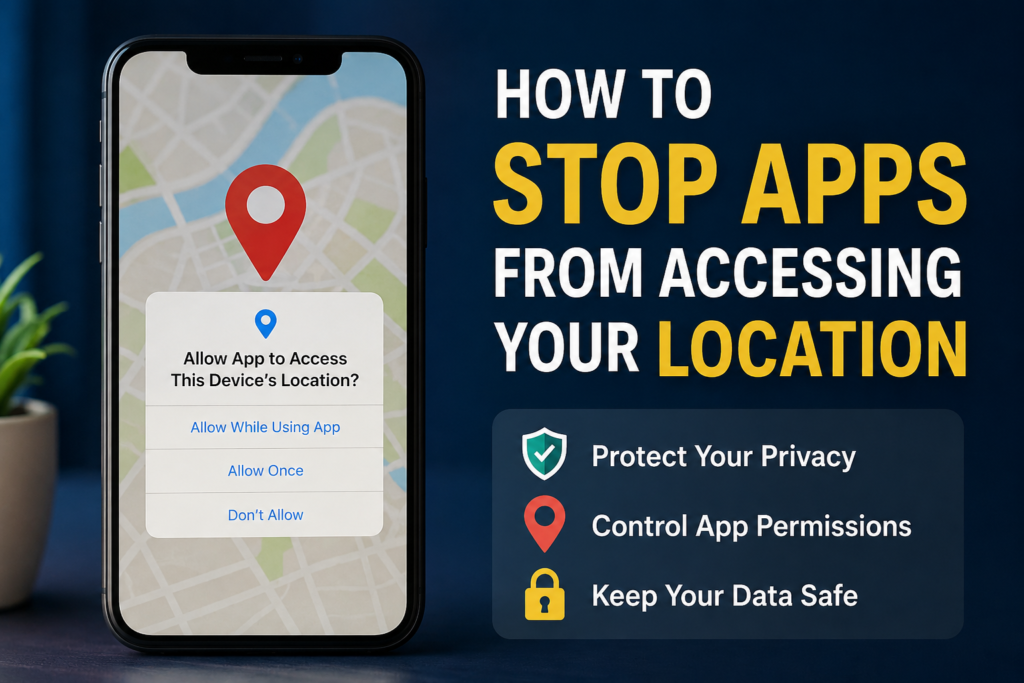
Check Your Location Privacy Today
If you have never reviewed your location permissions, now is a good time to do it.
Open your phone’s Settings and find the Location or Location Services section. Go through your applications one by one. Disable location access for apps that do not need it. For useful apps, consider choosing while using the app instead of allowing continuous access.
Also check whether your phone offers approximate location and use it when exact location is unnecessary.
These changes only take a few minutes, but they can give you much more control over your personal information.
Final Thoughts
Learning how to stop apps from accessing your location is one of the easiest smartphone privacy improvements you can make. You do not need advanced technical knowledge, and you do not have to stop using useful location based features.
The main idea is simple. Give location permission only when an application genuinely needs it.
For Android users, review app location permissions through Settings and change unnecessary access to Don’t allow or Allow only while using the app. On iPhone, use Privacy & Security and Location Services to manage access for individual applications.
I believe the best privacy approach is not to disable every feature but to understand what your phone is sharing and make your own choices. A few minutes spent reviewing location permissions can help you keep better control over your location data while still enjoying the features you actually need.
:::