Android phones have become an important part of everyday life. We use them for banking, messaging, photography, shopping, navigation, entertainment, and many other tasks. Because of this, our phones contain a lot of personal information. This is where Android app permissions become important.
In my experience, many Android users simply tap Allow whenever an app asks for permission. It may save a few seconds, but it can also give an app access to information or phone features that it does not really need. Understanding Android app permissions gives you much better control over your privacy and security.
In this complete guide, I will explain what Android app permissions are, why they matter, the different types of permissions, how to check them, and how to manage them safely.
What Are Android App Permissions?
Android app permissions are controls that determine what an application can access on your phone. When you install or use an app, it may request access to certain features or information.
For example, a camera application normally needs access to your camera. A navigation application may need your location. A messaging application may need access to your contacts or microphone for certain features.
The important thing is that an app should only receive the permissions it genuinely needs. If an application requests access to something unrelated to its main purpose, I recommend taking a moment to think before allowing it.
Android has improved its permission system over time. Modern Android versions give users more choices and better control over sensitive information.
Why Android App Permissions Are Important
The main reason Android app permissions matter is privacy. Your smartphone can contain photographs, contacts, messages, location information, microphone access, and other personal data.
Giving unnecessary permissions can increase your privacy risk. For example, a simple utility application may not need access to your contacts or microphone. If you give it those permissions without checking, you may be sharing more information than necessary.
I personally believe that checking permissions is one of the simplest Android security habits. You do not need to be a technical expert. You simply need to understand what an app is asking for and decide whether that access makes sense.
Permissions also help Android control access to important hardware and system features. Instead of allowing every application to access everything automatically, Android gives users the ability to approve or deny certain requests.
Common Android App Permissions
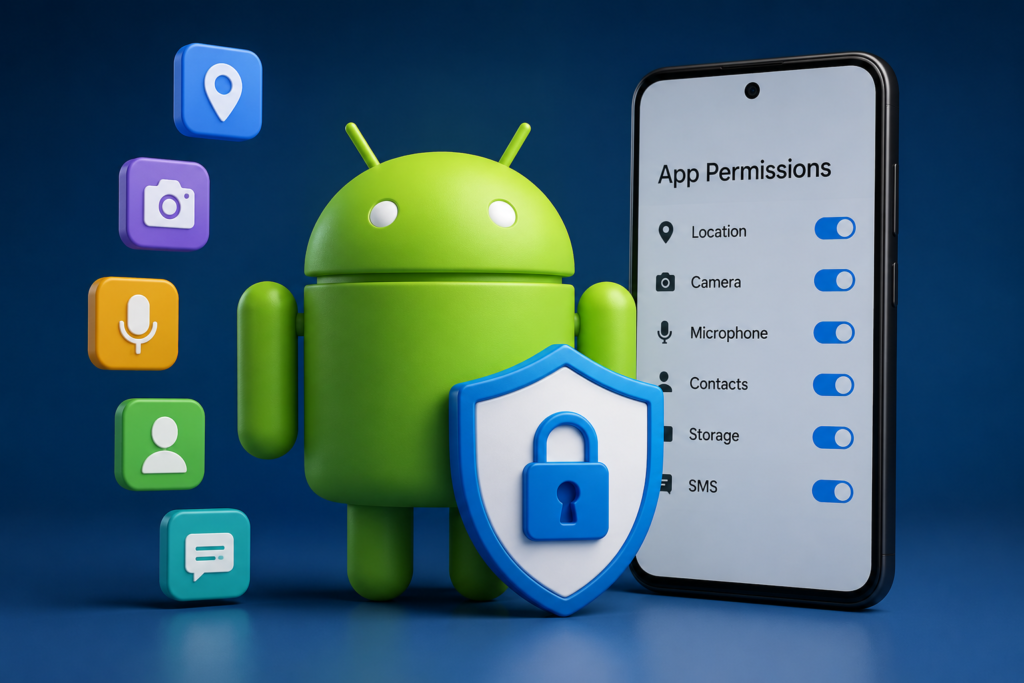
There are several common permissions you may see while using Android apps. Some are more sensitive than others.
Camera Permission
Camera permission allows an application to use your phone camera. Social media, video calling, photography, and scanning applications may legitimately need this permission.
If a calculator or simple notes application asks for camera access, I would carefully consider whether the permission is actually necessary.
Microphone Permission
Microphone permission allows an app to record audio through your phone microphone.
Voice calling, video calling, voice recording, and assistant applications may need microphone access. However, I recommend reviewing this permission carefully because the microphone is a sensitive part of your phone.
Location Permission
Location permission allows an application to access your device location. Navigation, weather, transportation, and some shopping applications can use location information to provide useful features.
Android may give you options such as allowing location access only while using the app, allowing access in certain situations, or denying access.
Whenever possible, I prefer giving an app the minimum location access it needs.
Contacts Permission
Contacts permission allows an app to access names, phone numbers, and other contact information stored on your device.
Messaging and communication applications may have a reasonable reason to request contacts. Other applications may not need this information at all.
Photos and Videos Permission
Many applications request access to photos and videos so you can upload or share media.
Before granting access, check whether the app actually needs your entire media library or whether Android provides a more limited option on your device.
SMS Permission
SMS access can be highly sensitive because text messages may contain private conversations or verification codes.
Only allow SMS access when the application has a clear reason to use it and you trust the application.
How to Check App Permissions on Android
Checking Android app permissions is relatively simple, although the exact menu names can vary depending on your phone manufacturer and Android version.
Usually, you can follow these steps:
- Open Settings on your Android phone.
- Tap Apps or Applications.
- Select the application you want to check.
- Tap Permissions.
- Review the permissions that are allowed or denied.
- Select a permission to change its access.
Some Android phones may use slightly different names, but the basic process is usually similar.
I recommend checking applications that you rarely use as well as applications that have access to sensitive information.
How to Manage Android App Permissions
Managing permissions does not mean denying everything. Instead, the goal is to give applications appropriate access.
If an app needs your camera for a feature you are actively using, allowing camera access makes sense. If you are not using that feature, you may be able to deny or limit the permission.
Look through the permission list and ask yourself one simple question: Does this application really need this access?
If the answer is no, consider changing the permission.
Allow Permissions Only When Needed
One of the best Android privacy practices is to avoid giving permanent access when it is not necessary.
Depending on the Android version and permission type, you may see options such as allowing access only while using an app. This can be useful for location, microphone, and camera permissions.
For example, if I open a map application for directions, location access makes sense while I am using the application. I do not necessarily want every application to have constant access to my location.
Using temporary or limited permissions whenever appropriate can reduce unnecessary access.
Review Permissions for Unused Apps
Many people install applications and forget about them. An app may remain on the phone for months even though it is rarely opened.
I recommend reviewing permissions for applications you no longer use. If an application does not need access to sensitive features, revoke the permission or uninstall the application if you no longer need it.
Some Android versions can also automatically reset permissions for apps that have not been used for a while. This feature can provide an additional layer of privacy.
Be Careful With Location Permissions
Location information can reveal a lot about your daily activities. It can show where you live, work, shop, or spend your free time.
That is why I recommend being selective with location permissions.
If an app only needs your location while you are actively using it, an option that limits access to that period may be more appropriate than constant access.
You should also consider whether an application actually needs precise location. When an approximate location is enough for the feature, using a less precise option can provide additional privacy.
What Happens When You Deny a Permission?
Denying a permission does not necessarily mean that the application will stop working completely.
Sometimes only one feature will be affected. For example, if you deny camera access to a social media application, you may still be able to view content but may not be able to take a photo directly through the app.
If an important feature does not work, Android may ask you for permission again. You can then decide whether you want to provide access.
This is why I do not recommend automatically approving every request. It is better to understand what feature requires the permission.
How to Identify Suspicious Permission Requests
A permission request deserves extra attention when it does not match the purpose of the application.
For example, imagine installing a basic flashlight application that requests access to contacts, microphone, and location. Those requests may not make much sense for the core function of a flashlight.
This does not automatically prove that an application is malicious, but it is a reason to investigate further.
Before installing an unfamiliar application, check its developer information, reviews, update history, and reputation. Download applications from trusted sources whenever possible.
Android Permission Manager
Many modern Android phones include a permission manager that allows you to see which applications have access to particular types of information.
You may be able to open the permission manager and select categories such as camera, microphone, location, contacts, or other sensitive permissions.
This is useful because instead of checking applications one by one, you can review which apps have access to a specific feature.
For example, if you select microphone permissions, you can see which applications currently have microphone access and decide whether each one still needs it.
Android App Permissions and Privacy
Privacy is not only about avoiding dangerous applications. It is also about controlling how much information you share.
I believe Android app permissions should be treated as a privacy tool rather than an inconvenience. When you understand permissions, you can use applications comfortably while keeping unnecessary access under control.
You do not need to deny every permission. Some applications simply cannot provide their main features without certain access. The important thing is to understand the relationship between the permission and the feature.
Tips for Better Android Permission Security
Here are some simple habits I recommend:
- Check permissions when installing unfamiliar apps.
- Review sensitive permissions regularly.
- Avoid granting access that an app does not need.
- Use limited access options when available.
- Review location permissions carefully.
- Remove permissions from apps you no longer use.
- Uninstall applications that you no longer need.
- Keep Android updated.
- Download apps from trusted sources.
- Pay attention when an app suddenly requests a new sensitive permission.
These steps do not require advanced technical knowledge. They simply make you more aware of what is happening on your phone.
Final Thoughts
Android app permissions are an important part of smartphone privacy and security. They allow you to control which applications can access your camera, microphone, location, contacts, photos, messages, and other features.
From my point of view, the best approach is not to deny every permission or blindly allow everything. Instead, understand why an app needs access and provide only the permissions that make sense.
I recommend checking your Android app permissions regularly, especially for applications you rarely use. A few minutes spent reviewing these settings can help you maintain better control over your personal information.
If you make permission management a regular Android habit, you can enjoy your favorite applications while taking a more responsible approach to privacy and security.