High CPU usage in Windows 11 is a problem I often see when a computer suddenly becomes slow, applications take longer to open, fans start running loudly, or the system feels hot even when nothing serious seems to be happening. Sometimes the CPU reaches 100 percent for a short time and returns to normal, while in other cases it stays high for a long period.
The good thing is that high CPU usage does not always mean that your processor is failing. Windows 11 runs many background services, security scans, updates, and applications that can temporarily increase CPU usage. The real problem starts when CPU usage stays unusually high for a long time and affects normal computer performance.
In this guide, I will explain the practical solutions I would personally try when dealing with Windows 11 high CPU usage. The steps start with simple checks and gradually move toward more advanced solutions.
What Causes High CPU Usage in Windows 11?
There is no single reason behind high CPU usage. Different computers can experience the problem for completely different reasons.
A background application may be using too many resources. Windows Update may be installing something in the background. Windows Security may be performing a scan. A browser with many open tabs can also consume a considerable amount of CPU.
Outdated drivers, corrupted system files, unnecessary startup programs, malware, overheating, and poorly optimized applications can also contribute to high CPU usage.
Sometimes the CPU percentage is high because you are performing a demanding task. Gaming, video editing, 3D rendering, compiling software, and other intensive activities can naturally push CPU usage much higher.
For this reason, I would not worry about a temporary increase to 80 or 100 percent. The important thing is whether the CPU remains high when the computer is mostly idle.
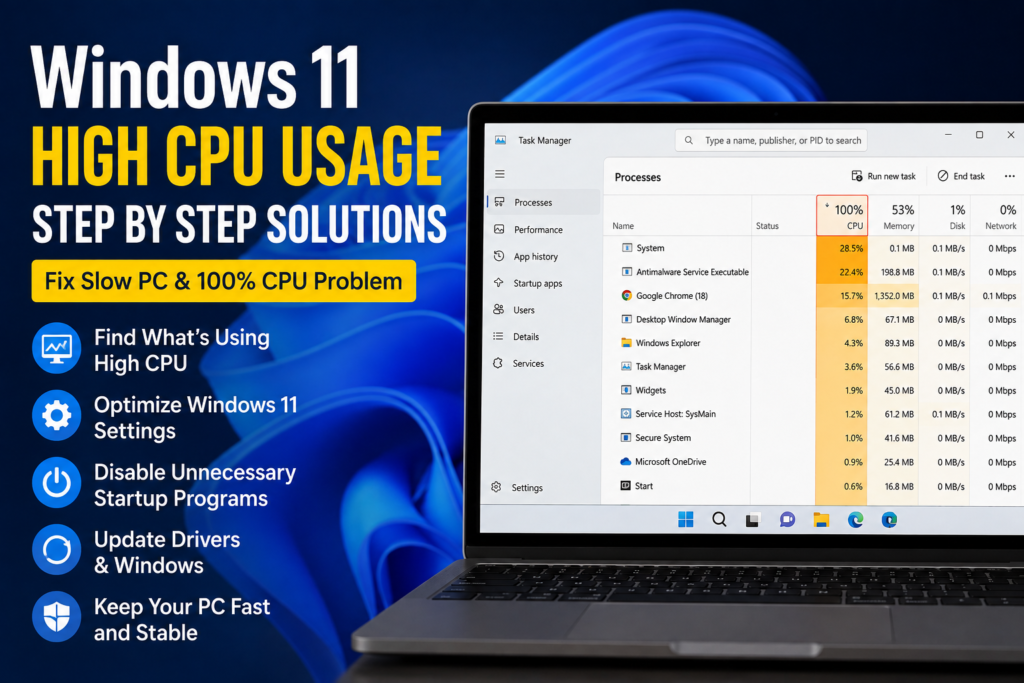
Check CPU Usage in Task Manager
The first thing I recommend doing is checking which application is actually using the CPU.
Press Ctrl + Shift + Esc to open Task Manager.
If necessary, click More details and open the Processes section.
You should see a CPU column showing how much processing power different applications and services are using.
Click the CPU column to sort the list by usage.
Now look at the applications near the top.
If Google Chrome, a game, video editor, antivirus software, or another application is using a large percentage of the CPU, you may have already found the reason for the slowdown.
Do not immediately end an unfamiliar Windows process. Some system processes are essential for Windows to operate correctly.
Instead, identify the application first and search for a safe solution based on that specific program.
Restart Your Windows 11 PC
It may sound too simple, but restarting Windows can solve temporary high CPU usage.
Background processes sometimes become stuck or continue consuming resources longer than they should. A restart closes running applications and reloads Windows services.
If CPU usage returns to normal after restarting, monitor the computer for a while.
If the problem comes back every time you start a particular application, that application deserves further investigation.
Close Unnecessary Applications
Having many applications open at the same time can put unnecessary pressure on your processor.
Check your taskbar and Task Manager and close programs you are not currently using.
Browsers can be particularly demanding. Multiple tabs, extensions, video playback, web applications, and background browser processes can all contribute to CPU usage.
If your computer has limited hardware, keeping the number of simultaneously running applications under control can make a noticeable difference.
Disable Unnecessary Startup Apps
Many programs automatically launch when Windows starts. Some are useful, but others continue running in the background even when you do not need them.
Open Task Manager and select Startup apps.
Review the applications listed there.
If you see a program that you rarely use and it has a high startup impact, consider disabling it.
This does not uninstall the program. It simply prevents it from automatically starting with Windows.
I recommend keeping important security software and hardware utilities enabled unless you are certain that disabling them is safe.
Reducing unnecessary startup applications can improve both startup performance and background CPU usage.
Check Windows Update
Windows 11 regularly performs updates in the background. During an update, CPU and disk usage can temporarily increase.
Open Settings > Windows Update and check whether Windows is downloading or installing an update.
If an update is waiting to be installed, allow Windows to complete the process and restart your computer.
After the update finishes, check CPU usage again.
If the computer remains at high CPU usage for a long time after an update, there may be another issue that needs investigation.
Update Your Device Drivers
Drivers are an important part of Windows performance.
An outdated or incompatible driver can sometimes cause excessive CPU usage. Graphics, chipset, network, storage, and other hardware drivers can all influence system behavior.
Open Device Manager and check for devices showing warning symbols.
You can also visit your laptop or motherboard manufacturer’s official support website to look for updated drivers designed specifically for your hardware.
I prefer manufacturer provided drivers because they are generally tested for the specific device.
After installing important driver updates, restart Windows and check whether CPU usage has improved.
Check Windows Security and Antivirus Activity
Windows Security can use significant CPU resources while performing security scans.
If you notice that Antimalware Service Executable is using a large amount of CPU, Windows Security may be performing a scan or another security task.
Give the scan some time to finish and then check CPU usage again.
Do not disable antivirus protection simply because it temporarily increases CPU usage. Security software is important, and temporary resource usage during a scan is usually preferable to leaving the computer unprotected.
If CPU usage remains unusually high for a long time, investigate whether another application or security configuration is responsible.
Remove Unnecessary Applications
Old applications that you no longer use can sometimes continue running background services.
Open Settings > Apps > Installed apps and review your installed programs.
Uninstall applications you no longer need, particularly software that you do not recognize or remember installing.
Be careful with unknown programs. If you are unsure whether an application belongs to Windows or your computer manufacturer, research it before removing it.
Keeping your system clean can reduce unnecessary background activity.
Scan for Malware
Malware can sometimes consume CPU resources without making its activity obvious.
If CPU usage remains high and you cannot identify a legitimate application causing it, run a security scan.
Windows Security provides built in protection that can scan your computer for threats.
Open Windows Security, go to Virus & threat protection, and run a scan.
If you suspect a serious infection, a more comprehensive scan may be appropriate.
Avoid downloading suspicious PC optimization programs that claim to instantly reduce CPU usage. Some of these programs can create additional problems.
Check for Overheating
High temperatures can affect computer performance and stability.
If your fans are constantly running loudly, your laptop feels extremely hot, or the computer slows down after heavy use, overheating may be contributing to the problem.
Make sure the cooling vents are not blocked.
For laptops, avoid using the device on soft surfaces such as beds or thick blankets because they can restrict airflow.
Desktop users should also make sure that the case has adequate airflow.
Dust buildup can reduce cooling efficiency. Cleaning the cooling system carefully can help, although users who are not comfortable opening their computers should consider professional cleaning.
Reduce Background Activity
Windows 11 includes many features that can run in the background.
Cloud synchronization applications, messaging programs, widgets, browser processes, and other services can all consume CPU resources.
Check which applications are active in Task Manager and close programs you do not need.
If a specific application repeatedly causes high CPU usage, check its own settings for options related to background activity, automatic startup, synchronization, or scheduled tasks.
This approach is usually better than disabling random Windows services.
Repair Corrupted Windows System Files
Corrupted system files can sometimes cause unusual Windows behavior, including high CPU usage.
Windows includes built in commands that can check and repair certain system files.
Open Command Prompt as administrator and use the System File Checker tool.
Allow the scan to complete and follow any instructions Windows provides.
Afterward, restart the computer and check CPU usage.
If Windows finds damaged files and successfully repairs them, monitor the system to see whether the problem has disappeared.
Check Power Mode
Windows 11 provides different power related settings that can affect performance.
Open Settings > System > Power & battery and review the available power mode options.
If your system is configured for maximum performance, the processor may remain more active than necessary in some situations.
If you mainly use your computer for browsing, documents, and everyday tasks, a balanced power configuration can provide a good combination of performance and efficiency.
On laptops, power settings can also affect battery life and heat generation.
Perform a Clean Boot
If you have tried the basic solutions and CPU usage is still high, a clean boot can help identify third party software conflicts.
A clean boot starts Windows with a limited set of services and startup applications.
If CPU usage becomes normal during a clean boot, a third party program or service is likely contributing to the problem.
You can then gradually enable services and startup applications until you identify the problematic software.
This method takes a little time, but it can be very useful when the source of high CPU usage is difficult to identify.
When Is High CPU Usage Normal?
It is important to remember that 100 percent CPU usage is not automatically a problem.
If you are rendering a video, installing software, playing a demanding game, or performing another intensive task, high CPU usage can be completely normal.
The problem is more concerning when CPU usage remains extremely high while the computer is doing almost nothing.
For example, if your PC is sitting on the desktop with no demanding applications open and CPU usage remains close to 100 percent for a long time, further investigation is justified.
Final Thoughts
Windows 11 high CPU usage can make a computer feel slow, hot, and frustrating to use, but there are several practical ways to troubleshoot it.
I would always begin with Task Manager because it gives you a clear idea of what is consuming your processor. From there, restart the PC, close unnecessary applications, review startup programs, install Windows and driver updates, check for malware, and make sure the computer is not overheating.
If the problem continues, system file repair, background application management, power settings, and a clean boot can help narrow down the cause.
The most important thing is to avoid making random changes to Windows. Find the process that is consuming the CPU first, then work toward the specific cause.
In many cases, high CPU usage can be resolved without upgrading the computer or reinstalling Windows. A little investigation and a step by step approach can often bring CPU usage back to normal and make your Windows 11 PC feel fast and responsive again.