The camera is one of the most important features on any Android phone. I use my phone camera for photos, videos, documents, video calls, and many other everyday tasks. That is why it can be frustrating when the Android camera suddenly stops working.
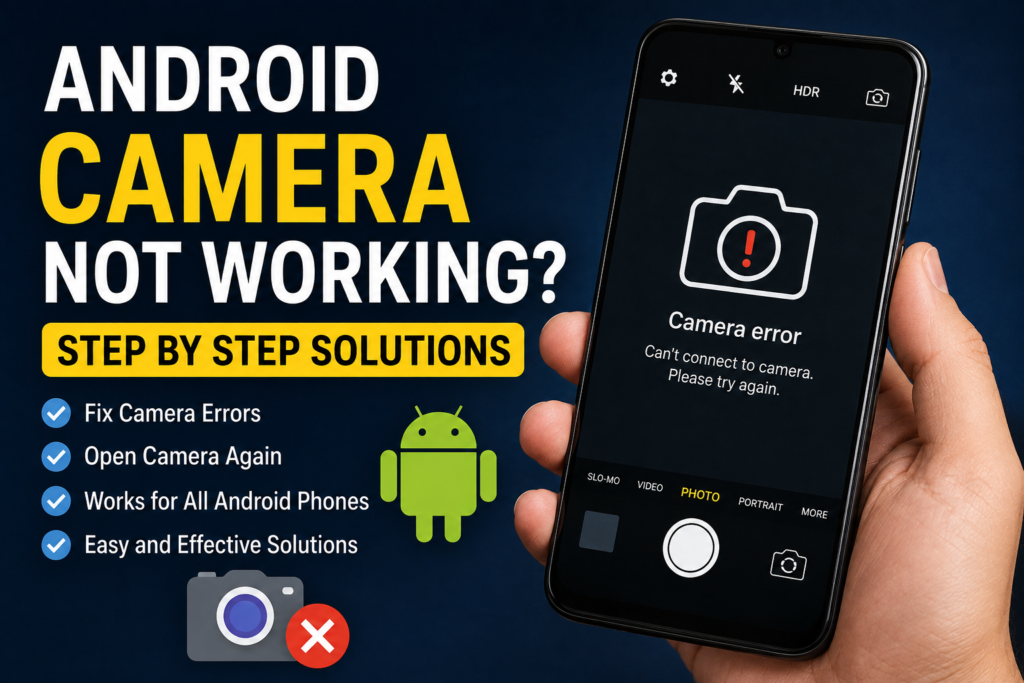
Sometimes the camera app refuses to open. In other cases, you may see a black screen, a camera error message, blurry images, or the camera may close immediately after opening. The good thing is that many Android camera problems can be fixed without taking the phone to a repair shop.
In this guide, I will share the solutions I would personally try when an Android camera is not working. I recommend starting with the easiest methods and moving toward the more advanced solutions only if the problem continues.
Why Is My Android Camera Not Working?
There are several reasons why the Android camera may stop working properly.
A temporary software problem can prevent the camera application from opening. The camera permission may also have been disabled. In some cases, another application may already be using the camera in the background.
Other common causes include corrupted camera cache, outdated Android software, low storage, overheating, problematic applications, or a physical hardware problem.
If the camera stopped working after installing an application or updating the phone, that timing can also provide an important clue.
Restart Your Android Phone
The first solution I recommend is restarting the phone.
A simple restart can clear temporary software problems and close background processes that may be interfering with the camera.
Press and hold the power button and choose Restart. Once the phone starts again, open the Camera app and test it.
This is a very basic solution, but I always recommend trying it before changing important settings. Sometimes Android simply needs a fresh start.
Close Other Apps Using the Camera
Another application may already be using your phone camera.
Video calling apps, social media applications, scanning apps, and other camera based tools can sometimes keep camera services active.
Open your recent applications and close everything you are not currently using. Then open the Camera app again.
If the camera starts working, another application may have been responsible for the problem.
Check Camera Permissions
Android gives you control over which applications can access the camera. If camera permission has been disabled, an application may not work correctly.
Open Settings and go to Apps. Select the Camera app and look for Permissions.
Make sure Camera permission is allowed.
The exact menu names can vary depending on the Android phone you use. Some phones may place permissions under Privacy or Permission Manager.
After allowing the required permission, close the Camera app and open it again.
Force Stop the Camera App
If the Camera app has become stuck, force stopping it can give it a clean start.
Open Settings, go to Apps, and select Camera. Tap Force Stop and confirm the action if your phone asks.
Wait a few seconds and then open the Camera app again.
I find this method useful when the camera opens but becomes unresponsive or suddenly freezes.
Clear the Camera Cache
Corrupted temporary files can sometimes cause camera problems.
Android allows you to clear the Camera app cache without normally removing your personal photos and videos.
Go to Settings, then Apps, and select Camera. Open Storage or Storage and cache and tap Clear Cache.
After clearing the cache, open the camera again.
The first launch may take slightly longer because Android needs to create fresh temporary files.
Clear Camera App Data
If clearing the cache does not help, you can consider clearing the Camera app data.
This is a stronger troubleshooting step because it resets the camera application’s stored settings.
Open Settings, go to Apps, select Camera, then Storage. Look for Clear Data or Clear Storage.
The wording varies between Android manufacturers.
Before using this option, remember that it may reset your camera settings. Your existing photos and videos are normally stored separately in your gallery, but you should still be careful and check the confirmation message on your particular phone.
Free Up Storage Space
Low storage can affect the normal operation of Android applications, including the camera.
When you take a photo or record a video, your phone needs available storage to save the file. If your storage is almost completely full, the camera may fail to capture or save media.
Open Settings and check your available storage.
Delete unnecessary downloads, duplicate files, unwanted videos, and applications you no longer use.
I personally recommend keeping some free storage available instead of waiting until the phone reaches its limit.
Check Whether the Phone Is Overheating
If your phone becomes extremely hot, some functions may temporarily become restricted.
The camera can be demanding because it uses the processor, display, image processing hardware, and storage at the same time.
If the camera stops working after gaming, recording long videos, charging, or using the phone heavily in hot weather, let the phone cool down.
Remove the case temporarily if it is holding in heat and avoid intensive use until the phone returns to a normal temperature.
Then test the camera again.
Update Android Software
An outdated Android version can sometimes create compatibility or stability problems.
Open Settings and check for a Software Update or System Update.
If an update is available, install it when you have enough battery and a reliable internet connection.
Android updates can include bug fixes and improvements that may resolve camera related problems.
I recommend keeping the operating system updated because updates are not only about new features. They can also improve security, compatibility, and overall stability.
Update Camera Related Apps
Your camera may also interact with other system applications and services.
Check the Google Play Store for available updates. Update the Camera application if your phone provides it through the Play Store.
Also update applications that use the camera, such as video calling, social media, document scanning, and messaging applications.
If the problem happens only inside one particular application, that application may need an update rather than the phone camera itself.
Test the Camera in Another App
This is one of my favorite troubleshooting methods because it can help identify where the problem is.
Open another application that uses the camera, such as a video calling or messaging application.
Try accessing the camera there.
If the camera works in another application but not in the default Camera app, the problem is probably related to the Camera application or its settings.
If the camera does not work anywhere, the issue may involve Android permissions, system software, or hardware.
Remove Recently Installed Applications
Think about whether the camera stopped working after installing a new application.
Some applications can interfere with camera services or permissions.
If you recently installed a camera utility, privacy application, security application, screen recorder, or another tool that uses camera functions, temporarily uninstall it.
Restart the phone and test the camera again.
If the problem disappears, you have a strong clue about what caused it.
Try Safe Mode
Safe Mode can help determine whether a third party application is causing the camera problem.
The exact method for entering Safe Mode differs between Android manufacturers. Usually, you can access it through the power menu or by using a specific button combination during startup.
Once the phone is in Safe Mode, test the camera.
If the camera works normally in Safe Mode, a third party application may be interfering with it.
Restart the phone normally and begin removing recently installed applications one at a time.
Check Your Camera Lens
Sometimes the problem is not software at all.
Look at the camera lens carefully. Dust, fingerprints, moisture, or a protective film can affect camera performance and image quality.
Clean the lens gently with a soft microfiber cloth.
If the camera produces blurry images but opens normally, a dirty lens may be the simple explanation.
Also check whether a thick phone case or poorly designed camera protector is covering part of the lens.
Check for Physical Damage
If your phone has recently been dropped, exposed to water, or suffered another physical accident, hardware damage may be responsible.
A damaged camera module can cause problems such as a black screen, focusing failure, unusual camera sounds, or an error when opening the camera.
In this situation, software troubleshooting may not solve the issue.
If the phone has visible damage or the camera stopped working immediately after an accident, professional inspection is the safer option.
Reset App Preferences
Android provides an option to reset app preferences on many devices.
This can restore certain default application settings and permissions without performing a complete factory reset.
You can usually find this option under Settings and Apps. The exact location varies by manufacturer.
This may help if an important system permission or application setting was accidentally changed.
Read the confirmation information carefully before resetting app preferences.
Reset Network and System Settings
If the camera problem occurs during video calls or other online applications, resetting certain system settings may sometimes help.
However, I would not reset settings randomly. Start with the camera specific solutions first.
If the issue is connected to a broader system problem, your phone may provide different reset options under System and Reset Options.
Always read what information will be affected before confirming a reset.
Factory Reset as a Last Option
A factory reset should be one of the final solutions.
If your Android camera does not work after trying software updates, permission checks, cache clearing, Safe Mode, and other troubleshooting methods, a factory reset may help identify whether the issue is software related.
However, a factory reset removes personal information, applications, settings, and other data.
Before performing one, create a complete backup of your photos, videos, contacts, documents, and other important files.
After the reset, test the camera before installing all your applications again.
If the camera still does not work after a clean factory reset, there is a greater possibility of a hardware problem.
When Should You Get Professional Help?
If your Android camera remains completely unusable after all reasonable software troubleshooting, professional assistance may be necessary.
You should especially consider repair support if the phone was dropped, exposed to liquid, or has visible damage around the camera.
A camera module, connector, or other internal component may have been damaged.
I would avoid opening the phone yourself unless you have the proper experience and tools. A qualified technician can inspect the hardware safely.
Final Thoughts
When the Android camera is not working, I would not immediately assume that the camera hardware is broken. Many problems can be fixed with simple troubleshooting.
Start by restarting your phone and closing other applications. Then check camera permissions, force stop the Camera app, clear its cache, and make sure you have enough storage.
If the problem continues, update Android, test the camera through another application, check for recently installed apps, and try Safe Mode.
For phones that have suffered physical damage, professional repair may be the better choice.
The most important thing is to test one solution at a time. This makes it easier to understand what caused the problem and prevents unnecessary changes to your phone.
In my experience, keeping Android updated, maintaining enough free storage, checking app permissions, and avoiding questionable applications can prevent many common camera problems.
With these step by step solutions, you can often fix an Android camera that is not working without replacing the phone or immediately visiting a repair shop.