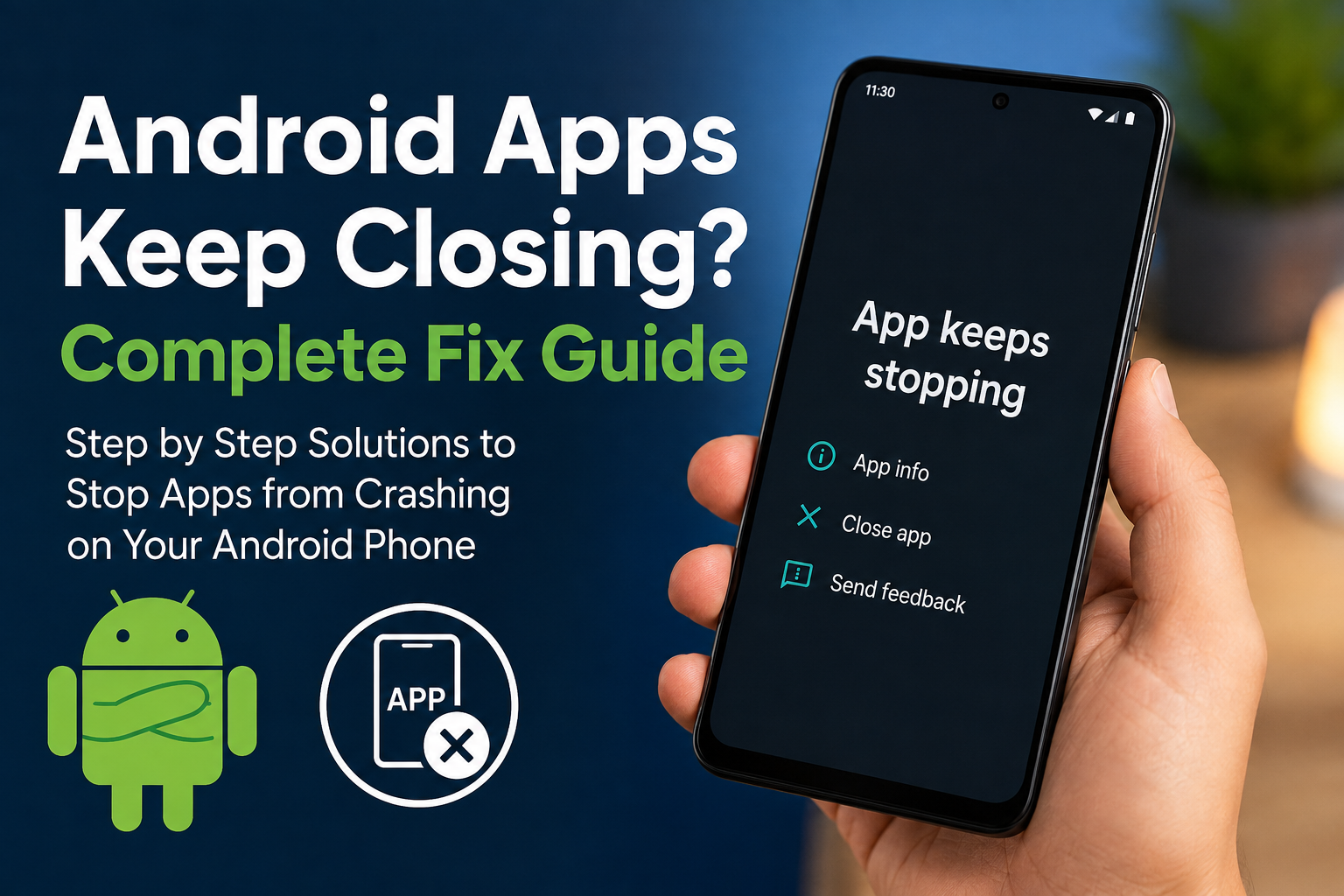
If Android apps keep closing on your phone, I know how frustrating it can be. You open an app to check something important, and suddenly it disappears. Sometimes you may see a message saying that the app keeps stopping, while in other cases the app simply closes without any warning.
I have faced this kind of problem myself, and in many cases it does not mean that your Android phone has a serious hardware problem. App crashes are often caused by temporary software issues, outdated apps, corrupted cache, limited storage, problematic updates, or compatibility problems.
In this guide, I will explain the most practical ways to fix Android apps that keep closing. I recommend starting with the simple solutions first and then moving toward the more advanced methods if the problem continues.
Why Do Android Apps Keep Closing?
Before fixing the problem, it helps to understand why apps crash. Android apps depend on several system components to work properly. If one of these components has an issue, an app may stop responding or close unexpectedly.
Common reasons include an outdated application, corrupted cache, low storage space, an outdated Android version, too many background processes, a temporary system glitch, or a faulty app update.
Sometimes only one app keeps closing. If that happens, the problem is usually related to that particular application. If several Android apps keep crashing, the issue may be connected to the Android system or another shared component.
Restart Your Android Phone
The first solution I always recommend is a simple restart. It sounds basic, but it can solve many temporary Android problems.
When you restart your phone, background processes are closed and the operating system gets a fresh start. Temporary software glitches can also disappear after restarting.
Press and hold the power button and select the restart option if it is available. After the phone turns back on, open the problematic app and check whether it works normally.
If the app still closes, move on to the next solution.
Check Your Internet Connection
Some apps depend heavily on an internet connection. If your WiFi or mobile data connection is unstable, the app may fail to load certain information and could crash.
Try switching between WiFi and mobile data. You can also turn Airplane Mode on for a few seconds and then turn it off.
If other online apps are also having problems, the issue may be your internet connection rather than the application itself.
Update the App
An outdated app can become unstable, especially after your Android phone receives a major system update.
Open the Google Play Store and search for the app that keeps closing. If an update is available, install it.
I recommend keeping important apps updated because developers regularly release updates that fix bugs, improve compatibility, and increase stability.
If several apps are crashing, check the Play Store for updates for all installed applications.
Update Android System Components
Sometimes the problem is not with the app itself. Android relies on important system components to run applications correctly.
Make sure your Android system is updated. You can usually check for updates through Settings and then Software Update or System Update. The exact menu can be different depending on your phone manufacturer.
Also check for updates to Google Play system components when your phone provides that option.
Keeping Android and its supporting components updated can prevent compatibility problems between newer apps and older system software.
Clear the App Cache
One of the most useful solutions when an Android app keeps closing is clearing its cache.
Cached files are temporary files created by apps to make them load faster. Sometimes these files become corrupted, and that can cause crashes.
To clear the cache, open Settings and go to Apps. Select the problematic application and open Storage or Storage and cache. Tap Clear Cache.
The exact names can vary depending on your Android phone.
After clearing the cache, open the app again. You may notice that the first launch takes slightly longer because the app needs to create fresh temporary files.
Clear App Data
If clearing the cache does not solve the problem, you can consider clearing the app data.
This is a stronger step because it resets the application. Depending on the app, it may remove saved settings, downloaded information, or log you out of your account.
Before using this option, make sure you know your login details and that important information is synchronized with your account.
Go to Settings, then Apps, select the problematic app, open Storage, and choose Clear Data or Clear Storage.
Afterward, launch the app and sign in again if necessary.
Free Up Storage Space
Low storage can cause unexpected problems on Android phones. When your phone is almost full, apps may not have enough space to create temporary files or perform normal operations.
Open your phone’s storage settings and check how much free space remains.
Remove unnecessary videos, duplicate photos, old downloads, unused applications, and other files you no longer need.
I personally recommend keeping some free storage available instead of allowing your phone to become completely full. A little breathing room can help the phone operate more smoothly.
Force Stop the Problematic App
If an app becomes stuck in the background, force stopping it can give the application a clean start.
Open Settings, go to Apps, select the app, and tap Force Stop. Confirm the action if your phone asks.
Then open the application again.
This method is especially useful when an app crashes repeatedly after you switch between different applications.
Uninstall and Reinstall the App
If one particular app continues to close after trying the previous methods, reinstalling it can be effective.
First, make sure your important information is synchronized or backed up. Then uninstall the application from your phone.
Restart your phone if necessary and install the latest version from the Google Play Store.
A fresh installation can replace damaged application files and remove configuration problems that may have developed over time.
I prefer downloading apps from trusted official sources because unofficial application files can create security and stability problems.
Check for Problematic Apps
Sometimes a recently installed application can interfere with other apps. This can happen because of compatibility issues, aggressive background activity, or other software conflicts.
Think about whether the Android app crashes started after installing a new application.
If the timing matches, temporarily uninstall the recently installed app and check whether the crashing stops.
This is particularly worth trying if multiple apps started closing at around the same time.
Check Android System WebView and Related Components
Some Android applications depend on system components that help display web based content inside apps.
If several applications suddenly start crashing, checking for updates to Android System WebView and related Google components can be useful.
Open the Google Play Store and search for available updates. Install any pending updates and restart your phone afterward.
This solution is especially worth trying when multiple unrelated apps are experiencing similar problems.
Turn Off Battery Restrictions Temporarily
Android battery optimization can sometimes affect applications that need to run in the background.
If an app closes when you leave it for a short period, check its battery settings.
Open Settings, go to Apps, select the application, and look for Battery settings. Depending on your phone, you may see options related to battery optimization or background usage.
For important apps, you can test whether changing their battery settings makes a difference.
I would not recommend disabling battery optimization for every application because it can increase battery usage.
Check Your Phone’s Temperature
Excessive heat can also affect phone performance. When a smartphone becomes very hot, the system may reduce performance to protect the hardware.
If apps keep closing while you are playing games, recording video, using navigation, or performing other demanding tasks, allow the phone to cool down.
Remove the phone case temporarily if it is trapping heat and avoid using the phone heavily while it is charging.
Once the phone returns to a normal temperature, test the application again.
Try Safe Mode
If you suspect that another installed application is causing the crashes, Safe Mode can help identify the problem.
Safe Mode starts Android with a limited set of applications and services. The exact method for entering Safe Mode depends on your phone manufacturer.
If the problematic app works normally in Safe Mode, a third party application may be interfering with it.
You can then restart the phone normally and remove recently installed or suspicious applications one by one.
Reset App Preferences
Android also provides an option to reset app preferences. This can restore certain application settings without deleting your personal files.
Depending on your Android version, you may find this option under Settings, Apps, and the app management menu.
Resetting app preferences can restore disabled apps, default applications, permission settings, and other related preferences.
The exact options vary between Android phones, so read the confirmation screen carefully before proceeding.
Check App Permissions
Some applications need specific permissions to work correctly. For example, a camera application may need camera access, while a messaging application may require contacts or notification access for certain features.
Open Settings, go to Apps, select the application, and review its permissions.
If an important permission was accidentally denied, restoring it may solve the problem.
Only grant permissions that make sense for the application and its features.
Factory Reset Should Be the Last Option
If Android apps keep closing across your entire phone and none of the previous solutions work, a factory reset may be worth considering.
However, I would never recommend doing this as the first solution.
A factory reset removes personal data, installed applications, settings, and other information from the device. Before doing it, create a complete backup of your photos, contacts, documents, messages, and other important information.
After the reset, set up the phone and test the applications before installing everything again. If the crashes disappear, you can gradually reinstall your applications and identify whether a particular app is responsible.
When You Should Consider Professional Help
If apps continue crashing even after a factory reset, the problem may be deeper than a normal application issue.
Persistent crashes could be related to damaged system software, storage problems, memory issues, or other hardware related faults.
At that point, contacting the phone manufacturer’s official support service or a qualified repair professional is a better option than repeatedly changing random settings.
Final Thoughts
Android apps keep closing for many different reasons, but the problem is often easier to fix than it first appears. I recommend starting with a phone restart, checking app and system updates, clearing the cache, freeing storage, and reinstalling the problematic application.
If several apps are crashing, pay more attention to Android system updates, Google system components, available storage, recently installed applications, and possible software conflicts.
You do not need to perform every solution immediately. Start with the simplest steps and test the app after each change. This makes it easier to understand what actually fixed the problem.
In my experience, keeping Android updated, maintaining enough free storage, installing applications from trusted sources, and regularly removing apps that you no longer use can prevent many common app crashing problems.
With the right troubleshooting steps, you can usually get your Android apps running normally again without replacing your phone.