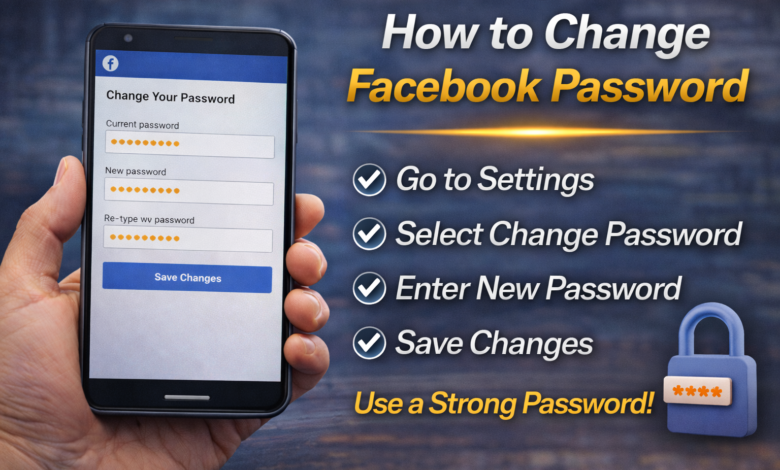
Aaj ke time mein Facebook sirf social media platform nahi, balki personal aur business communication ka important hissa ban chuka hai. Isi liye account ki security bohat zaroori hai. Agar aapko lagta hai ke kisi ko aapka password pata chal gaya hai, ya aap sirf security improve karna chahte hain, to Facebook password change karna best step hai.
Is guide mein main aapko simple aur clear steps mein batata hoon ke Facebook password kaise change karte hain — chahe aap mobile use kar rahe hon ya computer.
📱 Mobile Par Facebook Password Change Karne Ka Tarika
Agar aap Android ya iPhone par Facebook app use karte hain, to ye steps follow karein:
Step 1: Facebook App Open Karein
Apne phone mein Facebook app open karein aur login ho jayein.
Step 2: Menu Open Karein
Screen ke top ya bottom right corner mein 3 lines (≡) par tap karein.
Step 3: Settings & Privacy Par Jayein
Scroll karein aur Settings & Privacy par tap karein.
Phir Settings select karein.
Step 4: Password & Security
Settings mein ja kar Password and Security option select karein.
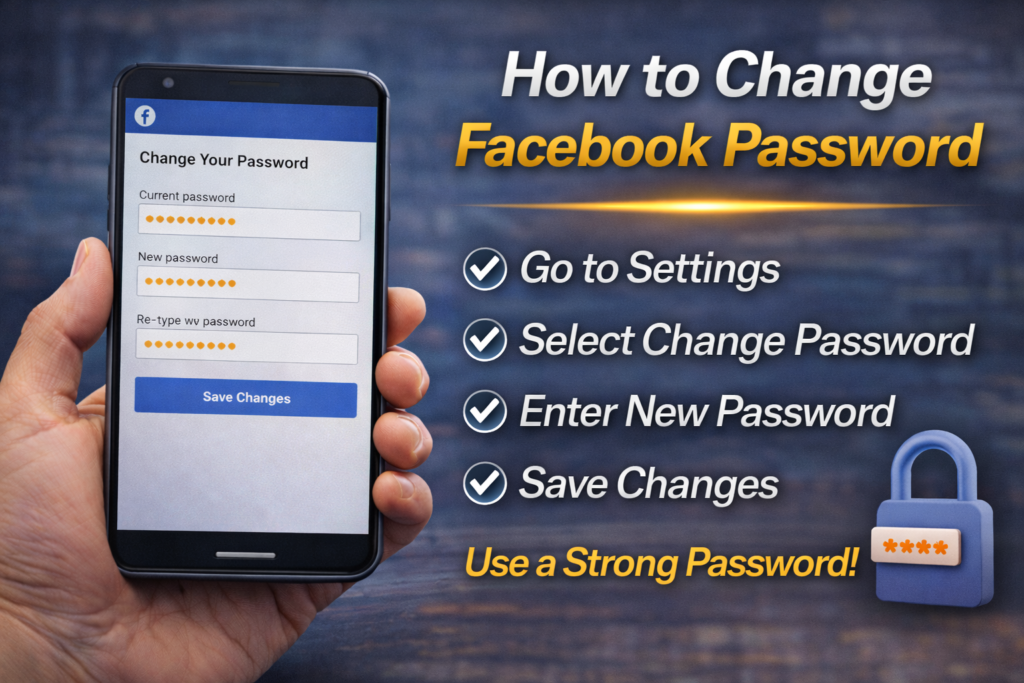
Step 5: Change Password
Yahan aapko Change Password ka option milega. Us par tap karein.
Step 6: Current Password Enter Karein
- Apna current password likhein
- Phir naya strong password enter karein
- Confirm karein
Step 7: Save Changes
Save button par tap karein.
Bas! Aapka Facebook password successfully change ho jayega.
💻 Computer / Laptop Par Password Change Karne Ka Tarika
Agar aap PC ya laptop use kar rahe hain, to ye steps follow karein:
Step 1: Facebook Website Open Karein
Browser mein facebook.com open karein aur login karein.
Step 2: Profile Icon Par Click Karein
Top right corner mein apni profile picture par click karein.
Step 3: Settings & Privacy
Dropdown menu mein Settings & Privacy select karein.
Phir Settings par click karein.
Step 4: Security and Login
Left side menu mein Security and Login option select karein.
Step 5: Change Password
Yahan “Change Password” option milega. Edit par click karein.
Step 6: Password Update Karein
- Current password likhein
- Naya password enter karein
- Confirm karein
- Save changes karein
Password successfully change ho jayega.
🔒 Strong Password Kaisa Hona Chahiye?
Security ke liye strong password bohat zaroori hai.
Strong password mein:
- Kam az kam 12 characters
- Capital letters (A-Z)
- Small letters (a-z)
- Numbers (0-9)
- Special characters (@, #, !, etc.)
Example:
❌ weak: 12345678
✅ strong: Fb@2025Secure!
Kabhi bhi apna name, date of birth ya simple number use na karein.
❓ Agar Password Bhool Gaye Hon To Kya Karein?
Agar aapko current password yaad nahi:
Step 1: Login Page Par “Forgot Password?” Click Karein
Step 2: Apna email ya phone number enter karein
Step 3: Verification code receive karein
Step 4: Naya password set karein
Is process se aap easily password reset kar sakte hain.
🔐 Extra Security Tips
Password change karne ke baad ye steps bhi zaroor follow karein:
✔ Two-Factor Authentication (2FA) enable karein
✔ Login alerts on karein
✔ Unknown devices se logout karein
✔ Suspicious apps remove karein
2FA enable karne ke liye:
Settings > Password and Security > Two-Factor Authentication
⚠ Kab Password Zaroor Change Karna Chahiye?
- Agar unknown login alert mile
- Agar account se unknown posts ho
- Agar kisi ne aapko hack karne ki warning di ho
- Agar aap public WiFi par login karein
Regular 3–6 mahine mein password change karna bhi good habit hai.
Final Words
Facebook password change karna bohat simple process hai, lekin account security ke liye bohat important hai. Aaj ke digital daur mein apni privacy aur data ko secure rakhna zaroori hai.
Strong password use karein, 2-step verification enable karein aur suspicious links se hamesha bach kar rahein.
Agar aap chahte hain to main is topic par ek AdSense-friendly featured image bhi bana doon WordPress ke liye.